
Live wallpapers are finally here for your Mac lock screen
We love customizing our Macs. Recently, we shared how to get live wallpapers on your desktop, and the response was incredible. Many of you went absolutely crazy for it. But there was one big request that kept coming up.
You wanted that same live experience on your lock screen. Until now, it was limited to just the home screen. Today, that changes. There is a major update to the guide and the tool we use. Now you can have seamless animations on your desktop and your lock screen.
We're going to walk through exactly how to set this up. It works for the pre-made wallpapers and your own custom videos. Let's get your Mac looking awesome.
The app you need
To make this magic happen, we are using an app called Wallper. It recently had a massive overhaul based on community feedback. The developer has added some incredible updates, including the lock screen support we've all been waiting for.
You can try it for free with some limitations, or grab the paid version for the full experience. It costs around ten bucks, but it's a lifetime license with unlimited updates.
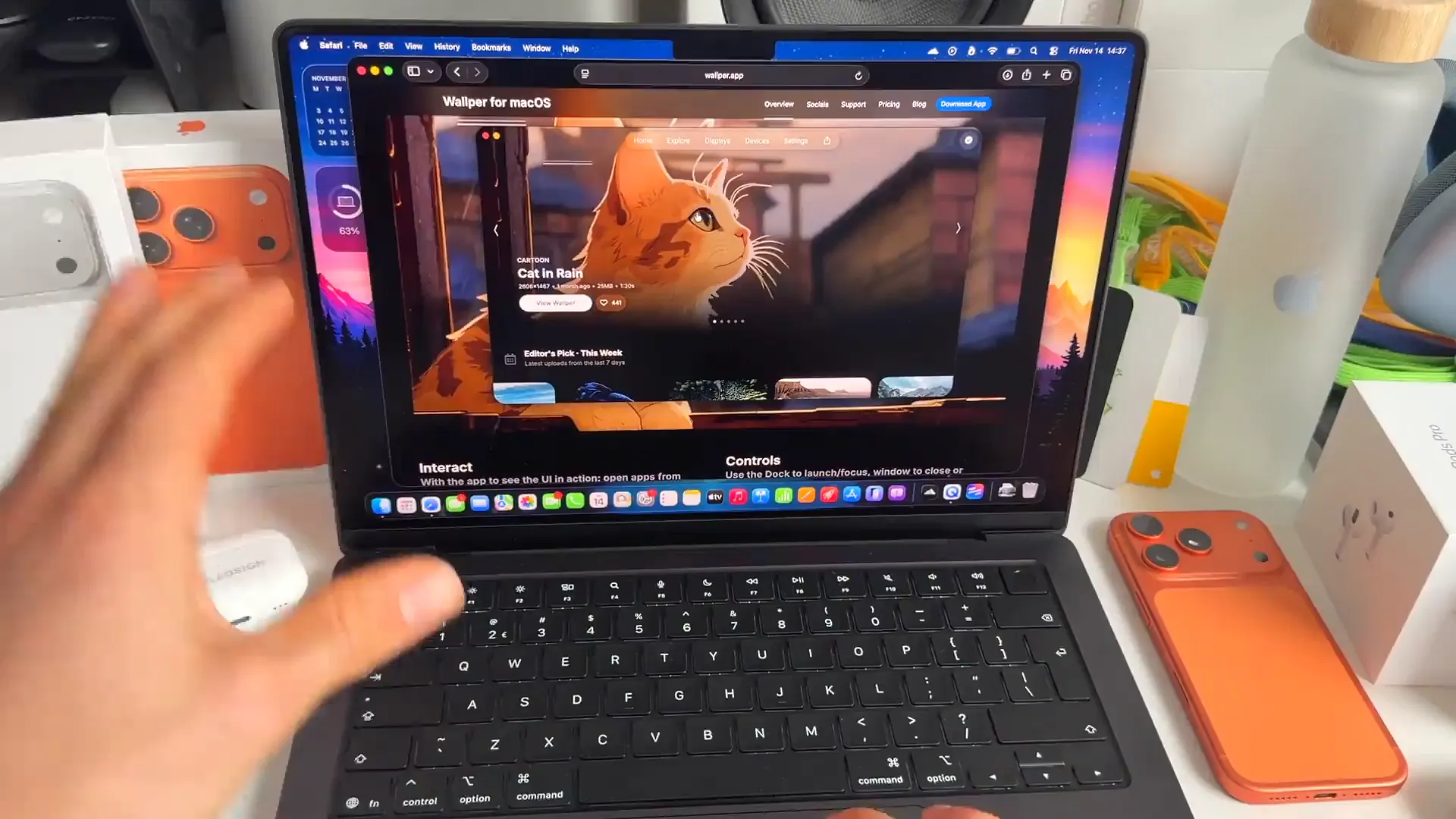
Pro tip: If you decide to buy it, use the code AD20 at checkout. It knocks 20% off the price immediately. The developer is super active, so you'll get plenty of value out of it.
Setting the scene
Before we tackle the lock screen, let's pick a wallpaper. The app has a great community uploading new stuff all the time. You can check the Editor's Picks for high-quality options that look great on HDR displays.
Finding a wallpaper
- Open Wallper and browse the library. The Explore tab is a great place to start
- Filter by Most Liked or Newest to see what's popular
- Select a video you like. In the video, we're using a cozy storefront scene that's very popular right now
- Click Set as Wallpaper. It might take a moment to download since these files can be large
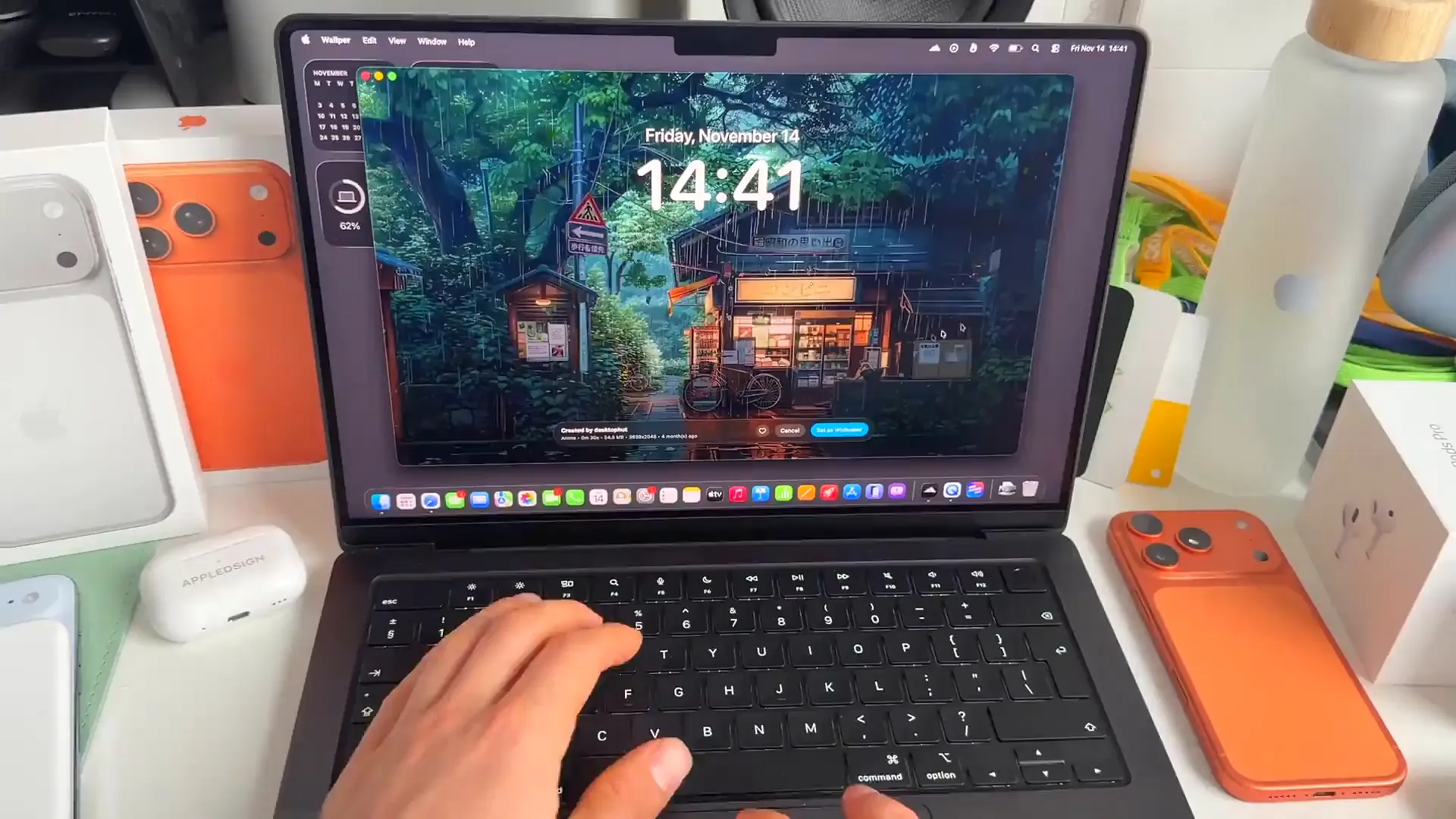
Once loaded, your desktop is alive. But if you lock your screen now, it's still a static image. Let's fix that.
Enabling the lock screen
This is the new feature everyone is excited about. It requires a specific setting change inside the app and your system settings to work correctly.
How to set it up
- In the Wallper app, click on the Settings tab at the top
- Look for the toggle that says Screen Saver or "Enable this feature". Turn it on
- Now, open your Mac's System Settings and go to the Wallpaper section
- Scroll down until you see the new extension section. Select the Wallper option
- Confirm that it is set as your screen saver on the lock screen
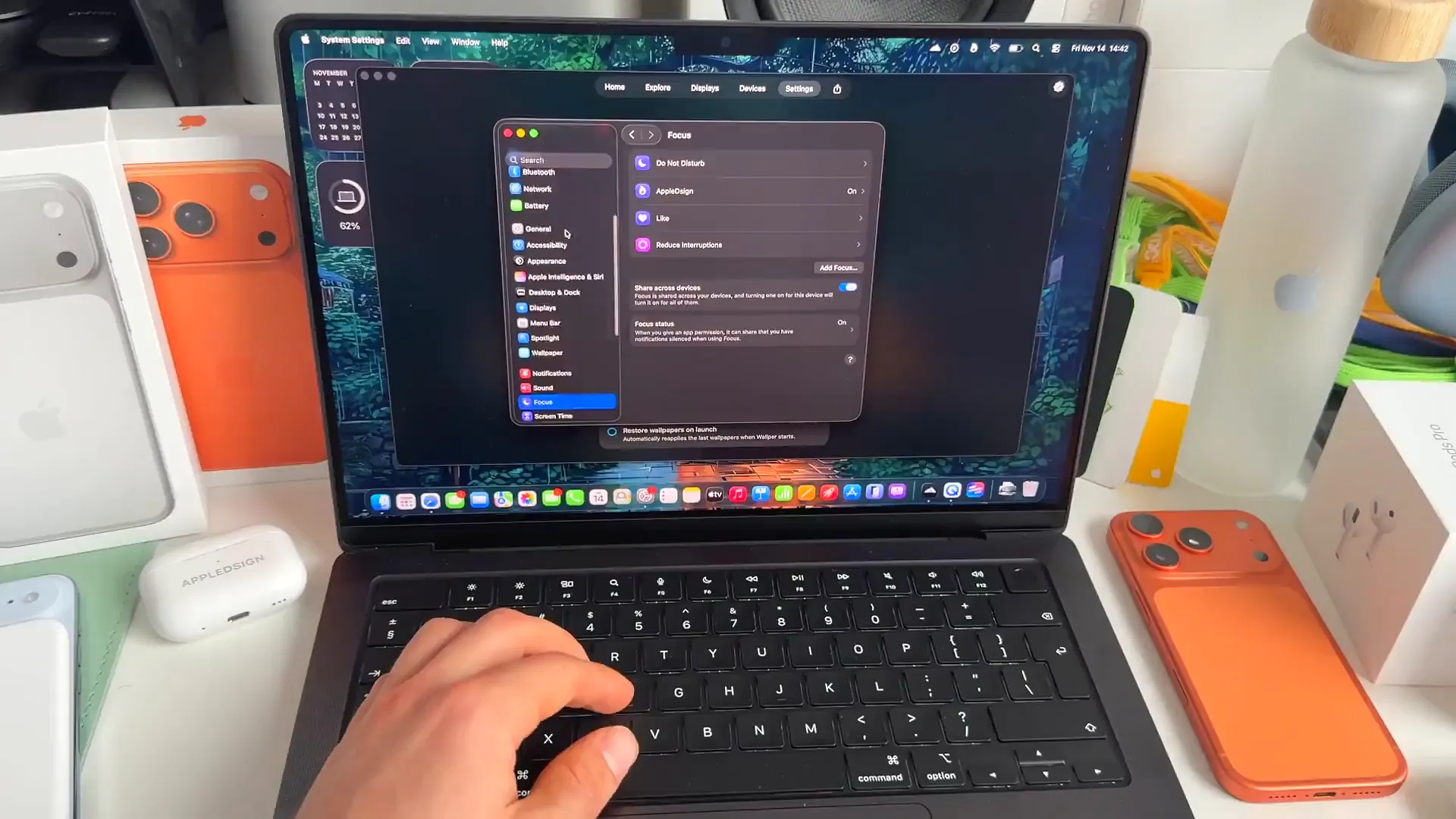
Now, when your computer locks, you'll see the same live animation running smoothly. It creates a seamless transition from your work to your lock screen.
Use your own videos
You aren't limited to the library in the app. If you have a cool video clip or a recording you made yourself, you can use that too. This is how you really make your setup unique.
Uploading custom wallpapers
- Go back to the Explore tab in Wallper
- Click on Personal Library or My Media
- Select the option to upload a private video
- Choose your file. It's important to note that it needs to be an MP4 file to work
- Once uploaded, click Set as Wallpaper just like before
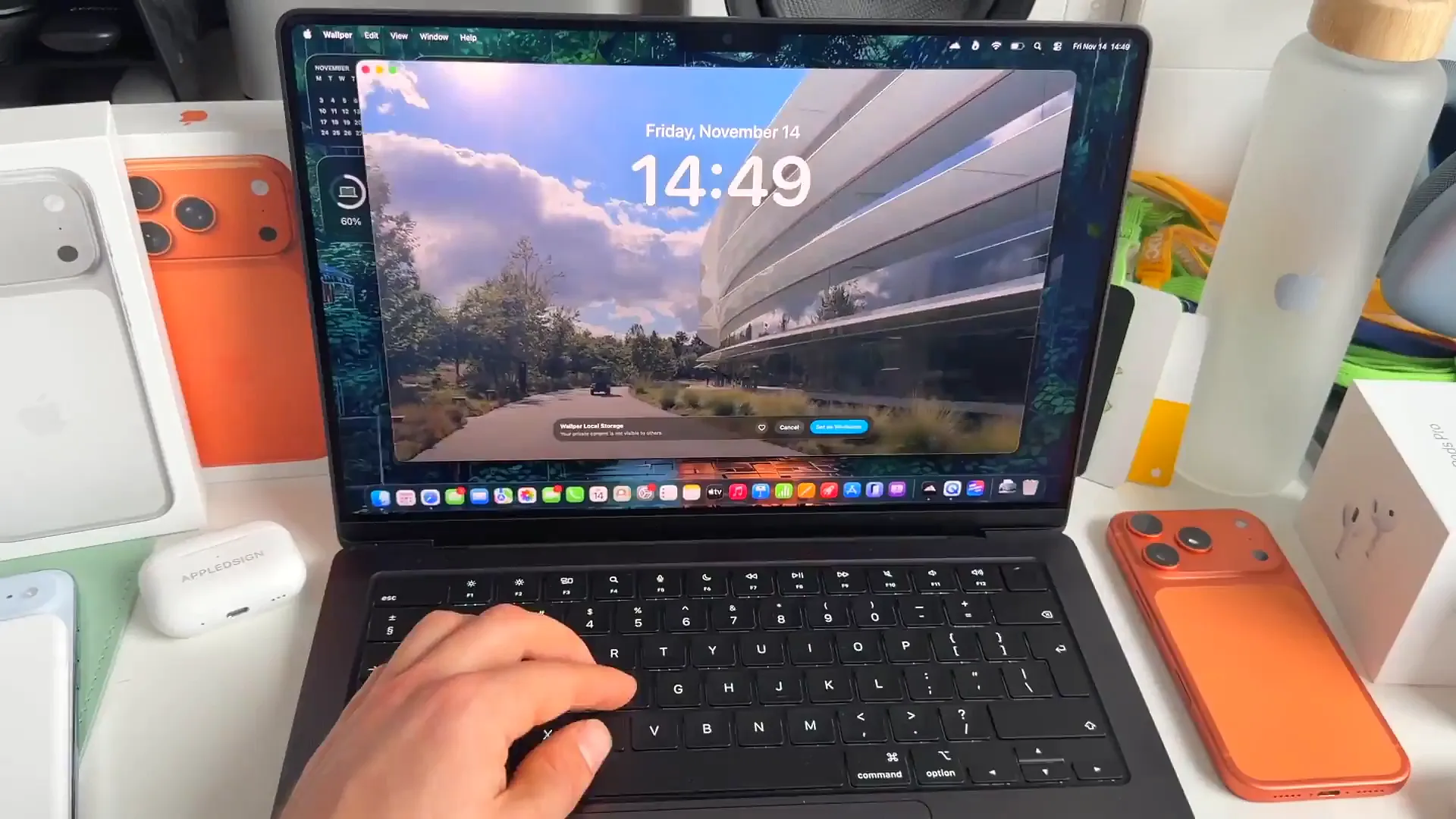
Pro tip: High-resolution videos look best, but keep an eye on file size if you are on an older Mac. A clean 4K loop is usually the sweet spot.
Your Mac, your style
That's how you do it. You now have live wallpapers running on both your home screen and your lock screen. It brings a whole new level of customization to macOS.
Give it a shot with the free trial or jump in with the discount code. It's a small change that makes opening your laptop way more fun.
Last updated: Oct 14, 2026