
MacBook x Pokémon Customization - Make it yours!
If you are a Pokémon fan, your default Mac desktop is about to get a massive upgrade. We are going to build a custom Pokémon-themed desktop environment complete with a lush forest wallpaper and custom starter Pokémon folder icons. It looks absolutely amazing, and you can set it up in just a few minutes. Let's dive in.
What you'll need
Before we start building our desktop ecosystem, you only need to grab a few things:
- A web browser to find your wallpaper.
- Four images of your favorite Pokémon. The most important detail here is that these images must have a transparent background. A solid white background will ruin the illusion.
Step 1: Find and set your forest wallpaper
First, we need the perfect backdrop for our new desktop.
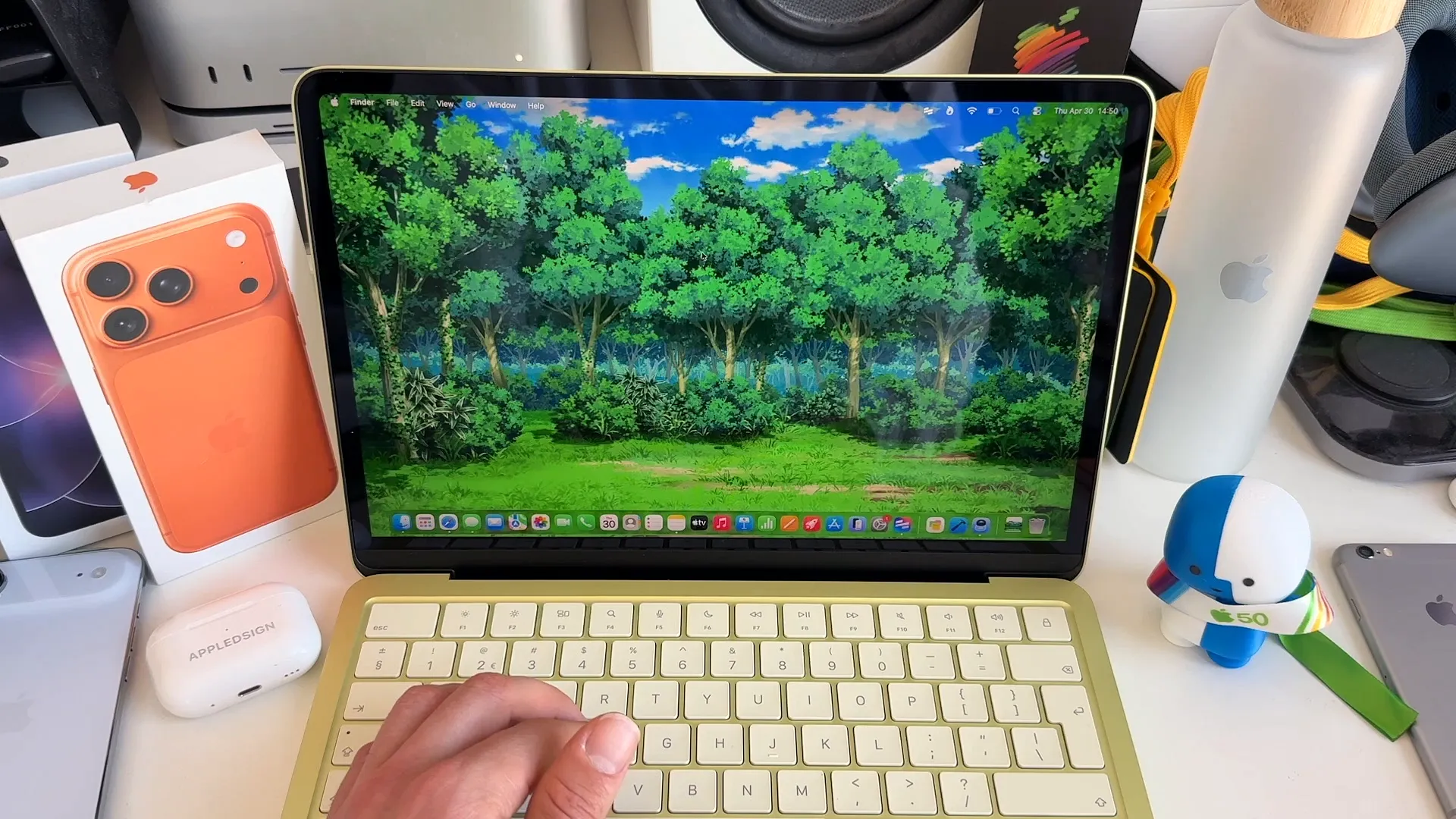
- Open Safari or your browser of choice and go to Google Images.
- Search for pokemon forest wallpaper.
- Click on Tools below the search bar, then click Size and select Large. This guarantees a high-quality image that won't look pixelated on a sharp MacBook display.
- Find an image you like, right-click it, and select Save Image to "Downloads".
- Open your Downloads folder, right-click the saved image, and click Set Desktop Picture.
Step 2: Create your custom locations
Next, we will create four folders to act as habitats for our Pokémon. You can name these whatever you like, but we will use themes for Pikachu, Squirtle, Bulbasaur, and Charmander.
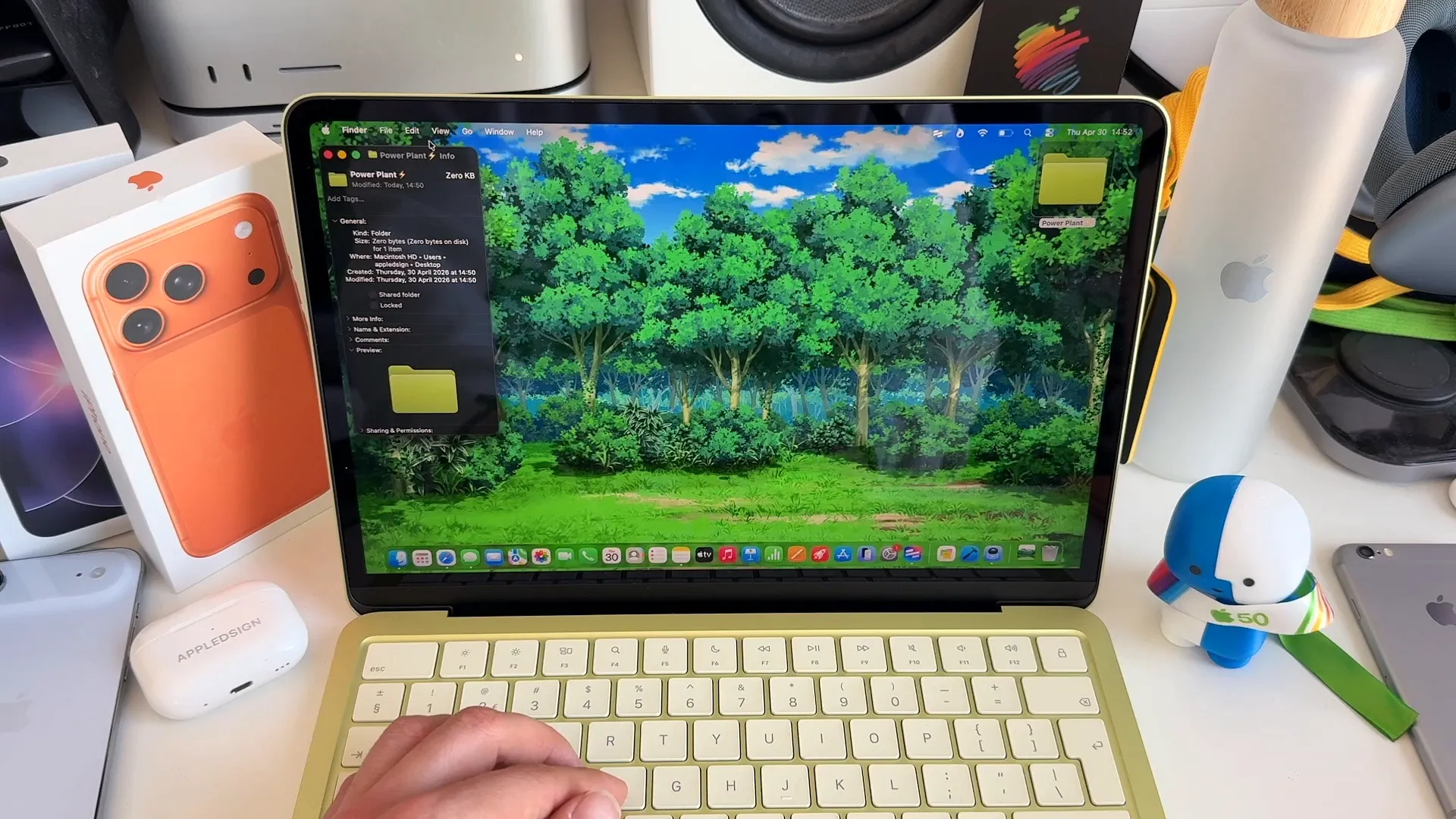
- Right-click your desktop and select New Folder, or use the keyboard shortcut Command + Shift + N.
- Name your first folder Power Plant.
- Add a fun emoji to the name. Press Control + Command + Spacebar to bring up the emoji picker and select the electricity emoji.
Step 3: Swap the folder icons for Pokémon
This is where the magic happens. We will replace the standard blue Mac folder icon with our transparent Pokémon images. Let's start with our Pikachu folder.
- Click your new Power Plant folder to select it.
- Press Command + I to open the Info window, or right-click the folder and select Get Info.
- Look at the very top left of the Info window. You will see a tiny folder icon next to the folder name. Click it once so it is highlighted.
- Open your Downloads folder where your transparent Pikachu image is saved.
- Drag the Pikachu image directly onto that tiny highlighted folder icon in the Info window.
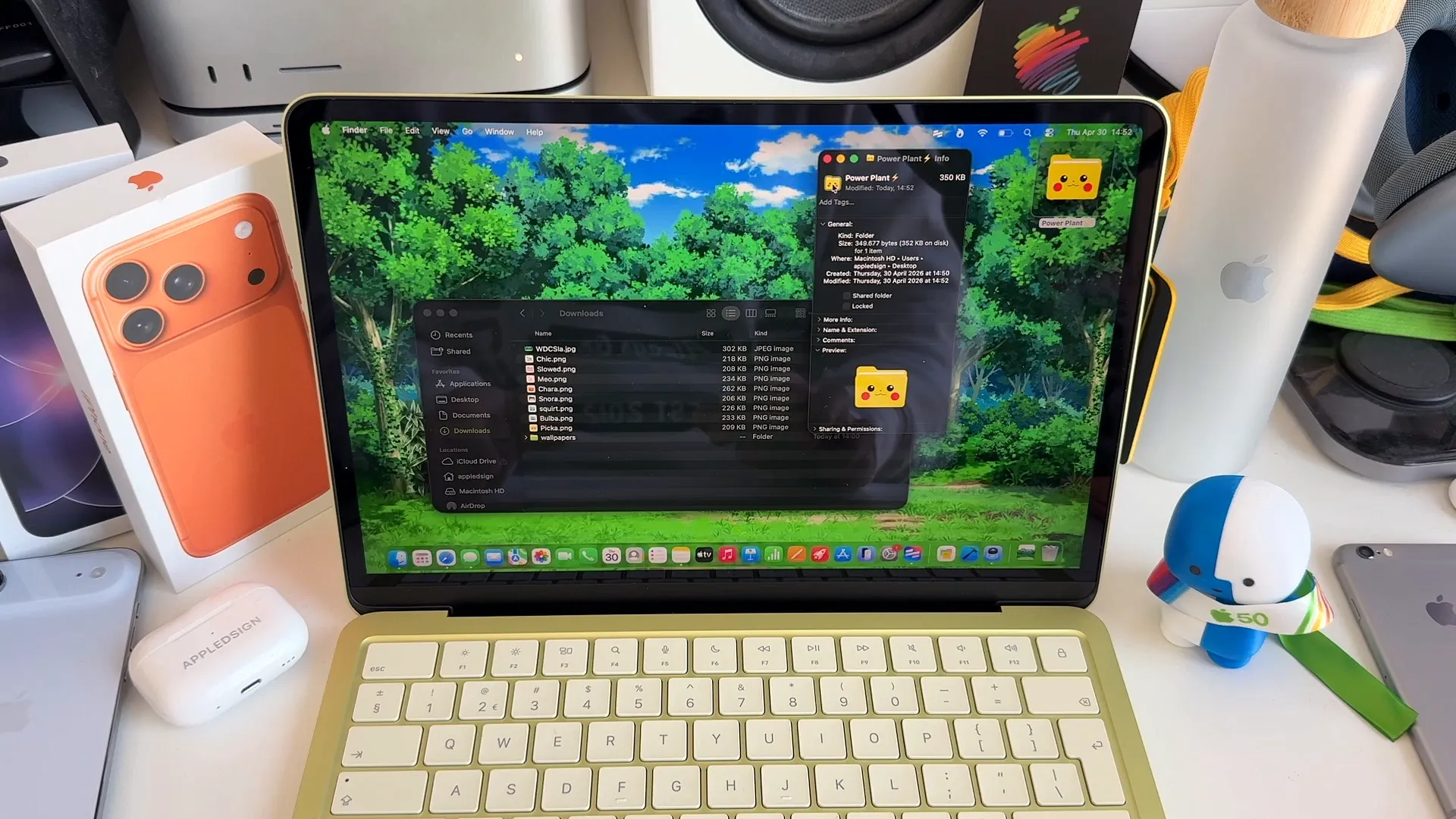
Just like that, your folder is now a Pikachu.
Step 4: Color-code your folders
To make things even more organized, we can add color tags that match each Pokémon's elemental type.
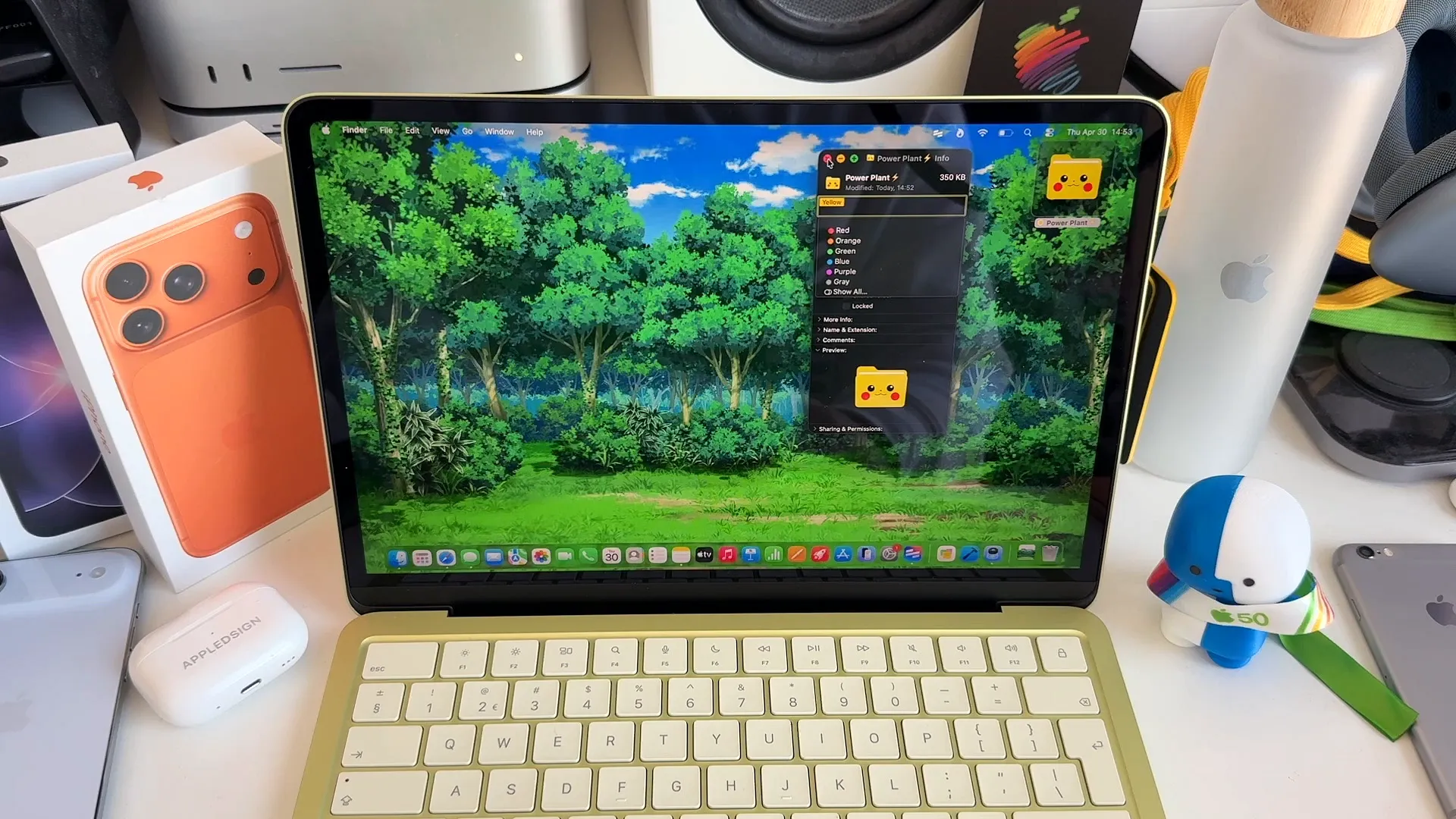
- Right-click your new Pikachu folder.
- Select the Yellow tag from the dropdown menu.
Now, simply repeat Steps 2 through 4 for your other Pokémon:
- Create a Squirtle Reservoir folder, add a water droplet emoji, drag in your transparent Squirtle, and add the Blue tag.
- Create a Greenhouse folder, add a leaf emoji, drag in your transparent Bulbasaur, and add the Green tag.
- Create a Forge folder, add a fire emoji, drag in your transparent Charmander, and add the Orange tag.
Step 5: Clean up your desktop layout
If your new Pokémon icons are scattered or look a bit too small, you can easily fix that to make the desktop look perfect.
- Right-click anywhere on your empty desktop and select Clean Up to snap your folders into neat alignment.
- Right-click the desktop again and click Show View Options.
- A small menu will pop up. Here you can adjust the Icon size and the Grid spacing. Move the sliders until your Pokémon are the perfect size and sit nicely spaced out in their new forest habitat.
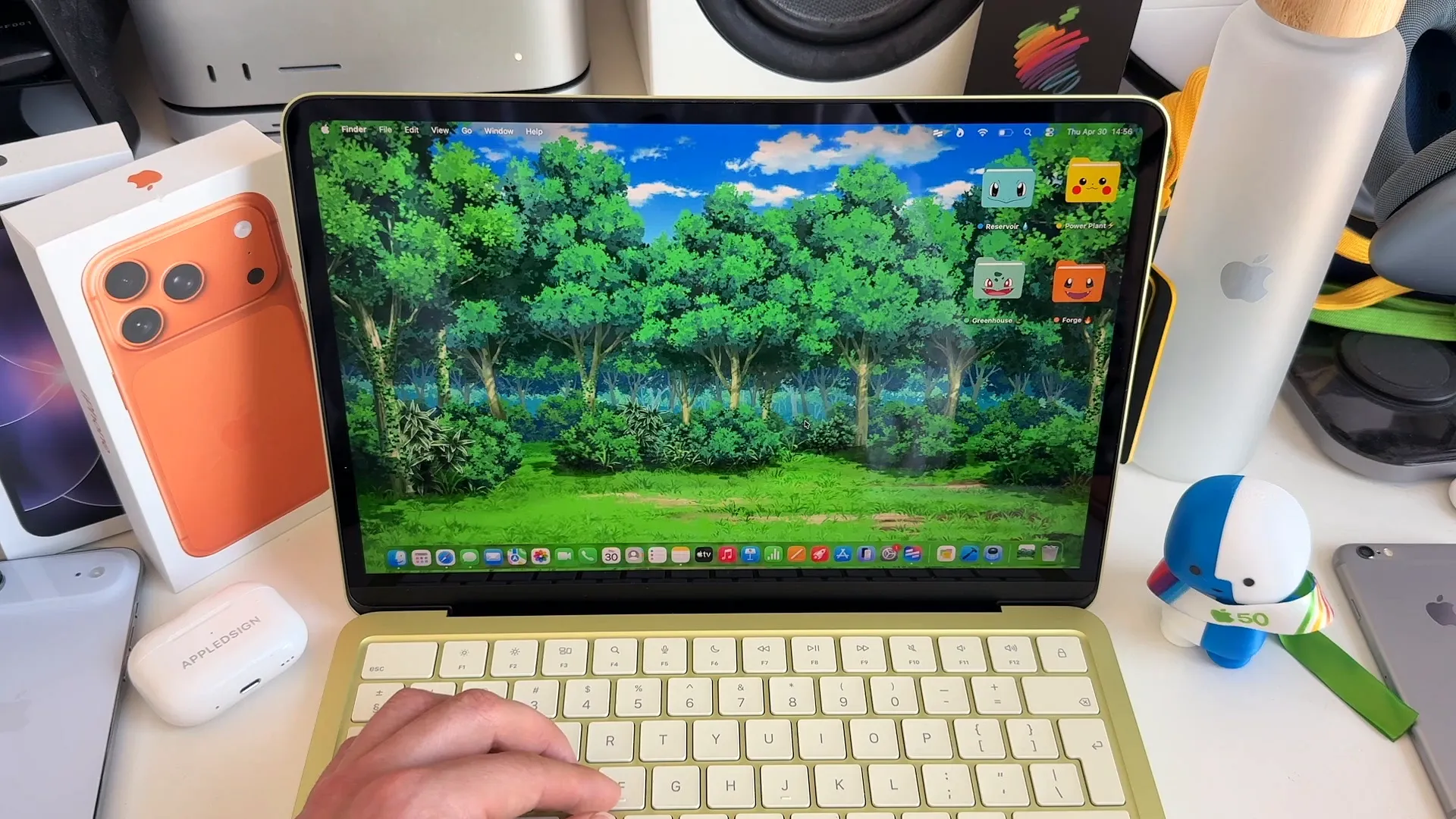
You're all set
That is all it takes to completely transform your Mac desktop. You now have a personalized, highly organized Pokémon environment that makes opening files a lot more fun. Go ahead and experiment with different biomes and Pokémon to make it truly yours. Have fun exploring!
Last updated: Oct 14, 2026