
How to secure your iPhone and what to do if it gets stolen
Losing your iPhone is a nightmare. But having it stolen—and knowing someone might have access to your digital life—is on another level. Thieves often work together to snatch phones, lock you out of your accounts, and use your apps to drain your bank balances. If your phone gets taken, you need to act fast. Here is exactly what you should do the moment it goes missing, plus the proactive security settings you need to enable right now.
What to do immediately if your iPhone gets stolen
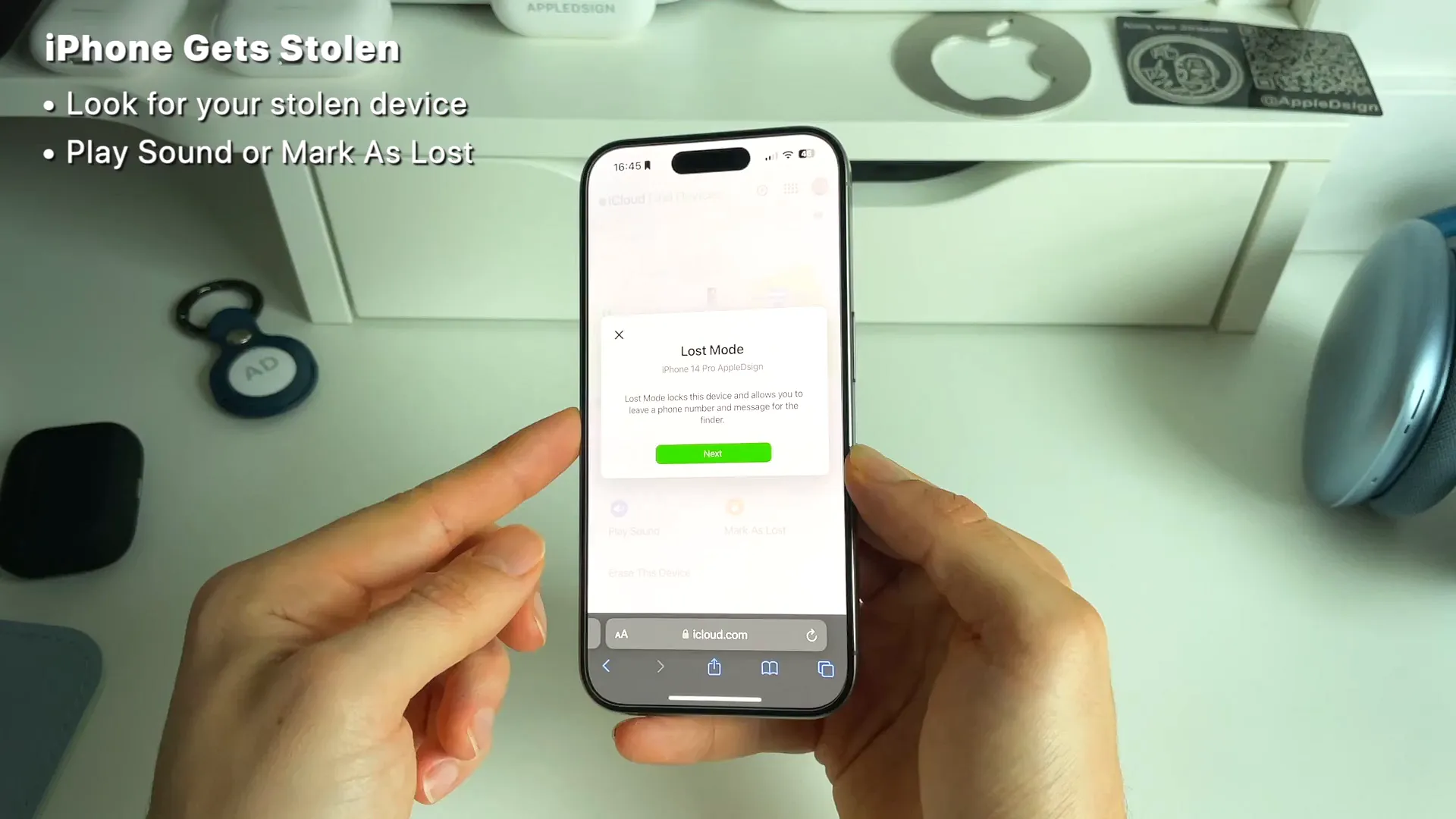
If your phone is gone, borrow a friend's phone (an iPhone or Android both work) or grab a laptop. You need to lock the device down before the thief can do any damage.
- Go to icloud.com/find.
- Log in with your Apple ID and password. (Quick tip: Memorize these right now so you aren't stranded without your password manager!)
- Select your stolen device from the list of all your Apple products.
- Tap Mark As Lost. This locks the phone and lets you display a custom message and a backup contact number on the screen.
- If you are worried about sensitive data and want to be absolutely safe, choose Erase This Device. This wipes the phone completely but leaves an Activation Lock in place, meaning no one else can use it.
Step 1: Block access from the lock screen
By default, anyone can swipe down on your locked iPhone and put it in airplane mode via the Control Center, cutting off your ability to track it. Let's shut that down.
- Open Settings and tap Face ID & Passcode.
- Enter your passcode and scroll down to the Allow Access When Locked section.
- Toggle off Control Centre, Wallet, and Accessories.
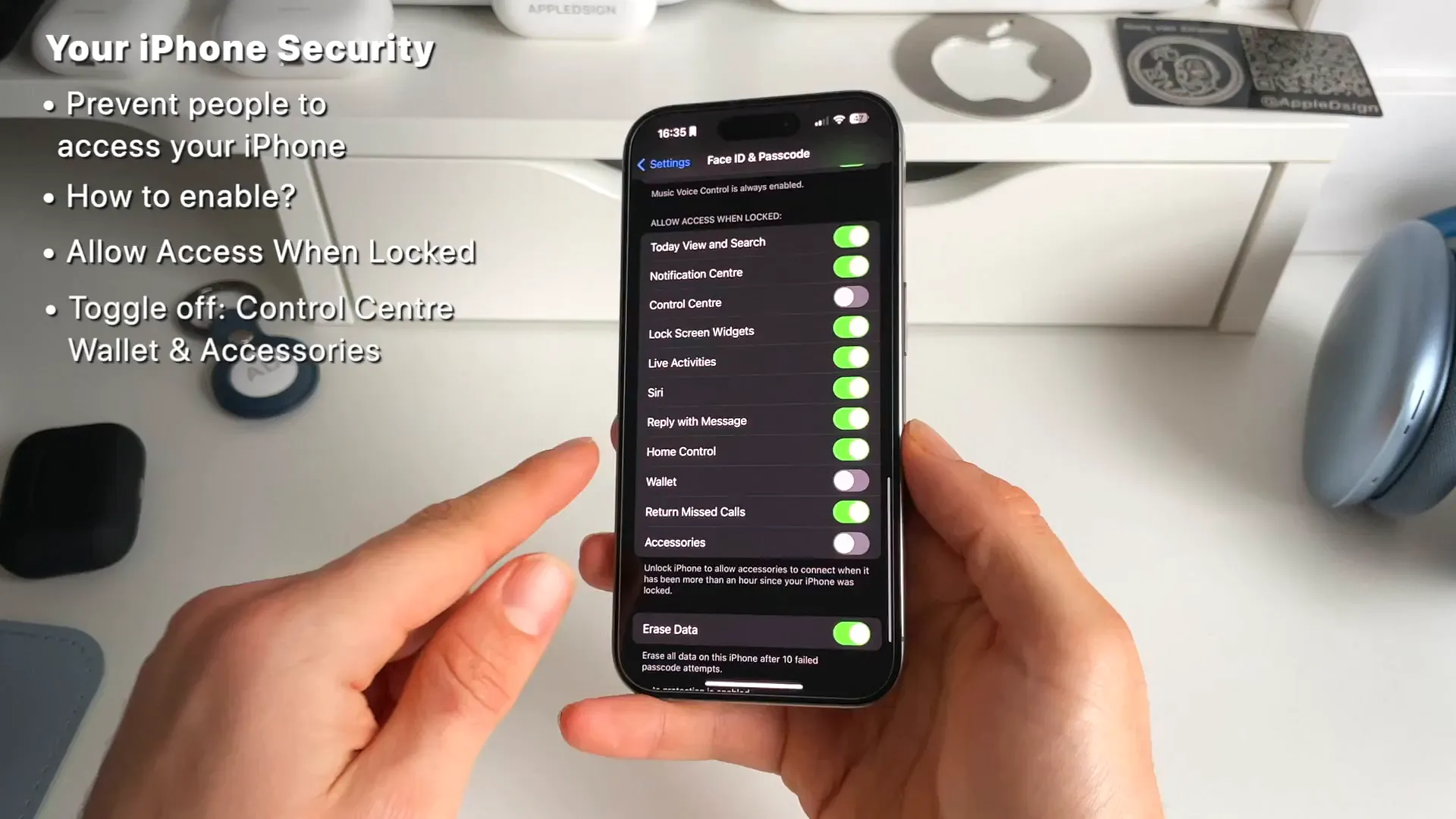
Now, nobody can mess with your connectivity, connect unauthorized USB accessories, or use Apple Pay without your face or your passcode.
Step 2: Auto-erase your data after 10 failed attempts
If a thief tries to brute-force your passcode, your phone can defend itself by wiping all data.
- Stay in the Face ID & Passcode menu and scroll to the very bottom.
- Toggle on Erase Data.
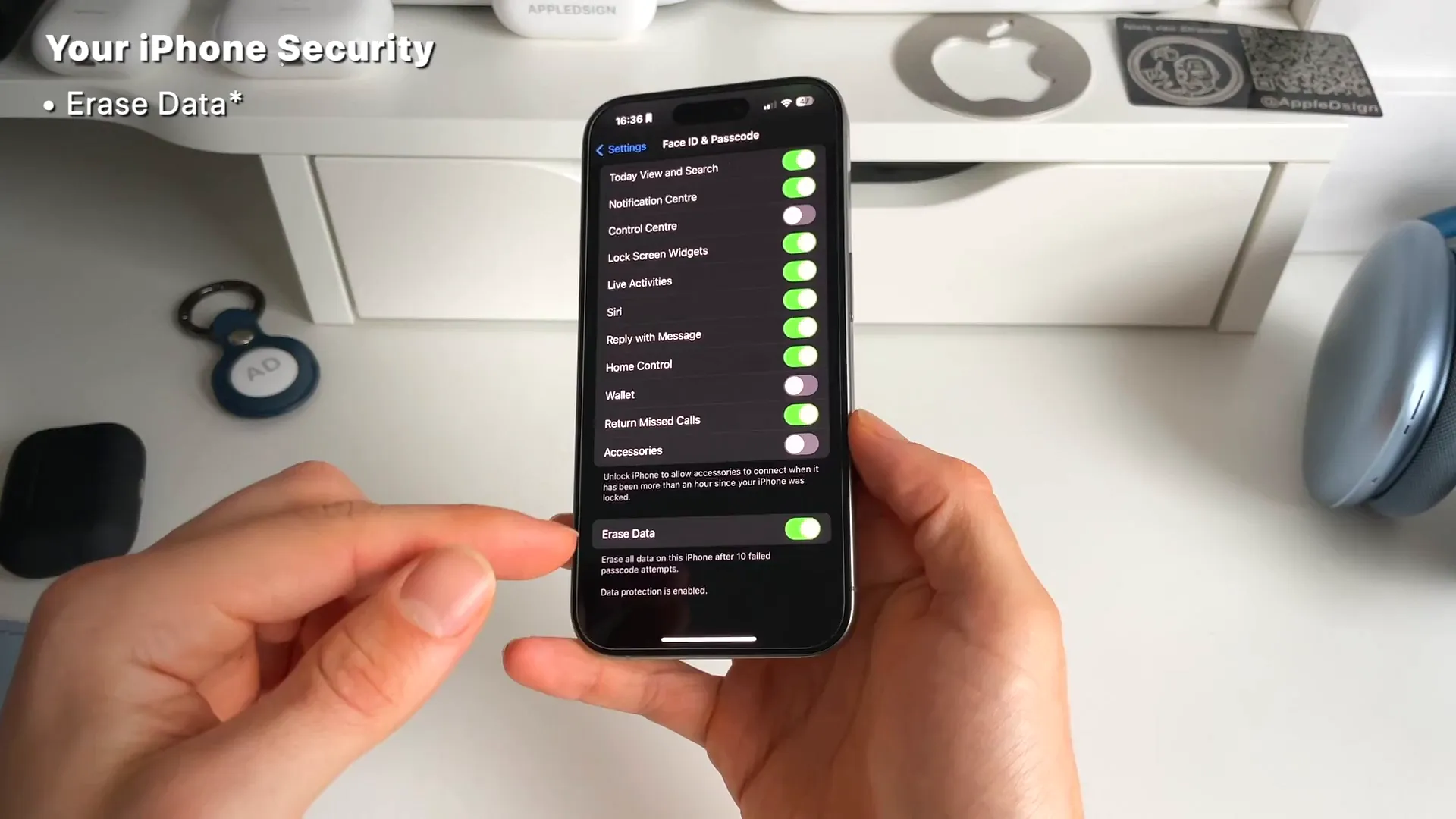
Don't worry too much about a toddler or a friend accidentally wiping your phone in five minutes. iOS enforces a strict time delay after a few wrong guesses. It will lock the screen for one minute, then five minutes, and so on. Just make sure you are regularly backing up your phone to iCloud or your Mac so you don't lose your photos if this happens.
Step 3: Make your phone trackable even when it's dead
You want to be able to find your phone even if a thief turns it off or the battery naturally dies.
- Open Settings and tap your name at the top to open your Apple ID menu.
- Tap Find My, then select Find My iPhone.
- Make sure Find My iPhone, Find My network, and Send Last Location are all toggled on.
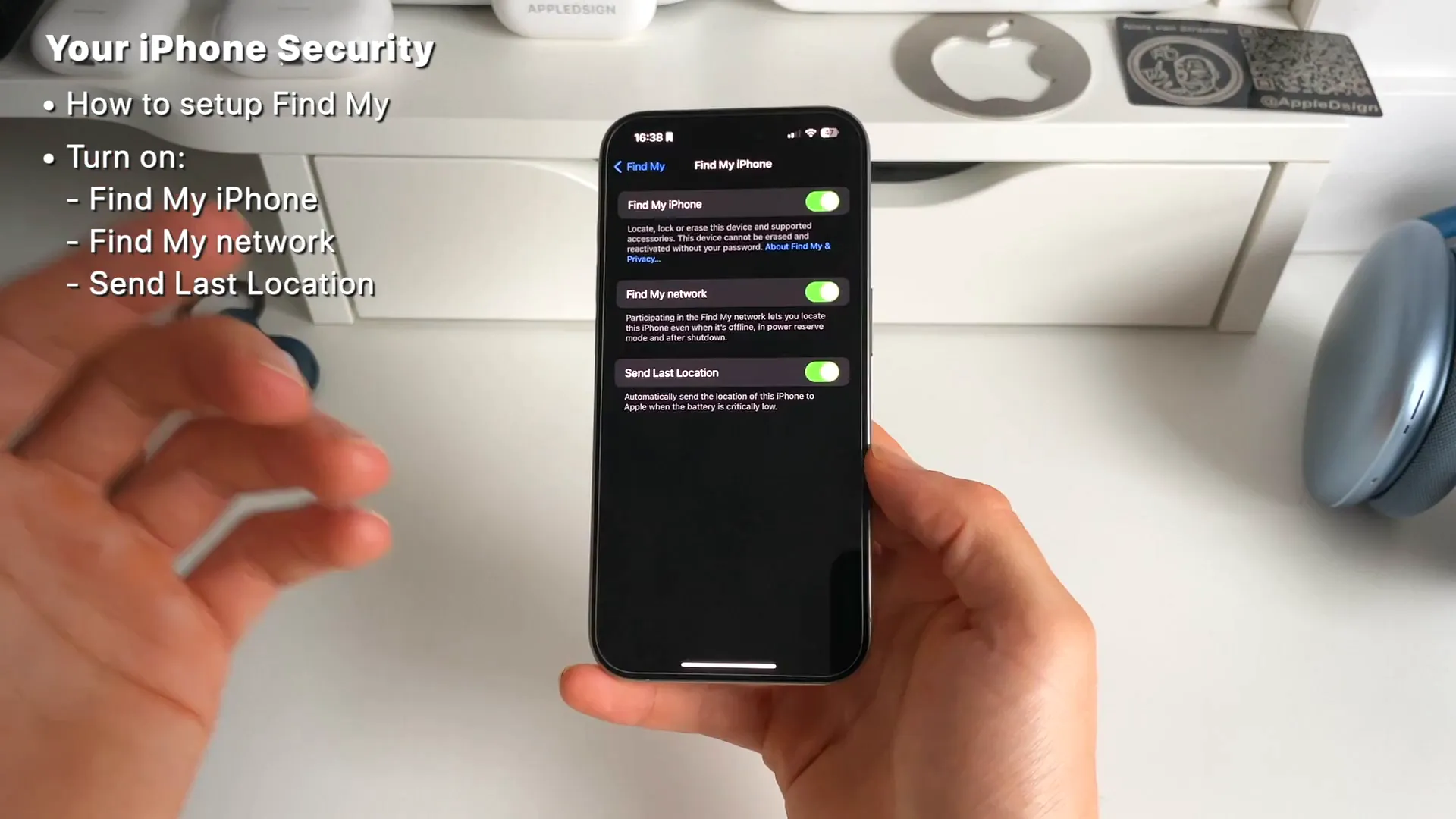
With Find My network enabled, your iPhone remains trackable even after it gets powered down. Apple uses passing Apple devices to silently ping your phone's location.
Step 4: Turn on precise location tracking
When you are trying to track down a stolen device, a broad, approximate circle on a map isn't helpful enough. You want the exact coordinates.
- Go to Settings, then Privacy & Security.
- Tap Location Services, scroll down your app list, and select Find My.
- Toggle on Precise Location.
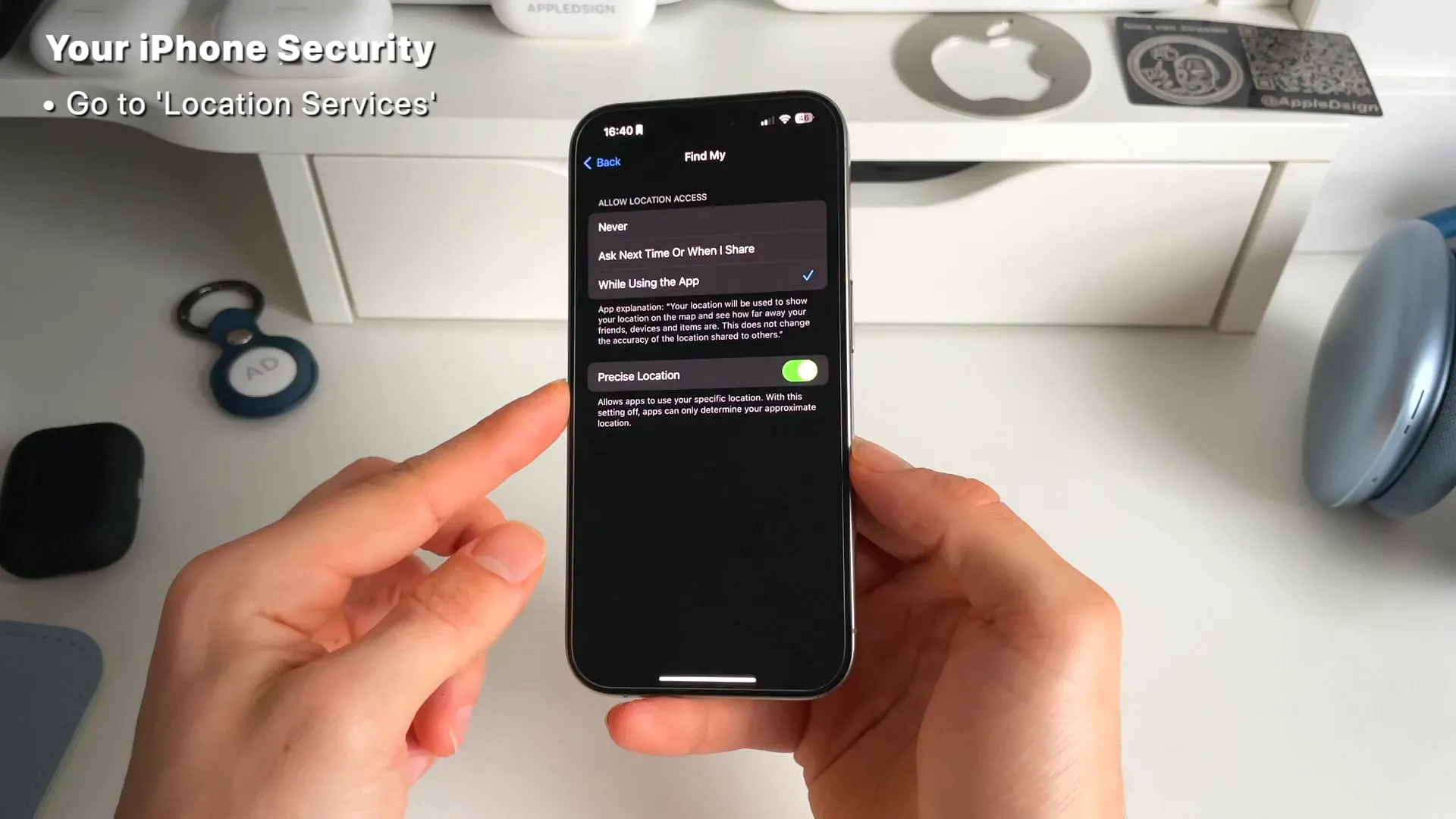
This ensures Apple uses your exact GPS data to pinpoint the phone rather than a rough, generalized area.
Step 5: Enable Stolen Device Protection
If you are running iOS 17.3 or later, this is arguably the most important feature you can turn on. It stops thieves who might have shoulder-surfed your passcode from taking over your entire Apple ID.
- Head back to Settings > Face ID & Passcode.
- Find Stolen Device Protection and turn it on.
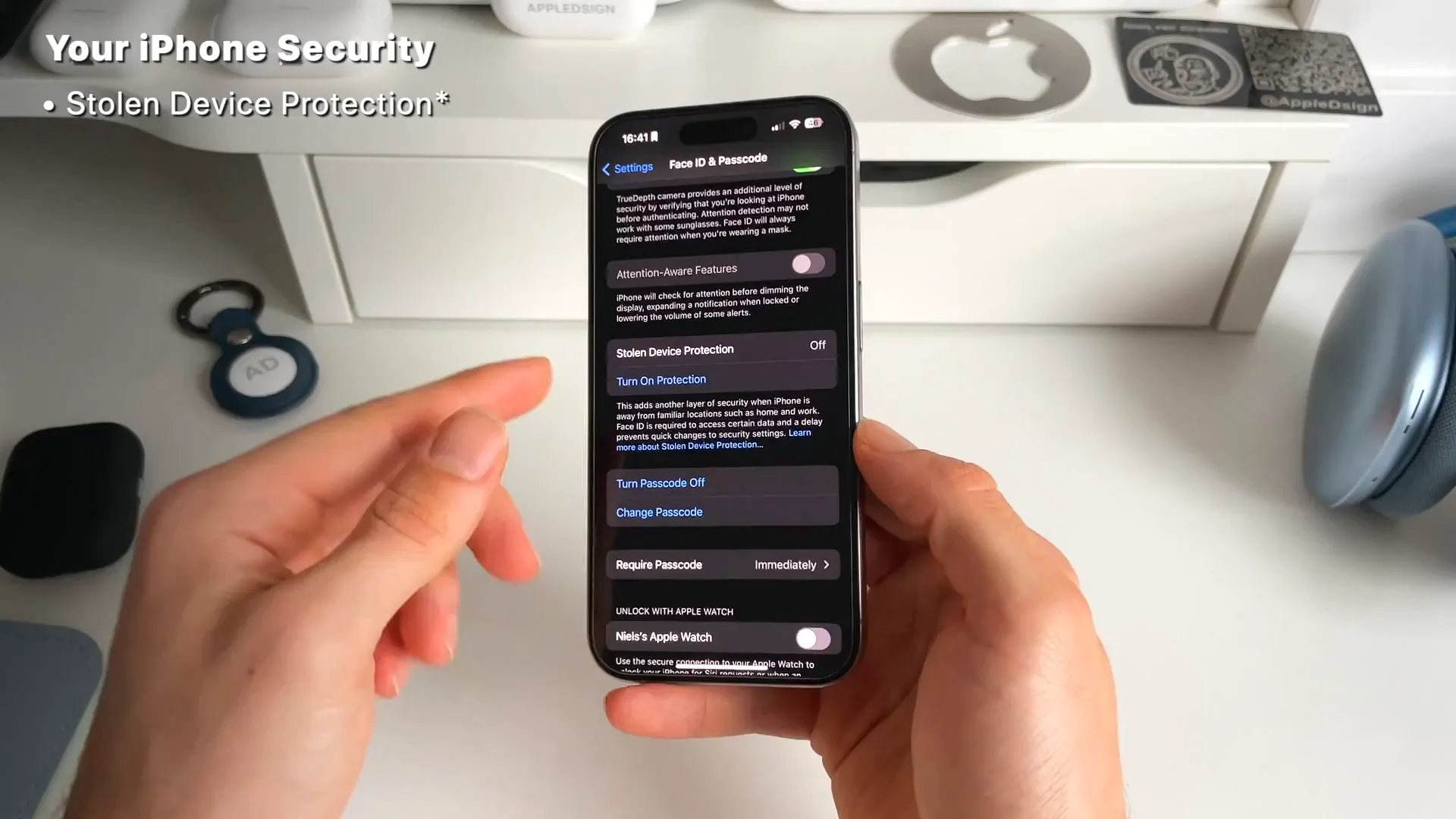
If someone tries to change your Apple ID password, turn off Find My, or alter your passcode while away from a familiar location (like your home or work), your iPhone will absolutely require Face ID. It also forces a mandatory one-hour security delay before the change goes through.
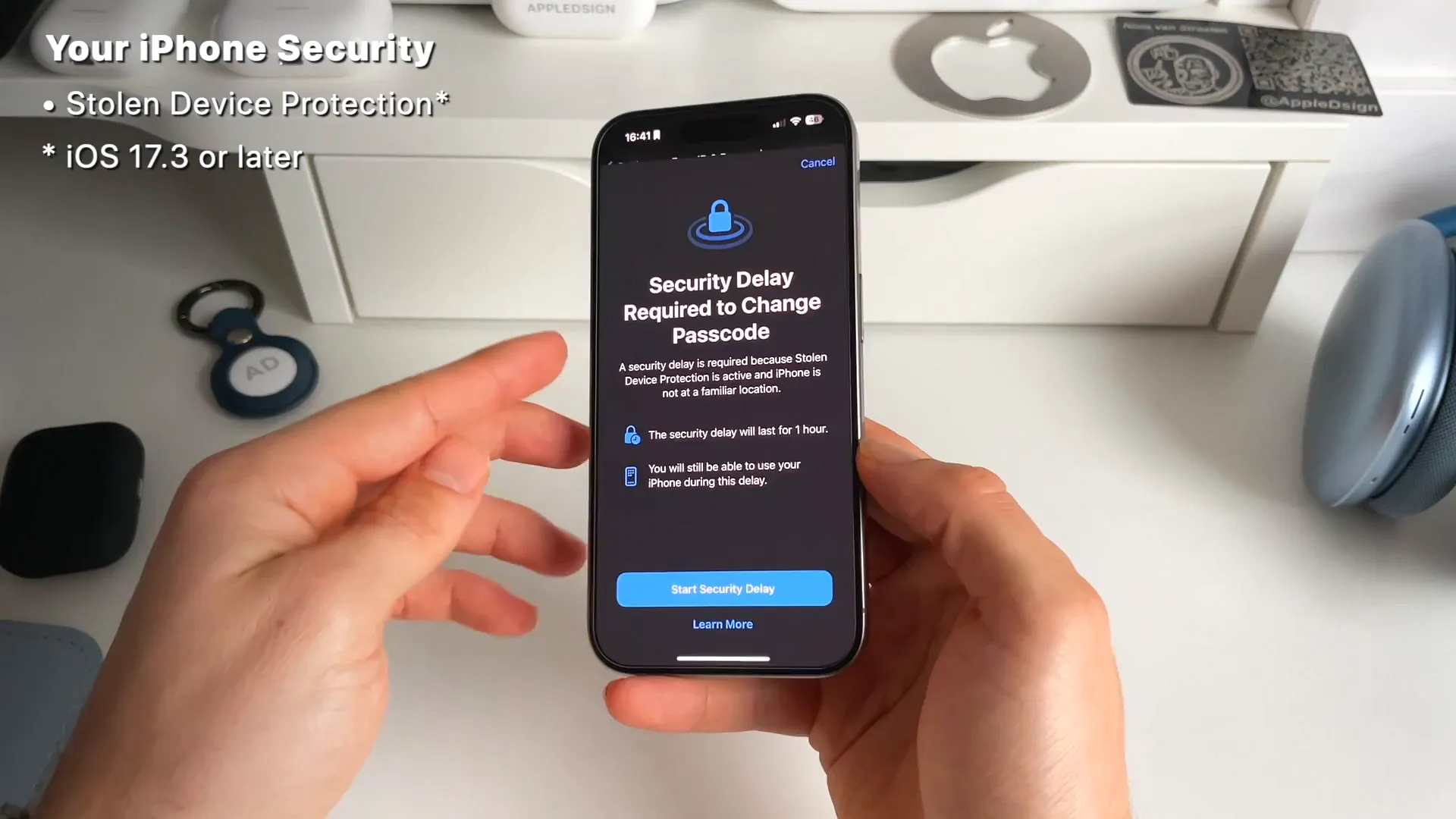
This gives you a crucial one-hour window to get to a computer, jump into your iCloud account, and lock the device down before they can lock you out.
You're all set
Taking a few minutes to configure these settings turns your iPhone into a useless brick for anyone who steals it. Make sure your backups are running, memorize your Apple ID password, and you'll be as prepared as possible if the worst happens.
Last updated: Oct 14, 2026