
How to open Mac apps directly from your iPhone
Ever wanted to launch your Mac applications without reaching for your mouse? You can actually turn your iPhone into a remote control for your Mac.
By using a simple tool called Choclift, you can pin your favorite Mac apps to your phone screen and launch them with a single tap. Whether you want to quickly open the calculator, start a new ChatGPT session, or launch your video editor, this guide will walk you through exactly how to set it up.
What you'll need
Before you start setting things up, make sure you have a few basics covered:
- Your Mac
- Your iPhone
- Both devices connected to the exact same Wi-Fi network
That last point is crucial. If your phone is on cellular data and your Mac is on Wi-Fi, the connection won't work.
Step 1: Download Choclift on your Mac
First, we need to get the desktop application installed.
- Open a new Safari browser tab.
- Go to choclift.com.
- Click the Get choclift button located in the top right corner.
- You'll be redirected to a page with download links. Click the button to download the app for macOS directly from the Mac App Store.
Step 2: Get the iOS app
Next, grab your iPhone.
- Open the App Store.
- Search for "choclift".
- Download the app to your phone.
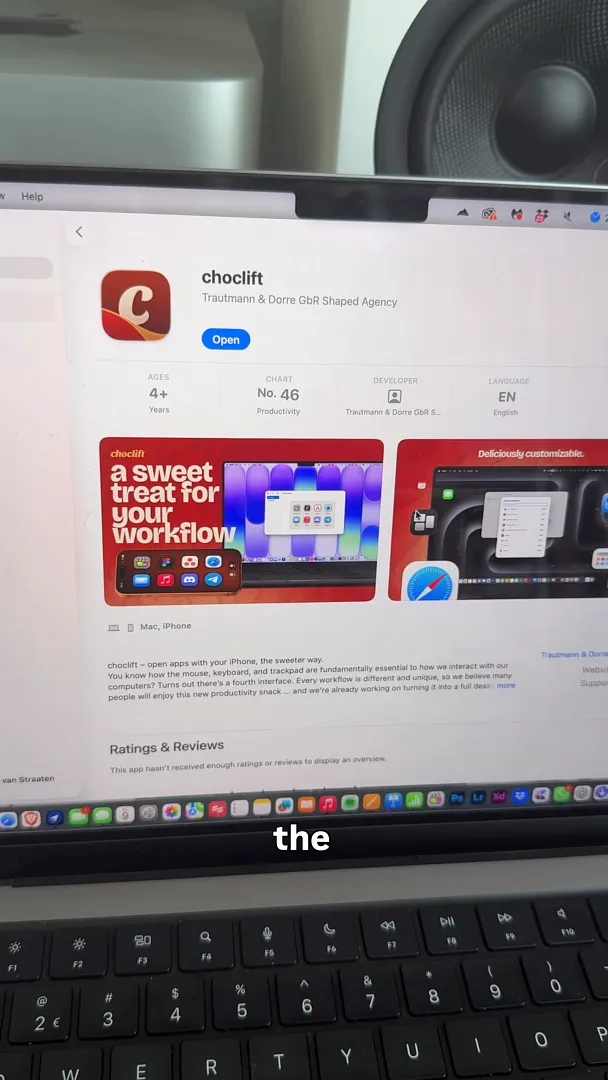
Make sure you have the application fully installed on both your Mac and your iPhone before moving on to the next step.
Step 3: Connect your devices
Now it's time to link your phone and your computer together.
- Launch Choclift on your Mac. You'll see a large 4-digit code displayed on your screen.
- Open the Choclift app on your iPhone.
- Enter the exact passcode shown on your Mac into your phone's number pad.
- Tap Connect.
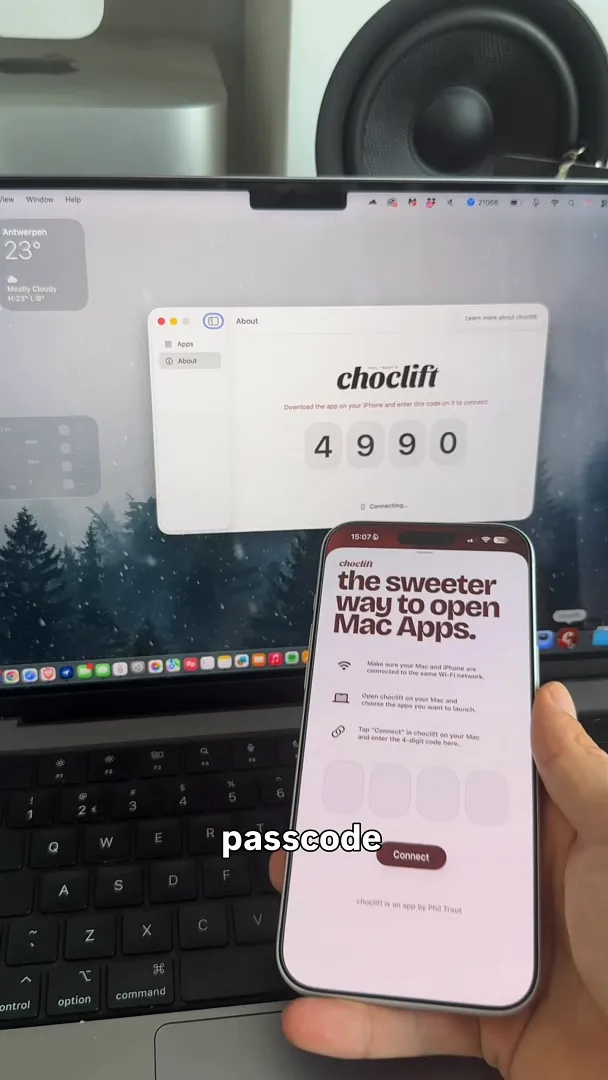
Your devices will instantly sync up.
Step 4: Customize your app launcher
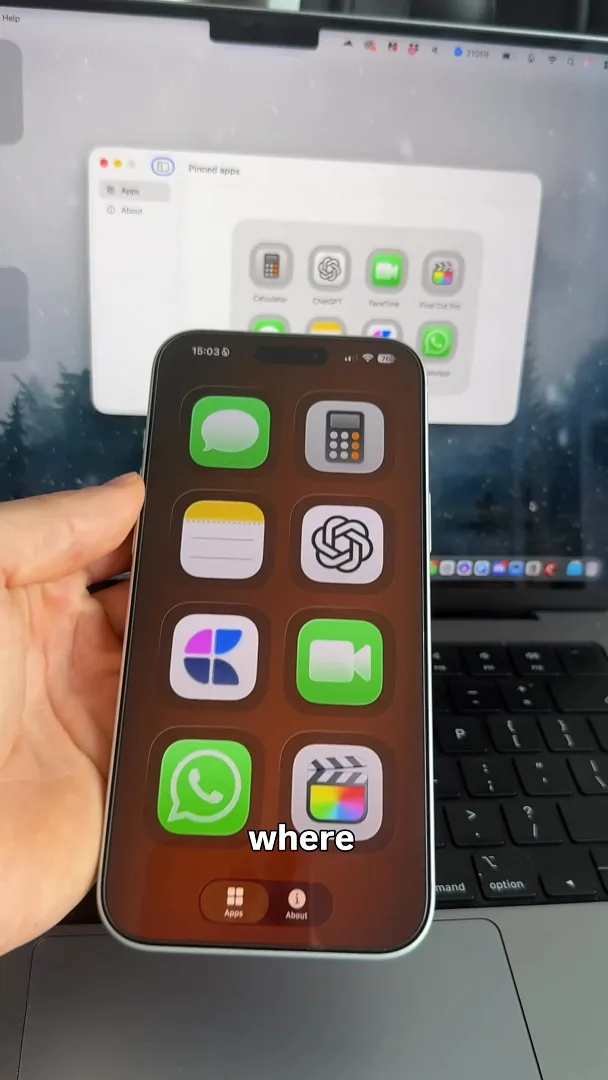
Once connected, your iPhone will display a grid of up to eight pinned apps. Tapping any of these icons on your phone will instantly open the corresponding application on your Mac.
You can easily customize this grid to fit your workflow. If there's an app you don't use, simply click Remove to clear it from your pinned list.
To add a new application to your grid:
- Search through your Mac's installed applications right from the Choclift interface.
- Click Add next to the app you want.
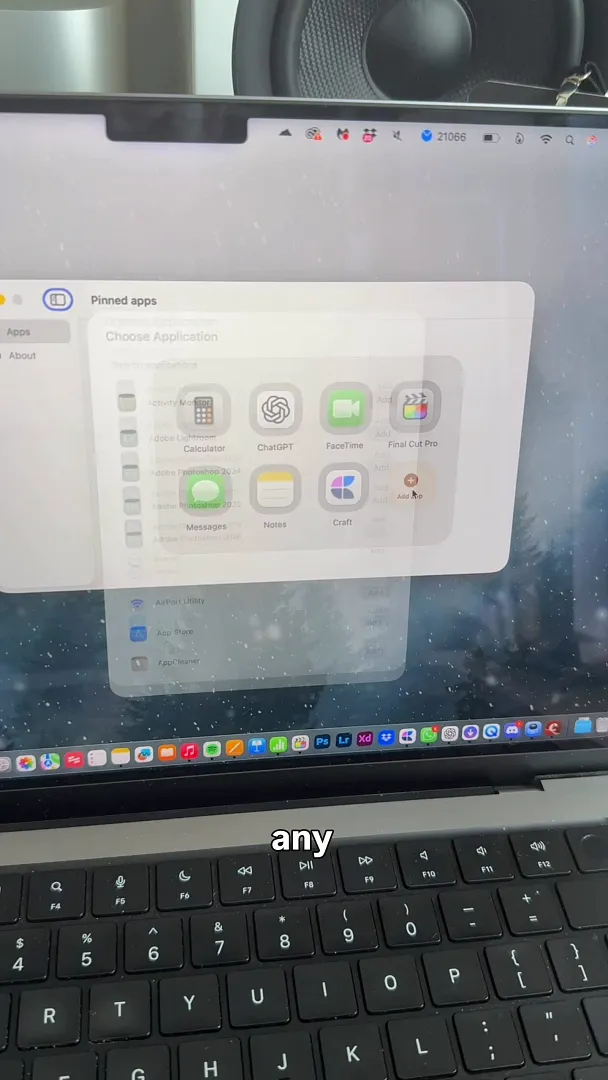
You can add almost anything. Whether it's Photoshop, your Music library, or your preferred email client, it just takes a click to pin it to your phone.
You're all set
You now have a custom, wireless app launcher right in your pocket. Go explore adding your most-used workflow apps and see how much time it saves you during your daily routine.
Last updated: Oct 14, 2026