
How to Download and Install iOS 27 on Your iPhone
Ready to try out the newest features on your device? Apple just dropped iOS 27. It brings a massive software overhaul and a brand new Siri AI. Let's walk through exactly how to get it running on your iPhone right now.
Step 1: Navigate to your update settings
First, you need to tell your phone to look for the new software.
- Open the
Settingsapp on your home screen. - Scroll down and tap on
General. - Tap on
Software Update.
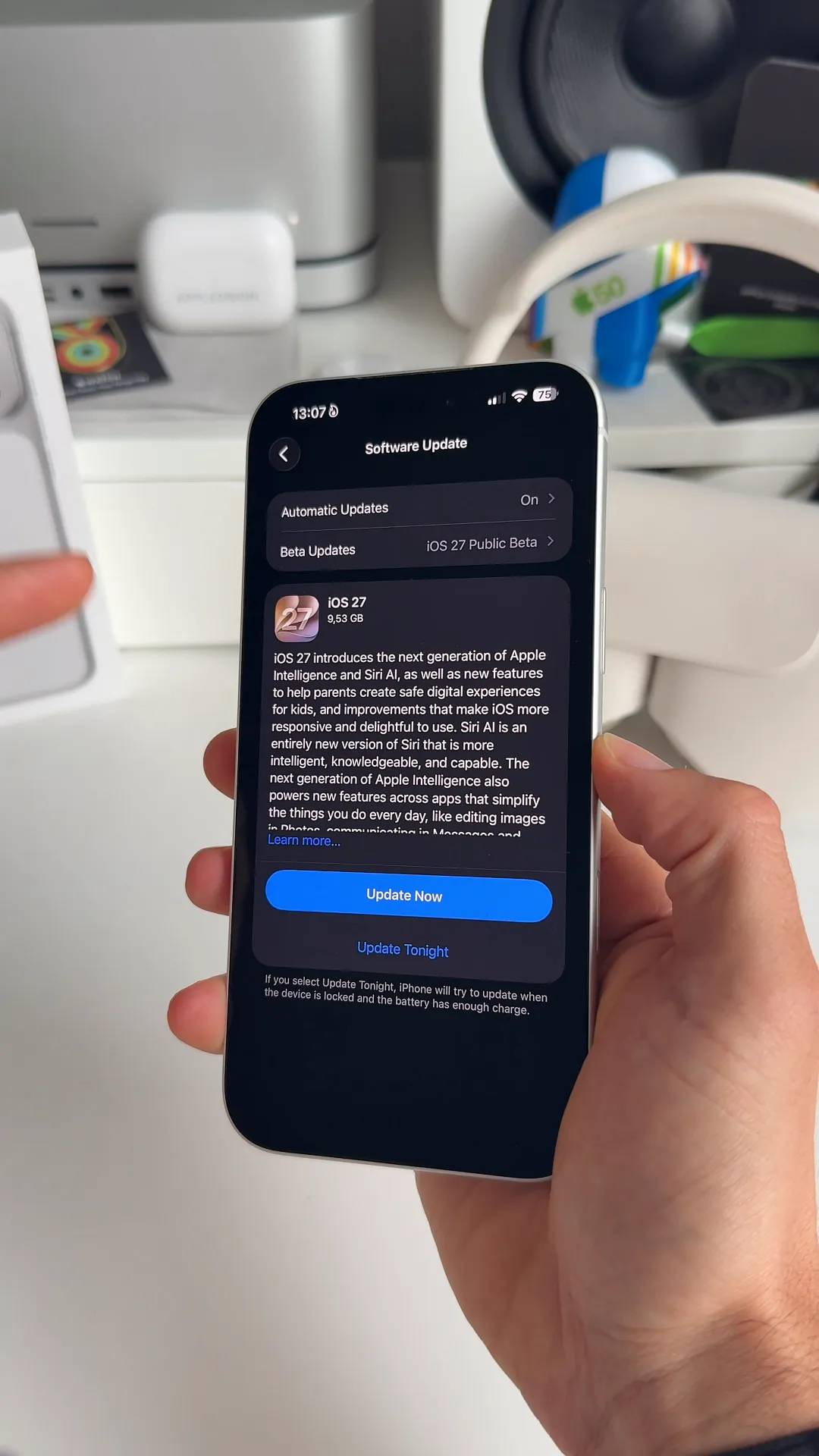
Your phone will check Apple's servers. You should see the iOS 27 update pop up at the top of the screen.
Step 2: Start the download and agree to terms
Once the update appears, it is time to kick off the installation.
- Tap the blue
Update Nowbutton. - Enter your passcode when prompted.
- A
Terms and Conditionsscreen will appear. - Tap
Agreeat the bottom right.
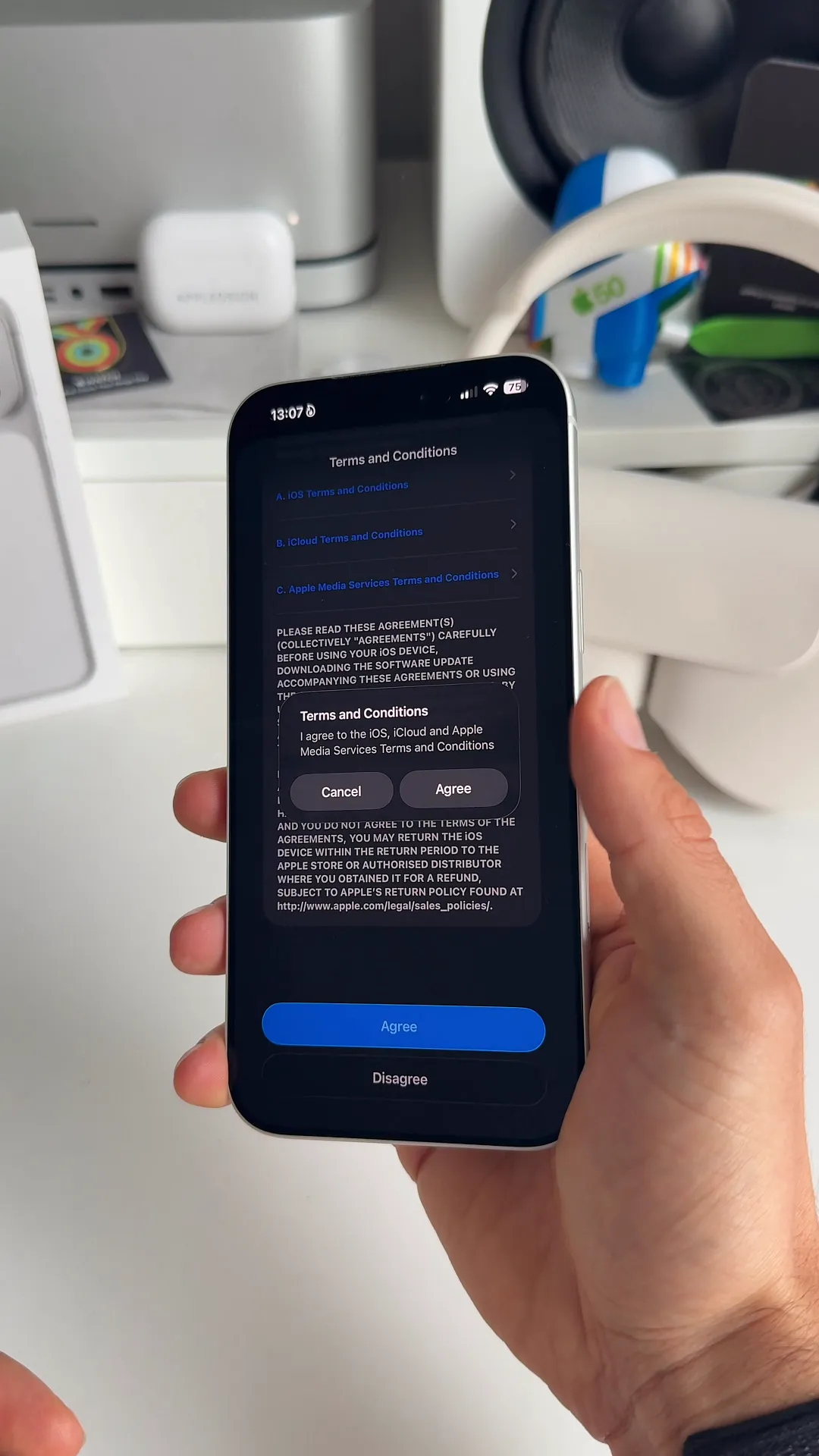
Your iPhone will request the update and start downloading it. This part can take a little time depending on your internet connection.
Step 3: Restart and complete the setup
After the download finishes, your iPhone will automatically restart to install the new software. Just leave it alone while it works in the background.
When your phone wakes up, you will see a familiar "Hello" screen cycling through different languages.
- Swipe up from the bottom to open your phone.
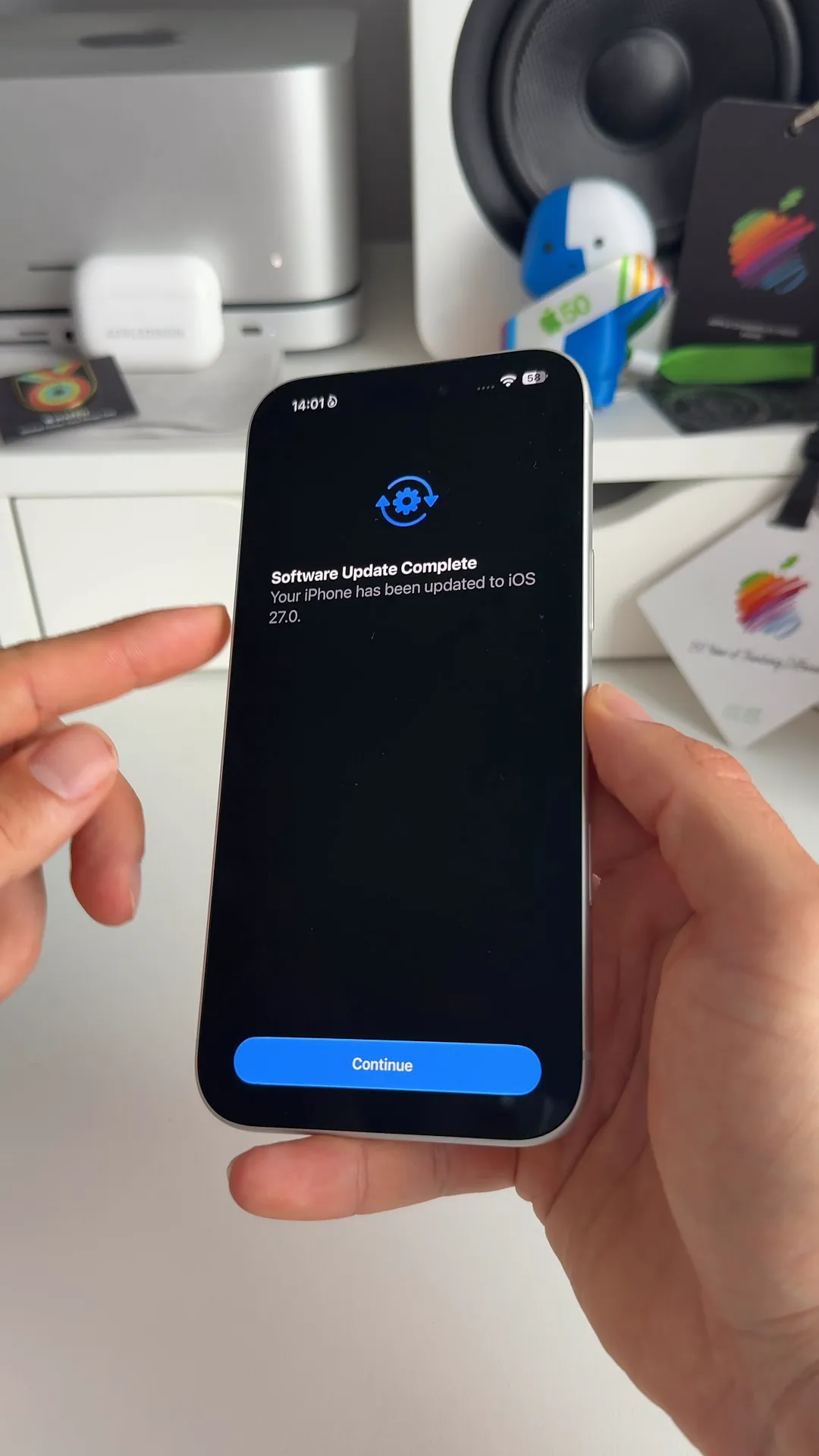
- A "Software Update Complete" message will appear on your screen. This confirms you are successfully on iOS 27.0.
- Tap the blue
Continuebutton to finish the setup process.
You are ready to explore
That is all it takes. Your iPhone is now running iOS 27. This is one of the biggest updates Apple has ever released. You can now dive in and test out the new Siri AI and explore your freshly updated home screen. Have fun checking out all the new features.
Last updated: Oct 14, 2026