
Sign PDF documents on Mac using your iPhone
The power of Apple's ecosystem is hard to beat. Sometimes, features are hidden in plain sight that completely change how you work. If you've ever tried to sign a PDF on your Mac using a trackpad, you know the pain. It usually looks like a toddler drew it.
We recently shared a viral clip about a better way to do this, and the response was huge. Millions of you watched it, and thousands asked exactly how it works. No scanners, no printing, and no awkward trackpad drawings.
Here is the step-by-step guide on how to use your iPhone (or iPad) as a high-precision signing pad for your Mac. Let's stop gatekeeping this and dive in.
Setting up the connection
You don't need to install any third-party apps for this. It's built right into macOS. You just need your iPhone and Mac logged into the same iCloud account and Bluetooth turned on.
Where to find the setting
- Open the PDF you need to sign using the Preview app on your Mac. You can also just open Preview by itself to set this up
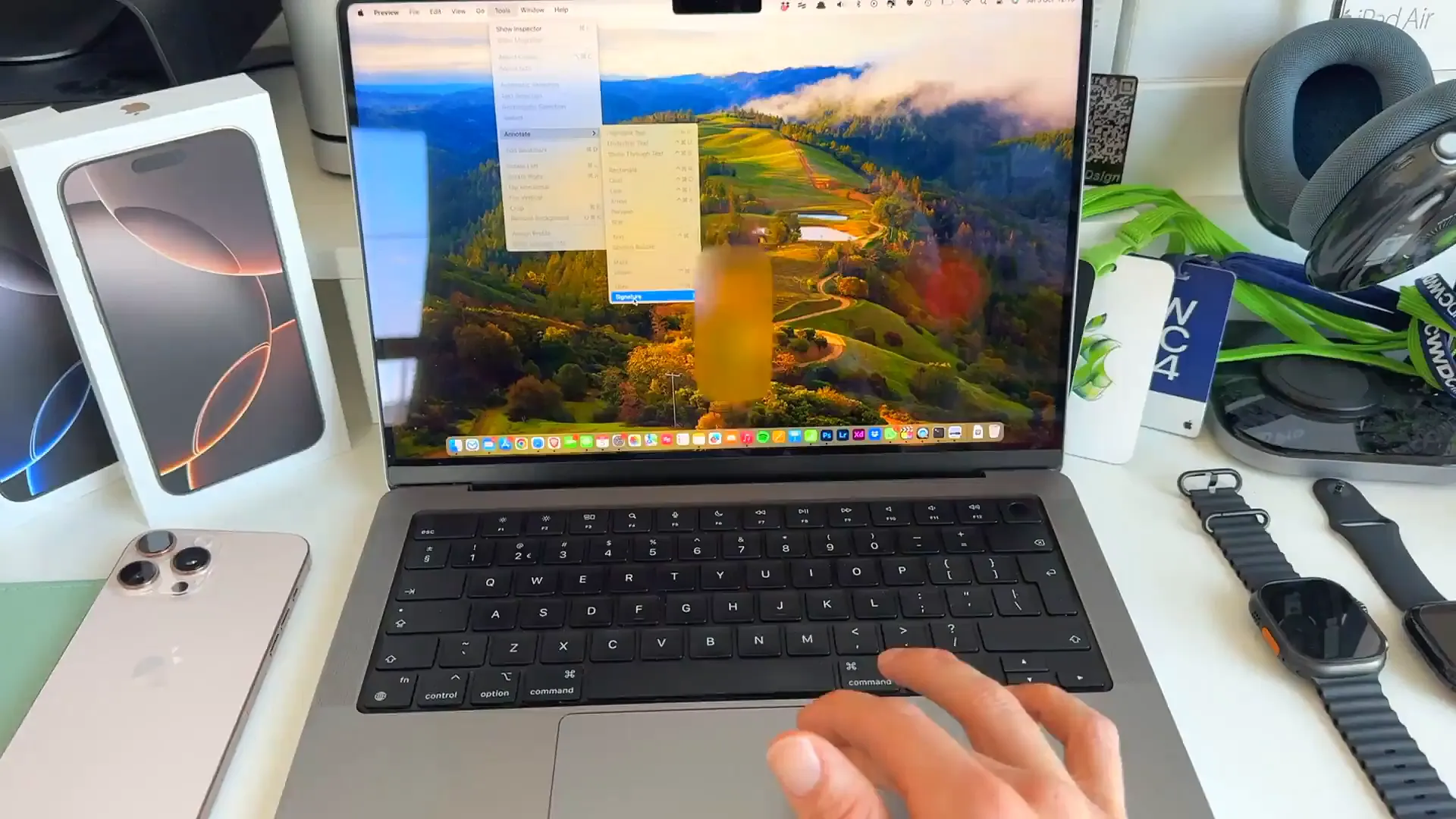
- Go to the top menu bar, click Tools, then hover over Annotate
- Scroll down to Signature. If you haven't made one before, this list will be empty
- Click Manage Signatures
- Click Create Signature. You'll see a few options like Trackpad and Camera
- Ignore those. Click the tab that says iPhone (or whatever you named your device)
Once you click that button, your iPhone screen will automatically wake up and turn into a blank canvas. It happens instantly.
Creating the perfect signature
Now that your phone is ready, you have two ways to do this. The easy way, and the pro way.
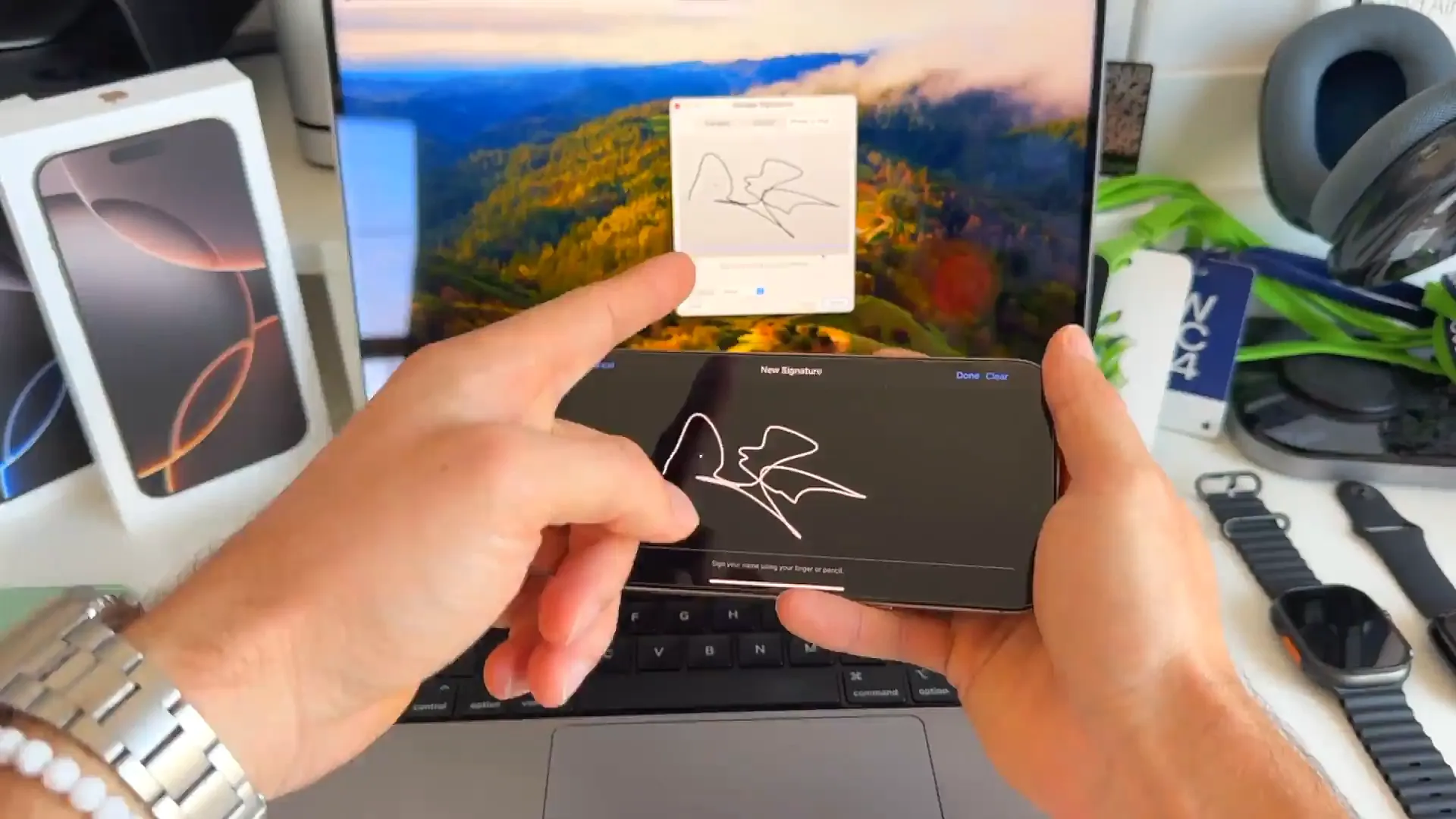
Using your finger
This is the default method. Just use your finger to sign on the iPhone screen. It's significantly smoother than using a computer trackpad because you have more control.
Using a stylus (The pro tip)
If you want a signature that looks professional, use a stylus. But here's the catch: The Apple Pencil does not work on the iPhone. It's only for iPads.
However, you can pick up a cheap capacitive stylus (the kind with the rubber or mesh tip, or a generic active stylus) from Amazon. These work perfectly on the iPhone screen. It makes your signature look exactly like ink on paper.
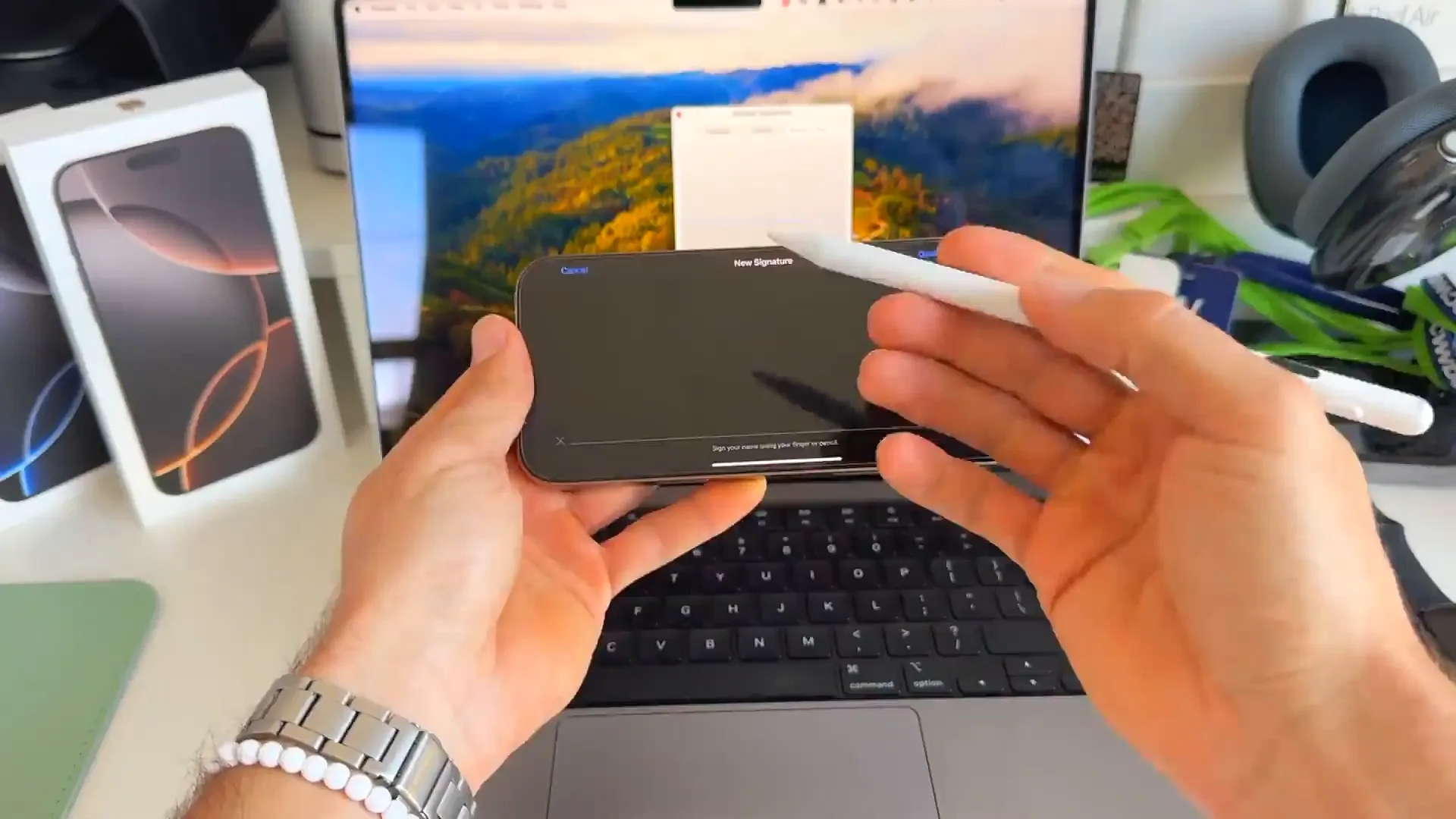
When you're happy with the signature on your phone screen, just tap Done on the phone. It instantly appears on your Mac.
What about the iPad?
If you don't have your phone handy but you do have an iPad, the process is exactly the same.
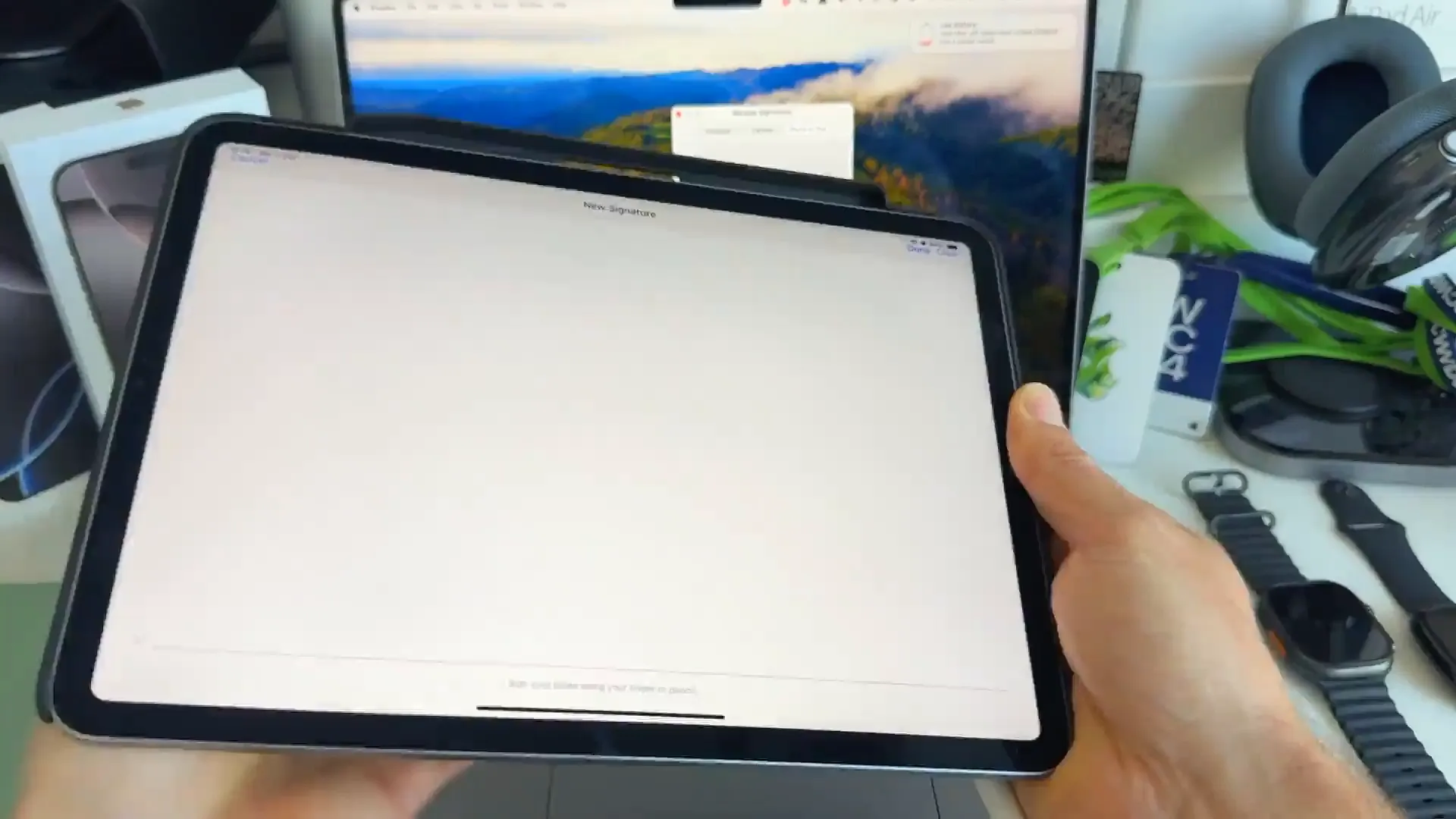
- In the Create Signature menu on your Mac, select your iPad
- The iPad screen will turn into the signature pad
- Since it's an iPad, you can use your official Apple Pencil here
Signing the document
You've created the signature. Now you need to actually sign the contract. This part is super fast.
- Open your PDF in Preview
- Click the Signature icon in the markup toolbar
- Click your saved signature. It will drop into the middle of the page
- Drag it to the signature line and resize it to fit
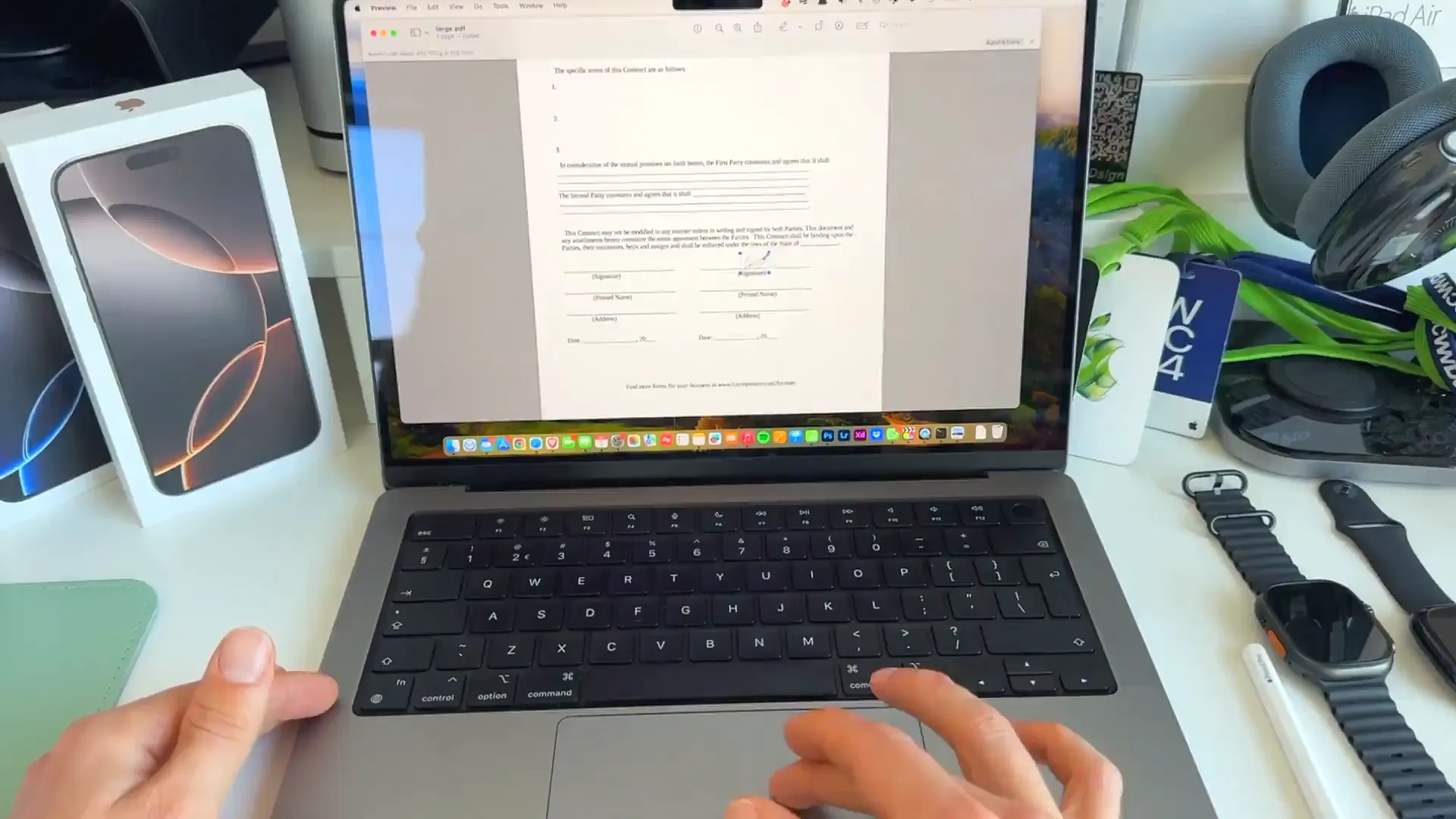
Pro tip: Once you create a signature this way, it saves to your Mac. You don't need to grab your phone every time. Just open Preview, click the signature icon, and drop it in.
Over to you
That's it. You can now sign any digital document in seconds without printing a single page. It's one of those features that makes you appreciate how well these devices talk to each other. Give it a try on your next contract.
Last updated: Oct 14, 2026