
How to use iPhone Mirroring in macOS Sequoia
This is arguably one of the best features to hit the Apple ecosystem in years. With the release of macOS Sequoia and iOS 18, Apple introduced iPhone Mirroring. It lets you see and control your iPhone right from your Mac screen, all while barely lifting a finger.
I've been playing around with this feature for hours, and honestly, the capabilities are impressive. It feels like the beginning of something totally new for how our devices talk to each other. Whether you want to check a notification without picking up your phone or drag a photo straight to your desktop, it just works.
In this post, I'll walk you through exactly how to set it up, the requirements you need to meet, and some of the coolest use cases—like effortlessly moving files and using iPhone-only apps on your big screen.
Before you start
There are a few specific boxes you need to tick before this will work. If you launch the app and get an error, it's likely one of these things is missing.
- Hardware: You need a Mac with an Apple Silicon chip (M1, M2, M3) or a Mac with the T2 security chip (Intel models).
- Software: Your Mac needs to be running macOS Sequoia, and your iPhone must be on iOS 18 or later.
- Account: Both devices must be signed into the same Apple ID with Two-Factor Authentication enabled.
- Connectivity: Both devices need Bluetooth and Wi-Fi enabled and must be near each other.
Getting set up
Once your software is updated, the actual connection process is incredibly smooth. Here is how to get your phone on your screen for the first time.
- Find the new iPhone Mirroring app in your Mac's Dock or Launchpad and open it
- You'll see a prompt to unlock your iPhone. Pick up your phone and enter your passcode
- Your Mac will ask if you want to allow notifications from the iPhone. I recommend clicking Allow to get the full experience
- Finally, you'll be asked if you want to require authentication every time you connect or strictly automatically. Choose what feels right for your security needs
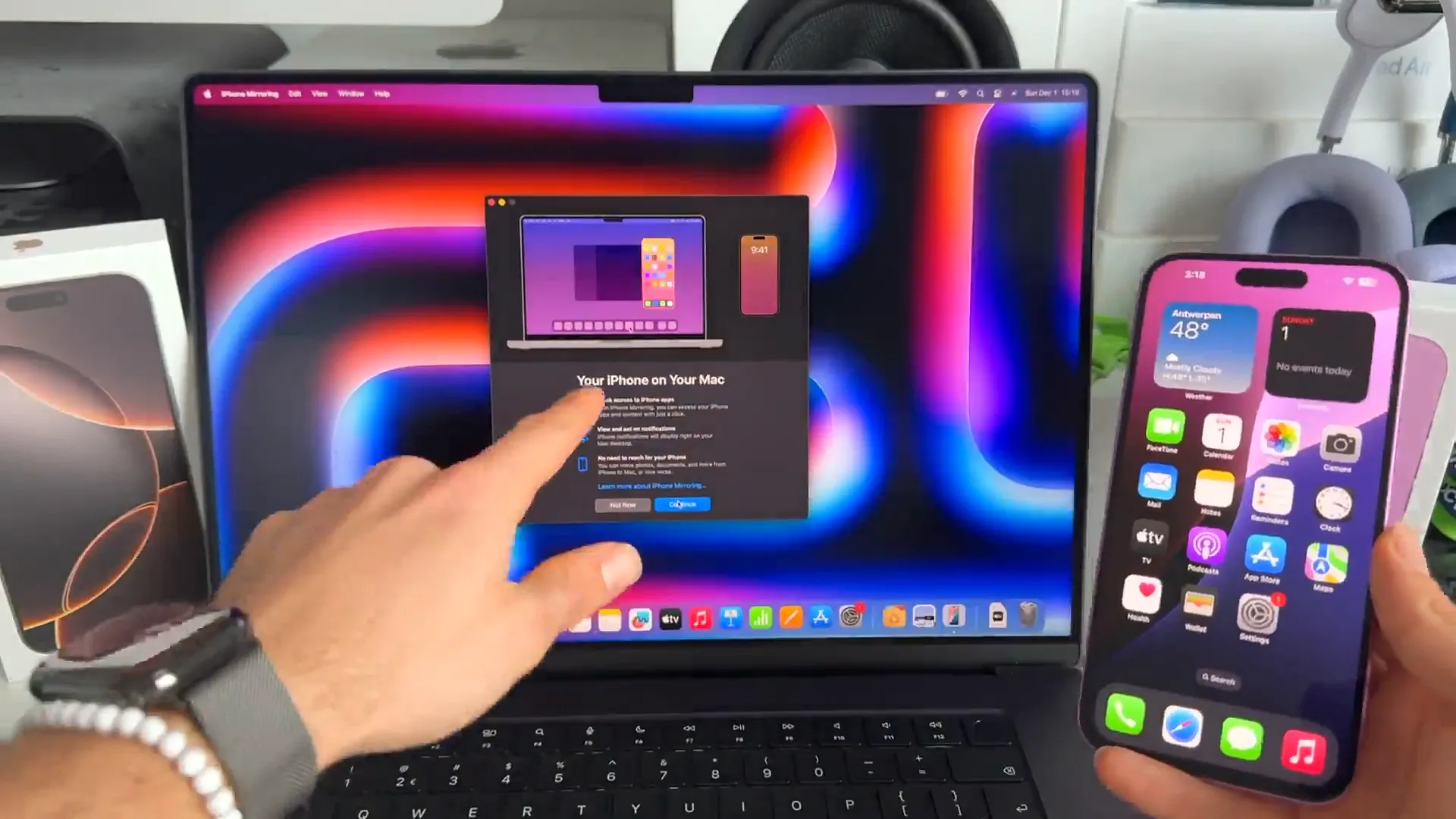
Once you're connected, your iPhone screen will appear on your desktop. Your actual physical phone will lock and show a status message saying it's in use by your Mac.
Navigation and controls
Using your phone with a trackpad feels surprisingly natural. You can click to tap, scroll to swipe, and use your keyboard to type. You can even resize the window with Cmd + Plus to make things bigger.
Navigating the interface is easy:
- Go Home: Click the bar at the bottom of the mirrored screen, or click the grid icon in the top right of the window layout
- App Switcher: Click the icon that looks like two stacked windows in the top right to see all your open apps
- Spotlight Search: Just start typing on your Mac keyboard while on the Home Screen
The drag and drop magic
This is the killer feature. You can move content between your iPhone and Mac seamlessly. It feels like magic and requires zero AirDrop waiting times.
How to move photos instantly
- Open the Photos app inside the iPhone Mirroring window
- Click and long-press on a photo (or select multiple photos)
- Simply drag them out of the window and drop them onto your Mac desktop or into a folder
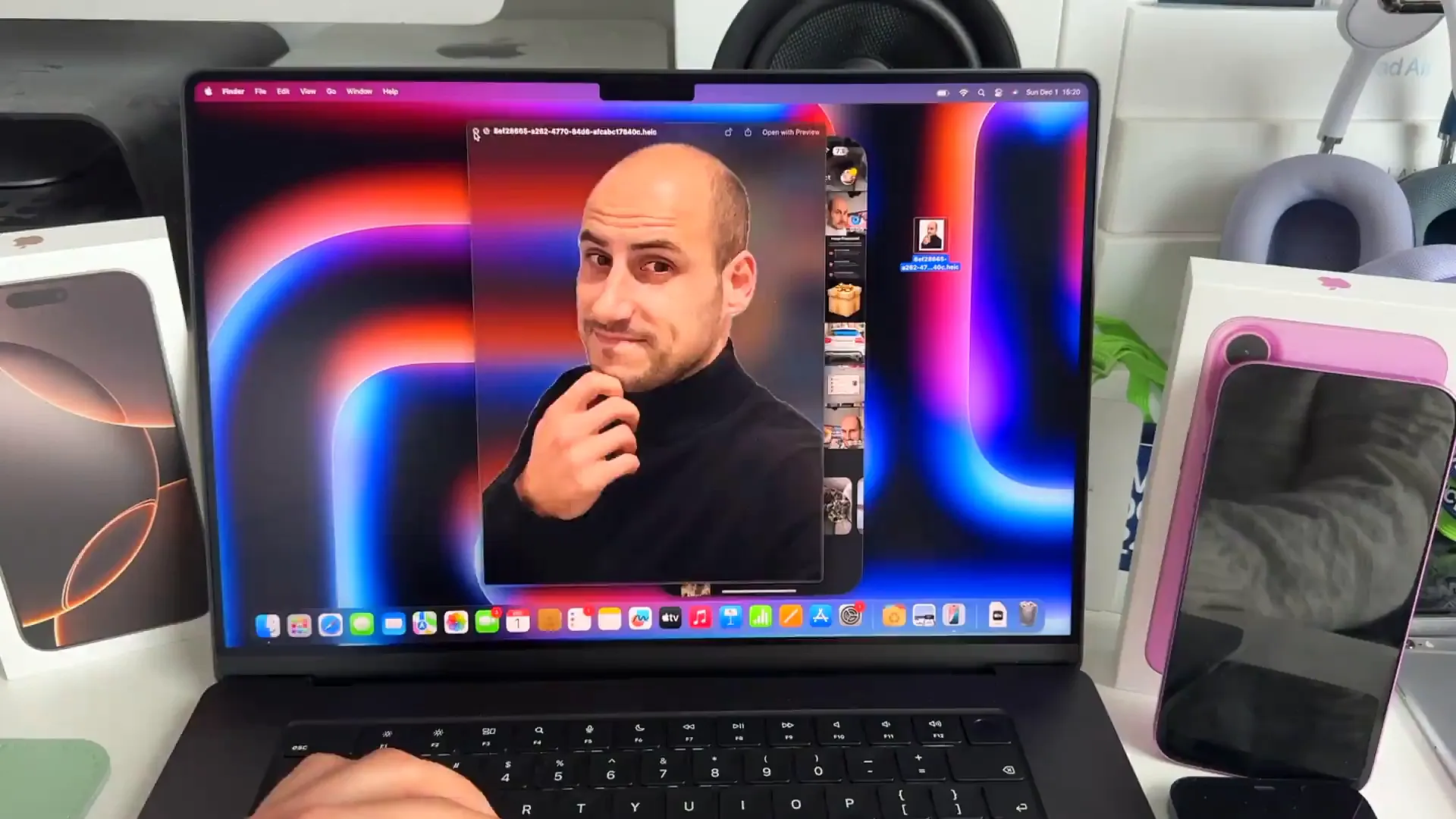
You can even grab the subject out of a photo (removing the background) and drag just that element onto your Mac. It's incredibly fast.
Why you'll actually use this
Beyond just looking cool, there are some genuine productivity hacks here. Here are the best ways to use it:
- Access iPhone-only apps: Use apps like Instagram or Image Playground that don't have native Mac versions, right on your desktop
- Stay focused: Keep your phone charging in another room while still handling notifications and messages from your Mac
- The "Broken Screen" savior: If your iPhone screen is cracked or unresponsive, you can potentially still access your data and control the phone through your Mac
Managing your connection
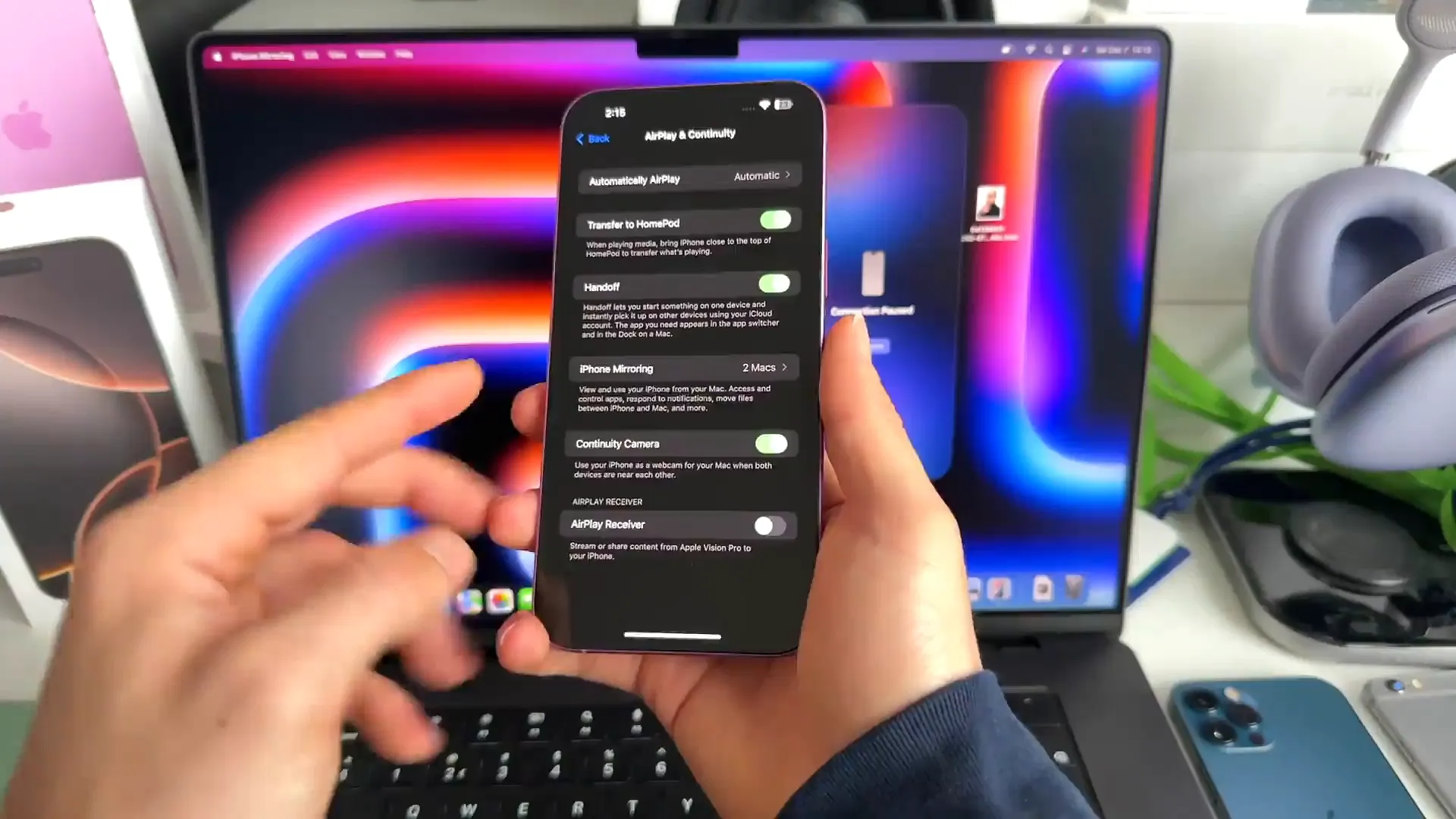
Apple added a dedicated section in iOS 18 to manage these connections. It's good to know where this is in case you want to revoke access for a specific device.
- On your iPhone, go to Settings
- Tap General and then select AirPlay & Continuity
- Tap on iPhone Mirroring
- Here you can see every Mac connected to your phone and remove them if needed via the Edit button
Give it a spin
iPhone Mirroring is genuinely one of those "how did I live without this" features. The engineering required to make this work so seamlessly—where Face ID on the phone isn't even needed because your Mac handles the auth—is amazing.
Give it a try next time you're deep in focus mode and don't want to pick up your device. It might just change your workflow.
Last updated: Oct 14, 2026