
How to get the viral Labubu live wallpaper on your iPhone
All right, no more gatekeeping. I shared a reel of this Labubu live wallpaper on Instagram recently, and the response was crazy. Nearly 600 comments asking for a tutorial. You asked, so here it is.
If you haven't seen it yet, it's a lock screen where the time is hidden until you press and hold. When you do, a flashlight beam shoots out, revealing the time and the character. It's a really cool effect.
I'm going to show you exactly how to get it. Plus, I'll share a new trick I found to add your own photo inside that flashlight beam—so the light reveals a picture of you or a friend instead. Let's dive in.
Important settings to check first
Before you download anything, you need to change a few settings on your iPhone. If you don't do this, the live animation simply won't work.
The checklist
- Turn off Low Power Mode. If your battery is yellow, the live wallpaper won't trigger
- Go to Settings > Accessibility > Motion. Make sure Reduce Motion is toggled OFF. Some people use this to save battery, but it kills the effect
- Go to Settings > Accessibility > Touch > Haptic Touch. Make sure this is set to Default. Fast or Slow settings can sometimes glitch the animation
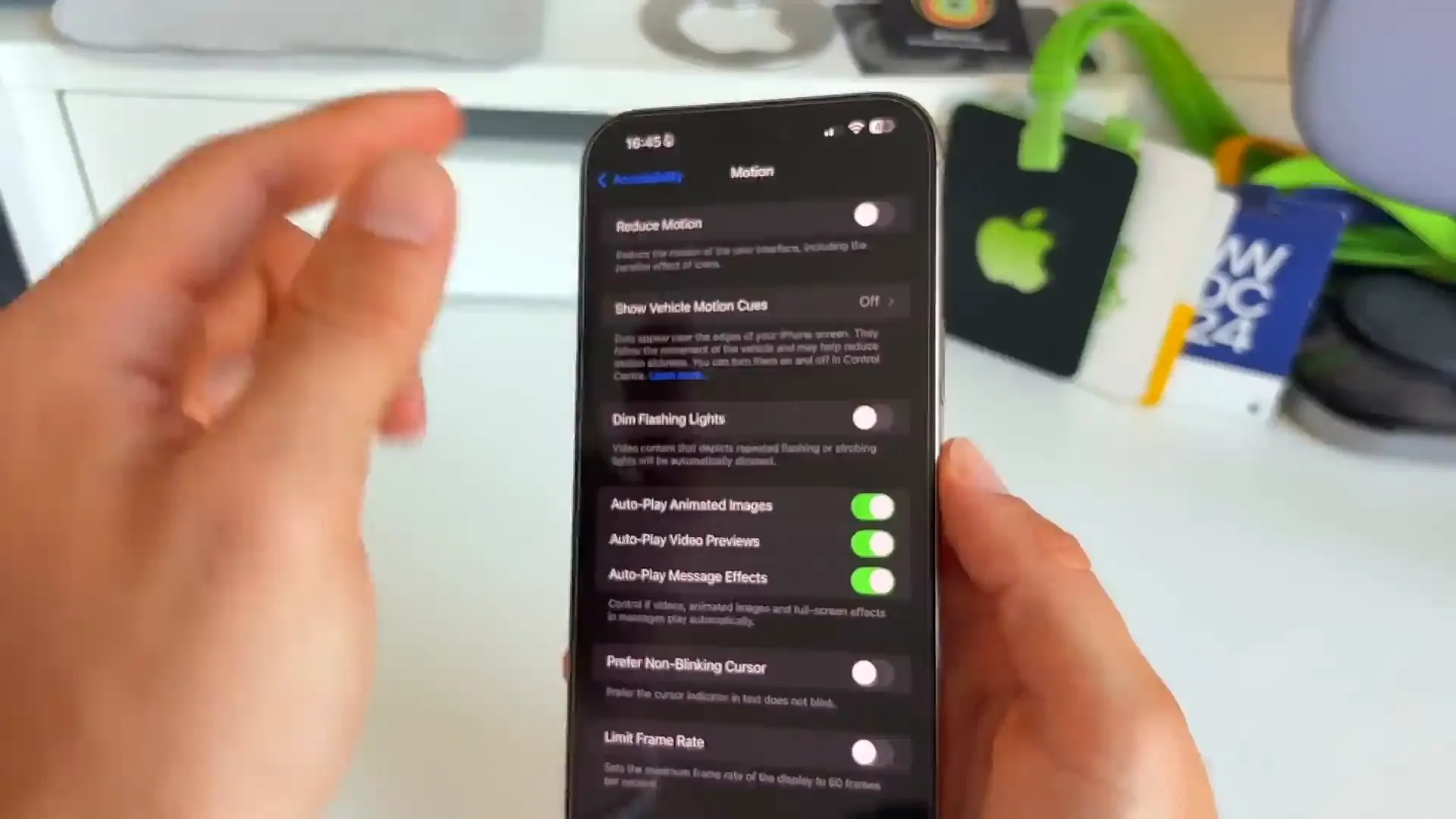
Once those three things are set, you're ready to get the wallpaper.
Getting the wallpaper using LiCoWa
The easiest way to get the high-quality version of this wallpaper is a free app called LiCoWa. It has the specific Labubu template ready to go.
Step by step
- Download and open the LiCoWa app from the App Store
- Tap on the Labubu tab at the top. You'll see a bunch of options
- Select the one with the flashlight beam. You can remove the watermark by hitting the 'X' if you want
- Tap Save to download it to your photos
- Go to your Photos app, hit Share, and select Use as Wallpaper
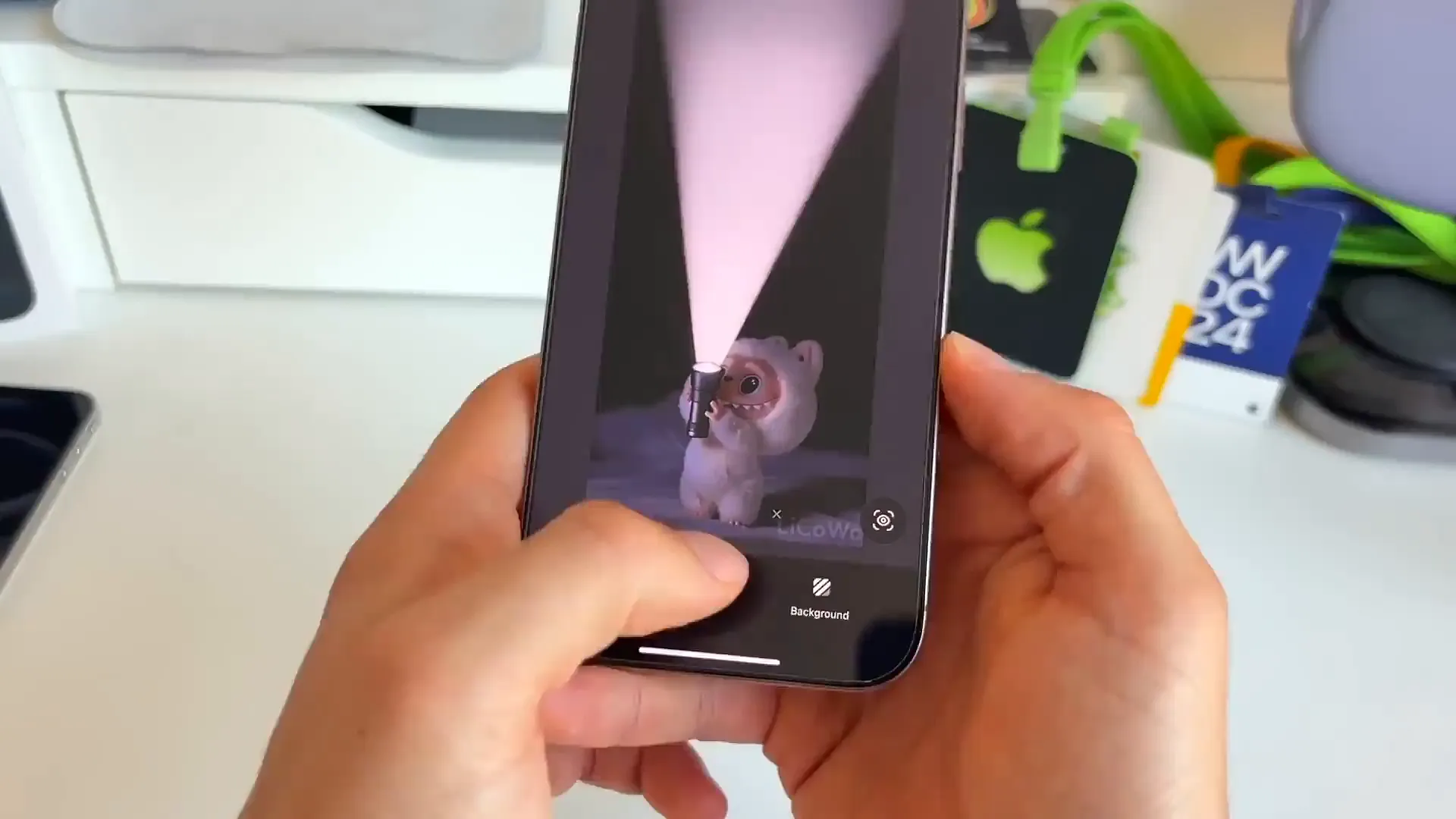
Pro tip: To make the time invisible until you press the screen, tap the clock font color picker and scroll all the way to black. This blends the text into the dark background so it only pops up when the flashlight activates.
New trick: Put your own photo in the light
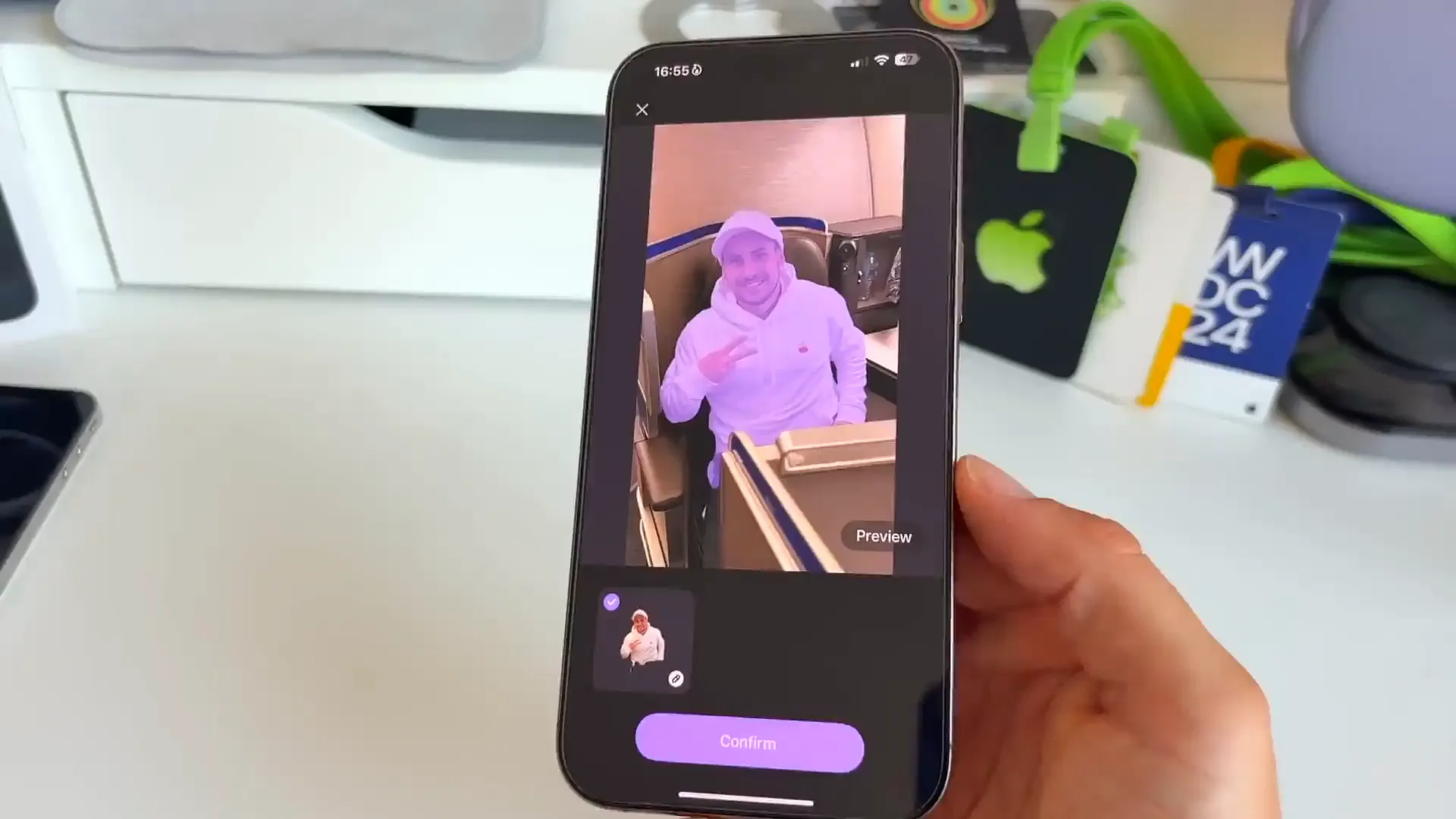
This is the feature I'm really excited about. You can replace the Labubu character with your own photo. The animation works the same way: it's dark at first, but when you press, the flashlight reveals your picture.
How to customize it
- Inside the LiCoWa app, go to the DIY Live section
- Select the flashlight template
- Tap the picture icon to upload a photo from your camera roll
- Use the Smart Cutout button. This automatically removes the background from your selfie so it fits perfectly in the beam
- Hit confirm, resize it if needed, and save it just like before
One other option
If you don't want to download the app, or if it's unavailable for some reason, I've also put a direct download link for the standard wallpaper in the description below. Just note that you won't be able to do the custom photo trick with the direct link.
Give it a try
I'm really curious to see what creative ideas you guys come up with for the custom photo feature. It's a fun way to spice up your lock screen. Let me know if you run into any issues with the settings!
Last updated: Oct 14, 2026