
How to add your name to the iPhone Lock Screen
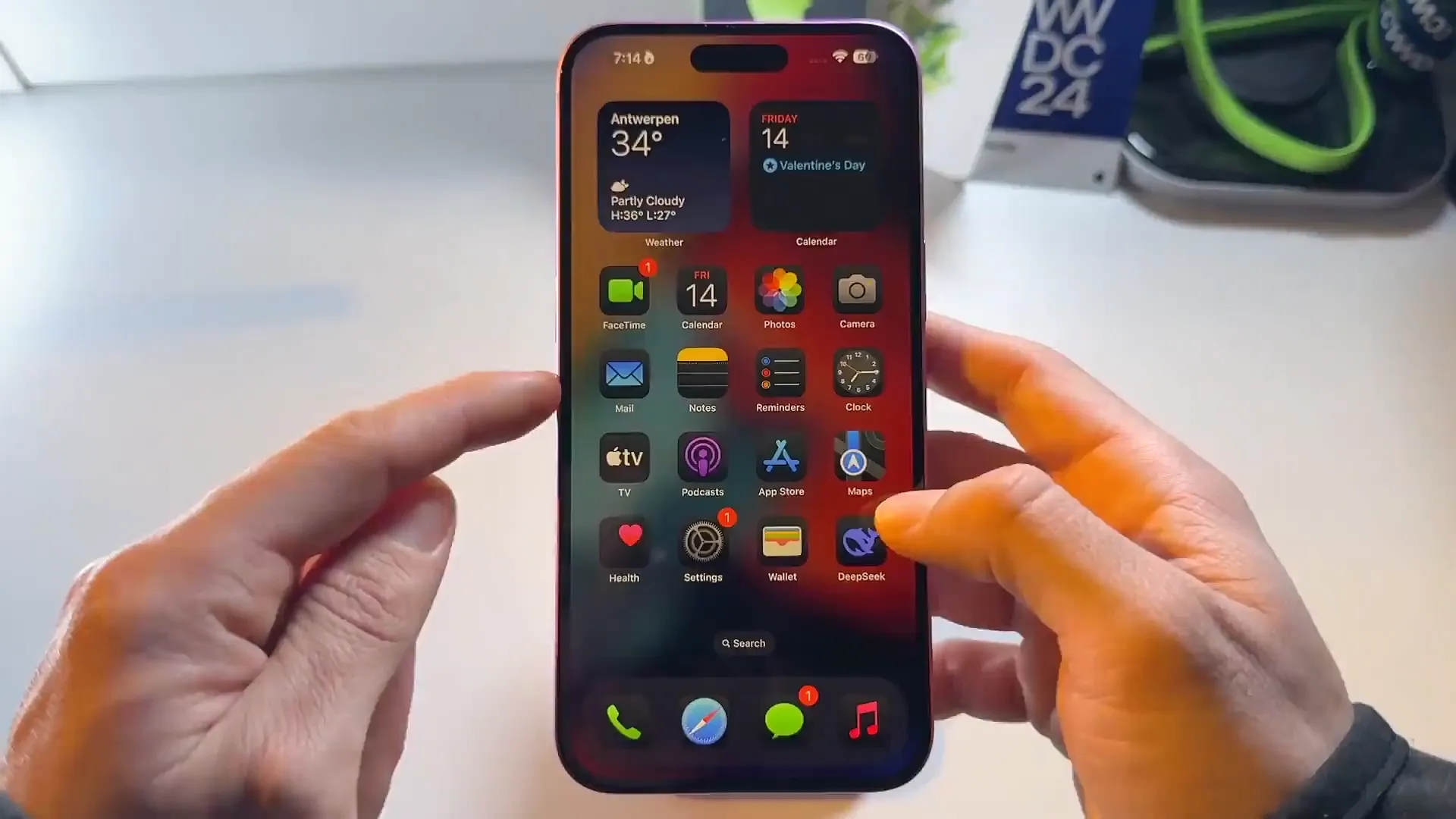
You've probably seen it on social media or a friend's phone. That cool little custom text at the bottom of the Lock Screen. Sometimes it's a name in a cursive font, sometimes it's an emoji, or maybe a brand name. It looks like a system-level customization, but it's actually a clever trick.
We get asked about this a lot. It's a great way to personalize your device beyond just the wallpaper. Whether you want to display your own name, a significant other, a pet, or just a phrase that keeps you motivated, it's easier to do than you might think.
The best part? You don't need to jailbreak your phone or install sketchy third-party apps. We're going to use a feature built right into iOS called Focus. Let's walk through exactly how to get that cursive look.
Get your custom font
If you just want standard text, you can skip this part. But if you want that stylish cursive look shown in the video, you'll need to generate the text first. Here is how to prep it.
- Open Safari and search for "cursive text generator"
- Type the name or phrase you want in the box. In our example, we're using "AppleDesign"
- Find the font style you like best from the generated list
- Select the text and hit Copy
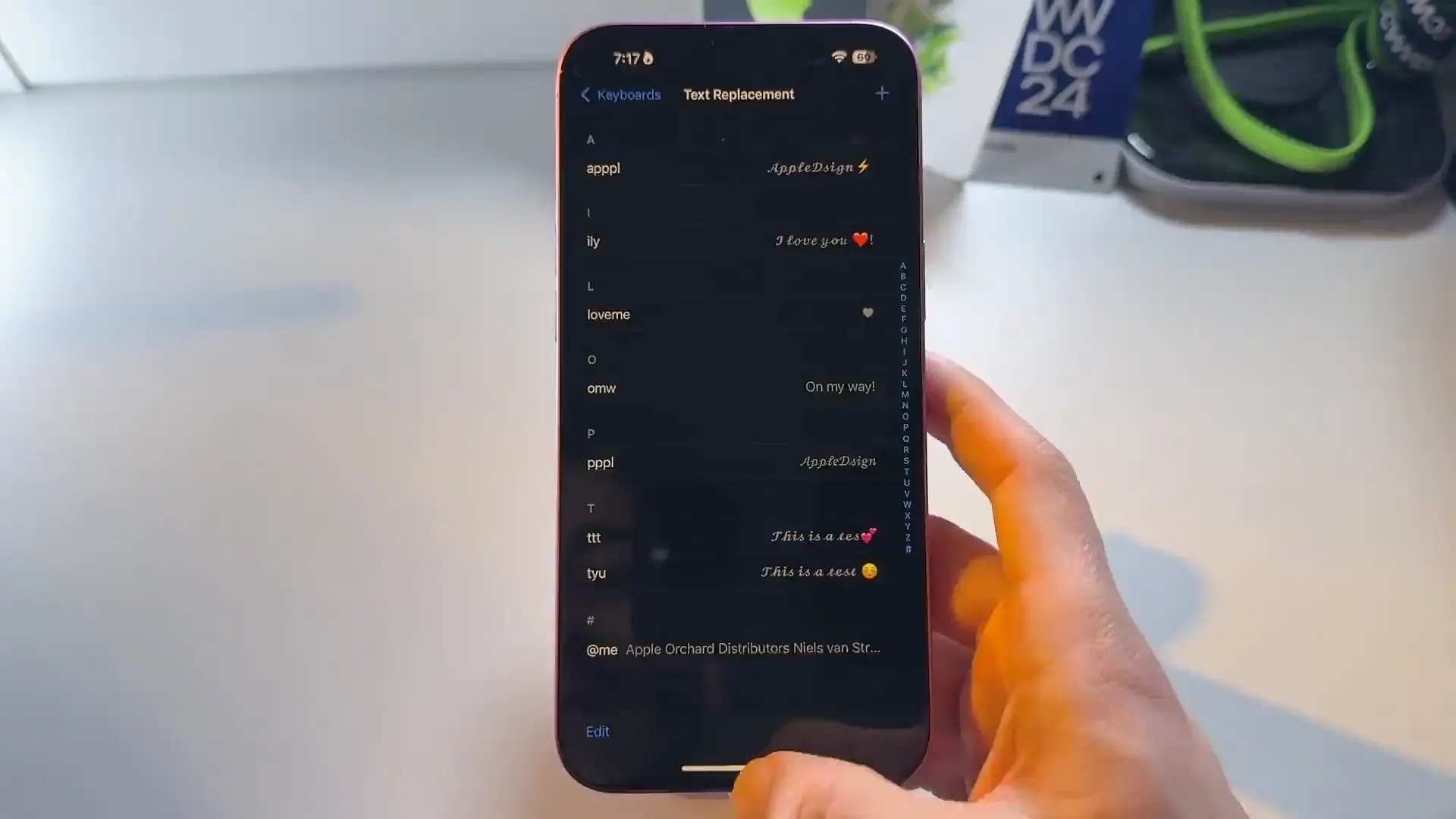
Now, we're going to use a little shortcut trick to make sure we don't lose this text. This also makes it easier to use later without pasting.
- Go to Settings and find General
- Tap on Keyboard and then select Text Replacement
- Tap the + sign in the top right corner
- Paste your cursive text into the Phrase field
- Type a short, memorable code in the Shortcut field (like "appl") and hit Save
Pro tip: You can even add an emoji to your phrase here if you want a little extra flair, like a lightning bolt or a heart.
Create the Focus mode
This is the magic step. iOS displays the name of your active Focus mode at the bottom of the Lock Screen. By creating a custom Focus with your name, we force the iPhone to display it there.
Setting it up
- Open your Control Center (swipe down from the top right)
- Tap on the Focus button
- Tap the + icon at the bottom to create a new one
- Select Custom
- In the name field, type your shortcut code (e.g., "appl"). Your cursive text will appear. Tap it to fill the field
- Pick a color and an icon that matches your vibe, then tap Next
- Tap Customize Focus. You don't actually need to change any notification settings for this to work
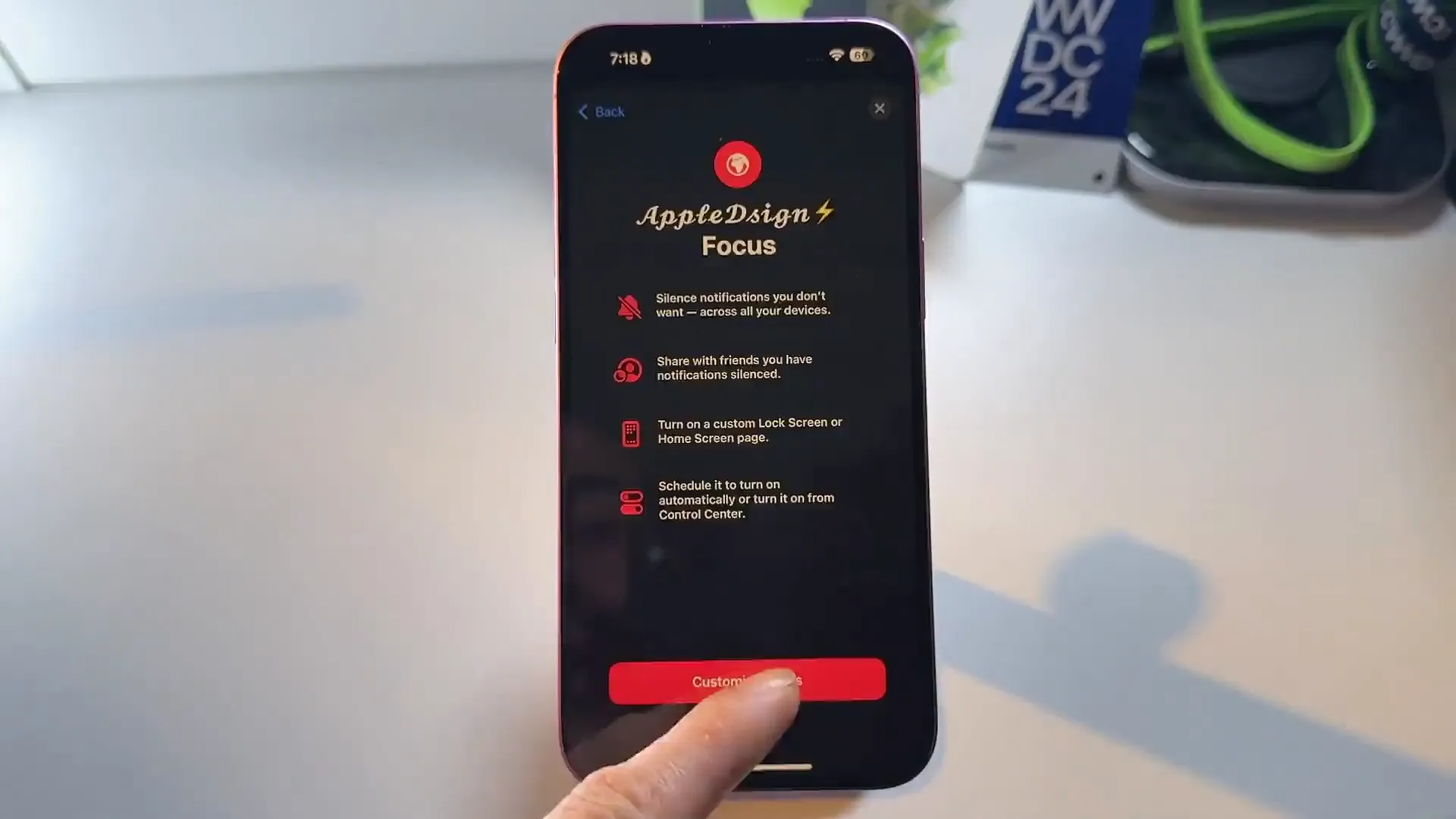
Once you hit customize, you're done with the setup. You'll see your new Focus in the list.
Turn it on
Now for the reveal. Here is how to activate your new tag:
- Lock your iPhone
- Unlock it and open the Control Center
- Tap and hold the Focus button
- Select the custom Focus you just created
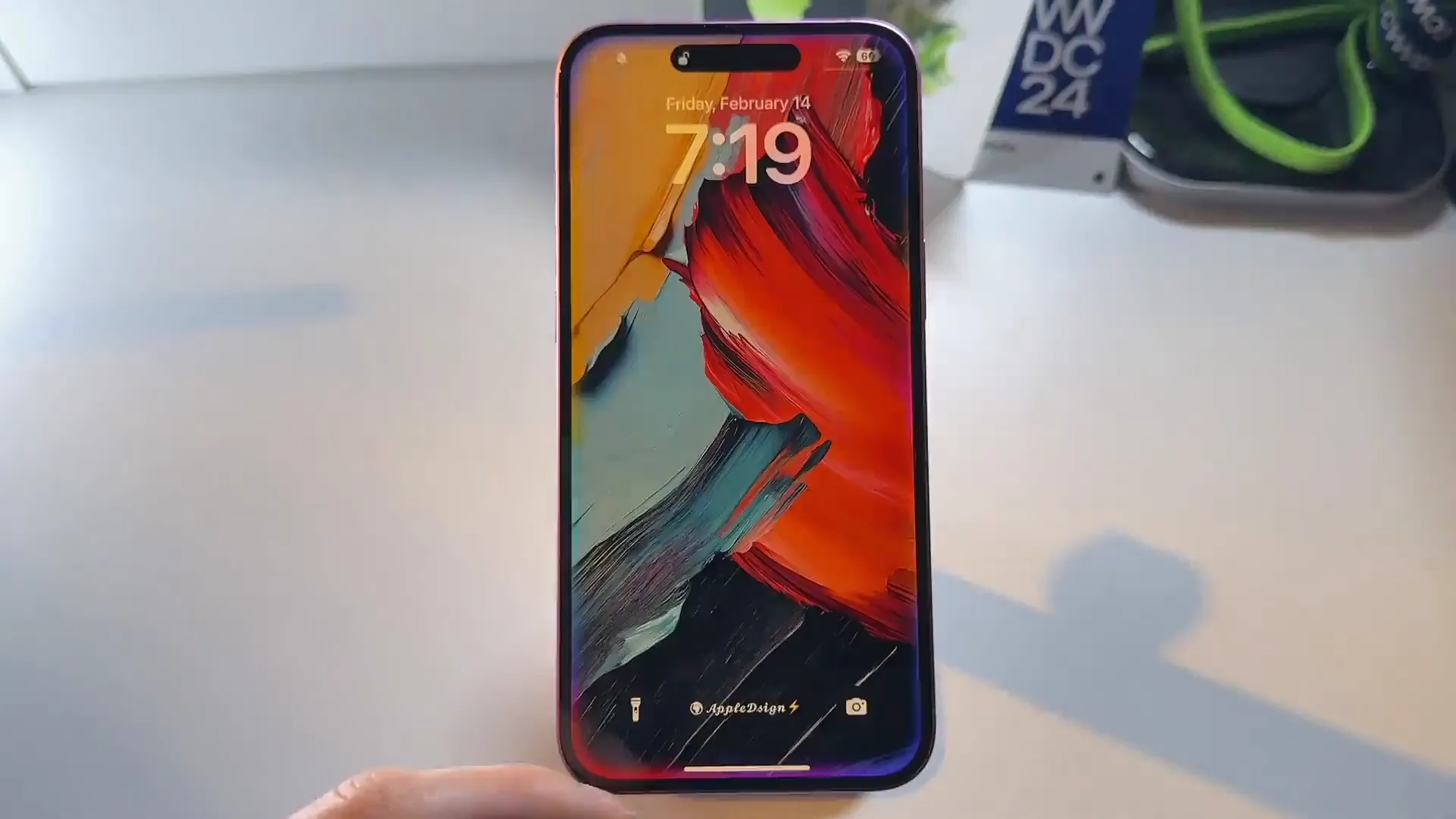
Go back to your Lock Screen, and you'll see your custom name sitting pretty at the bottom of the display.
Start playing
That's a wrap. You now have a custom signature on your device. You can get really creative with this. Try using just emojis for a minimalist look, or different fonts for different moods.
Since this is just a Focus mode, you can toggle it off whenever you want to go back to stock. Give it a try and see what designs you can come up with.
Last updated: Oct 14, 2026