
Change your iPhone wallpaper automatically with Focus Modes
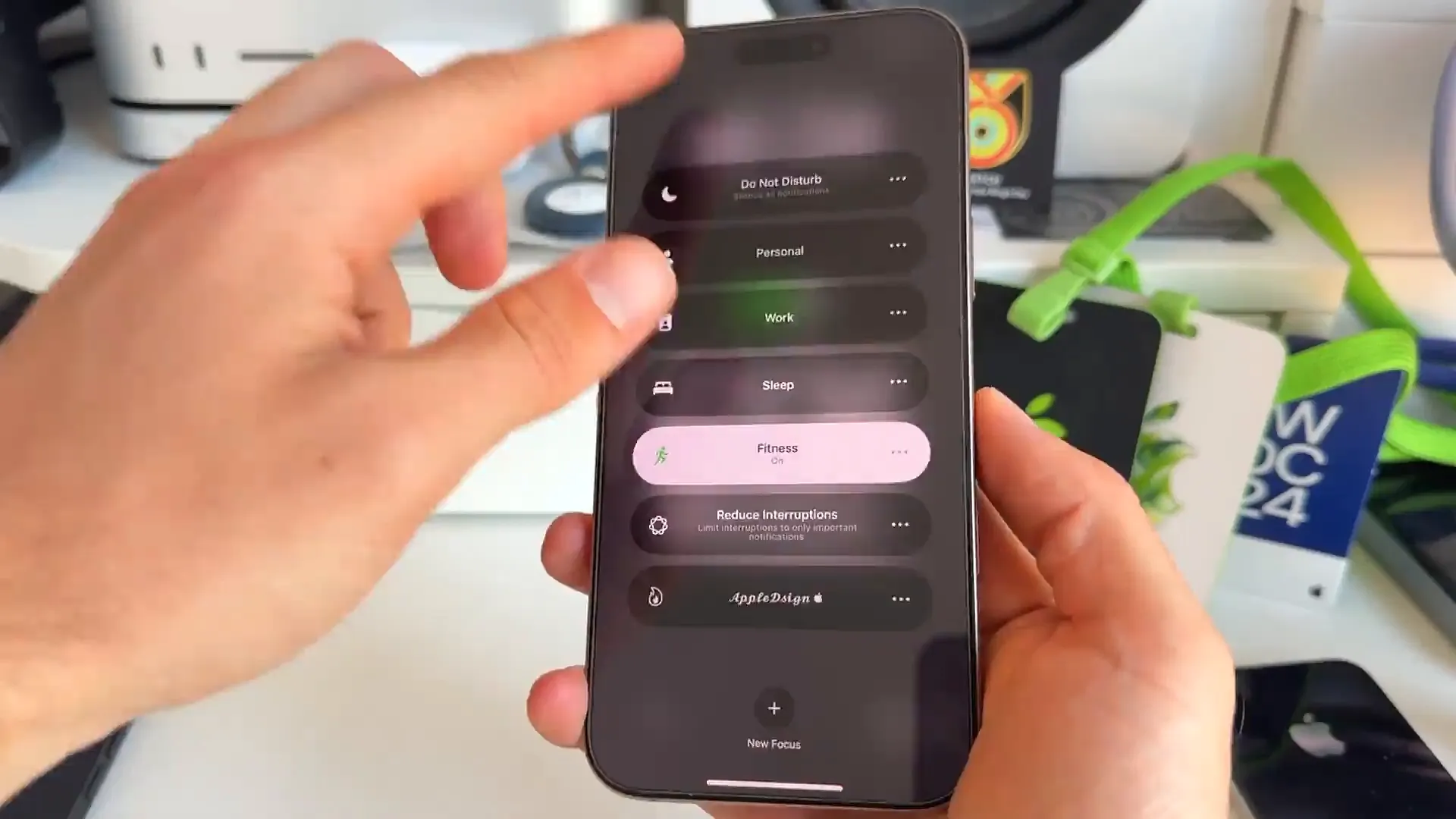
By now you're probably familiar with Focus Mode on your iPhone. It's great for silencing notifications when you need to grind out some work, study for a test, or hit the gym. But there's a really cool layer to this feature that many people overlook.
You can actually link specific wallpapers to your different Focus modes. Imagine tapping a button and having your phone instantly shift from a picture of your cat to a motivational quote for the gym. It gives you that extra little mental boost to switch gears.
In this guide, we'll walk you through exactly how to set this up. We'll build a custom "Gaming" mode as an example, but you can use this for anything. Let's get into it.
Set the vibe for every activity
The idea here is simple. When you toggle a Focus Mode from your Control Center, your phone changes its look entirely. You can have a clean, distraction-free background for work, and something loud and fun for your personal time.
Take a look at this Gym Mode example. One tap, and the wallpaper shouts "GYM MODE". It's a small change, but it helps get your head in the right place.
How to create your custom setup
- Open Settings on your iPhone and scroll down to Focus
- Tap the + icon in the top right corner to start a new one
- You can choose Custom to name it yourself, or pick a preset like Gaming
- Once the mode is created, look for the section called Customize Screens
- Tap Choose under the Lock Screen image (the one on the left)
- Select a new wallpaper from the gallery, or tap Photos to pick one from your camera roll
- Hit Add in the top right, and then Set as Wallpaper Pair
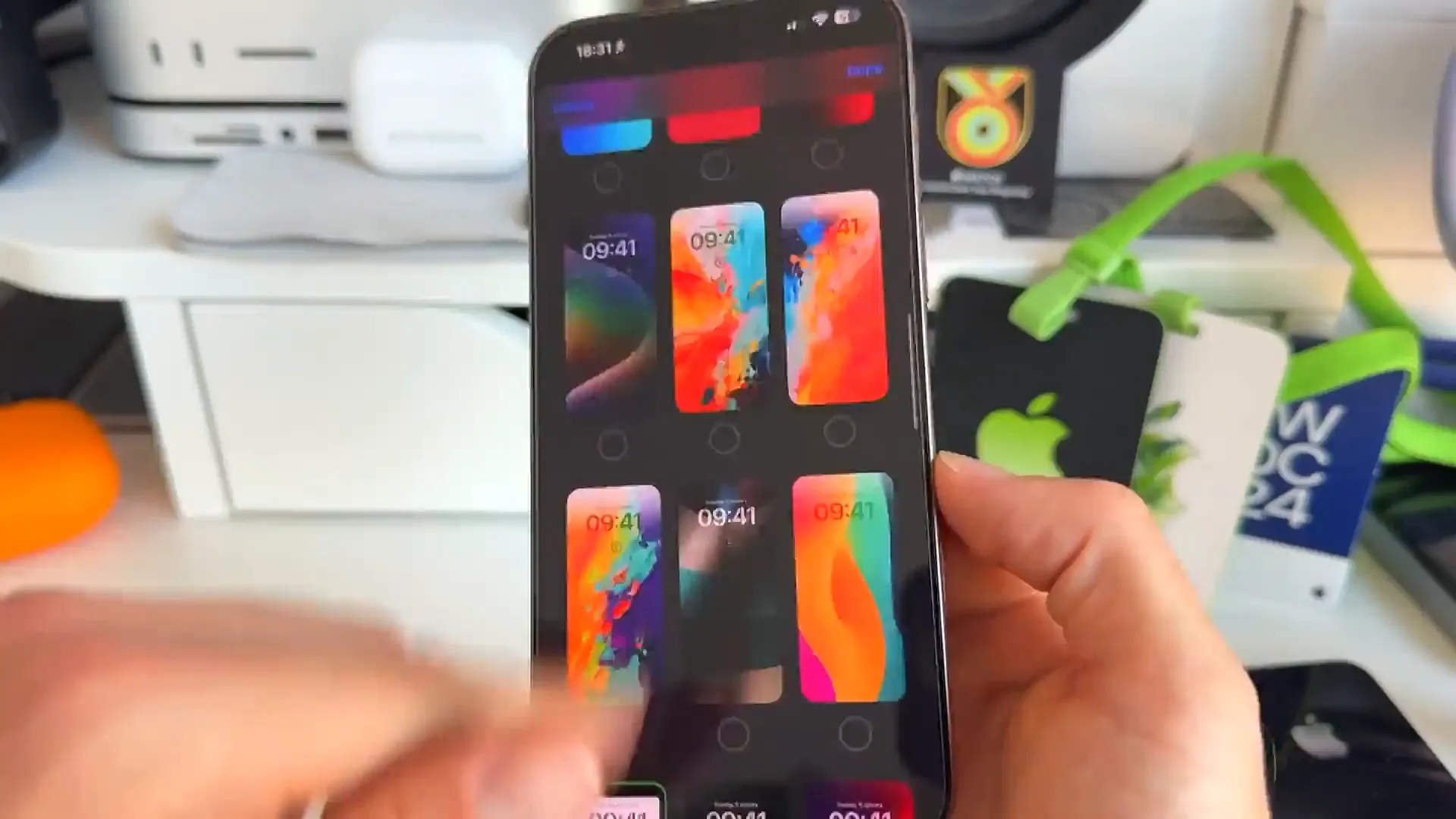
Now your wallpaper is officially linked. Whenever you activate that specific Focus Mode, your screen will transform automatically.
Ideas to get you started
You can go pretty deep with customization here. Here are a few ways we've seen people use this:
- Work Mode: Use a solid color or a blurred photo to keep text legible and distractions low
- Gaming: Use a retro console background or art from your favorite game
- Fitness: Put your workout goals or a motivational quote right on the lock screen
- Personal: Switch to photos of family or pets when you clock out for the day
Pro tip: If you use the Gaming focus, you can see an option for "Wireless Controller" in the settings. This lets you turn the mode on automatically whenever you connect a controller to your phone.
A few extra tricks
It's not just about the wallpaper image. You can customize the functionality of your screens too:
- You can change your Home Screen layout too. Hide your email apps when you're in Gaming mode
- Add specific widgets to the lock screen. Maybe a fitness tracker for Gym mode, or a calendar for Work mode
- Use smart schedules to turn these modes on based on time of day or your GPS location
Give it a shot
It's easy to get stuck using the same wallpaper for months. This is a fun way to freshen up your phone without committing to one look 24/7. Set up a motivating lock screen for your next workout or study session and see if it helps you stay in the zone.
Last updated: Oct 14, 2026