
26 macOS Tahoe features nobody talks about
macOS Tahoe is finally here. And honestly, this is the update we've been waiting for. It feels like a completely new experience, not just a small spec bump. The design is fresher. The tools are smarter. It just feels modern.
We've dug through the beta to find the changes that actually matter. Sure, there are big headlines, but the best features are often the ones hidden in the settings menus. We found 26 of them that change how you use your Mac.
We're going to walk through the biggest visual overhauls, the productivity tools that replace third-party apps, and a few Easter eggs you definitely missed. Let's dive in.
A totally new look
The first thing you'll notice is the new "Liquid Glass" design. It's everywhere. Windows have this beautiful translucent look. Apps flow into one another. Even the System Settings and Finder windows have been completely reimagined.
But the biggest design change is actually what's missing. The white bar at the top of your screen is gone. The menu bar is now fully transparent. It floats over your wallpaper. It looks incredible and gives you just a bit more screen real estate.
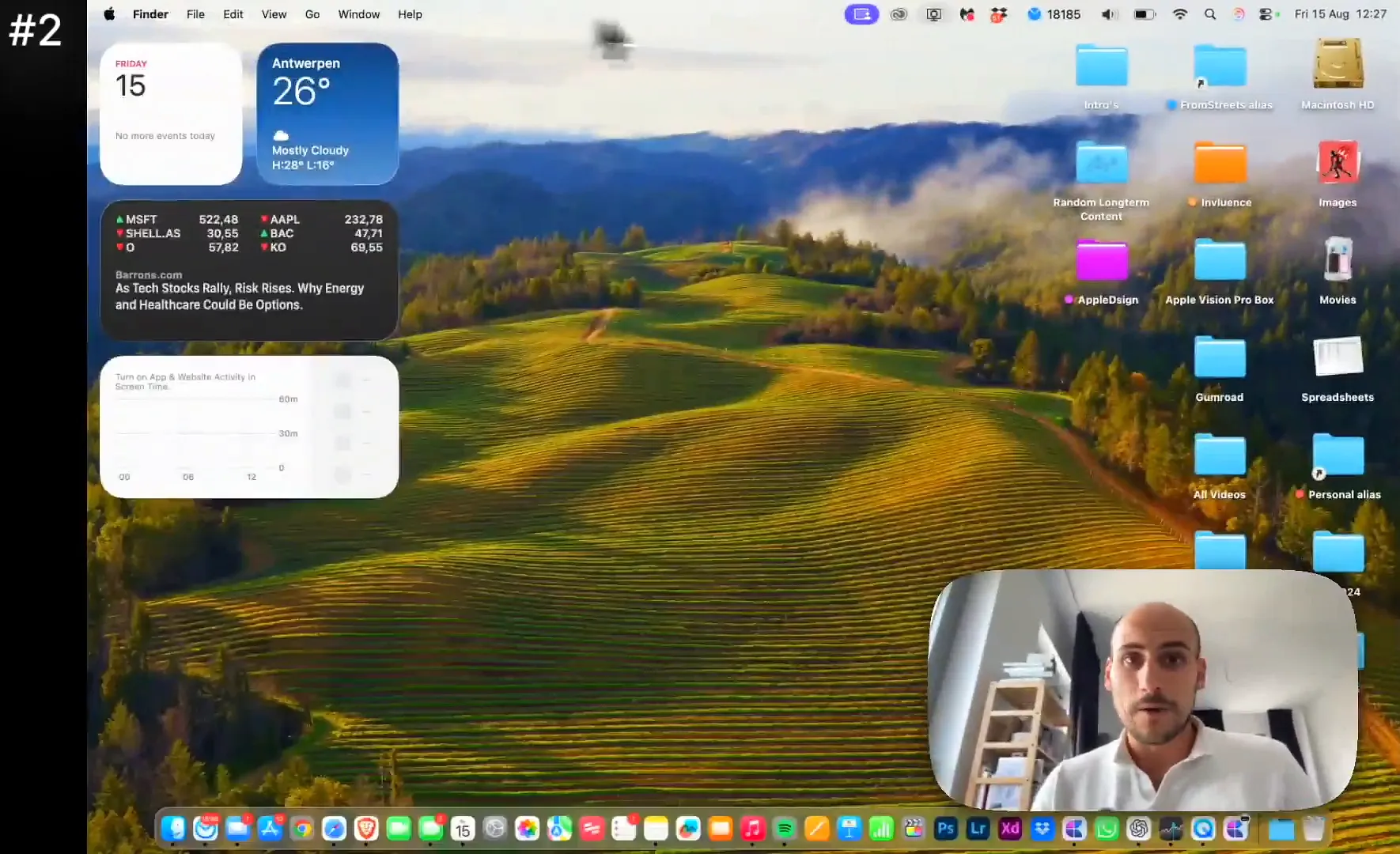
Quick tip: Click the Apple Logo and go to About This Mac. The icon there now matches your actual device. If you're on a Mac Studio, you see a Mac Studio. Simple, but a nice touch.
Spotlight is your new command center
If you use tools like Alfred or Raycast, you might want to cancel your subscription. Spotlight in Tahoe is a beast. It's not just for finding files anymore. It allows you to take action directly from the search bar.
You can create folders, start lists, or toggle system settings without opening an app. The best part is the new "Quick Keys" feature.
How to set up Quick Keys
- Open Spotlight by pressing Cmd + Space
- Search for an action, like "Create Folder"
- You'll see an option to assign a shortcut on the right side
- Type a short code, like "cf"
- Now, whenever you type "cf" in Spotlight, it instantly runs that action
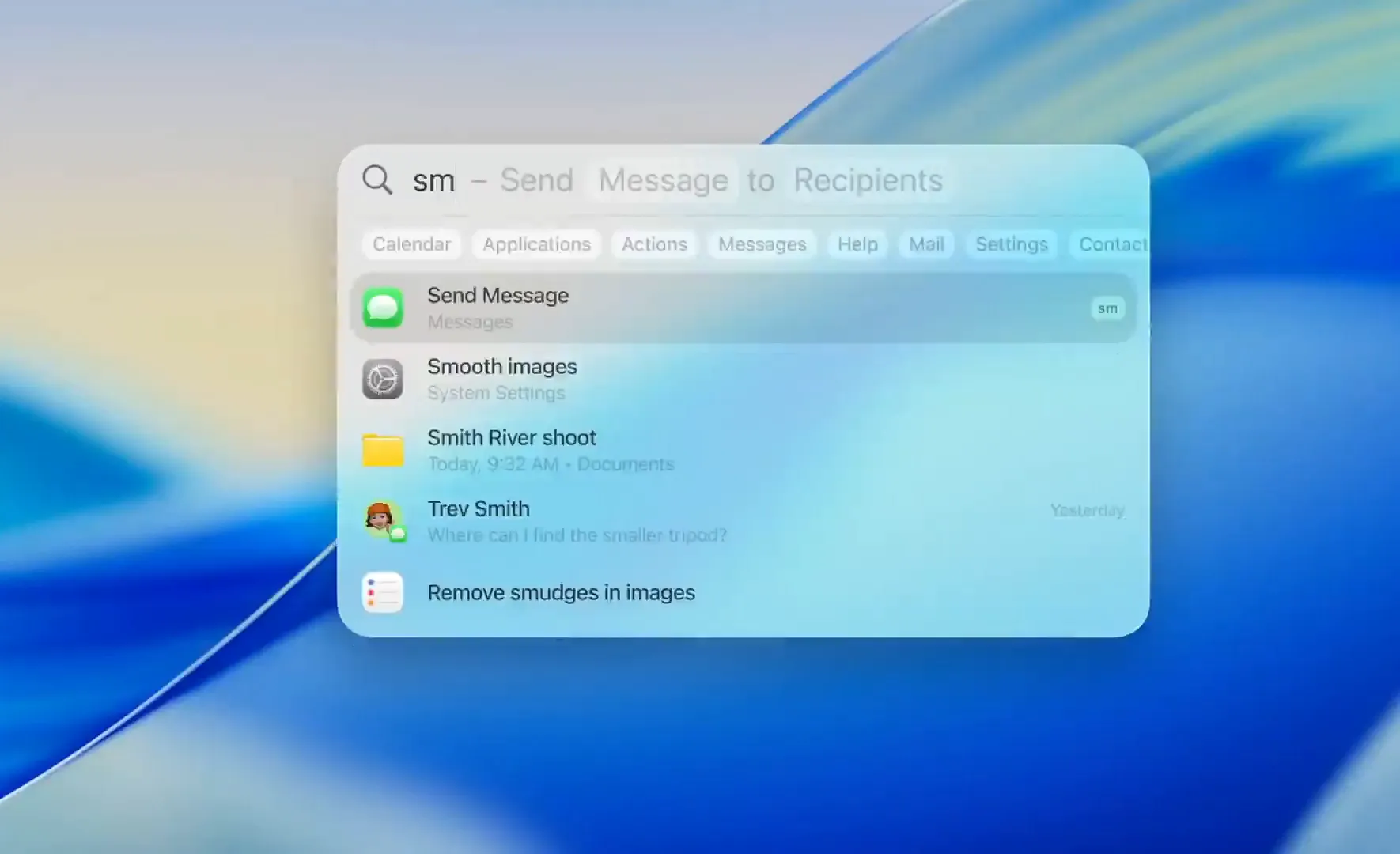
You can do this for emails, reminders, or notes. It speeds up your workflow significantly.
Never lose a link again
Spotlight now includes a native Clipboard Manager. We've all been there. You copy a link, then copy something else, and the first link is gone forever. Not anymore.
Search for "Clipboard" in Spotlight. You'll see a history of everything you've copied recently. It's all right there, ready to be pasted again.
Customizing your workspace
macOS used to be pretty rigid with customization. Tahoe changes that. You can now deeply customize your folders to organize your desktop visually.
Spice up your folders
- Right-click on any folder on your desktop
- Select Customize Folder from the menu
- Pick a custom color to color-code your projects
- Add an icon or emoji. A heart, a plane, a dollar sign. Whatever fits
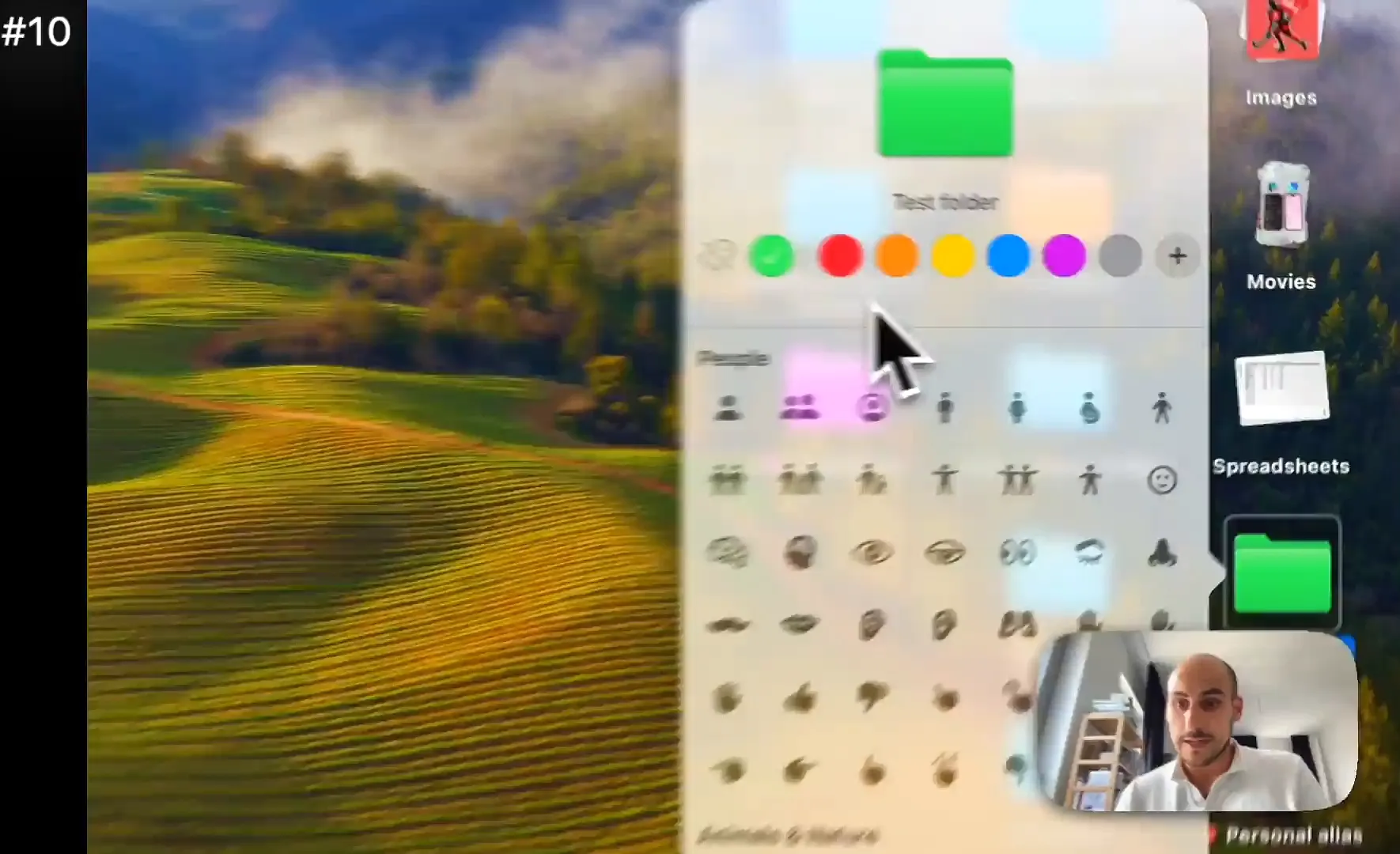
When you drop a file into these folders, there's a satisfying new animation. The folder reacts, and you see the file slip right in. It makes the system feel alive.
Tinted icons are here
Just like on iOS 18, you can now tint your app icons to match your wallpaper or mood. Go to System Settings and then Appearance. You can choose between Light, Dark, or the new Tinted option. It applies a color wash to all your apps for a uniform, aesthetic look.
New apps coming to the Mac
Apple is bridging the gap between iPhone and Mac even more. Several apps we use daily on mobile have finally made the jump to desktop.
- Journal: You can finally write your daily entries on a full keyboard. It syncs perfectly with your iPhone
- Phone: A native dialer app. You don't have to open FaceTime just to make a generic audio call anymore
- Games: A dedicated hub for your library and Apple Arcade. It separates your gaming from the standard App Store
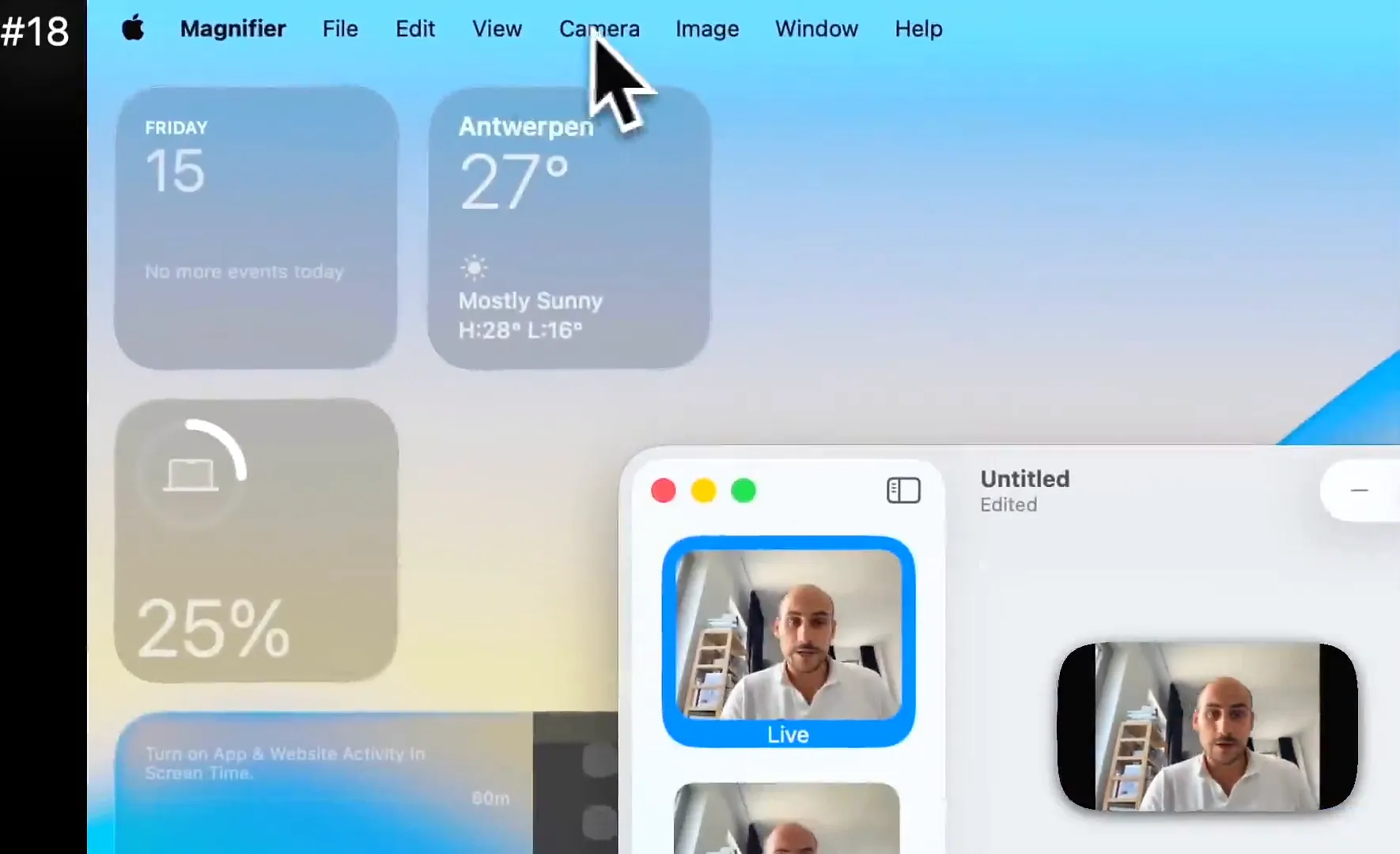
- Magnifier: This is huge for accessibility. You can use your iPhone camera as a remote magnifier that feeds video directly to your Mac screen
A few other goodies
There are too many updates to list them all in detail, but here are the ones you'll use most:
- Passwords History: The Passwords app now shows you when you changed a password and what the old ones were. Lifesaver
- Control Center: It's fully customizable now. Drag, drop, and resize toggles just like on iPhone
- Preview App: It got a major upgrade. The markup tools have a dedicated top bar, making it a legitimate document editor
- Launchpad is dead: It's been replaced by the App Library. Pinch with four fingers on your trackpad to see all your apps automatically categorized
- SSD Icon: If you look at your hard drive icon on the desktop, it's no longer an old spinning hard disk. It's finally updated to look like an SSD
Go explore
That's 26 features that change the game for the Mac. macOS Tahoe feels like a fresh start. Whether you're customizing your folders or automating your life with Spotlight keys, there is something here for everyone.
Go download the update, tweak your settings, and enjoy the new look. It's going to be hard to go back to the old macOS after this.
Last updated: Oct 14, 2026