
What's new in iOS 26.1
The wait is over. iOS 26.1 is finally here. While many expected a simple bug fix update, this release actually packs a surprising punch. It fixes security flaws and bugs, sure. But it also brings some genuinely useful new features to your iPhone.
We're seeing significant changes to how you interact with your alarm, new customization options for your display, and expanded language support for Apple Intelligence. Even the Music app got some slick new gestures.
In this post, we'll walk through the biggest changes you need to know about. We'll start with the visual updates and then dive into the functional tweaks that change your daily workflow. Let's get into it.
A new look with Liquid Glass
This is one of the biggest visual changes in this update. If you've felt that iOS transparencies were a bit too see-through, you'll love this. It's a new feature called Liquid Glass.
It allows you to change the opacity of your interface elements. It affects things like your notifications, folders, and the phone keypad.
How to customize it
- Open Settings and tap on Display & Brightness
- Scroll down to find the new Liquid Glass option
- Tap it to choose between Clear and Tinted
- Select Tinted if you want increased opacity and higher contrast
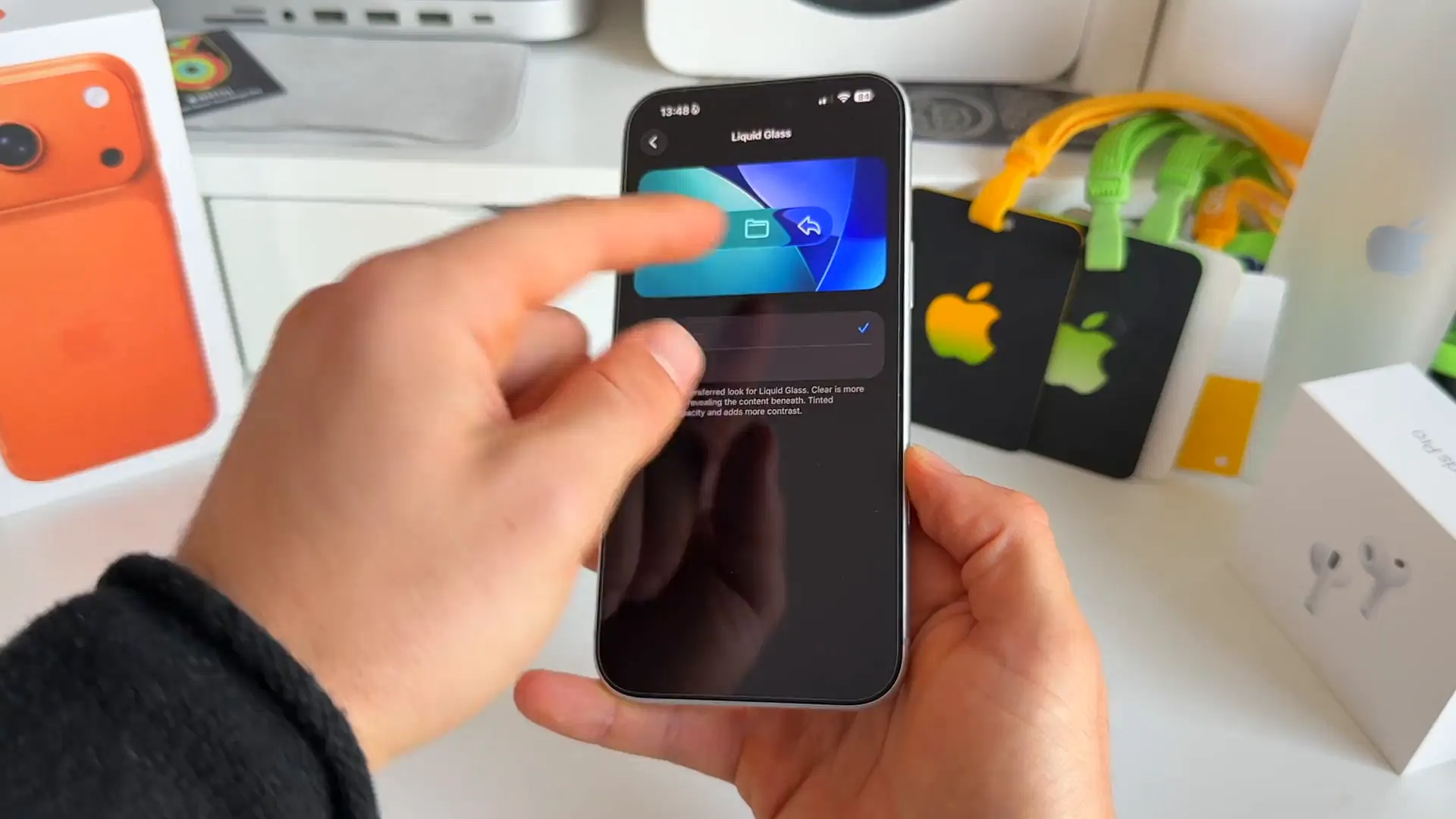
When you switch to Tinted, you'll notice immediately that backgrounds are less transparent. It's much harder to see your wallpaper through notifications, which can make text easier to read.
No more accidental snoozing
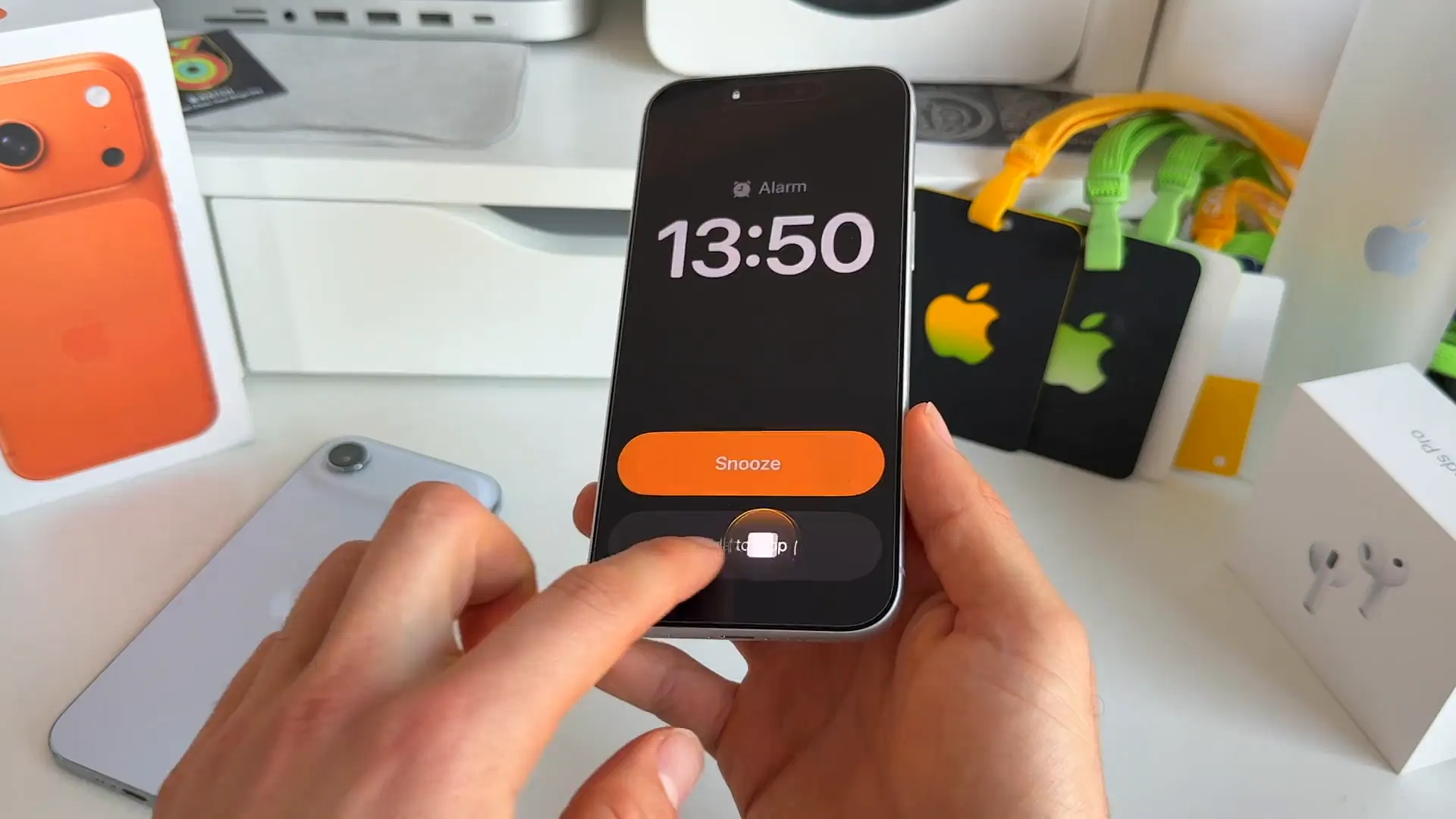
We've all been there. You wake up groggy, tap the screen, and accidentally turn off your alarm instead of snoozing it. iOS 26.1 changes the game here.
The button to stop the alarm is gone. It's been replaced by a slider. You now have to physically slide to stop the alarm, similar to the old "slide to unlock" feature. It's a small change, but it saves you from oversleeping.
Quick gestures for Apple Music
Navigating your tracks just got faster. You don't need to hunt for the skip buttons anymore. Apple has added new slide gestures to the Music app interface.
How to try it
- Open Apple Music and play a song
- On the mini-player bar at the bottom, simply slide left or right to change tracks
- If you're in the full-screen player, you can slide directly on the Song Title to do the same thing
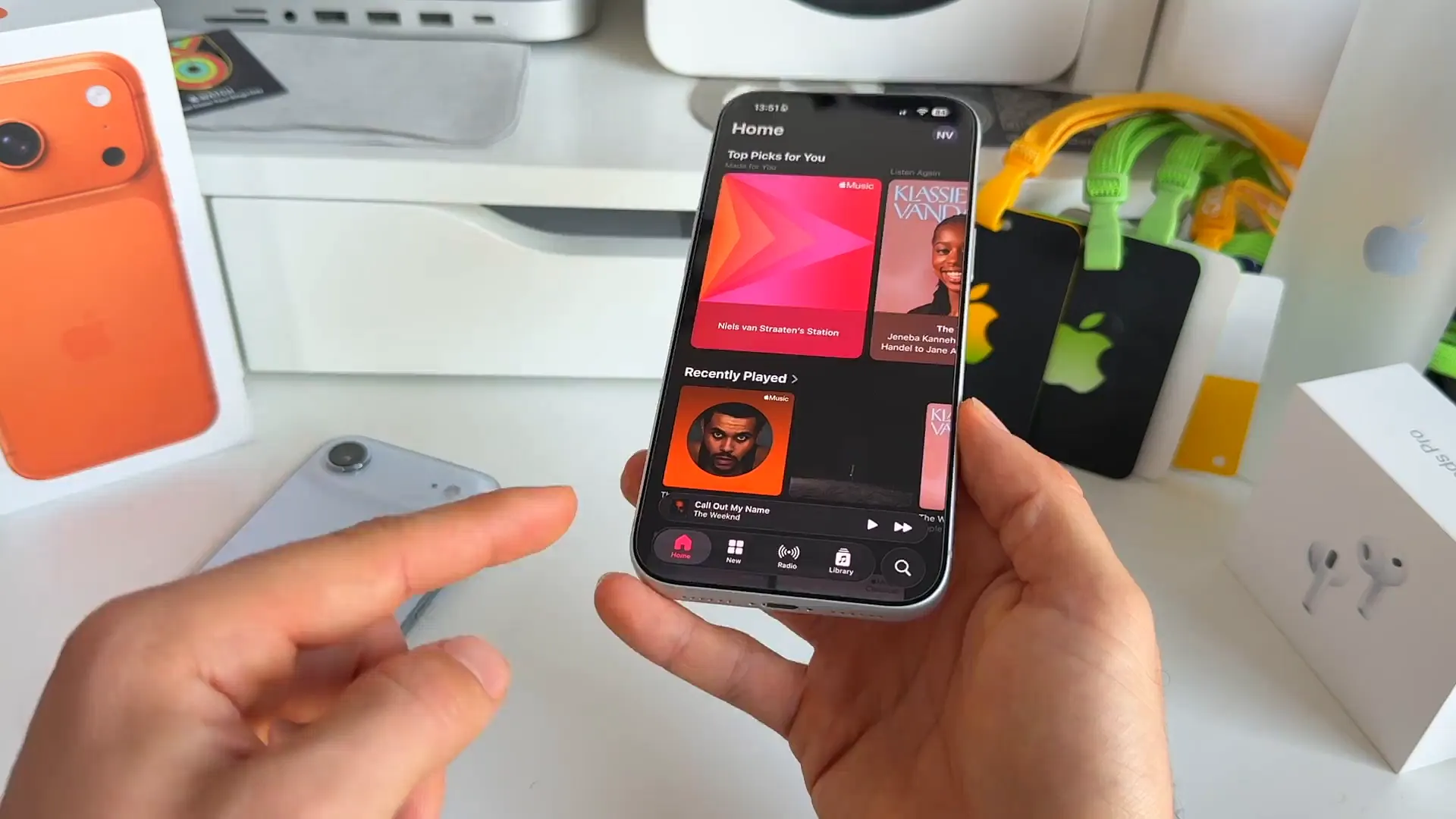
Pro tip: This works great when you're using your phone one-handed. The bottom bar swipe is super accessible.
Control your lock screen camera
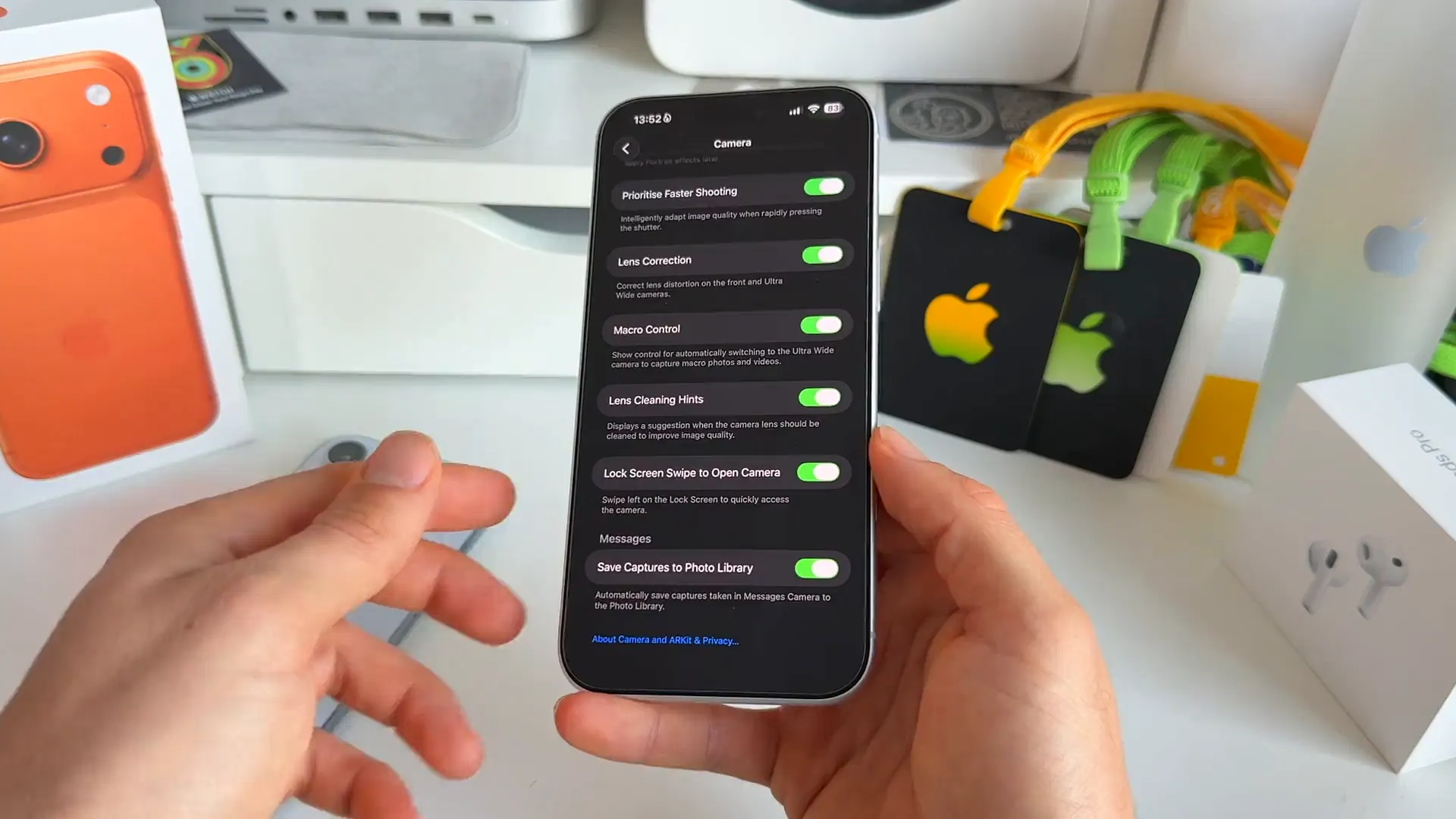
For years, swiping left on the Lock Screen has opened the Camera. Some people love it. Others hate accidentally triggering it. You finally have a choice.
There is a new toggle in Settings > Camera called Lock Screen Swipe to Open Camera. If you turn this off, that swipe gesture stops working completely.
Apple Intelligence speaks more languages
Apple Intelligence is expanding globally. This update adds support for a ton of new languages. This includes Dutch (Belgium and Netherlands), Danish, Norwegian, Swedish, Turkish, and more.
You can check if your language is supported by going to Settings > Apple Intelligence & Siri. If you see your local language there, you're good to go.
Smarter security updates
Security is a big focus in 26.1. There's a new setting deep in the Privacy menu that helps keep you protected without the hassle.
Under Privacy & Security, scroll to the bottom to find Background Security Improvements. This allows your iPhone to automatically install critical security fixes in the background. We highly recommend keeping this toggled on to ensure your personal data stays safe.
A few more things
There are plenty of smaller UI tweaks and changes scattered throughout the system:
- Apple TV Rebrand: The app is just called "Apple TV" now. The "Apple TV+" branding is gone from the app icon and intro
- Left Alignment: Headers in Settings and Folder titles are now aligned to the left instead of the center
- Photos Video Player: The video scrubber is now a distinct, separate bar at the bottom with a new backdrop
- Phone Haptics: You can now toggle haptic feedback for when calls connect or drop inside Settings > Apps > Phone
- Accessibility Borders: A new "Show Borders" option in Accessibility settings helps UI elements pop out more
That's a wrap
iOS 26.1 is a solid update. Between the new Liquid Glass look, the smarter alarm, and the expanded language support, there's something here for everyone. Go grab the update in your settings and start exploring the new features today.
Last updated: Oct 14, 2026