
What's new in iOS 26 battery features
We've been playing around with iOS 26 a lot lately, and one area really stands out: battery life. Apple has added some incredible new tools to help you get the most out of your day. Some are obvious, but others are hidden gems that most people haven't noticed yet.
It's not just about making the battery last longer. It's about giving you better data. You'll now know exactly how long a charge will take and understand your usage habits at a glance. We're moving past simple percentages into actionable intelligence.
In this post, we're breaking down five of our favorite new battery features. We'll show you where to find them and how they change the way you use your iPhone. Let's dive in.
Smarter power management
You're probably familiar with Low Power Mode. It's a classic. But iOS 26 introduces something smarter called Adaptive Power. This feature uses Apple Intelligence to make small, real-time adjustments when your battery usage spikes higher than usual.
Instead of limiting everything, it makes micro-adjustments. It might slightly lower the display brightness or delay a background activity just a bit. It helps extend your battery life without hampering your experience.
How to turn it on
- Open Settings and scroll down to Battery
- Scroll to the bottom and tap on Power Mode
- Toggle on Adaptive Power
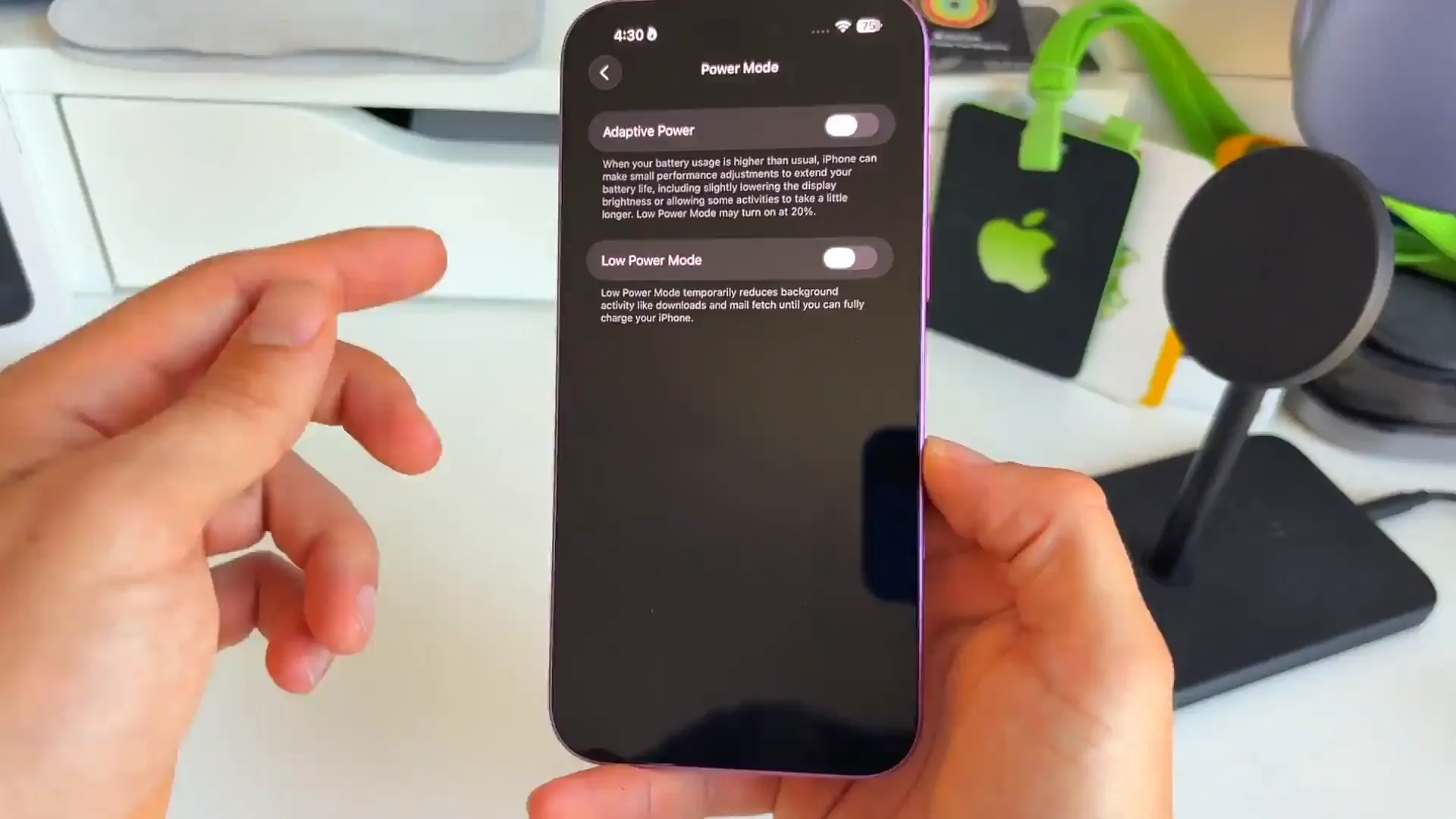
Pro tip: Adaptive Power works in the background, but classic Low Power Mode will still kick in automatically at 20% to give you that extra safety net.
Know exactly when you're charged
This is a feature we've wanted for years. When you plug in your phone, you don't just want to see a percentage. You want to know how long you have to wait.
Now, the Lock Screen tells you exactly that. As soon as you start charging, you'll see a time estimate right under the clock. It might say "15m to 80%." No more guessing if you have enough juice to leave the house.
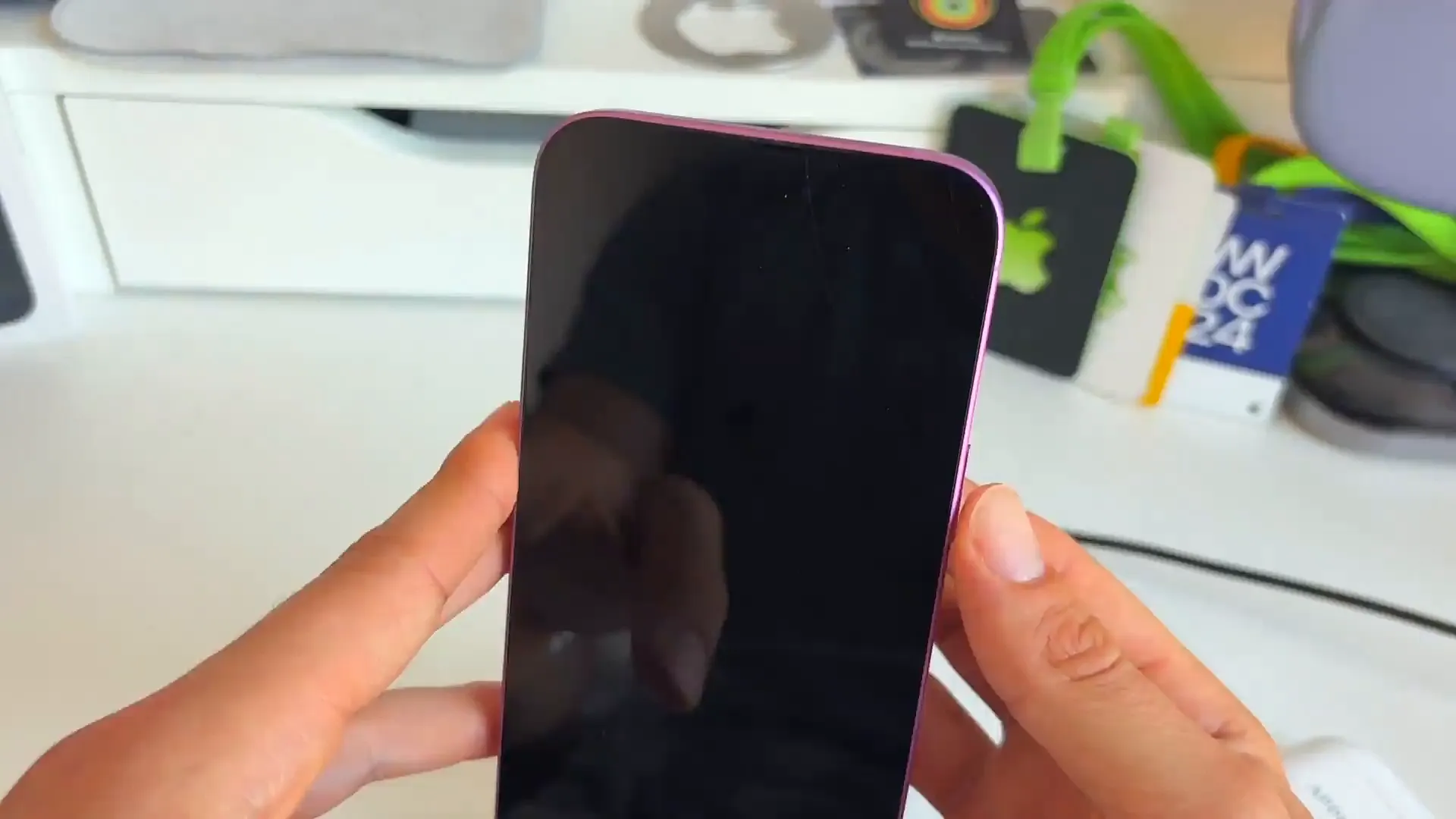
Better planning tools
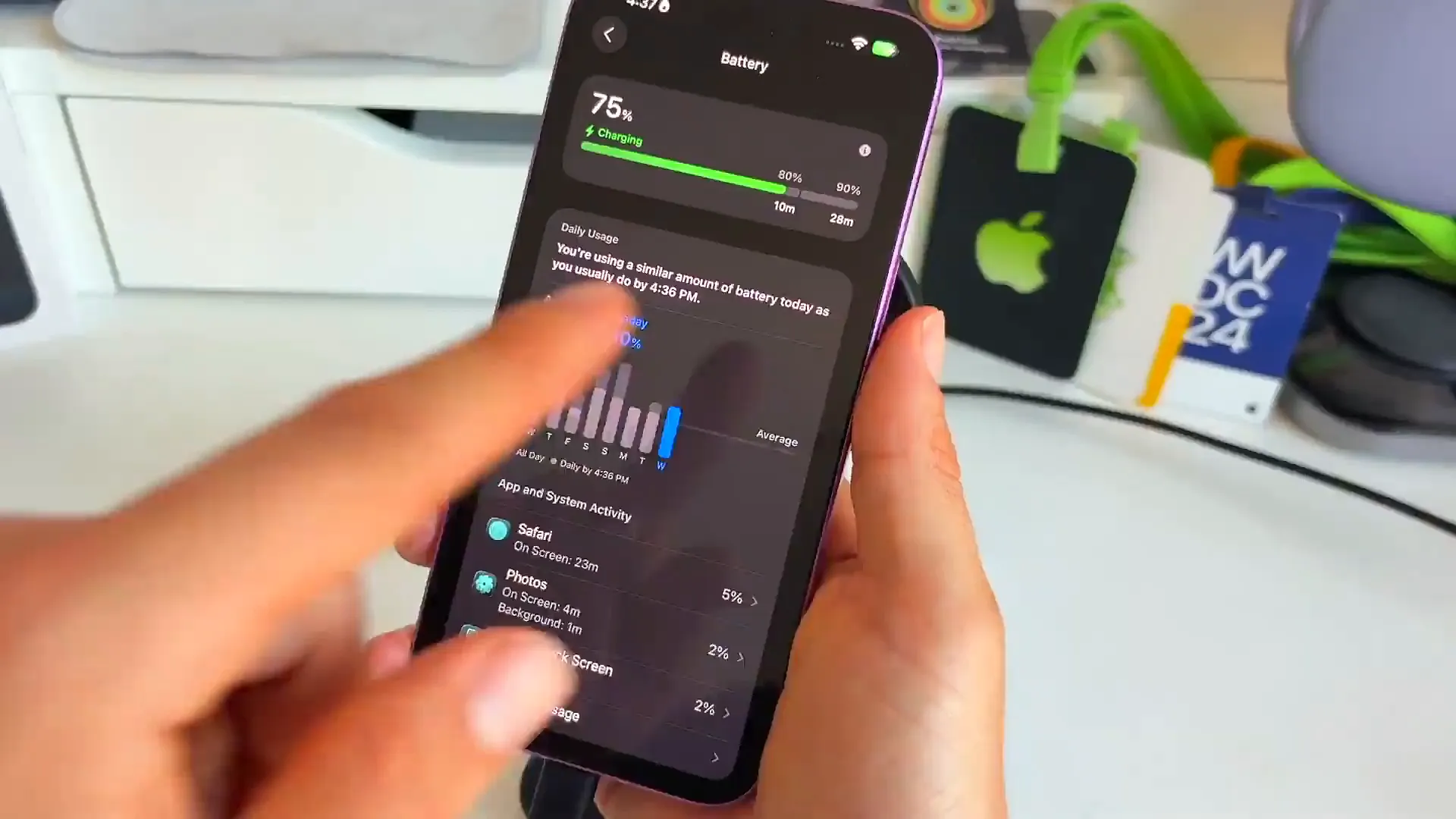
This goes deeper than just the Lock Screen. If you head into your settings while charging, you get a full breakdown. You can see how long it will take to hit 80%, 90%, and a full 100% charge.
The cool part is that this adjusts based on your charger. Plug into a high-speed 15W MagSafe charger, and you'll see those minutes drop. Use a slower 5W brick, and the estimate updates instantly.
Visualizing your daily usage
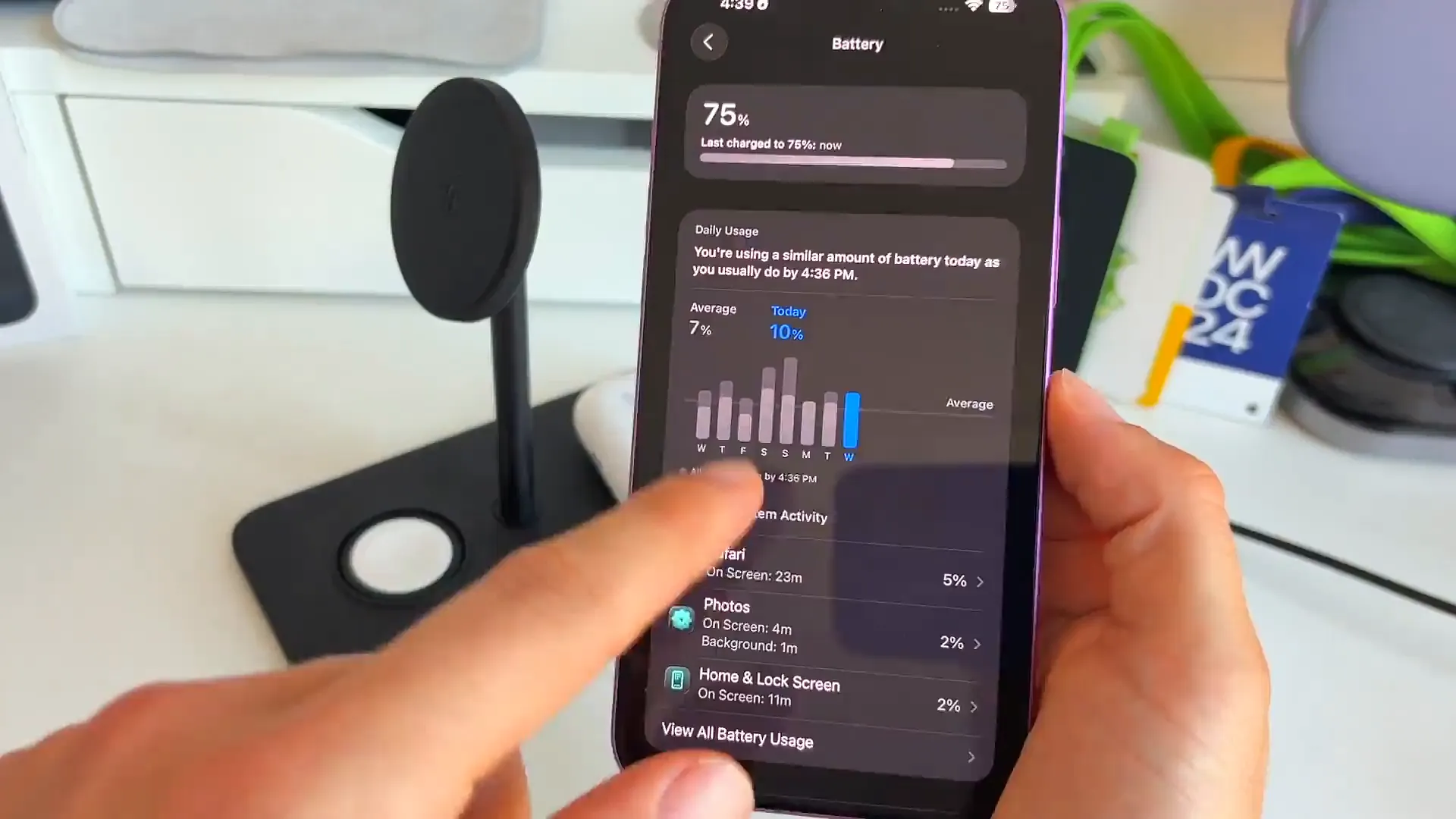
The battery usage graph got a major upgrade. It now gives you a clearer picture of whether your battery drain is normal or unusual for the day.
You'll see a color-coded bar chart. If your usage is average, the bars are blue. If you're pushing your phone hard and draining battery faster than usual, the bars turn orange. It's a quick way to see if an app is rogue or if you're just having a heavy phone day.
Compare your days
This is great for spotting trends. Here's what you can look for:
- Check the Daily Usage text. It tells you if you're using a similar amount of battery compared to your average
- Look for orange spikes. These indicate heavy usage periods
- Compare lighter days (blue) to see how much battery you save when you aren't on your phone as much
Find exactly what's draining power
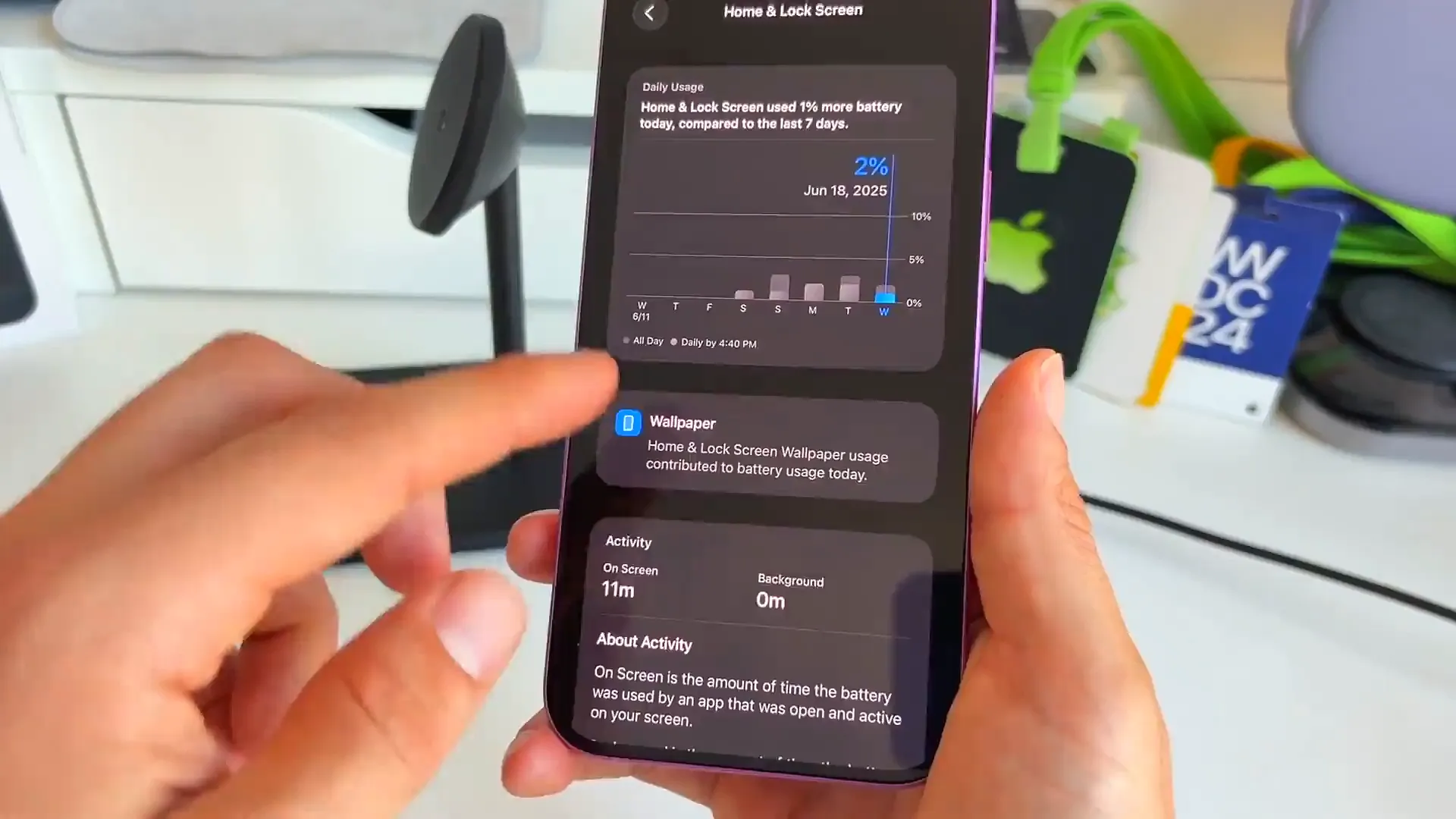
Finally, we have granular details on system components. We've always been able to see which apps use battery, but iOS 26 breaks down system activities much better.
You can now see exactly how much power your Home & Lock Screen is using, and even drill down to see if it's the wallpaper causing the drain. This is super helpful for troubleshooting. If your battery is tanking, you can now pinpoint if a specific app feature or system setting is the culprit.
Go explore
That's a wrap on the new battery features in iOS 26. These updates, especially Adaptive Power and the new charging estimates, are going to be game changers for daily use. It's great to see Apple giving us more data and smarter controls.
Go dive into your settings and check your battery health and usage. You might find a few ways to squeeze some extra hours out of your day.
Last updated: Oct 14, 2026