
Turn your iPhone into the ultimate Mac accessory
This might be one of the wildest Mac setups you've ever seen. With the new Mac Mini being so incredibly small, people are looking for ways to keep their desk setup just as minimal. But you usually still need a bulky keyboard, mouse, and trackpad.
What if you didn't? We've found a way to control your entire Mac using just the device already in your pocket: your iPhone. No extra hardware required.
In this guide, we'll show you exactly how to replace your peripherals with your phone. Plus, we have a bonus at the end for anyone who wants to ditch their monitor too. Let's get this setup running.
Getting connected
To make this magic happen, we're using a tool called Remote Mouse. It bridges your iPhone and Mac over Wi-Fi or Bluetooth. Here is how to get it running.
- On your Mac, head to remotemouse.net or the App Store and download the Remote Mouse server app
- Grab your iPhone and download the Remote Mouse app from the iOS App Store
- Open the app on your phone. You'll need to allow Bluetooth and Local Network permissions so it can find your Mac
- Launch the app on your Mac. It might ask for Accessibility permissions—go ahead and grant those so it can control your mouse cursor
- Your Mac should pop up in the list on your iPhone. Tap it to connect
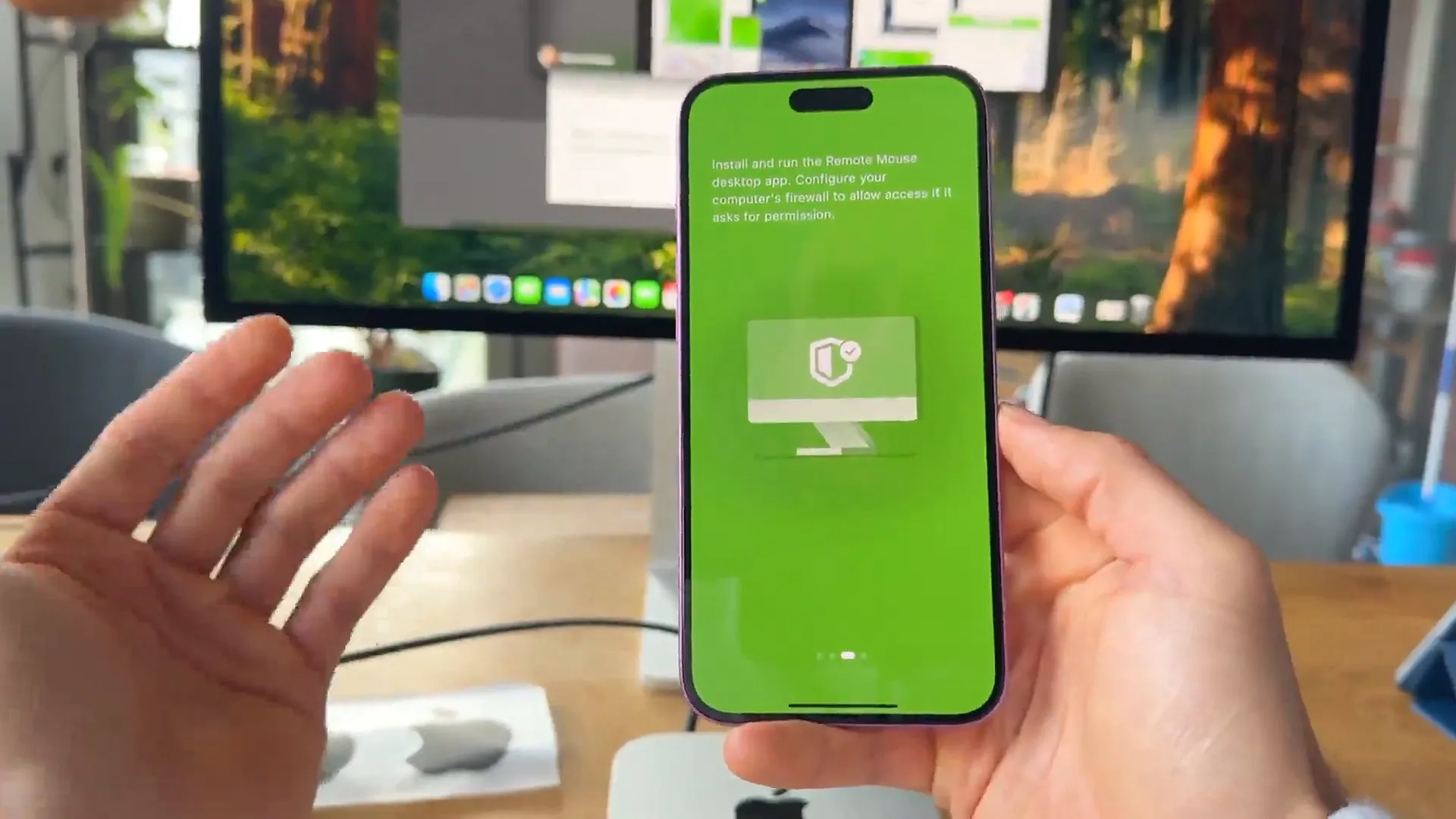
Pro tip: Make sure both devices are on the same Wi-Fi network for the smoothest connection. Once you see the green screen on your phone, you're live.
Mastering the gestures
The interface is essentially a giant trackpad. But it's smarter than a standard mouse. It uses multi-touch gestures to handle everything you'd do on a Magic Trackpad.
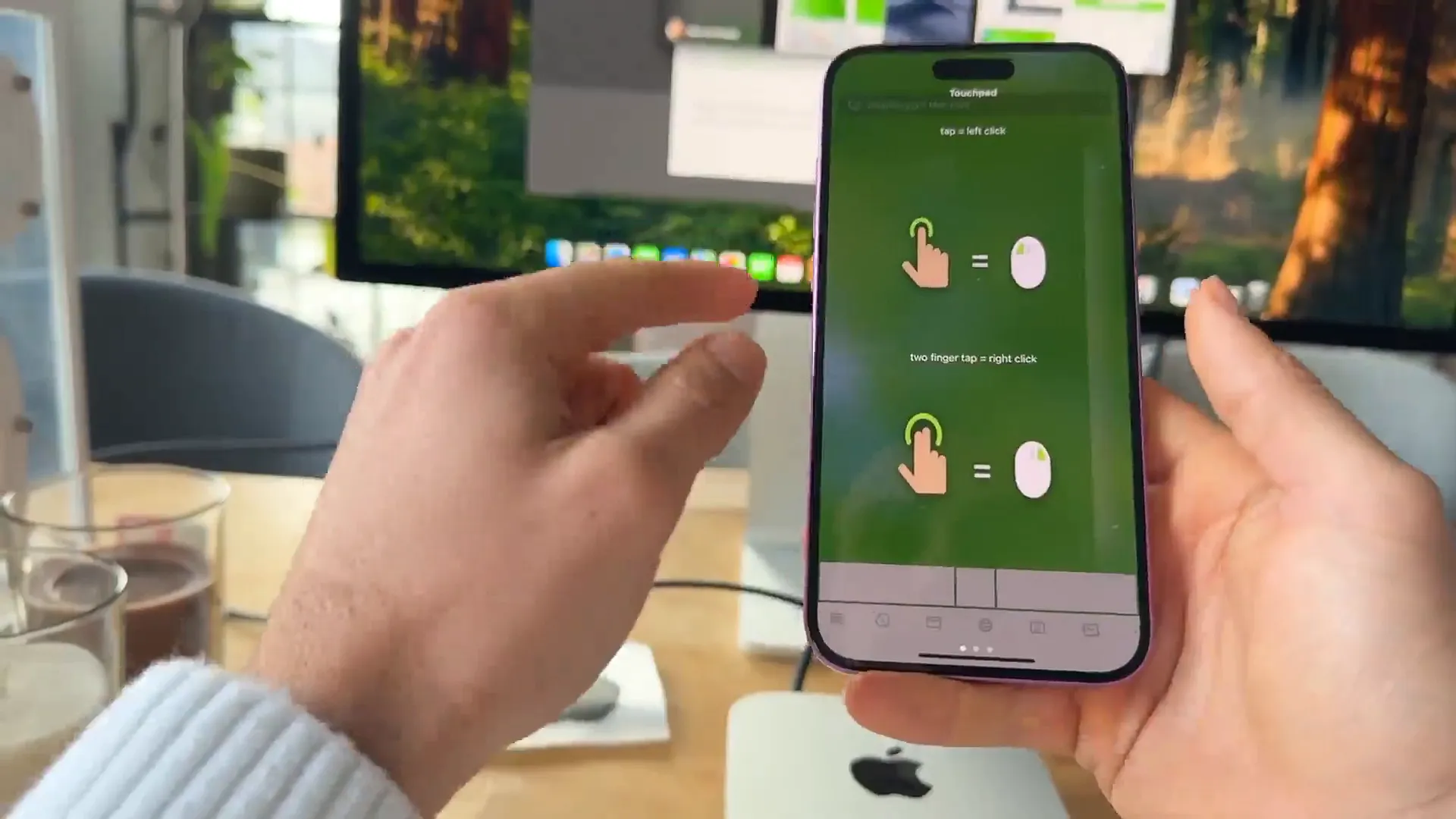
How it works
- Left Click: Tap anywhere on the green screen with one finger
- Right Click: Tap with two fingers simultaneously
- Scroll: Drag two fingers up or down to scroll through webpages or documents
- Zoom: Pinch in or out with two fingers (great for photos)
- Drag Windows: Use three fingers to grab a window and move it around your desktop
It feels incredibly natural. If you've used a MacBook trackpad before, you already know how to use this.
More than just a mouse
You can ditch the physical keyboard too. The app has a full keyboard integration that even supports swipe gestures. But the coolest part is how it handles your Mac's Dock.
Try these features
- Tap the Keyboard icon in the toolbar. Start typing on your phone, and it appears instantly on your Mac
- Tap the Dock icon (the rocket ship). This mirrors your Mac's Dock right on your phone screen
- Tap any app icon on your phone to launch or switch to that app on your computer instantly
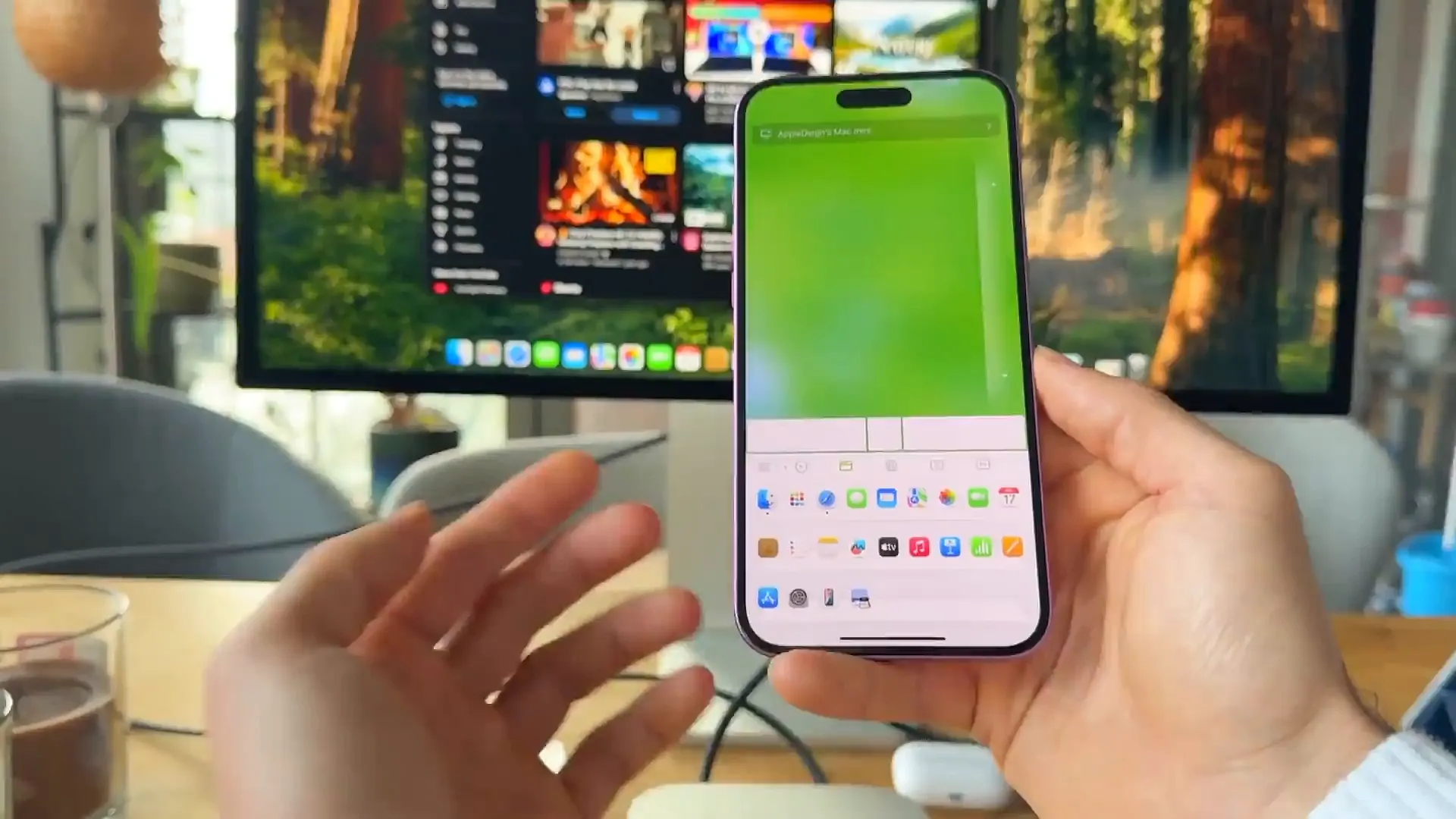
Once you're in the Dock view, you can even switch apps seamlessly without looking up at the monitor. It's surprisingly fast.
Control your system
This is where it gets really powerful. You can control the actual state of your Mac remotely. Whether you're in bed or just across the room, you have full control over the power settings.
- Put your Mac to sleep with a single tap
- Restart or shut down the computer completely
- Log out of your current user session
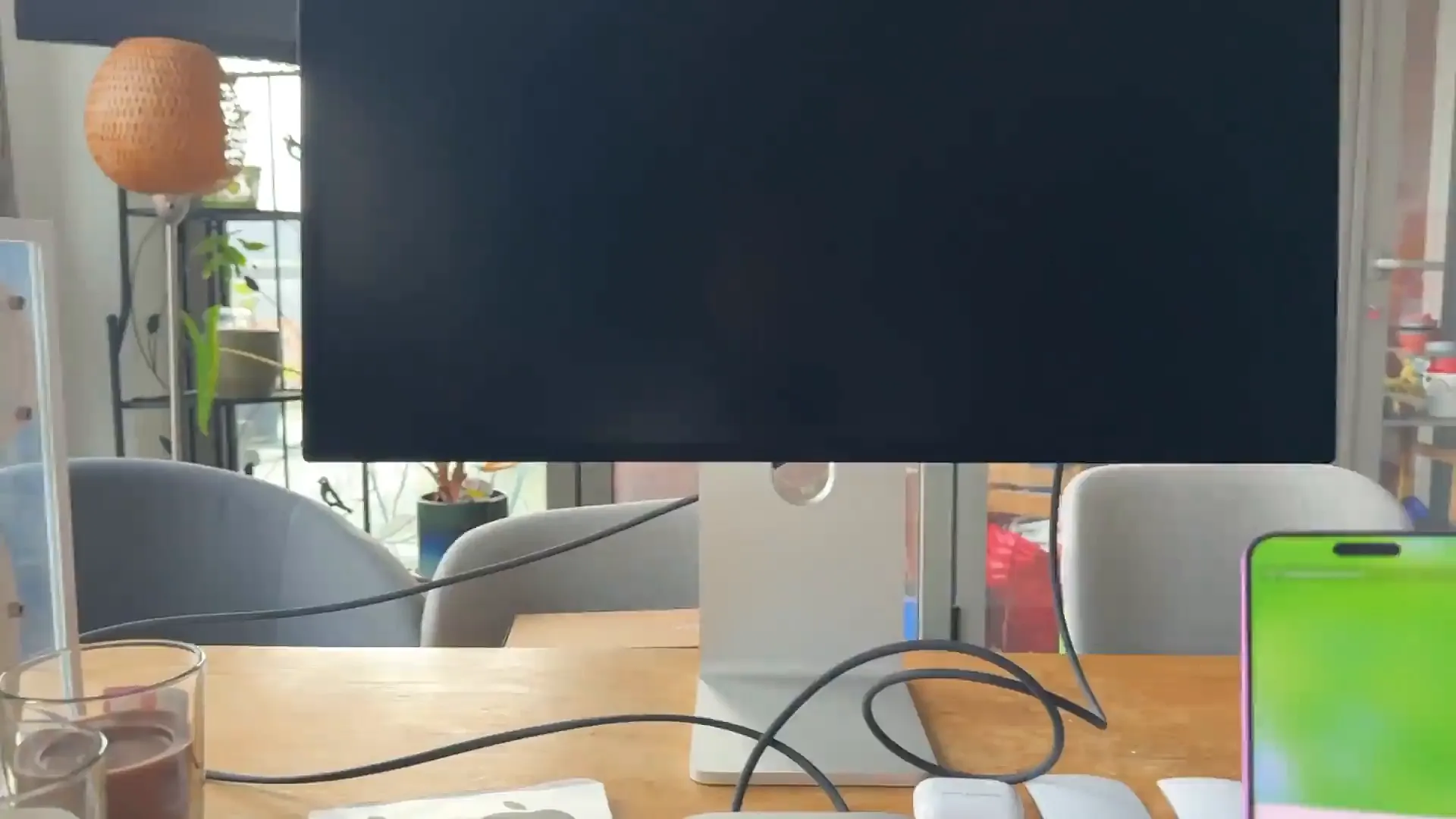
The invisible monitor setup
Okay, so you've ditched the mouse and keyboard. But what if you don't have a monitor? Maybe you're traveling or just want the cleanest desk possible. Enter the RayNeo Air 2S glasses.
These are AR glasses that act as an external display. You plug them directly into the Thunderbolt port on your Mac Mini, and boom—you have a massive virtual screen floating in front of you.
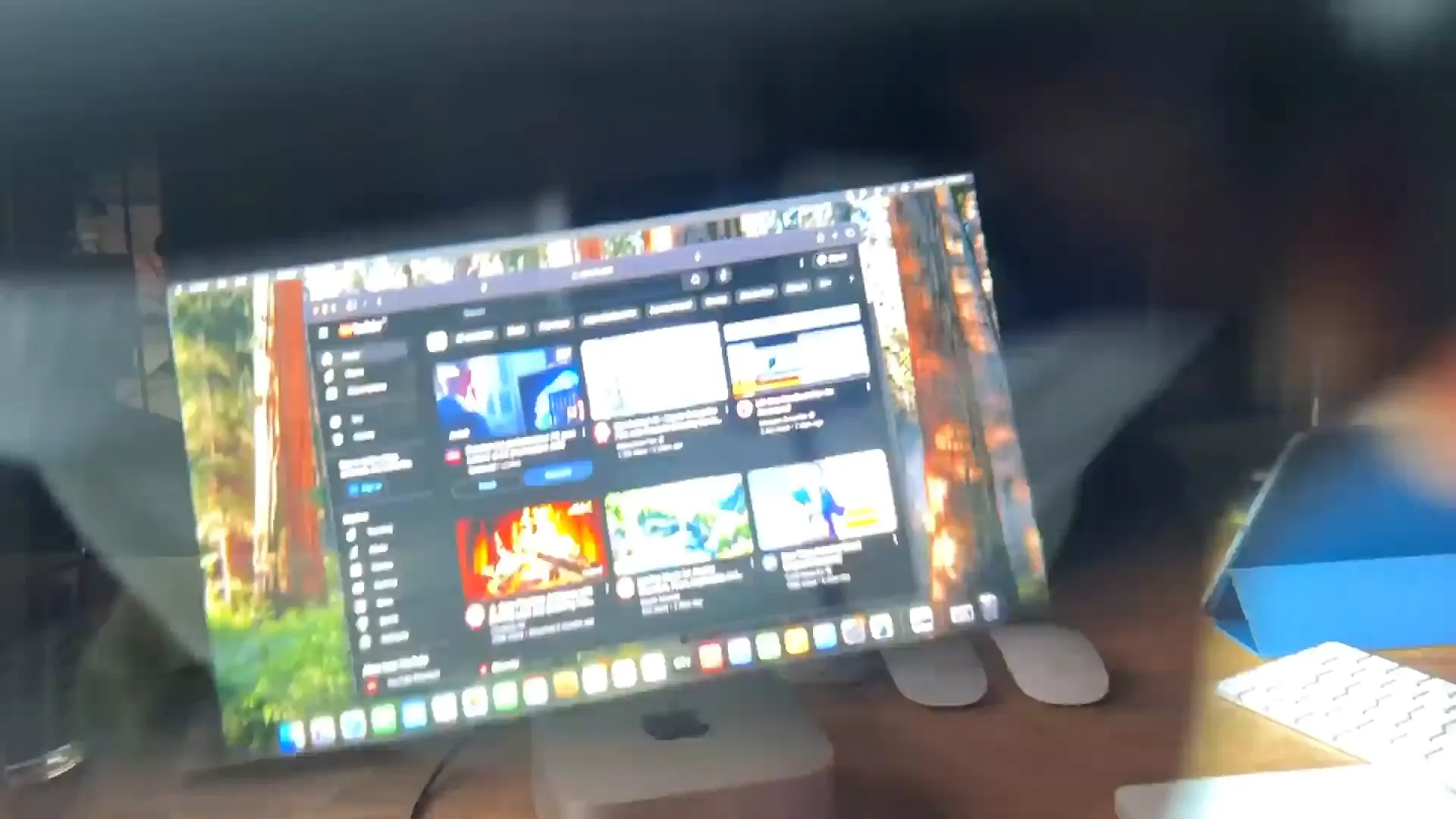
Combined with the iPhone controller setup, this is essentially a "headless" Mac Mini experience. You can see your desktop through the glasses and control everything with the phone in your hand. You can even see your phone screen through the glasses while you use it.
A few things to note
While this setup is amazing, there are a couple of quirks you should know about:
- You'll need to unlock your Mac first. The app can't bypass the login screen if the server isn't running yet
- Pro tip: Set the Remote Mouse app to launch automatically on login so it's always ready
- You might need to re-enter your password manually if you restart the machine entirely
Over to you
This setup completely changes how portable a desktop computer can be. Whether you just want to use your iPhone as a trackpad for convenience, or you're going full cyberpunk with the AR glasses, it's worth trying out.
Last updated: Oct 14, 2026