
Transform Your Mac Desktop with Custom Pokémon Icons and Wallpapers
If you are a Pokémon fan looking to freshen up your Mac, a custom desktop is the ultimate upgrade. Ditching the default blue folders for a fully personalized Pokémon aesthetic is surprisingly easy. By the end of this guide, you will have a clean, themed desktop complete with custom folders for Pikachu, Squirtle, Bulbasaur, and Charmander.
What you'll need
Before you start, you just need a few image files.
- A high-resolution wallpaper (a forest or nature scene works great).
- Images of your favorite Pokémon. It is critical that these images are PNG files with a transparent background. Without transparency, your custom folders will have an ugly white box around them.
Step 1: Set the scene with a custom wallpaper
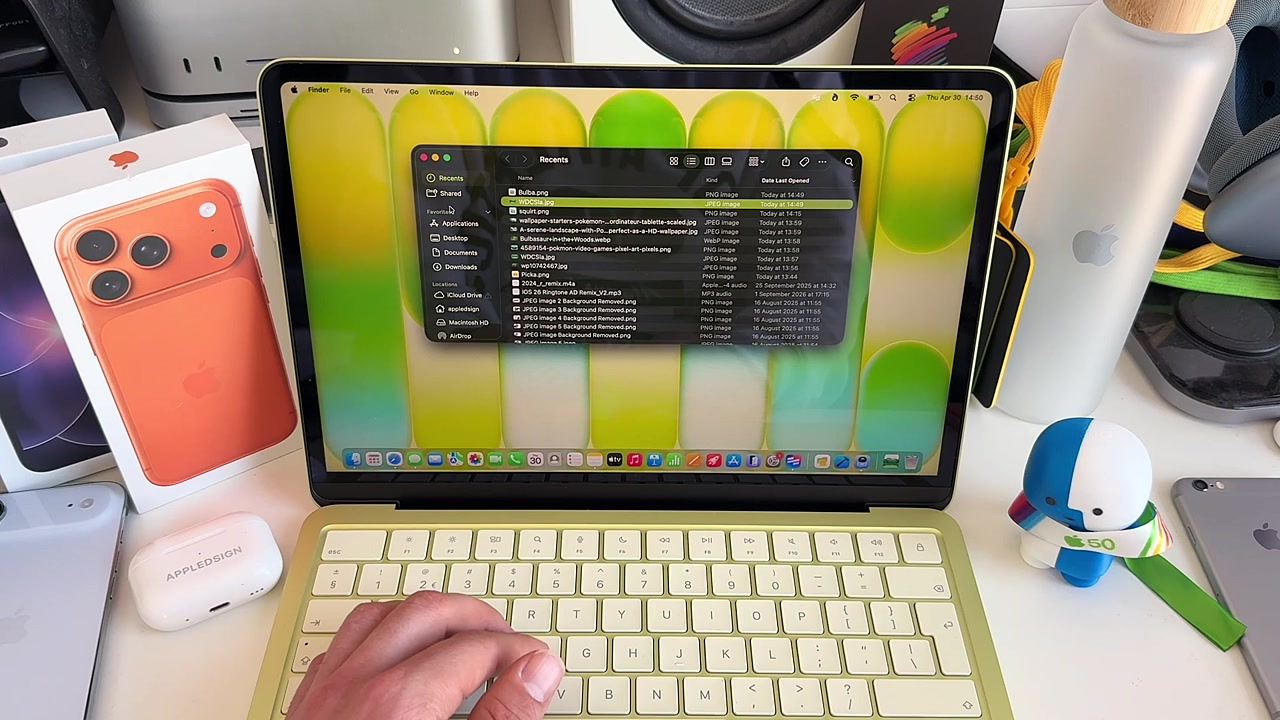
The foundation of a great custom desktop is the wallpaper. Let's find a solid backdrop for our Pokémon.
- Open your browser and search Google Images for a "pokemon forest wallpaper".
- Click Tools below the search bar, then filter by Size and choose Large. This ensures your wallpaper won't look blurry.
- Find an image you like, right-click it, and choose Save Image to "Downloads".
- Locate the downloaded image, right-click it, and select Set Desktop Picture.
Step 2: Create and name your custom folders
Next, we need to create the folders that will house your files.
- Right-click anywhere on your desktop and select New Folder. You can also use the shortcut
Command + Shift + N. - Give your folder a thematic name. For our Pikachu folder, let's name it "Power Plant".
- To add a bit of extra flair, toss in an emoji. Hit
Control + Command + Spaceto bring up the emoji keyboard and insert a lightning bolt.
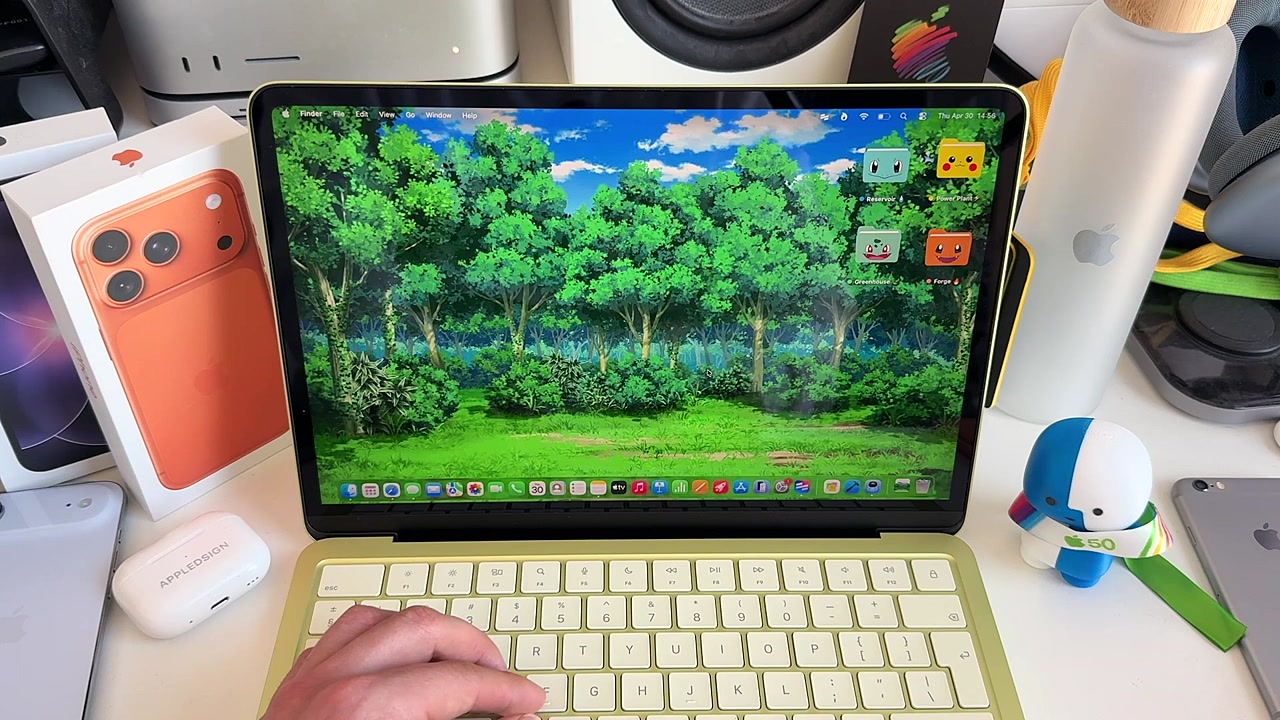
Repeat this for your other folders. For example, create a "Reservoir" for Squirtle with a water drop emoji, a "Greenhouse" for Bulbasaur with a leaf emoji, and a "Forge" for Charmander with a fire emoji.
Step 3: Apply the custom Pokémon icons
This is the fun part. We are going to replace that standard blue Mac folder with your transparent Pokémon images.
- Right-click your new "Power Plant" folder and select Get Info (or press
Command + I). - Look at the very top left of the info window. You will see a tiny preview of the default folder icon next to the folder's name. Click it once so it is highlighted.
- Open the folder where you saved your transparent Pokémon images.
- Click and drag your Pikachu image directly onto that tiny, highlighted folder icon in the info window.
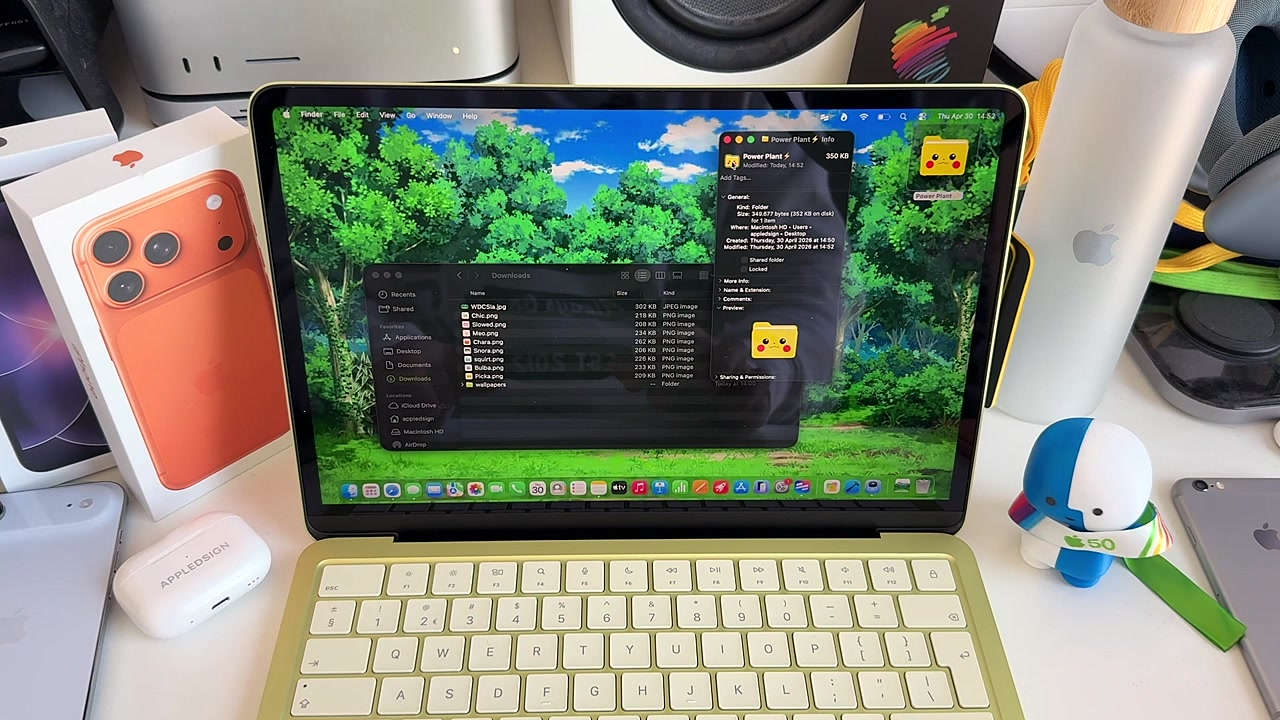
Boom. Your folder is now Pikachu.
Pro tip: While you have the info window open, you can color-coordinate your folders. Add a yellow tag for Pikachu, a blue tag for Squirtle, green for Bulbasaur, and orange for Charmander. This makes it even easier to categorize your files at a glance.
Step 4: Organize and resize your desktop
Now that you have your custom icons, they might look a bit scattered or be the wrong size for your setup.
- Right-click on your desktop and click Clean Up to snap your new icons neatly into place.
- If the icons feel too big or too small, right-click the desktop again and select Show View Options.
- Here, you can drag the slider to adjust the icon size.
- You can also tweak the grid spacing to bring the icons closer together or spread them further apart.
You're all set
That is all it takes to completely transform your Mac desktop. You now have a personalized, organized, and totally custom workspace. You aren't just limited to the original starters, either. Grab transparent images for any Pokémon—or any theme entirely—and apply these exact same steps to make your desktop your own.
Last updated: May 7, 2026