
Supercharge your iOS 18 Control Center with Shortcuts
I'm calling iOS 18 the customization update. We already know you can completely redesign your Lock Screen and Home Screen. Now, Apple has finally opened up the Control Center. It's a game changer.
The best part? You can now add Shortcuts directly to these screens. This allows you to create amazing little buttons that make your phone so much more useful and cleaner. No more digging through menus for simple settings.
In this post, I'll show you how to use the Shortcuts app to build custom toggles—like a true Wi-Fi switch and a quick AirDrop setting—and how to place them right in your new Control Center.
Creating a true Wi-Fi toggle
Let's start by fixing a common annoyance. Sometimes you just want to toggle Wi-Fi completely on or off without navigating through settings. We can build a Shortcut for that.
Step by step
- Open the Shortcuts app and tap the + icon in the top right
- Tap Search Actions and type in "WiFi"
- Select Set Wi-Fi from the list
- Tap the word "Turn" in the action box and change it to Toggle. This makes it a real on/off switch
- Tap the arrow at the top to rename it to "Wi-Fi" and choose a new icon and color if you want
- Hit Done to save it
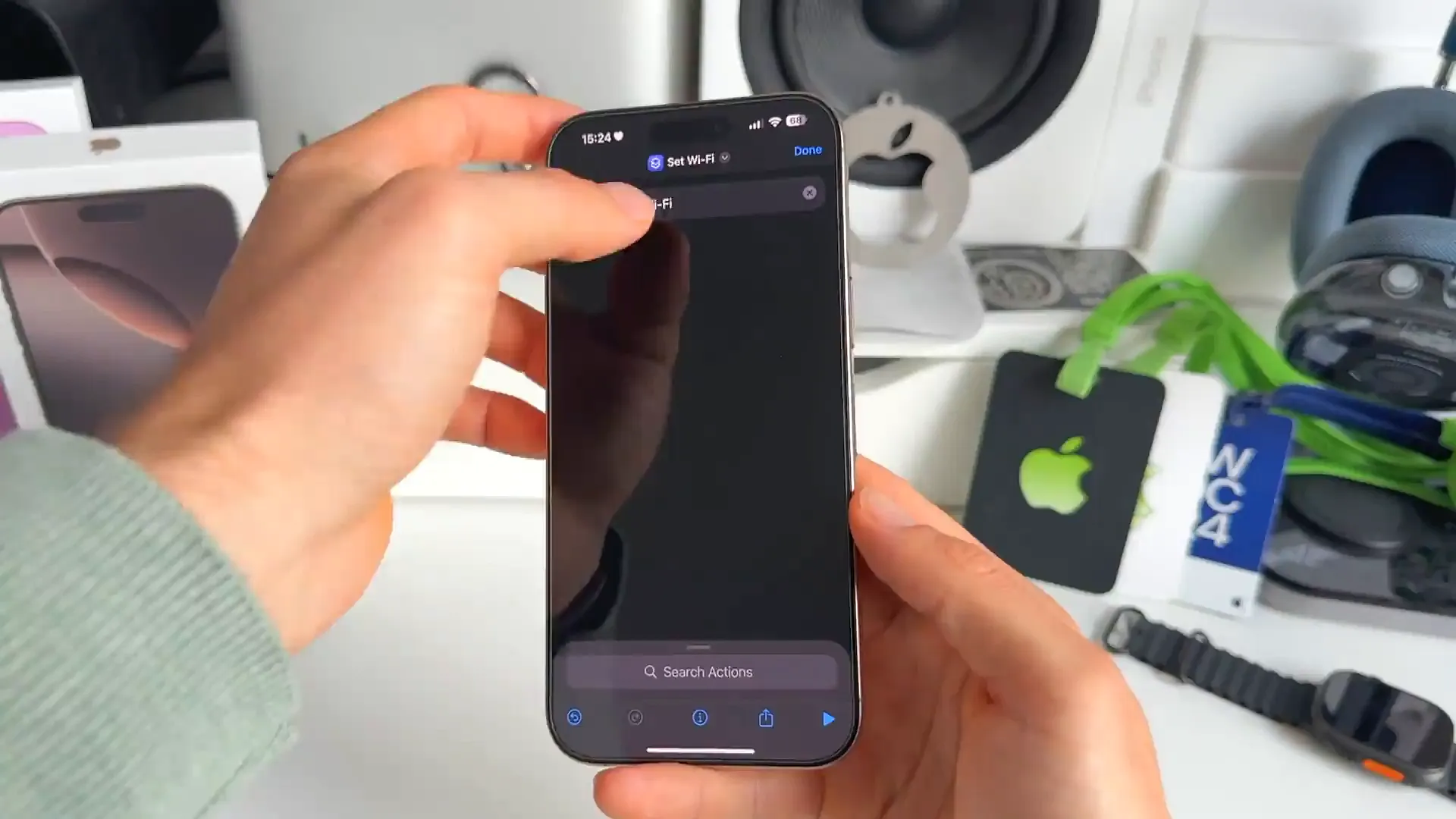
Once you hit done, you've got your Shortcut ready. Now let's get it where you actually need it.
Adding it to the Control Center
This is where the iOS 18 update shines. You have a blank canvas to work with. Let's add that Wi-Fi button we just made.
Here is how to do it
- Open your Control Center and tap the + icon at the top left to enter edit mode
- Scroll to the bottom or swipe to a new blank page
- Tap Add a Control at the bottom of the screen
- Search for "Shortcut" and select the Shortcut option
- Tap Choose on the button that appears and select the "Wi-Fi" shortcut you created
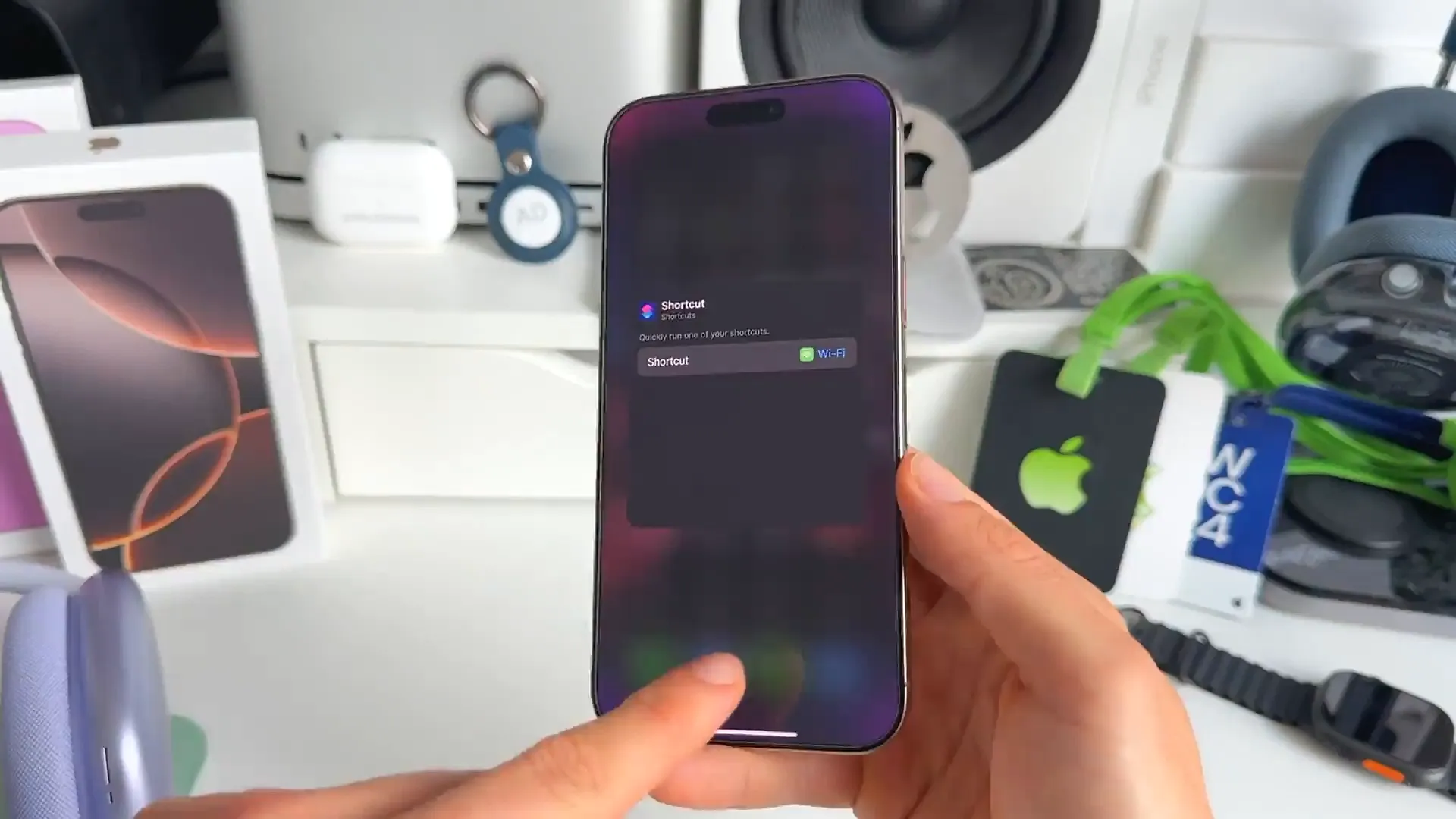
And there it is. You can now tap anywhere to exit edit mode. When you press that button, it will instantly toggle Wi-Fi on or off. No menus required.
Pro tip: While in edit mode, you can drag the handle on the button to resize it. You can make it a small square or a wider pill shape that takes up two spaces. I think the wider shape looks really clean.
Setting up a quick AirDrop button
Let's do one more to show you how powerful this is. Usually, turning on AirDrop for "Everyone" takes a few clicks and it turns off automatically after 10 minutes. We can make a button that does that in one tap.
Building the shortcut
- Back in Shortcuts, create a new one and search for "AirDrop"
- Select Set AirDrop Receiving
- Configure it to say "Set AirDrop Receiving to Everyone for 10 Minutes"
- Rename it to "AirDrop", pick an icon, and hit Done
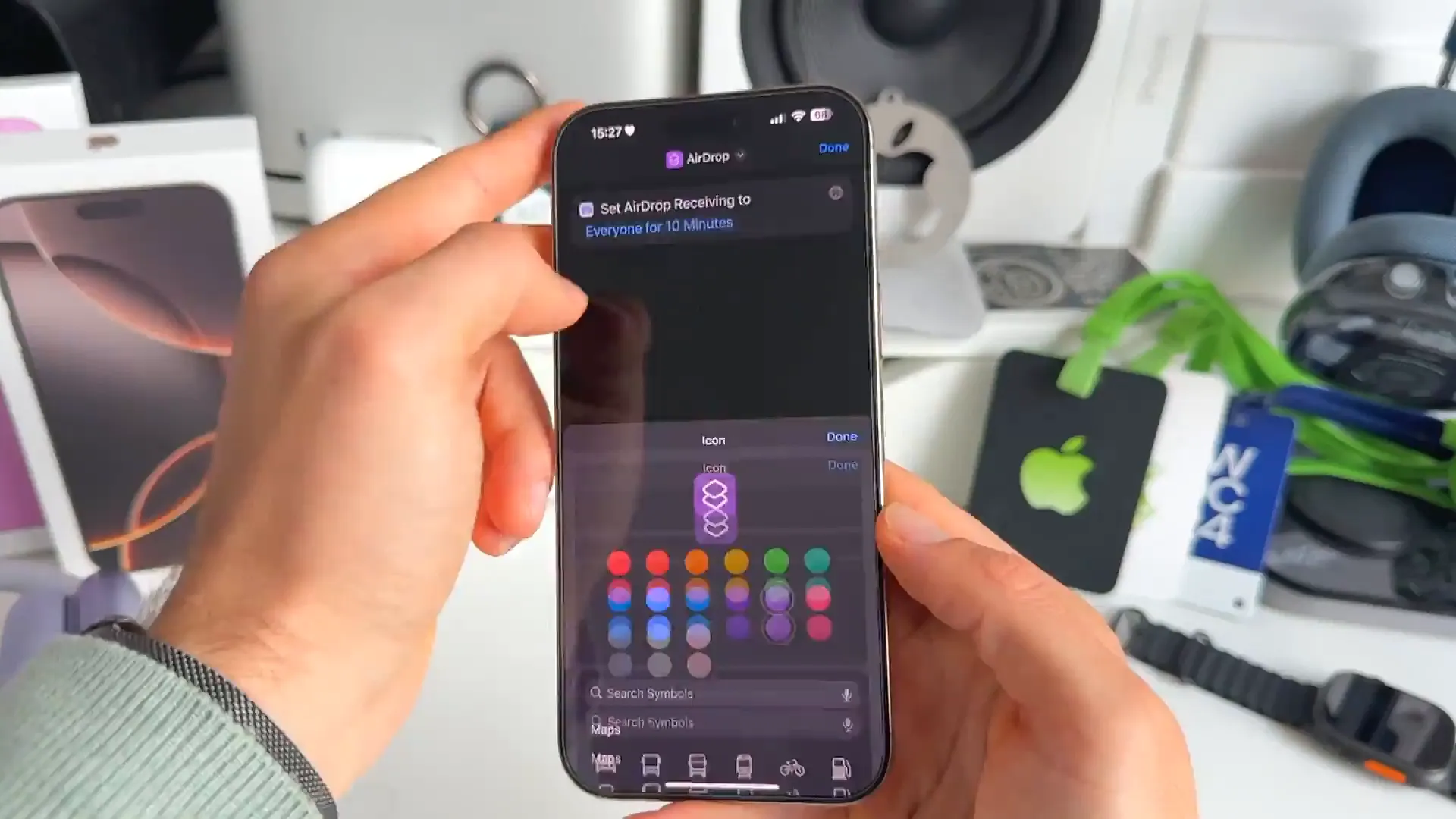
Now just follow the same steps as before to add this to your Control Center. Search for shortcuts, choose your new AirDrop shortcut, and place it on the grid.
Make it your own
You can use this method for almost anything. Bluetooth, mobile data, or even specific app actions. You can even remove the default connection controls provided by Apple and build your own clean interface with just the buttons you actually use.
Go ahead and experiment. It makes the Control Center feel much more personal and efficient. Thanks for reading!
Last updated: Oct 14, 2026