
iOS 26 iPhone Camera Beginners Guide!
The iPhone's camera app just changed for good. In iOS 26, Apple didn't just tweak a few icons; they radically overhauled the entire design. It's a massive shift that focuses heavily on simplicity and that distinct "Apple" feel.
Visually, it's stunning. The new interface uses a translucent, liquid glass aesthetic that feels dynamic and alive. It actually throws it back a bit to the old school iOS 6 days, but with a very modern, refined polish. Even the app icon has changed, moving away from the design we've known for years.
But a new look means new muscle memory. Buttons have moved, menus are hidden, and features you use every day work differently now. In this guide, we'll walk you through the new layout, how to uncover the hidden pro settings, and what that empty space in the video menu might mean for the future.
A minimalist new layout
The first thing you'll notice is how clean everything looks. Apple has simplified the bottom bar significantly. Instead of that long scrolling list of text for every single mode, you're now presented with a simple two-mode layout: Video and Photo.
It looks great, but you might be wondering where the other modes went. Don't worry, Slo-mo, Cinematic, and Time-lapse are still there. They're just tucked away to keep the interface clutter-free.
How to switch modes
- Open the Camera app. You'll land on the standard Photo mode
- Press and hold on the mode text (like Photo or Video) at the bottom
- Swipe your finger to the right or left. You'll feel a fluid animation as the other modes slide into view
- Release on the mode you want, like Cinematic or Slo-mo
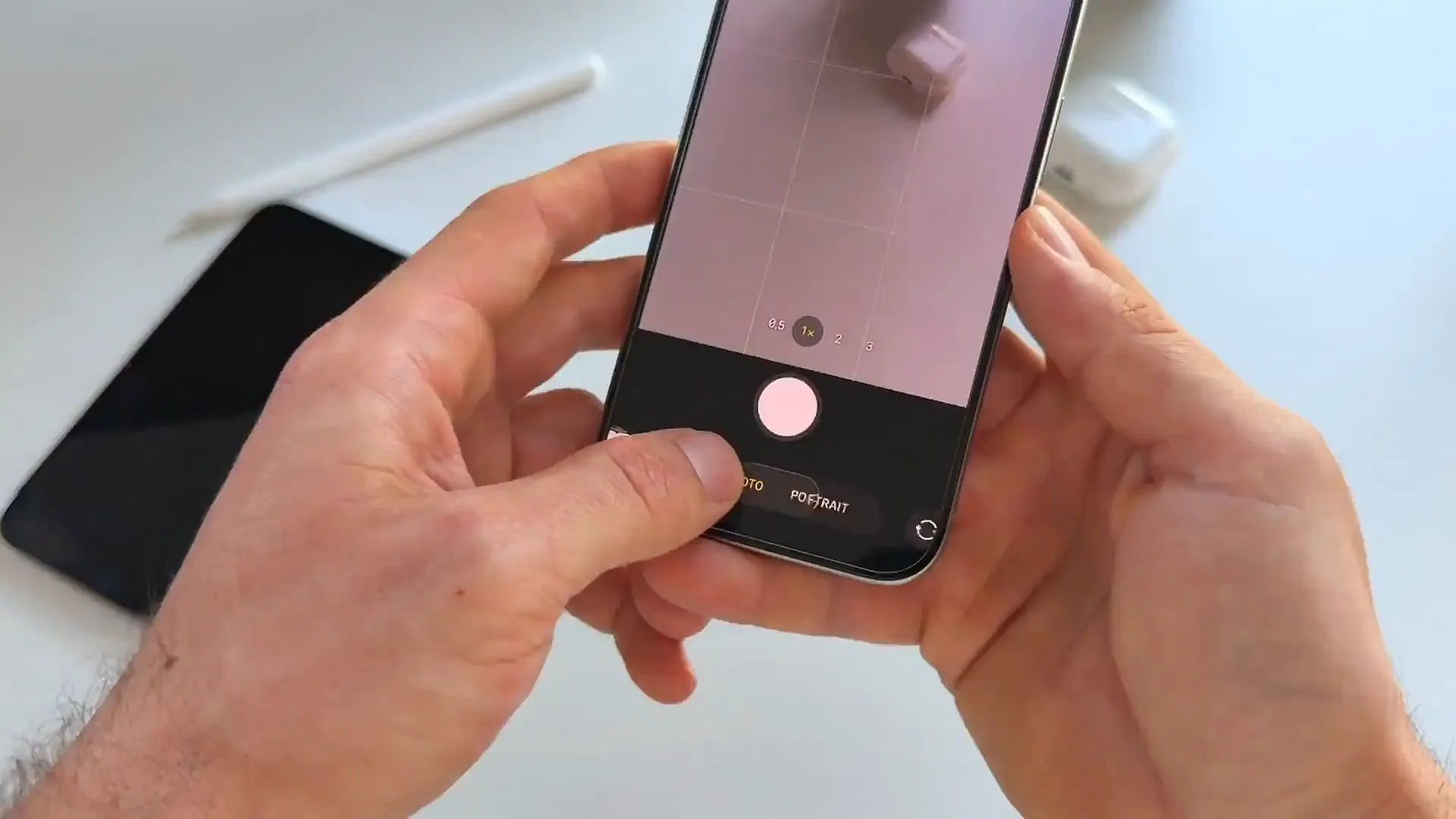
Pro tip: This new gesture system feels much smoother than the old tap-to-switch method. It lets you slide quickly between modes without taking your eyes off the subject.
Enabling pro formats
If you are a photography enthusiast, you might notice something missing right away. The format controls for RAW and resolution aren't on the screen by default anymore. To get that new liquid-glass control panel in the top corner, you need to dive into settings first.
Here is how to bring them back
- Close the camera and open your iPhone's Settings app
- Scroll down and tap on Camera
- Tap on Formats at the top of the list
- Scroll down to the "ProRAW & Resolution Control" section
- Toggle the switch to On
- Head back to the Camera app. You'll now see the format controls in the top left corner
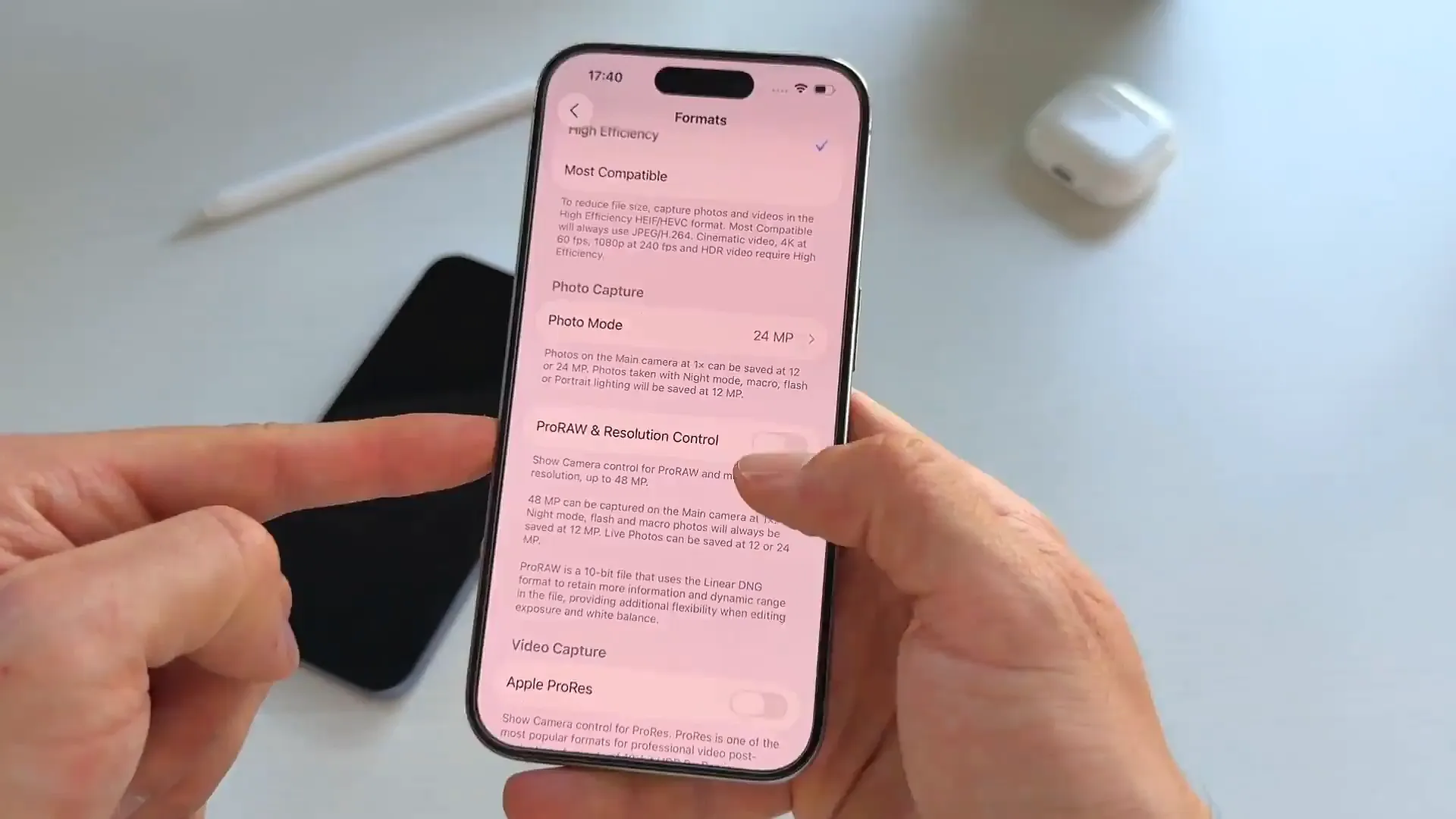
Once you've done this, tapping that top-left corner reveals a gorgeous new dropdown menu. It allows you to quickly toggle between HEIF, RAW, and different megapixels (like 12MP vs 48MP) without leaving the viewfinder. The quality of these shots is amazing, especially with the new 3D feature added in this update.
Redesigned control center
You used to swipe up to get a row of small icons for things like Flash and Timer. That interaction is still there, but the interface is completely different. Swiping up now reveals a large, grid-based overlay that is much easier to tap.
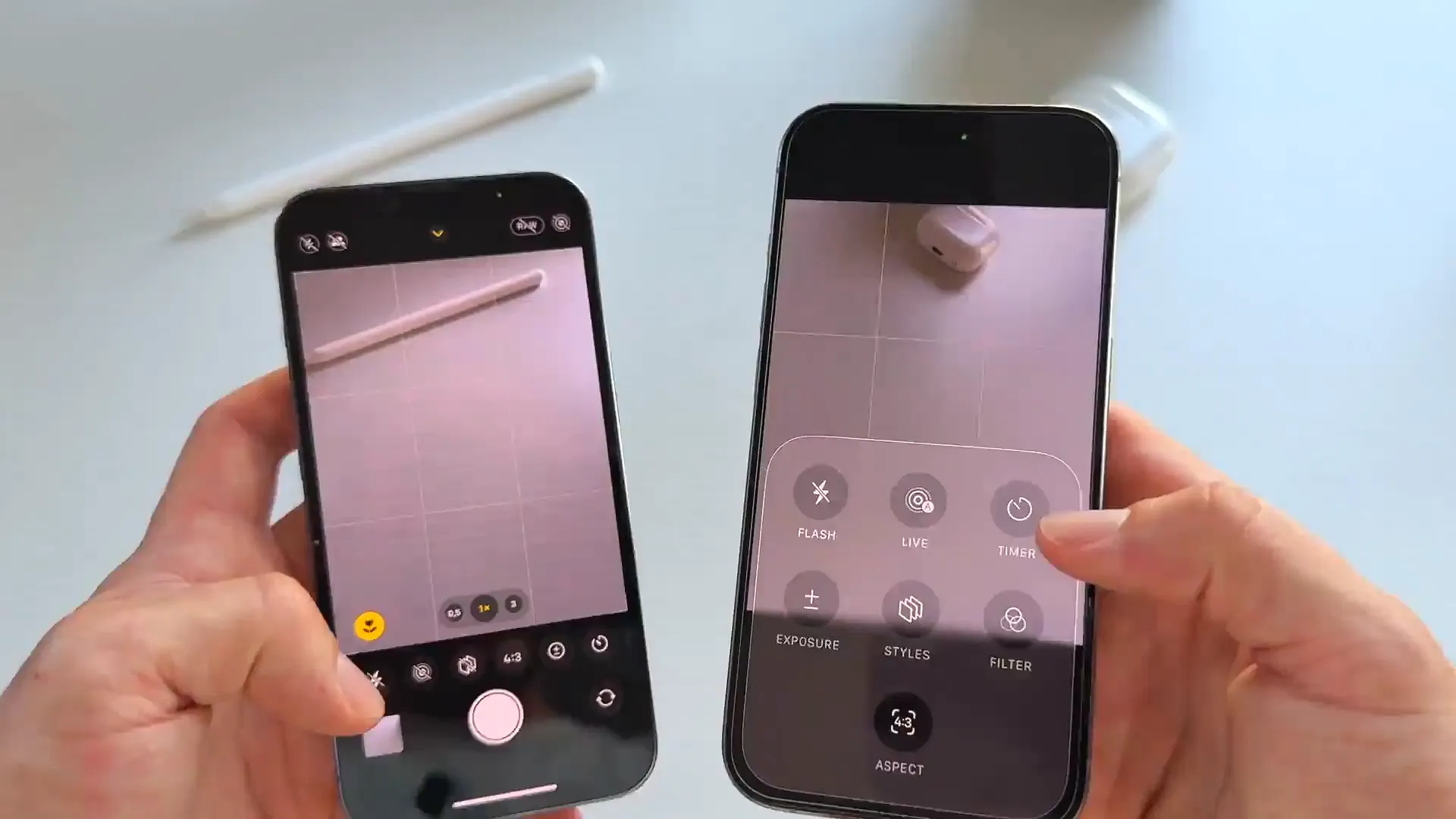
This new menu houses your Flash, Live Photo, Timer, Photographic Styles, and Exposure settings. It's reorganized to put the most used features within thumb's reach. You can also access this by tapping the small arrow icon in the top right corner.
Video controls and the missing 8K
Video mode gets the same liquid glass treatment. In the top left, you can tap to expand a menu for Resolution (HD vs 4K) and Frame Rate (24, 30, 60).
But here is the interesting part. If you look closely at the resolution menu, there is a noticeable gap—empty space to the right of the 4K option. It looks perfectly sized for another button.
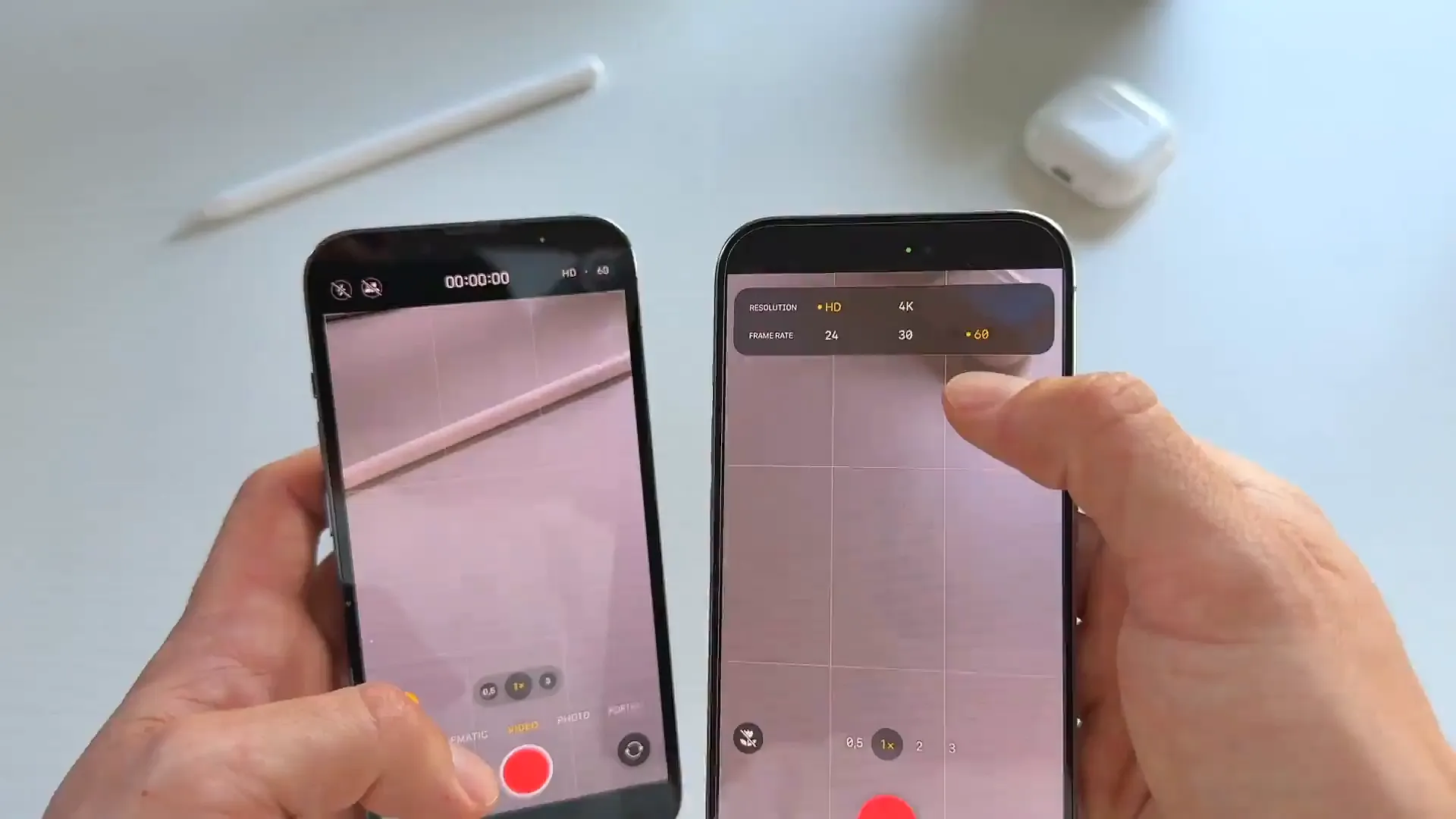
Our best guess? Apple is paving the way for 8K video recording on upcoming iPhone models. The interface is ready for it, even if the current hardware isn't quite there yet. Keep an eye out for that in future hardware updates.
Quick wins
There are a few other nice touches in this update worth mentioning:
- Action Mode is now easily accessible in the video swipe-up menu
- Zoom controls feel snappier and smoother when transitioning lenses
- The viewfinder area feels larger because the controls are less intrusive
Start shooting
Overall, the iOS 26 camera update is a welcome change. It clears out the clutter and brings a modern, premium feel to the app you probably use most. The minimalist design might take a day or two to get used to, but once you do, the old version feels incredibly crowded by comparison.
So go update, enable those pro formats in settings, and start exploring the new layout. It's a great time to be an iPhone photographer.
Last updated: Oct 14, 2026