
How to use Action Button to run shortcuts
If you have an iPhone 15 Pro or any of the iPhone 16 models, you have the Action Button. It's a great hardware feature, but out of the box, it's a little limited. By default, it only does one thing. You press it, and it silences your phone. Or opens the camera. Just one action.
But you can actually make it do way more. Instead of triggering a single action, you can make it pop up a whole menu of options. Silent mode, opening Instagram, scanning a document, or dimming your screen—all from one press.
The secret lies in the Shortcuts app. We're going to use a feature called "Show Folder" to unlock the full potential of that button. Don't worry if you haven't used Shortcuts before. We'll walk through every step, and it's surprisingly easy to set up.
Create your Action Button folder
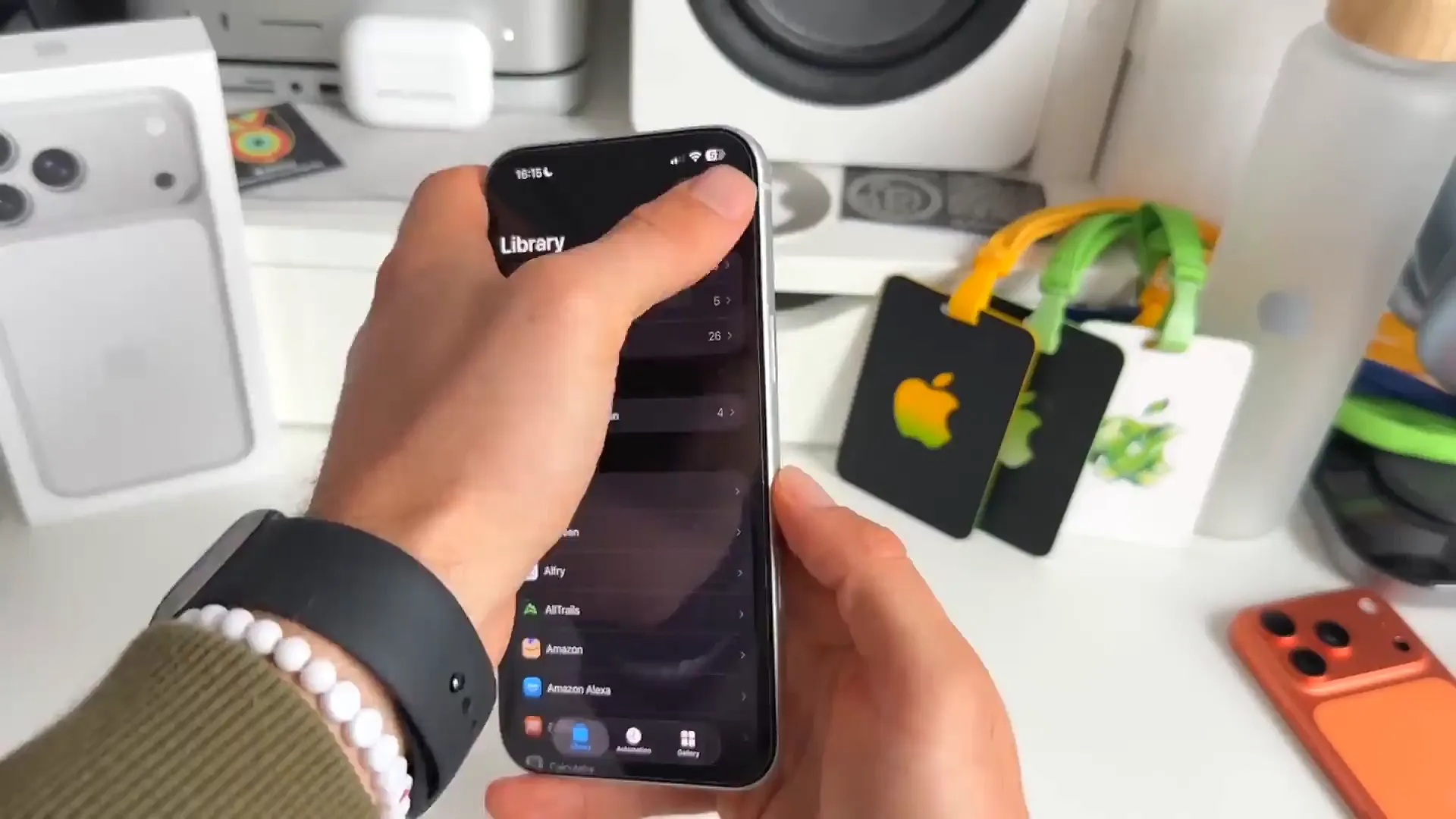
First things first, we need a place to put all the actions you want to run. We're going to create a dedicated folder in the Shortcuts app. This folder will essentially become your new menu.
Setting up the folder
- Open the Shortcuts app on your iPhone
- Tap the folder icon with the plus sign in the top right corner
- Name it something obvious like "Action Button"
- Choose an icon if you want to make it look nice, then hit Done
- Tap into your new folder. It'll be empty for now, but not for long
Add your actions
Now let's fill that folder with useful tools. You can add anything you want here, but we'll build a few essential ones to show you how it works: a silent mode toggle, a reading mode, and some app launchers.
1. The improved Silent Mode switch
Since we're replacing the default silent button behavior, we should put it back into our menu—but better. We'll make it a toggle switch.
- Tap the + icon in the top right to create a new shortcut
- Tap Add Action and search for "Silent"
- Select Set Silent Mode
- Tap the word "Turn" and change it to Toggle. This is important—it means the button will switch silent mode on or off depending on its current state
- Hit Done to save it
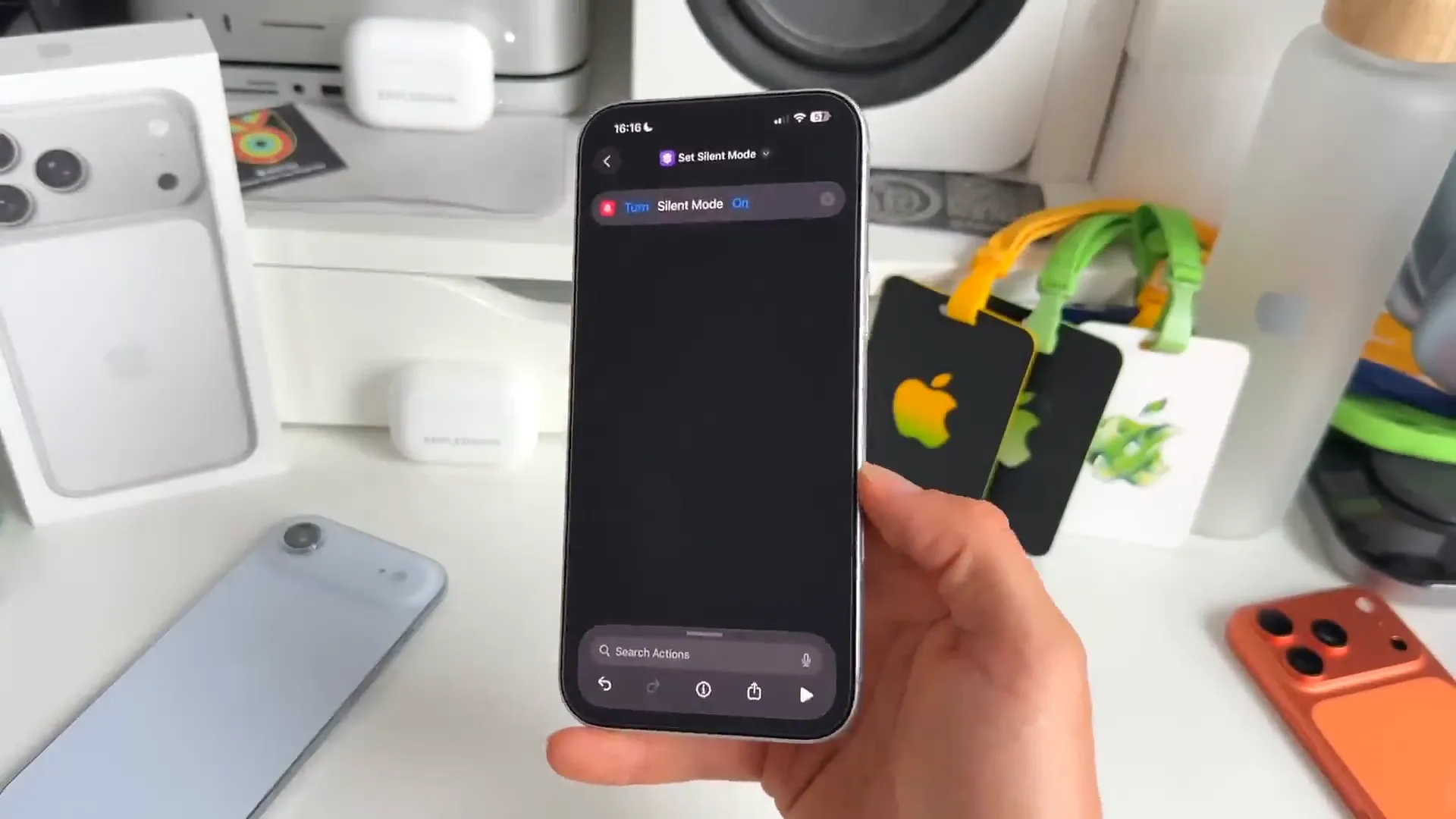
Pro tip: You can test any shortcut right there by hitting the play button at the bottom right. It's a good way to make sure it actually works before you finish up.
2. Instant reading mode
This one is great for using your phone at night. It instantly drops your brightness to a specific low level.
- Create another new shortcut with the + button
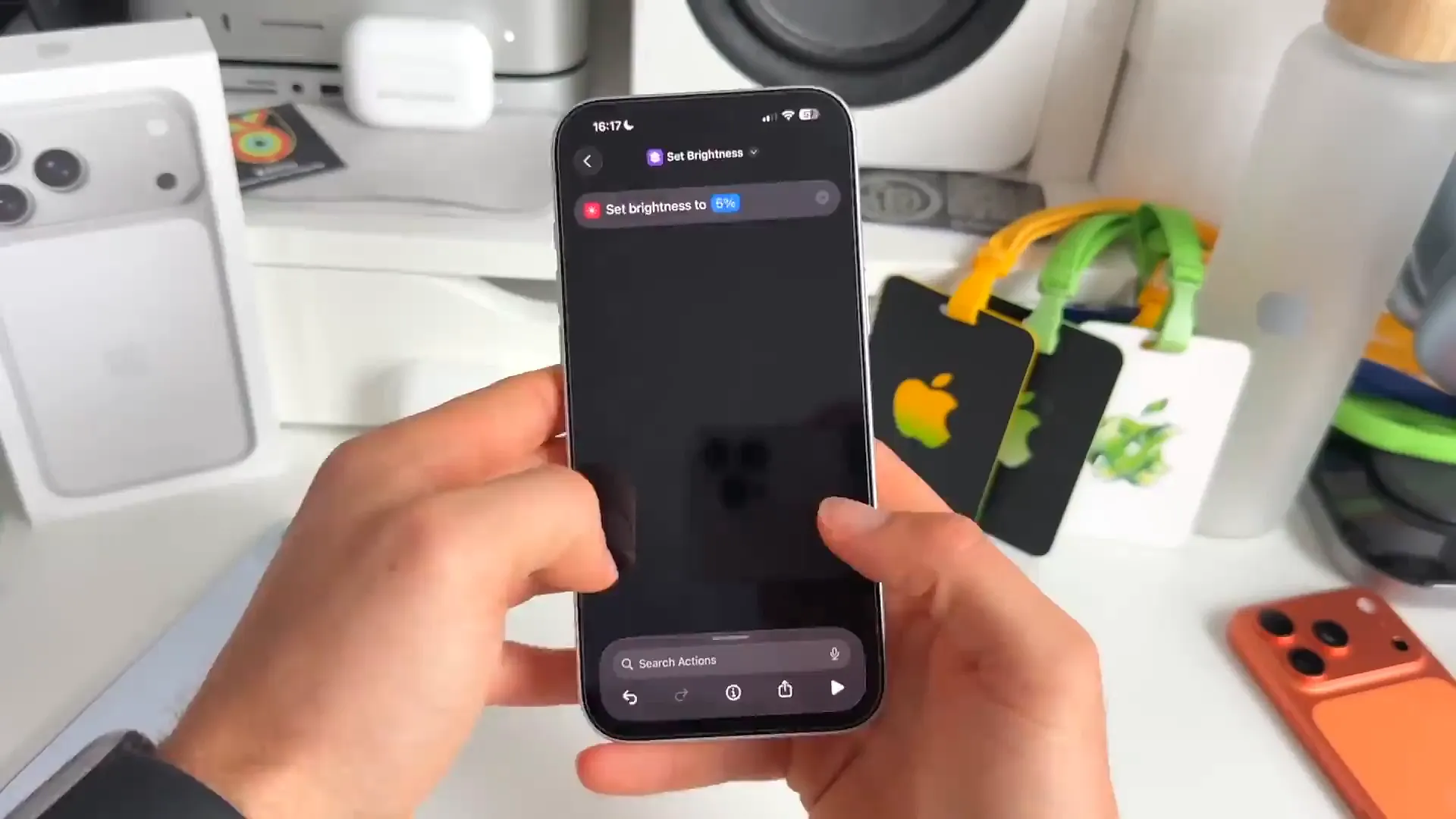
- Search for "Brightness" and select Set Brightness
- Tap the percentage number and set it low, like 5%
- Save it as "Set Brightness" or "Reading Mode"
3. Quick tools and apps
You can also add utilities like a document scanner or quick links to your favorite apps. This makes the Action Button feel like a mini control center.
- Voice Memo: Create a new shortcut and search for "Create Recording". This triggers a voice memo instantly.
- Document Scanner: Search for "Scan Documents". This launches the Notes app scanner directly, saving you a few taps.
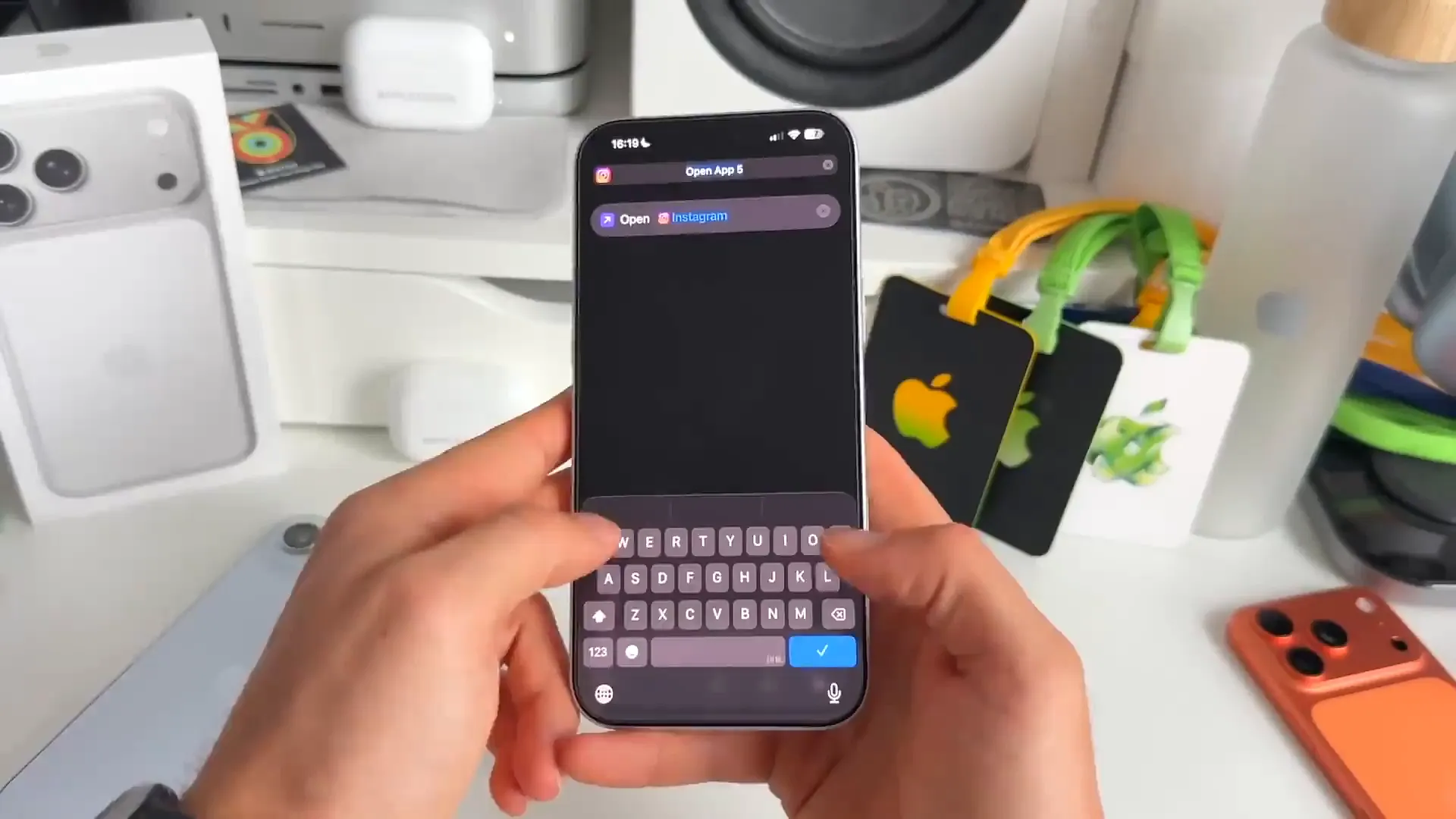
- Open Apps: Create a new shortcut, search for "Open App", and pick something you use constantly like Instagram, WhatsApp, or ChatGPT. Create a separate shortcut for each app you want in the menu.
Map it to the button
Now that we have a folder full of shortcuts, the final step is telling your iPhone to use that folder when you press the Action Button.
Connecting it all
- Open your iPhone Settings and go to Action Button
- Swipe through the options until you find Shortcut
- Tap the blue button that says Choose a Shortcut...
- In the menu that pops up, tap Show Folder... in the top right area
- Select the Action Button folder you created earlier
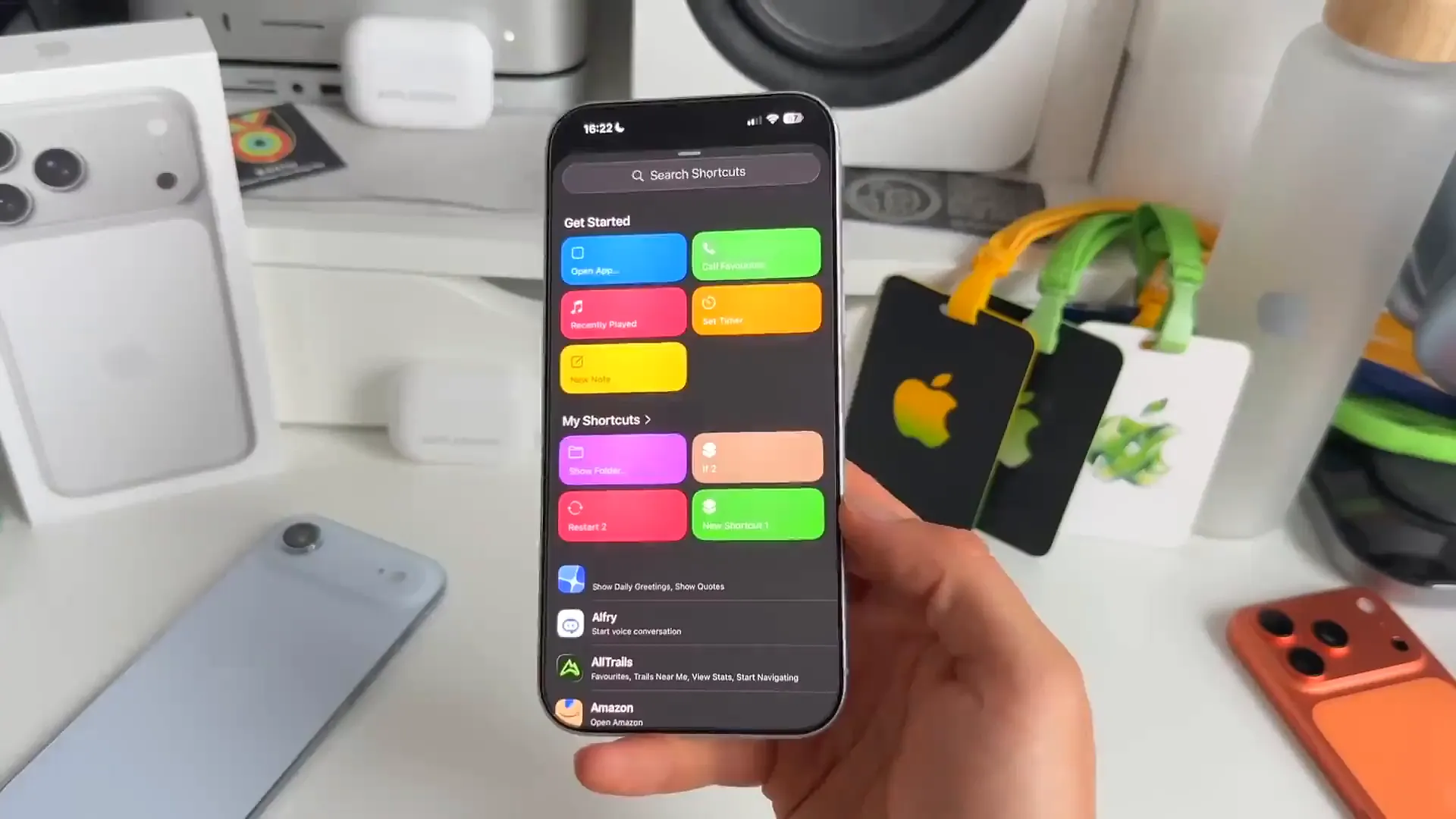
That's it. Now, go ahead and press and hold your Action Button. Instead of just doing one thing, you should see a sleek menu overlay slide down from the Dynamic Island with all your shortcuts ready to go.
One last tweak
If your menu looks a little messy, you can organize it easily. Go back into your Action Button folder in the Shortcuts app. Just press and hold on any shortcut tile and drag it to rearrange the order.
Try putting your most used actions—like Silent Mode or Camera—at the top left or top right so they're easiest to reach. The menu updates instantly, so get your layout exactly how you want it.
Give it a spin
You've just turned a single button into a command center. Whether it's scanning a receipt, opening ChatGPT, or just dimming the lights, it's all one press away now. Enjoy your upgraded iPhone!
Last updated: Oct 14, 2026