
How to Lock Individual Apps on Your iPhone
You have probably wondered how to lock specific apps on your iPhone. Maybe you want to keep your Instagram secure or keep your messages private. Apple doesn't offer a built-in lock toggle for individual apps. But there is a very simple workaround.
You can use the built-in Shortcuts app to create a custom passcode screen for any app you want. If someone types the wrong code, the app simply refuses to open. Let's walk through exactly how to set this up.
What you need before you start
You don't need to download any sketchy third-party security apps. You only need two things:
- The native Apple Shortcuts app.
- An image of your target app's icon saved to your camera roll. You can easily grab the Instagram logo from a quick web search.
Step 1: Create a new shortcut
First, you need to create the automation that will act as your lock screen.
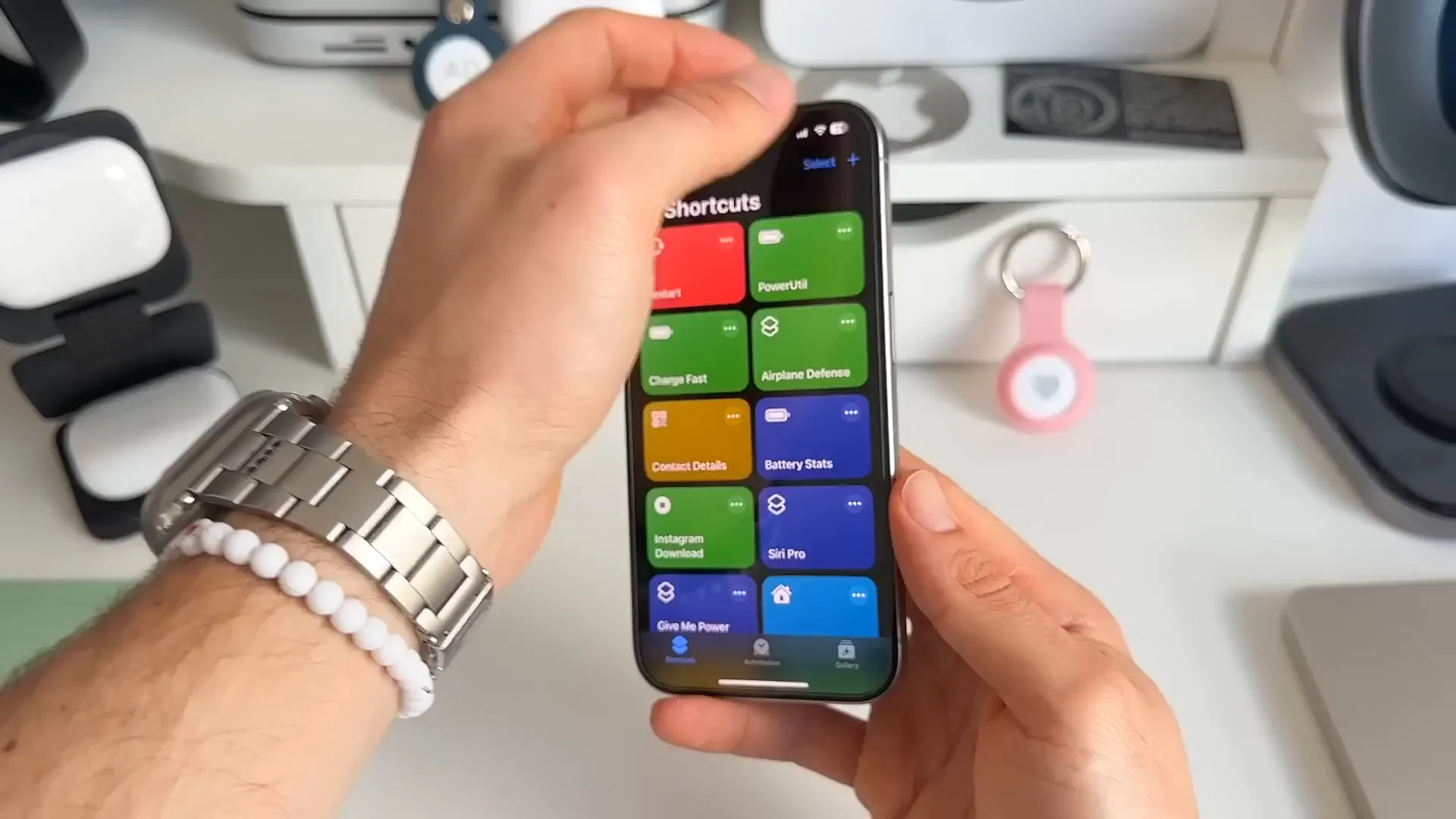
- Open the Shortcuts app.
- Go to the All Shortcuts tab.
- Tap the + icon in the top right corner.
- Tap the title at the very top to rename your shortcut. Name it exactly what the app is called. For this example, we will call it "Instagram".
Step 2: Ask for a passcode
Next, we need to tell the shortcut to prompt the user for a password.
- Tap Add Action.
- Search for Ask for Input and select it.
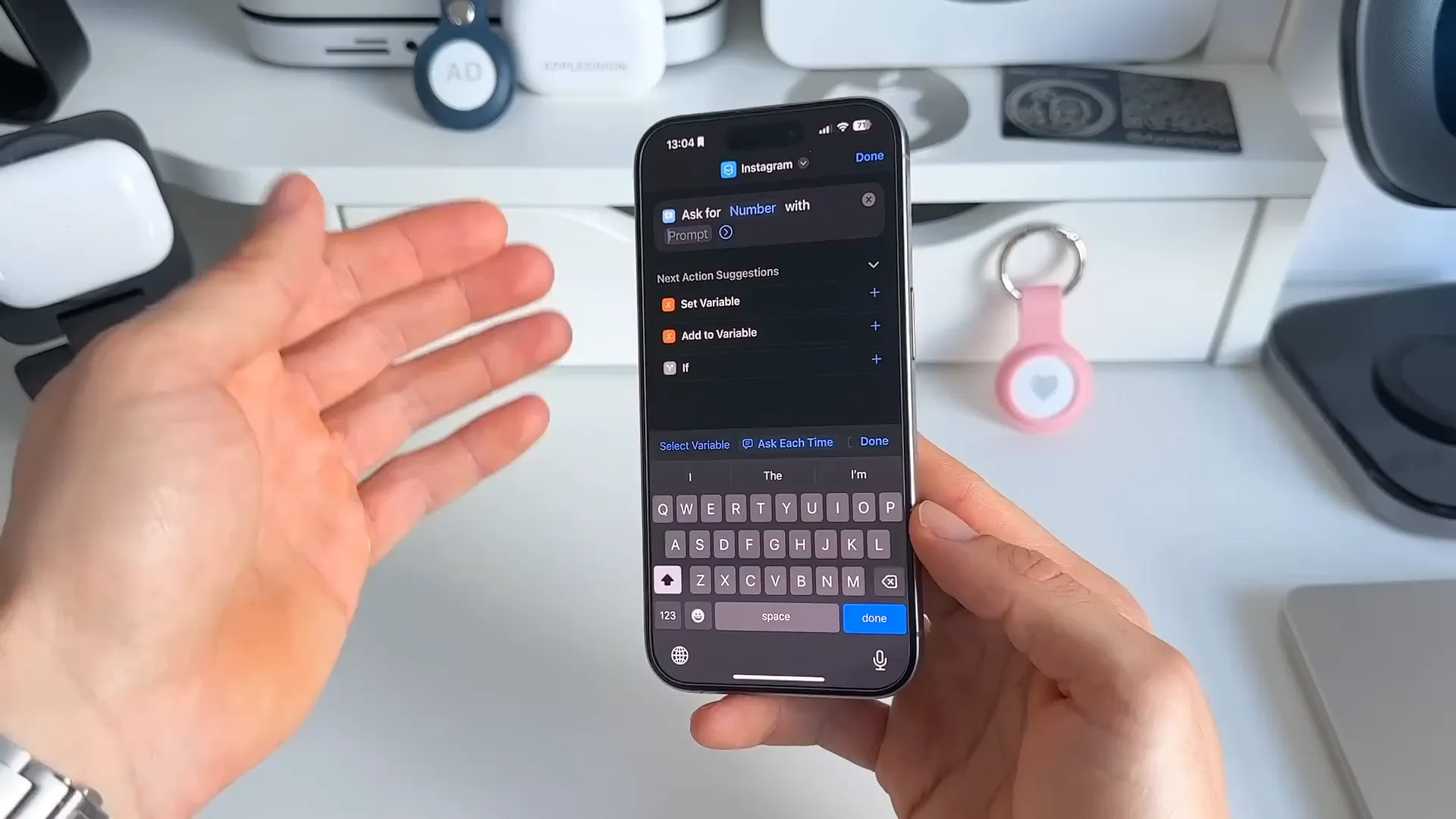
- By default, this asks for "Text". Tap the word Text and change it to Number. This ensures a number pad pops up when you tap the app.
- Tap the word Prompt and type in your customized prompt. Something simple like "Passcode?" works perfectly.
Step 3: Set up the lock condition
Now you need to set your secret passcode. This is the code that will actually unlock the app.
- Look at the "Next Action Suggestions" below your current action. Tap If.
- The action will appear as "If Provided Input". Tap the word Condition.
- Select is from the list.
- Tap the Number field and type in your desired passcode. We will use 1111 for this example.
Step 4: Link to your target app
Your shortcut now knows to ask for a code and verify it. Next, it needs to know what to do when the code is correct.
- Tap the search bar at the bottom and search for Open App.
- Select the Open App action under the Scripting category.
- The action will drop to the bottom of your list. Long-press it and drag it up. You need to drop it exactly between the "If" and "Otherwise" statements.
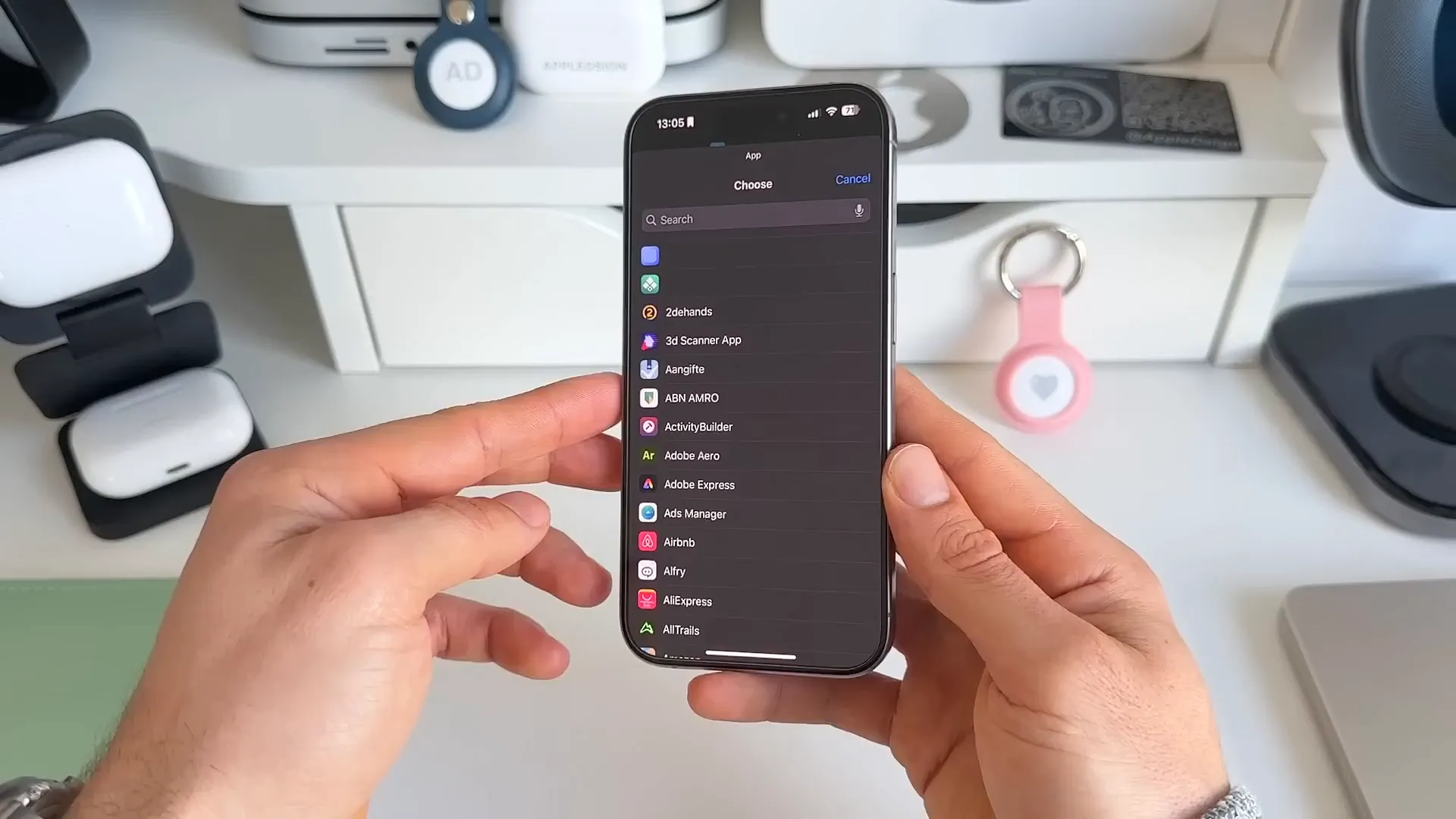
- Tap the faded App text inside that action.
- Search for and select Instagram.
Step 5: Add the disguised app to your home screen
Your shortcut is fully functional. Now you just need to place it on your home screen and make it look like the real thing.
- Tap the i (info) icon at the bottom of the screen.
- Select Add to Home Screen.
- You will see a preview. The default icon looks like a standard shortcut. We want this to look identical to the real app.
- Tap the default icon next to the name "Instagram".
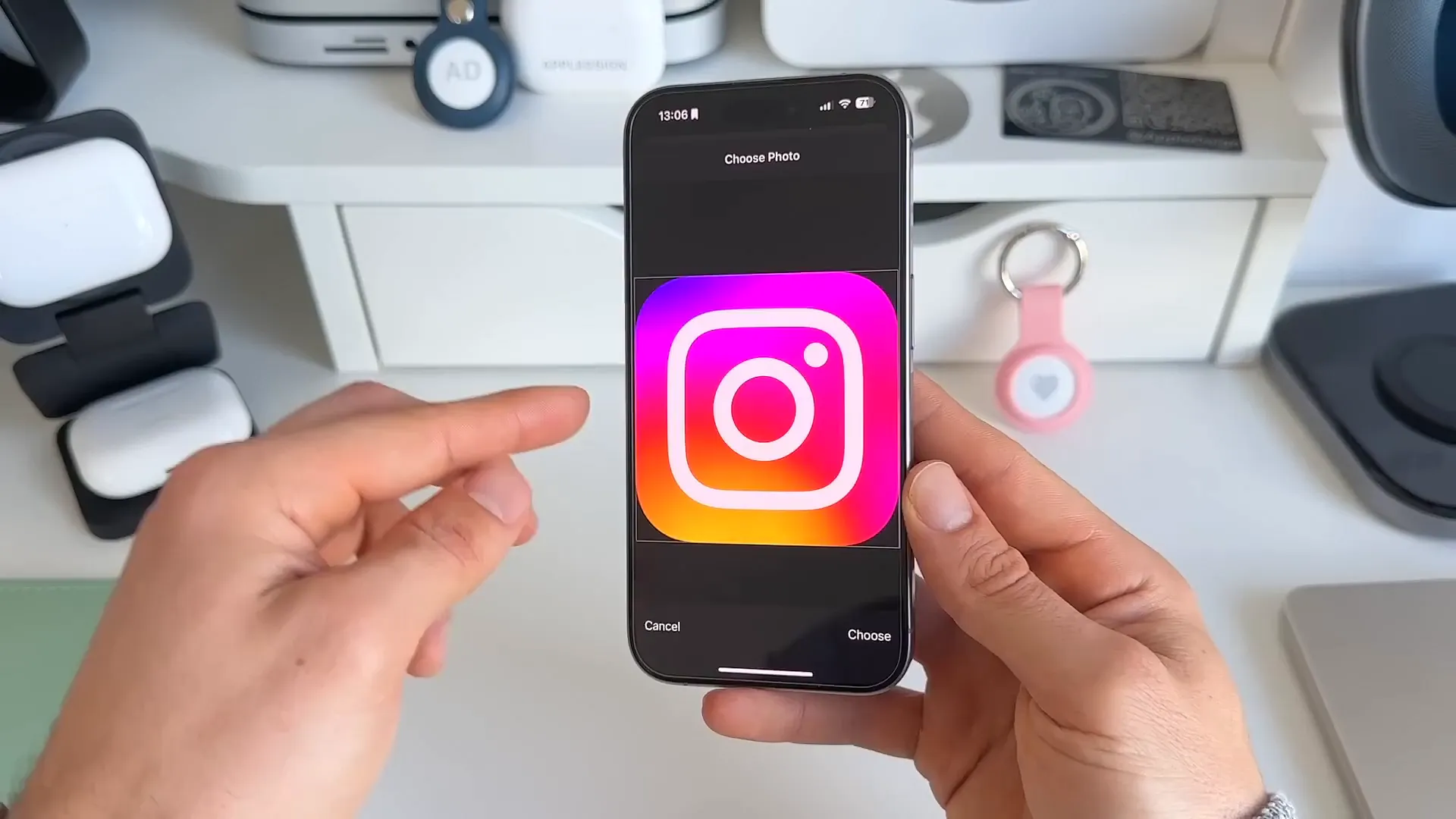
- Select Choose Photo.
- Pick the Instagram logo you saved to your camera roll earlier.
- Tap Add in the top right corner.
You are all set
Head back to your home screen. You will see your new disguised shortcut sitting there. You can now hide the real Instagram app from your home screen entirely.
When you tap your new Instagram icon, a passcode prompt instantly slides down from the top of the screen.
Type in your correct passcode and hit Done. The app opens immediately. If someone tries to open the app and types the wrong passcode, the prompt dismisses and nothing happens. They are locked out. You can repeat this process for as many apps as you like to keep your phone secure.
Last updated: Oct 14, 2026