
7 things to know before updating iOS
Every year, Apple releases a massive update for your iPhone. These aren't just small patches. They are big shifts in how your phone looks and works. Think about the jump from iOS 18 to iOS 26. That's a huge leap in features and design.
These updates can have a major impact on your device. So before you rush to install the latest version the second it drops in September, it's actually really important to prepare. You want to make sure your phone is ready to handle the new software without issues.
We're breaking down the most important things you should do before hitting that update button. From checking compatibility to a crucial battery check, here is how to get your iPhone ready.
First, check compatibility
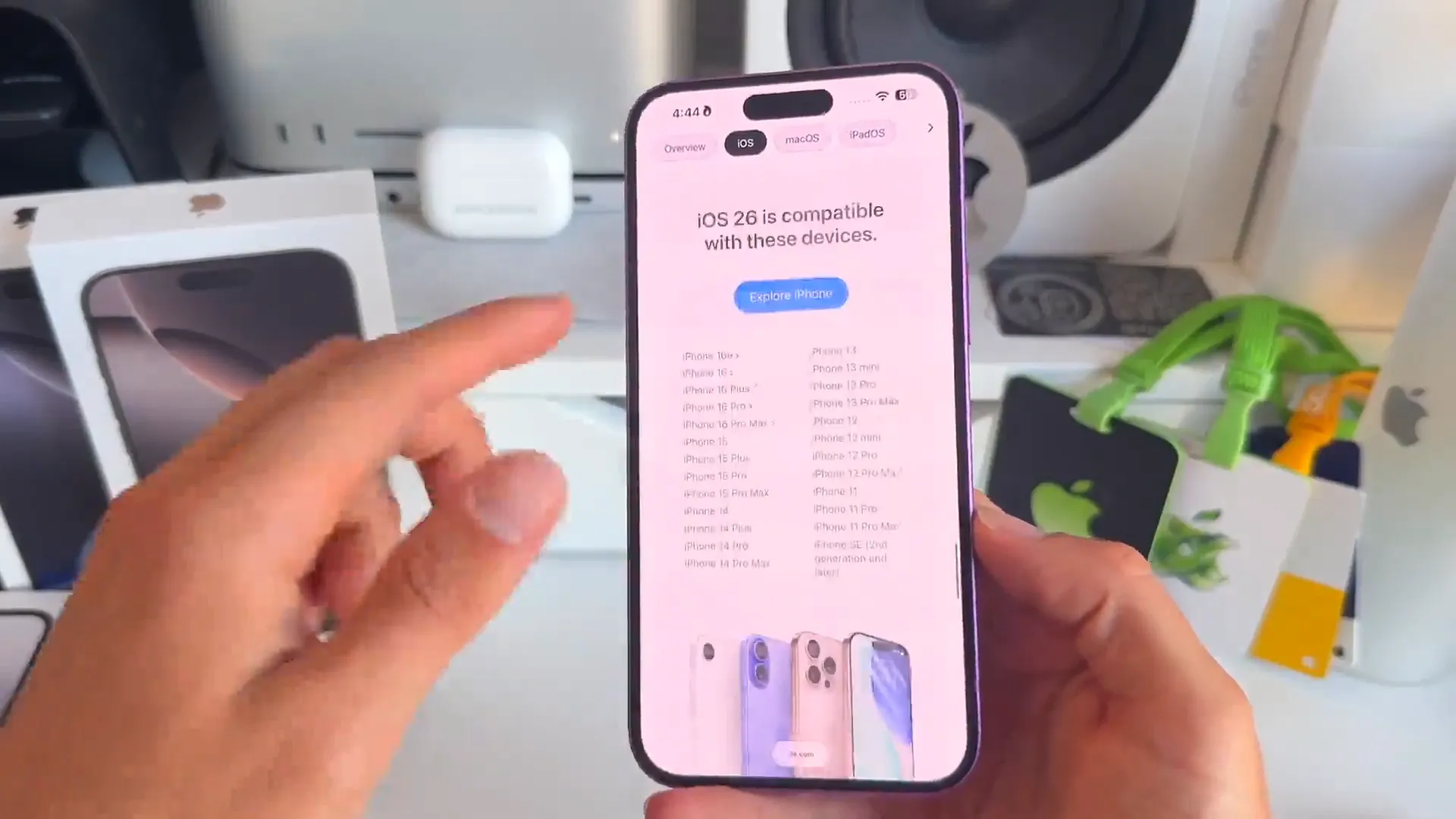
Obviously, the first step is to make sure your specific iPhone model can actually run the new update. Apple usually supports devices for a long time, but older models eventually get cut off.
How to check
- Head over to apple.com/ios/ios-[version] on your phone or computer
- Scroll all the way to the bottom of the page
- Look for the list of compatible devices. If your iPhone model is on there, you are good to go
Clean up your storage
This is technically optional, but I highly recommend it. Major updates require a good chunk of free space to install. Plus, it's just a good feeling to start fresh without carrying over years of digital junk.
You don't need to wipe your phone. Just clear out the things that are taking up unnecessary space.
Where to look
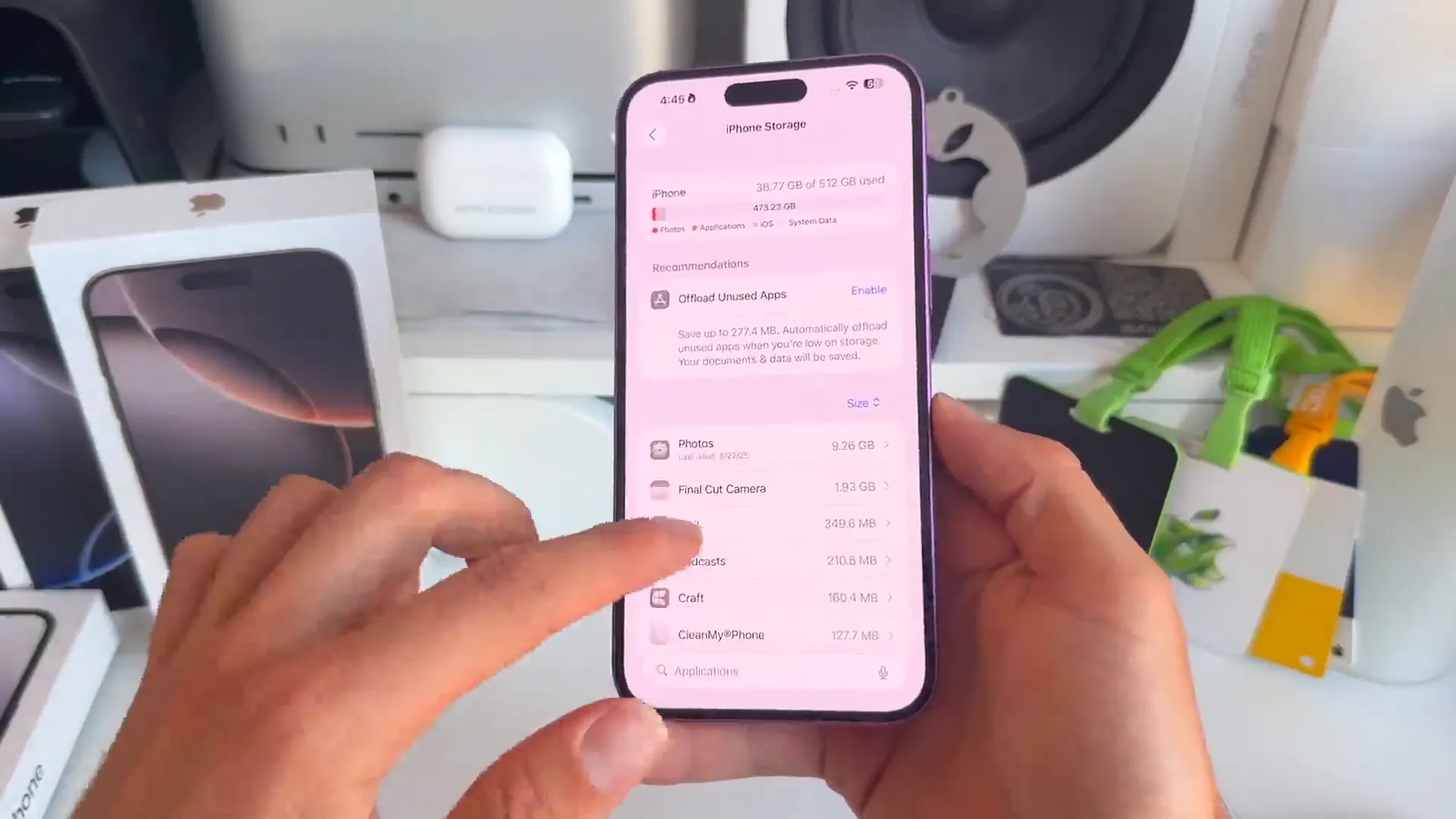
- Open Settings and go to General
- Tap on iPhone Storage. This will take a second to load
- Review the list. See which apps are hoarding the most space
- Delete apps you don't use anymore directly from this list or from your home screen
A better way to clear photos
Photos and videos are usually the biggest storage hog for most people. But you don't need to scroll through thousands of pictures to make a dent. Focus on the videos.
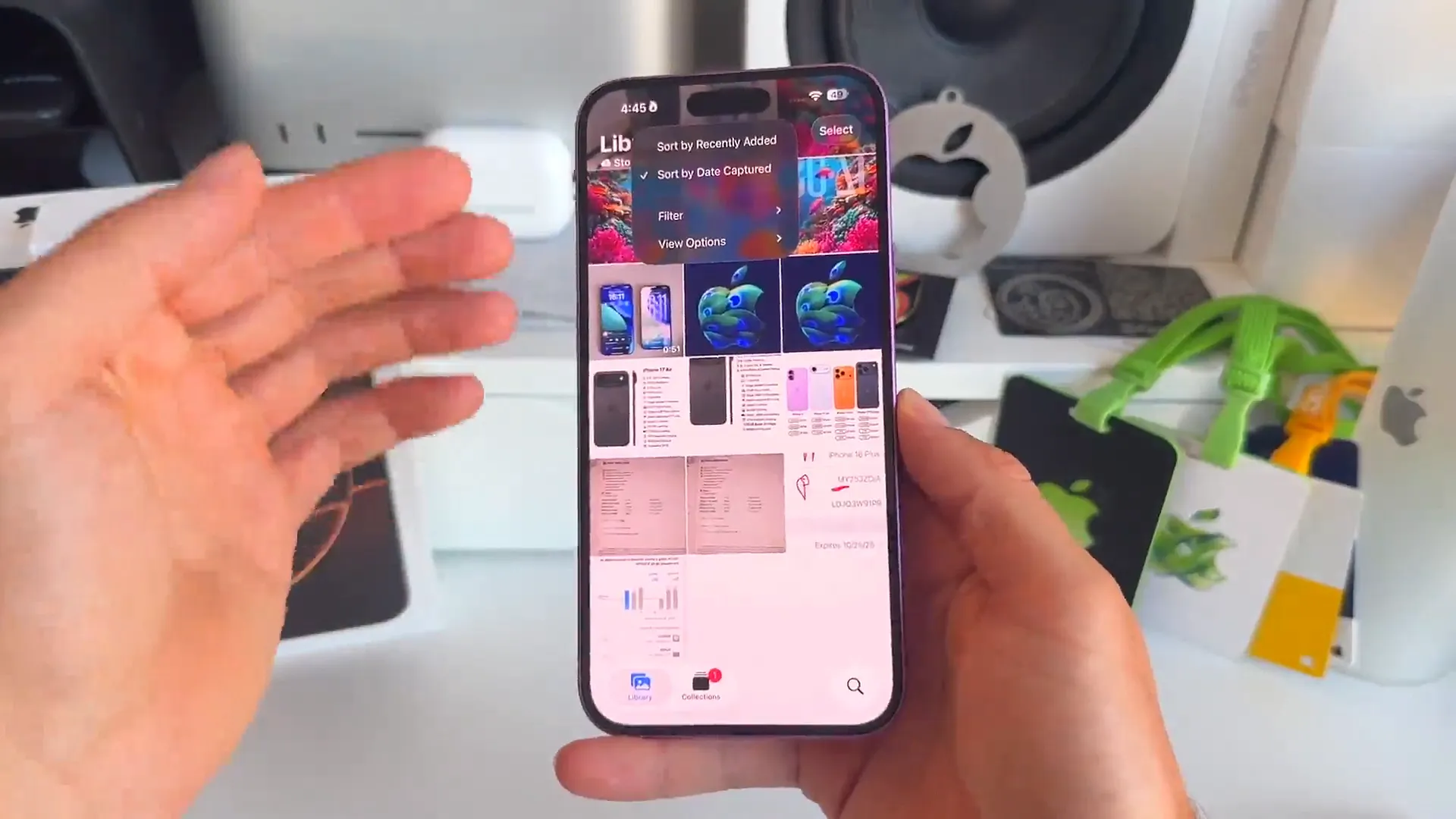
- In your Photos app, sort by Videos
- Look at the timestamps. A single 7-minute video can take up 600MB or more
- Delete the large videos you don't need anymore. This clears space much faster than deleting photos one by one
Pro tip: Don't forget to empty the trash. Go to Utilities in the Photos app, tap Recently Deleted, and delete everything there. Until you do that, you haven't actually freed up any space.
You can also enable Offload Unused Apps in your storage settings. Your iPhone will automatically remove apps you rarely use but keep your documents and data safe. It's an easy way to reclaim space without losing anything important.
Check your battery health
This is a big one. Installing a major update is demanding on your phone. It indexes files and runs background processes that chew through power. If your battery is already struggling, a big update can make it feel much worse.
How to check capacity
- Go to Settings and tap Battery
- Tap on Battery Health & Charging
- Look at the Maximum Capacity percentage
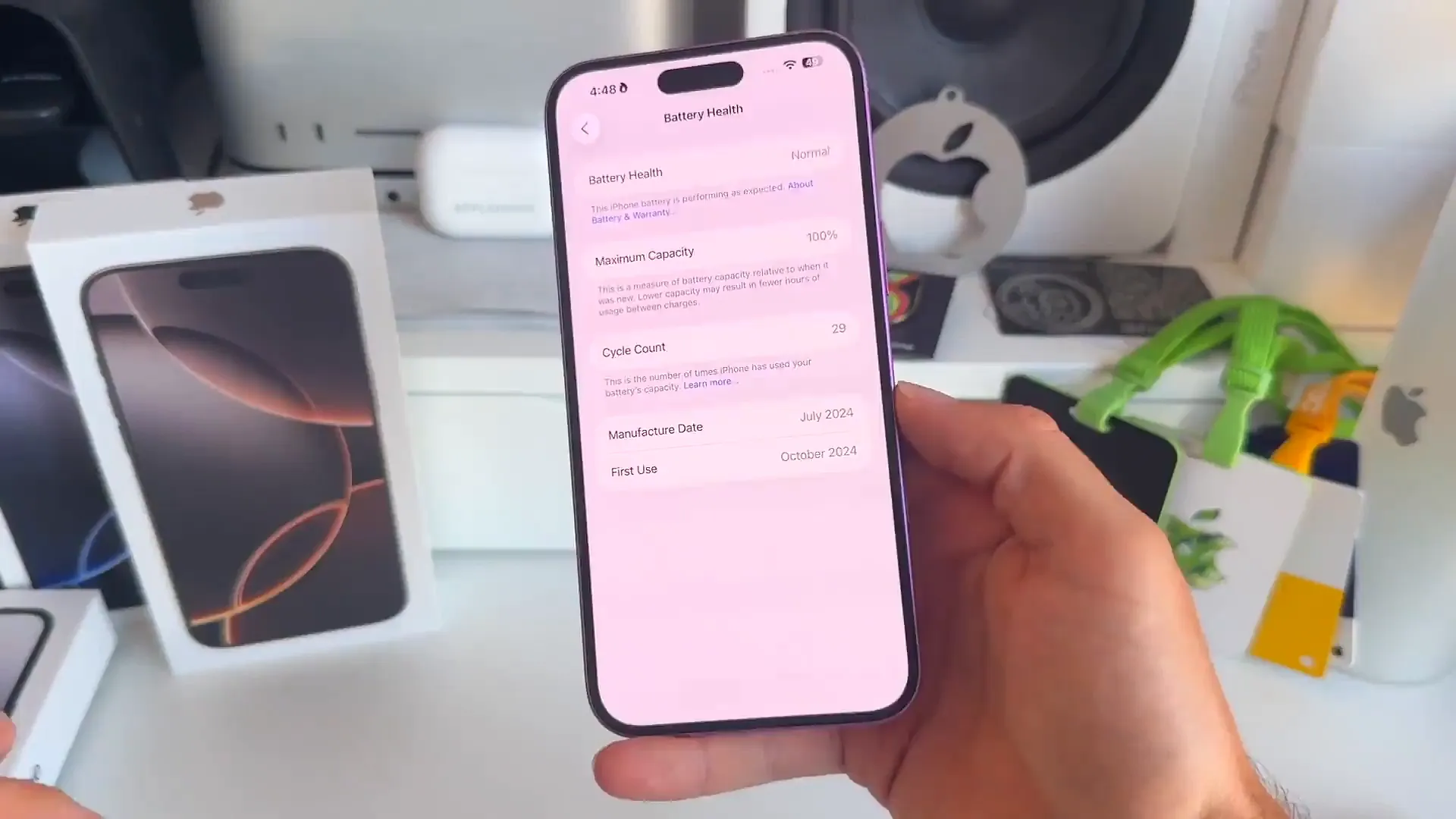
If your maximum capacity is below 80% (or even 75%), you should replace your battery before you update. A new update on a degraded battery is a recipe for frustration. Do this at an Apple Store or a certified repair shop to ensure it's done right.
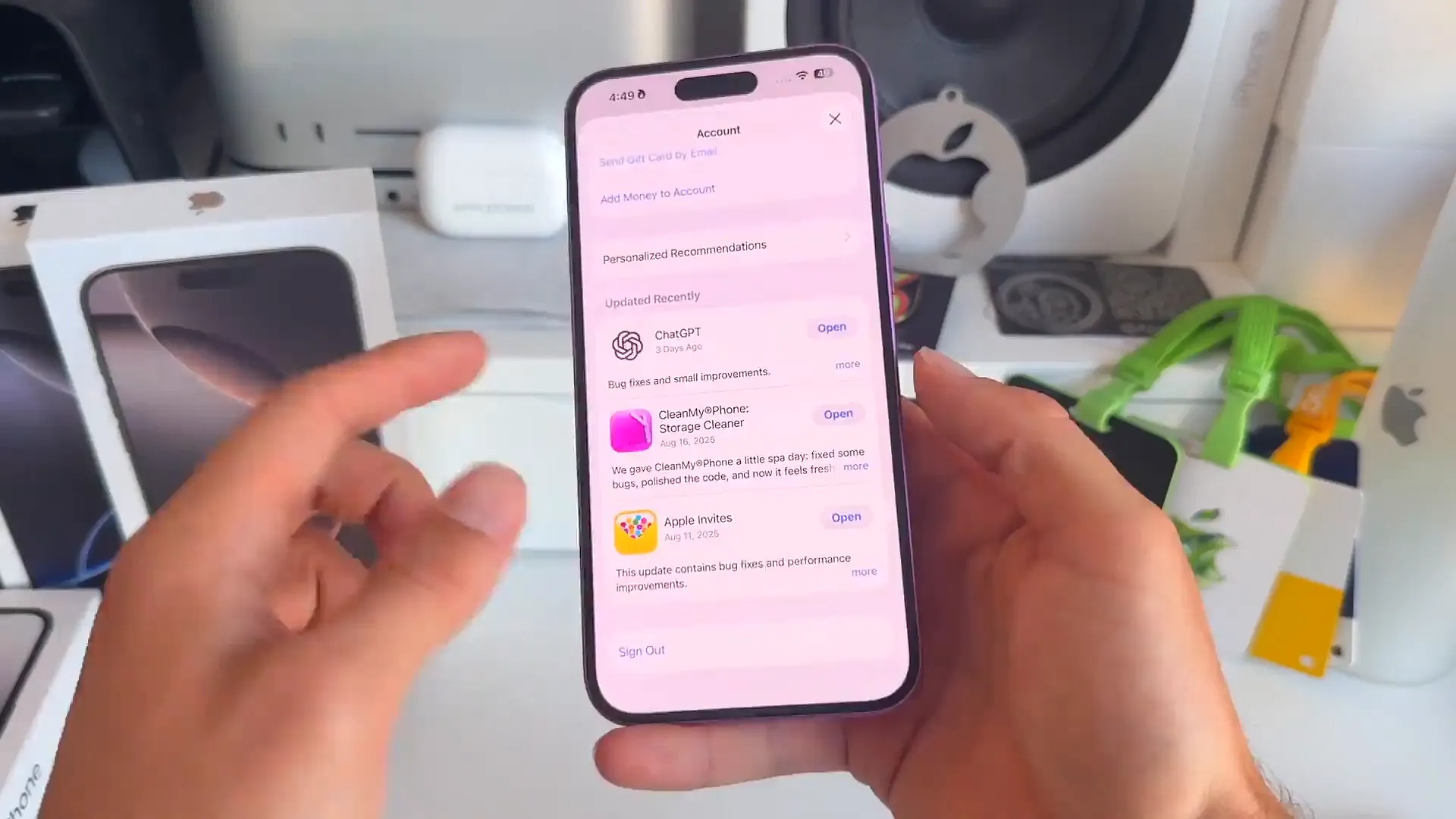
Update all your apps
When a new iOS version drops, app developers release updates to make sure their apps work smoothly with the new system. Running old versions of apps on a new OS can lead to crashes and bugs.
Before you update your phone, get your apps current.
- Open the App Store
- Tap your profile icon in the top right corner
- Scroll down to see pending updates
- Tap Update All to get everything on the latest version at once
Ready to update
Major iOS updates are exciting, but a little preparation goes a long way. Taking 10 minutes now to clean up your storage and check your battery can save you a headache later. Once you've checked these off your list, you're ready to enjoy all the new features coming to your iPhone.
Last updated: Oct 14, 2026