
5 tips to free up iPhone storage
We've all been there. You're trying to take a photo or download an app, and you get that annoying notification: Storage Full. It usually happens at the worst possible moment. You check your settings, and the graph is maxed out.
If you're rocking a 64GB iPhone, this probably happens a lot. But even with 128GB or 256GB, apps and 4K videos fill things up faster than you'd expect. Instead of buying a new phone or paying for more iCloud space, you can usually reclaim a ton of gigabytes just by cleaning up the right things.
In this post, we're sharing five actionable tips to free up space. These aren't just the obvious ones. We're looking at the biggest storage hogs that hide in plain sight. Let's get that storage bar back in the green.
Tackle your videos first
Photos and videos are usually the main culprit. But specifically, videos take up the majority of that space. A single minute of high-quality video can be hundreds of megabytes. If you have years of random clips, your phone is going to struggle.
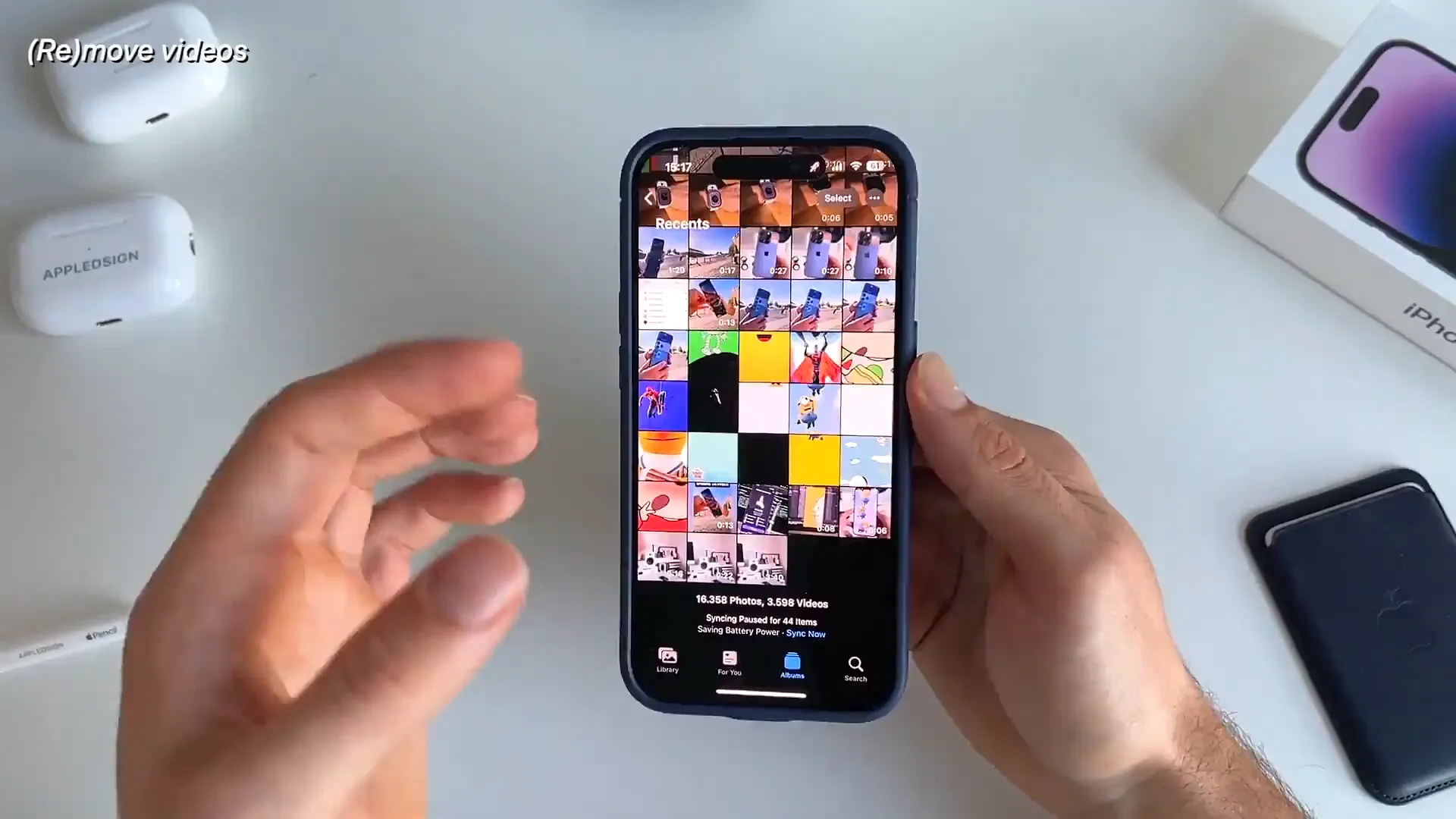
How to filter and clean them
- Open the Photos app and go to the Albums tab
- Scroll down to the 'Media Types' section and tap Videos. This shows you every video on your device
- Look for long videos you don't need anymore. Sometimes just trimming a minute off a clip can save 100MB
- Delete the ones you don't want, or use AirDrop to move them to your Mac or an external drive for safekeeping
Pro tip: Don't forget the 'Recently Deleted' folder. Your space won't actually free up until you empty that folder too.
Ditch the heavy apps
You probably have apps you downloaded once and never opened again. Some of these are massive. It's easy to spot exactly which ones are eating up your space in Settings.
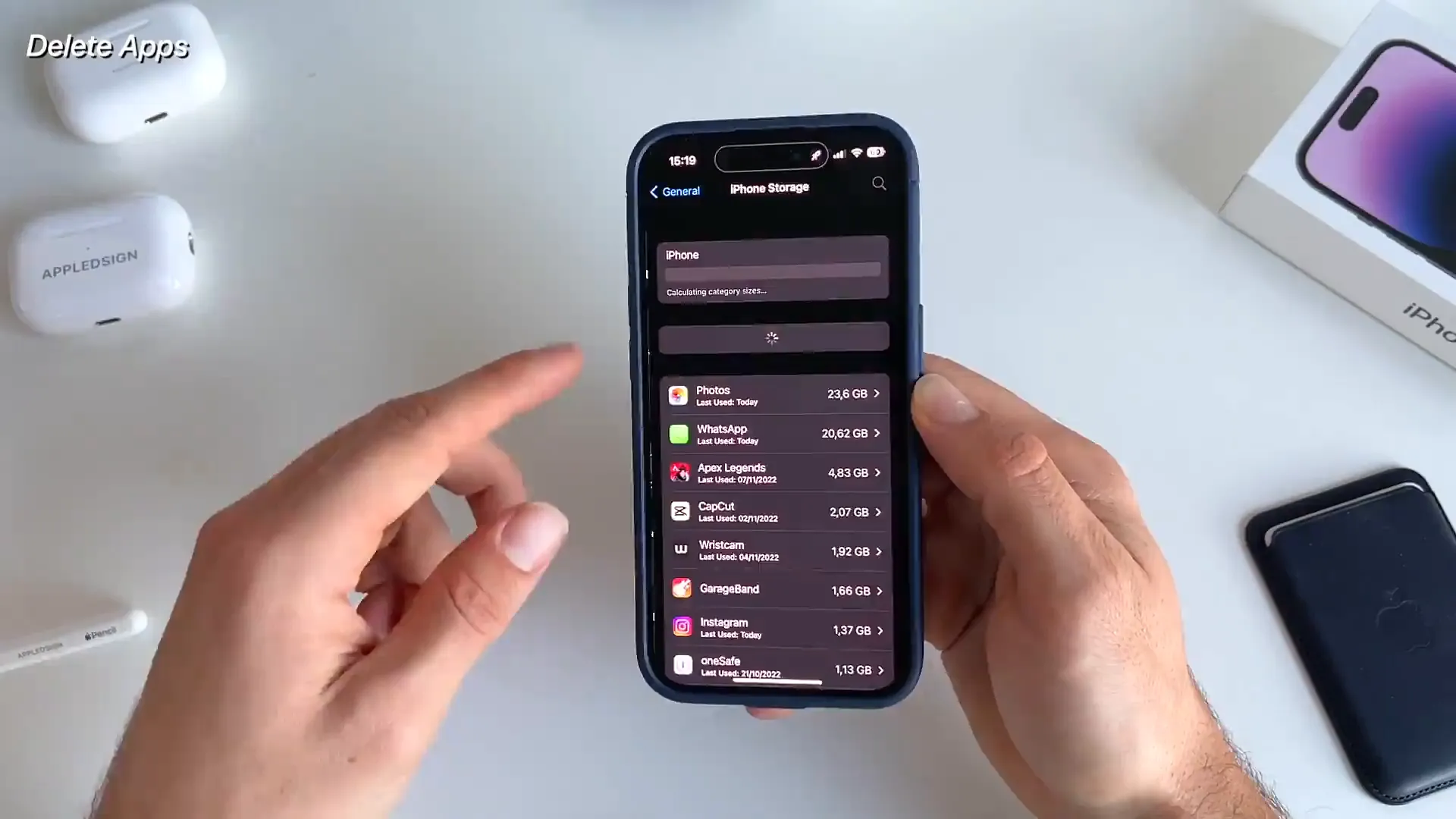
Find the culprits
- Go to Settings and tap General
- Select iPhone Storage. Give it a second to load the list
- Scroll through the list. It's sorted by size, so the biggest offenders are at the top
- Tap an app you don't use, like GarageBand (which can be over 1.6GB), and hit Delete App
Take a look at WhatsApp or social media apps here too. They often cache gigabytes of data. Sometimes deleting and reinstalling the app is the quickest way to clear that cache.
Clear offline entertainment
Downloaded movies and TV shows are silent storage killers. You might have downloaded a whole season of a show on Netflix or Prime Video for a flight six months ago. If you watched it, you don't need it stored locally anymore.
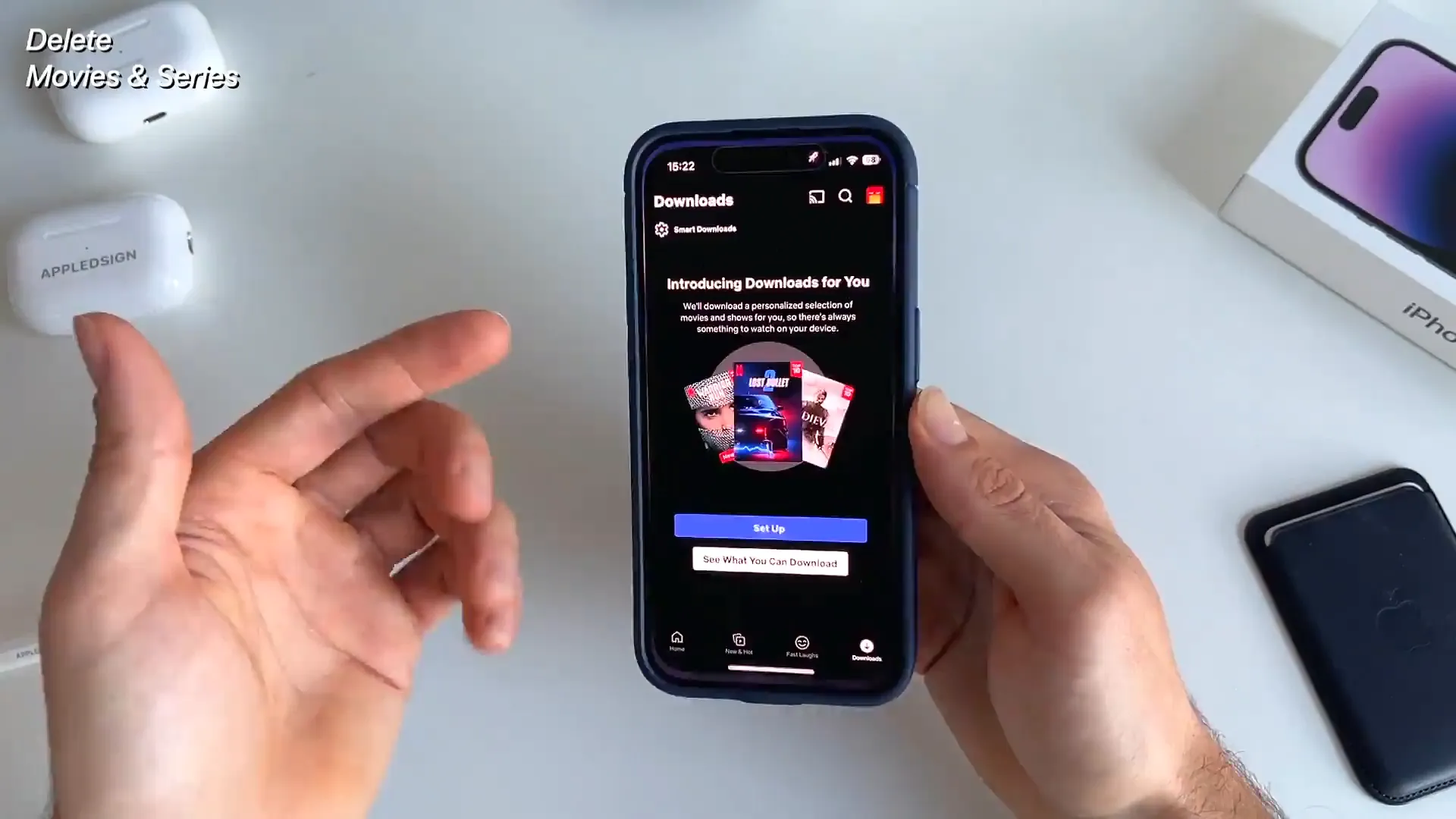
Check your streaming apps—Netflix, Disney+, Apple TV+, or Prime Video. These downloads often show up in the iPhone Storage list we just looked at. If you see an app taking up 10GB or 20GB, it's almost certainly old downloads. Delete them and stream them if you need to watch them again.
Wipe Safari data
This is often overlooked, but Safari accumulates a lot of 'stubborn storage' over time. History, cookies, and website data can pile up into gigabytes if you've never cleared it.
How to clear it
- Head to Settings and scroll down to find Safari
- Scroll down to the bottom and tap Clear History and Website Data
- Confirm the action. This wipes the cache and can speed up browsing too
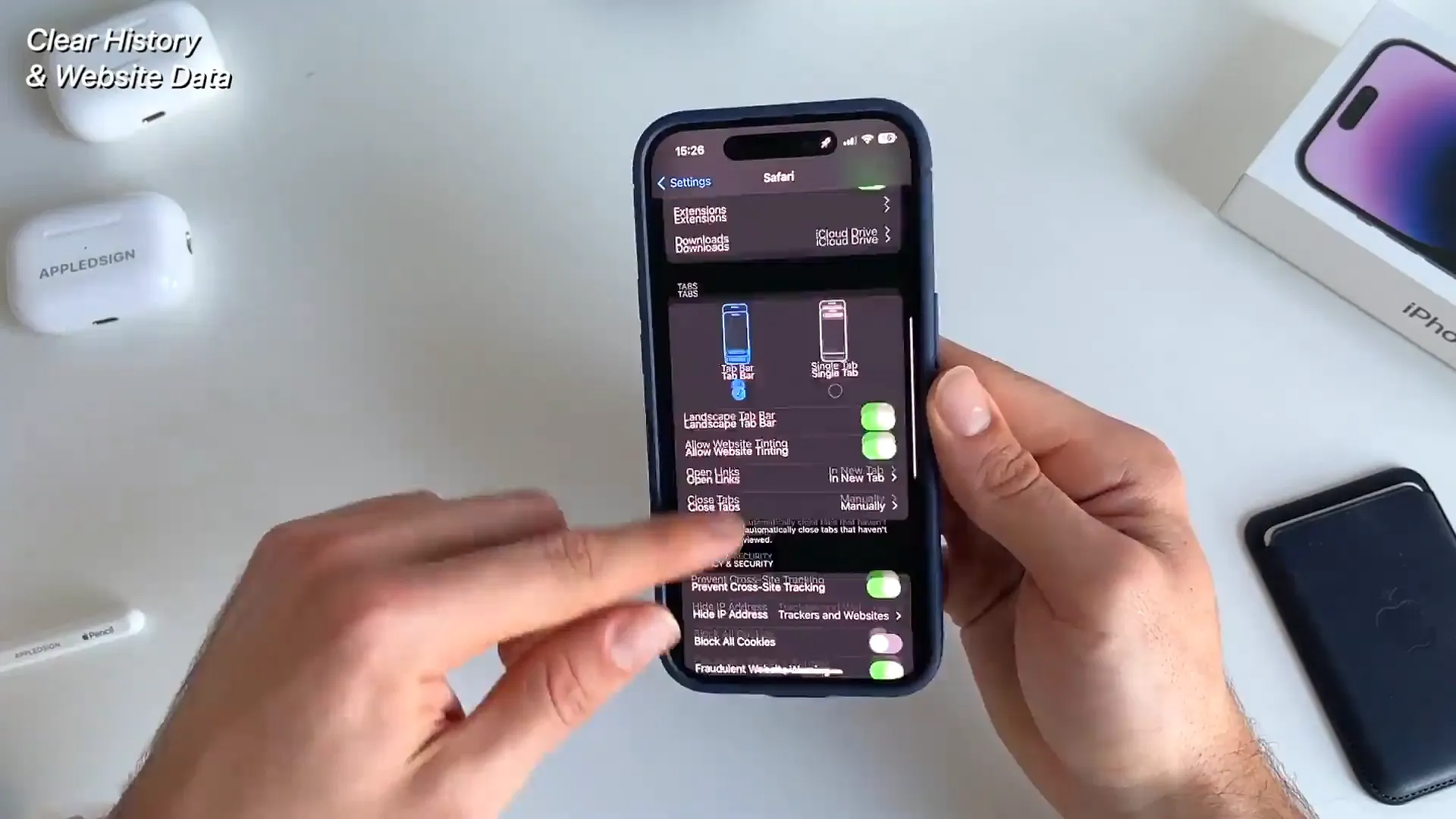
Pro tip: In newer iOS updates, you can choose to keep your open tabs even when clearing history. This is great if you use tabs as a to-do list but still want to clear the junk data.
Delete large emails
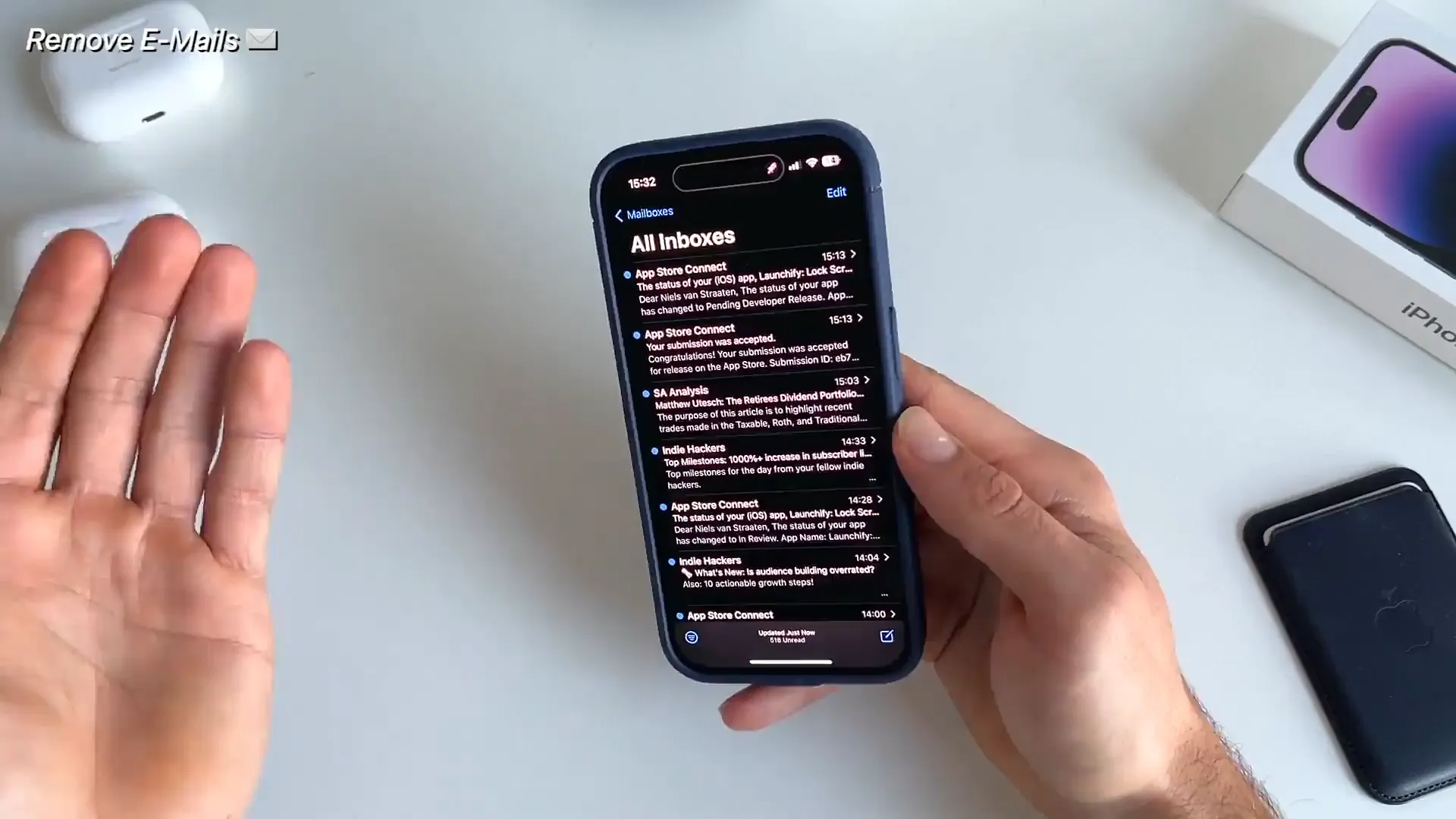
Text emails take up almost no space. But emails with attachments? Those add up. If you've been using the Mail app for years, you might have gigabytes of old PDFs, photos, and videos sitting in your inbox.
- Open the Mail app
- Filter your inbox to show only emails with attachments
- Look for the heavy files. If you don't need that 20MB video file from 2019, delete the email
That's a wrap
Those are our top five ways to reclaim space on your iPhone. Going through these steps can easily free up 5GB to 10GB of space, giving your phone some room to breathe. Give it a try and stop worrying about that 'Storage Full' message.
Last updated: Oct 14, 2026