
26 hidden features in iOS 26 you need to try
Everyone knows about the headline features in iOS 26. But the best stuff is usually hidden deep in the settings menus. We spent a week digging through every toggle and sub-menu to find the features Apple didn't talk about on stage.
I'm not talking about the standard changes you see right after updating. These are the quality-of-life improvements, the hidden utilities, and the customization tricks that actually change how you use your phone. Some of these are genuine game changers.
We found 26 of them. Let's walk through the most impactful ones first, then we'll run through the quick tips that you'll want to switch on immediately.
Battery intelligence and charging
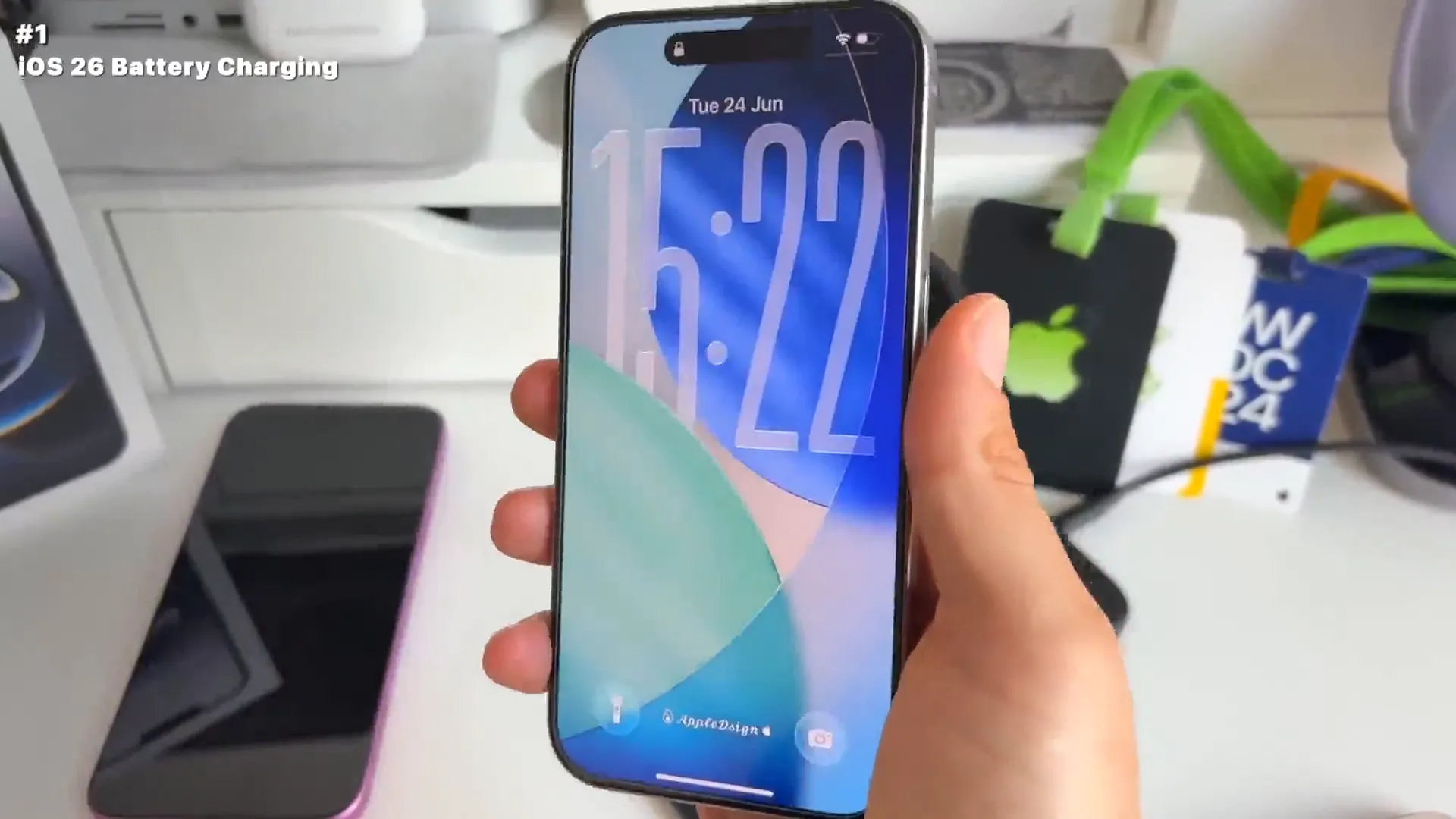
This is one of my favorites right out of the gate. Apple has improved how the iPhone handles charging feedback. It's not just about optimized charging anymore. It's about knowing exactly when you'll be ready to go.
When you plug in your device now, you get a new indicator right on the lock screen. It tells you specifically how long it will take to reach an 80% charge. No more guessing if you have enough juice to leave the house.
The return of the loupe
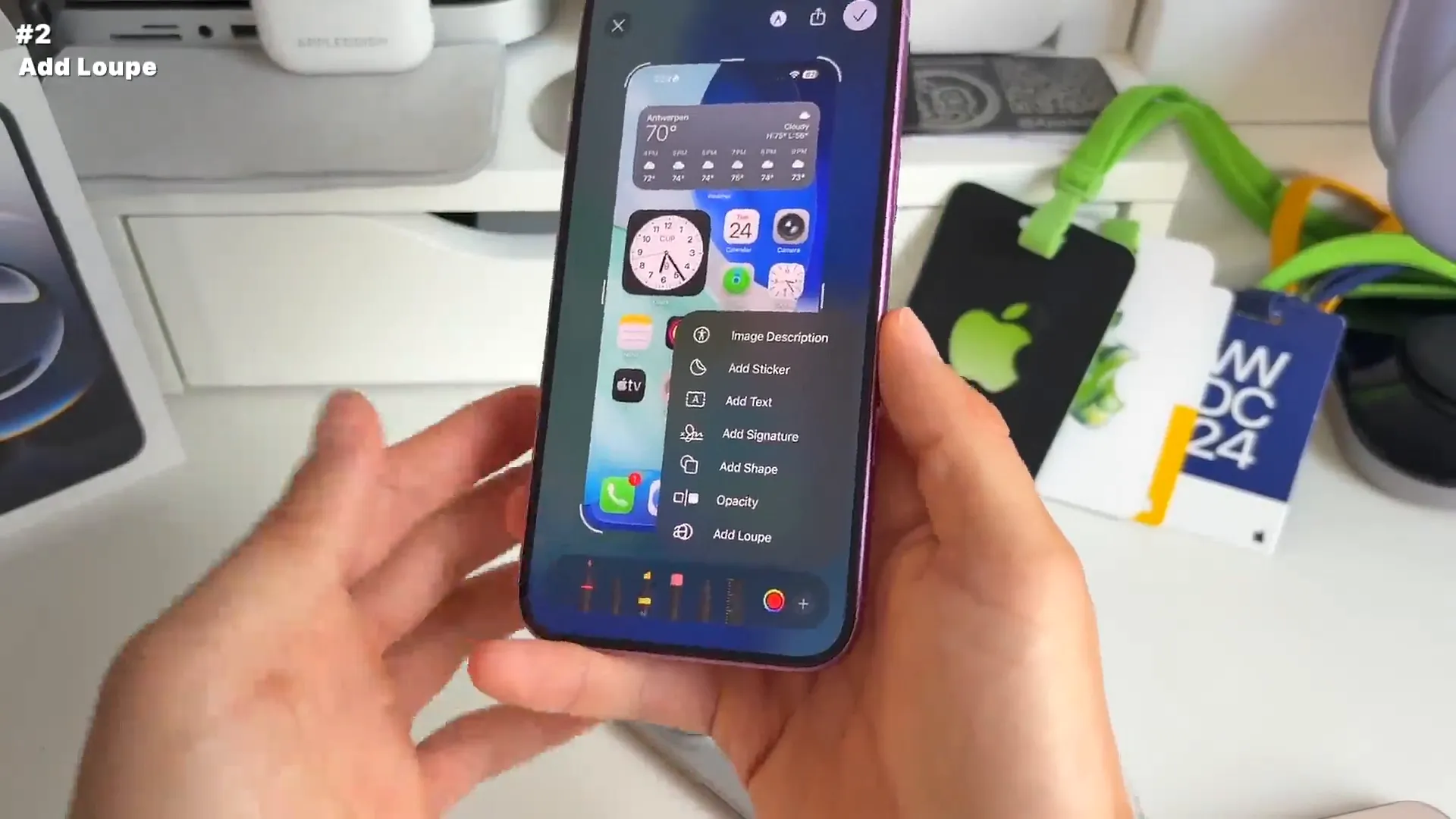
If you missed the magnifying glass for text selection or screenshots, you're going to love this. Apple brought back the magnifier loupe for screenshots. It's perfect when you want to highlight a specific part of an image without cropping the whole thing.
How to use it
- Take a screenshot and tap the thumbnail to edit it
- Tap the + icon in the bottom right corner
- Select Loupe from the menu
- Drag the blue dot to resize the circle, or the green dot to change the zoom level
- You can even change the outline color and thickness to make it pop
Pro tip: While you're in the screenshot editor, check out the new "Circle to Search" feature. Draw a circle around an object, like a clock widget, and it'll pull up Google Image results or ChatGPT insights instantly.
AutoMix in Apple Music
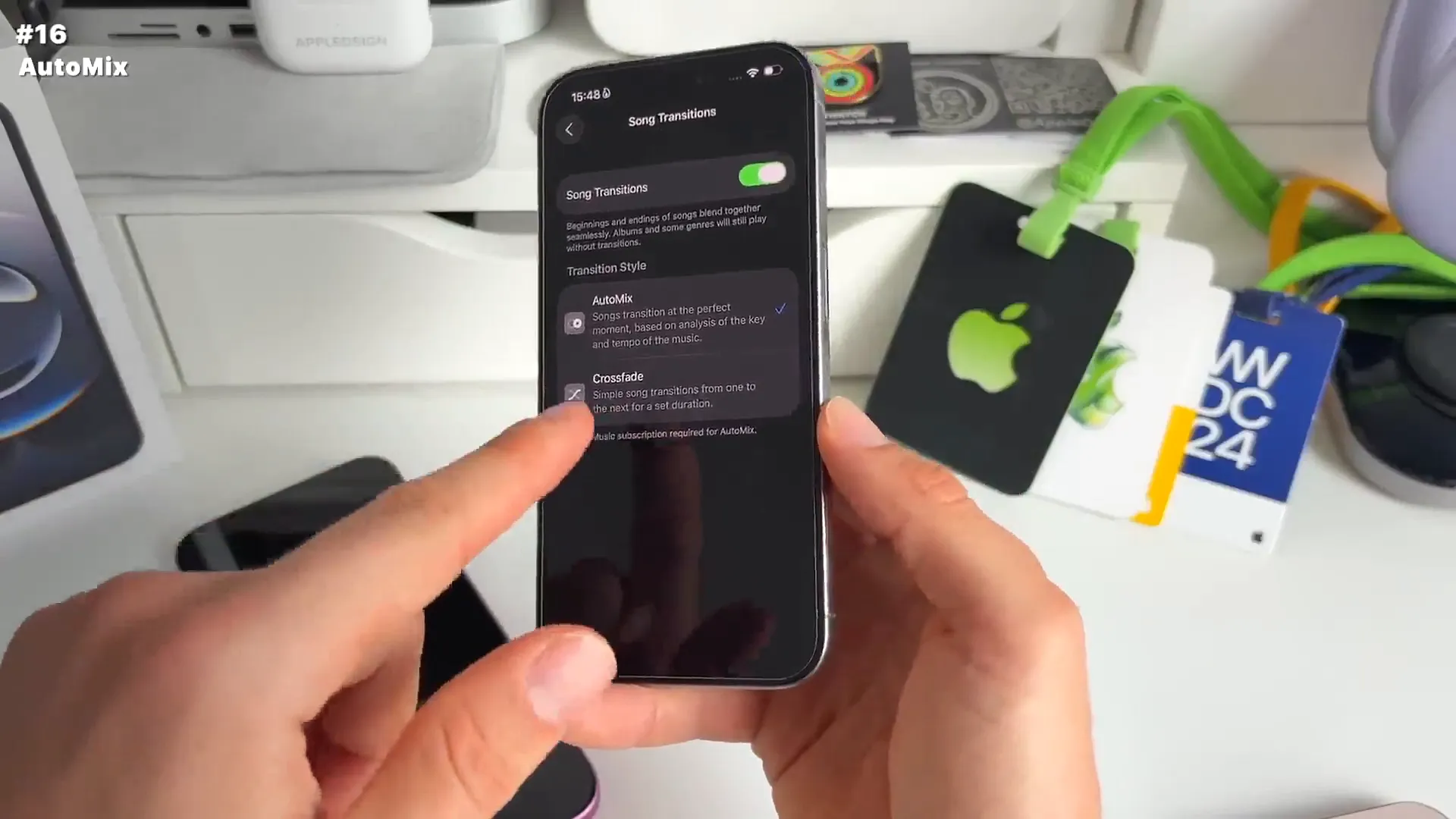
This isn't just a simple crossfade. AutoMix is a massive update for music lovers. It uses AI to analyze the beat, rhythm, and vocals of your tracks to create seamless transitions. It sounds like a professional DJ is mixing your playlist live.
Where to find it
- Open Settings and go to Apps
- Scroll down and select Music
- Look for Song Transitions
- Switch it from Crossfade to AutoMix
It handles the volume and timing perfectly so there's no dead air between songs. It's honestly impressive to hear in action.
Local capture for calls
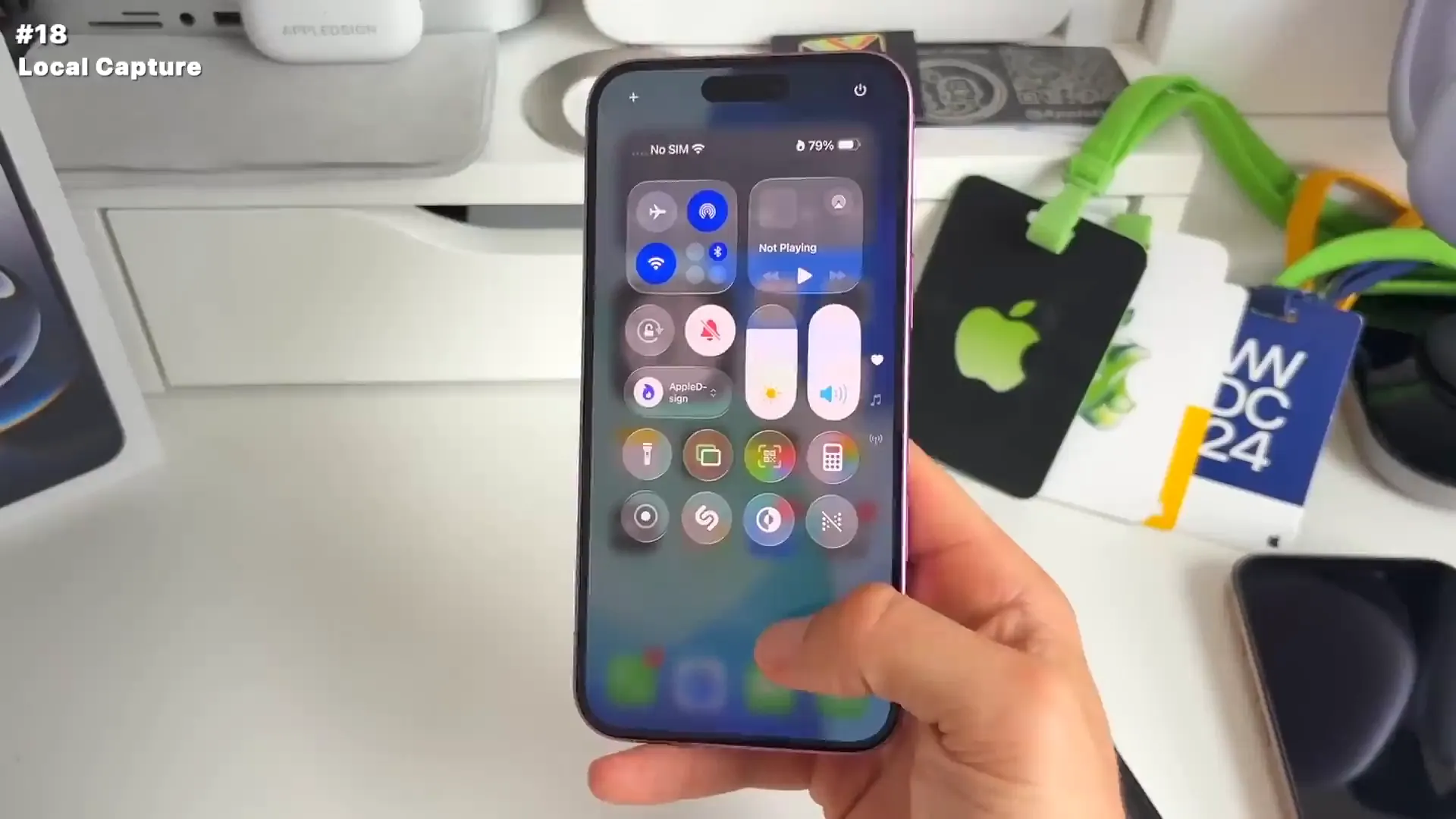
For anyone who records podcasts or meetings, this is huge. Local Capture allows you to record high-quality audio and video from FaceTime, Zoom, or Teams calls directly to your Files app. It grabs the local feed, so you don't get that compressed, glitchy internet quality.
Setting it up
- First, add the control. Go to Control Center and add Local Capture
- Start your FaceTime or Zoom call
- Pull down the Control Center and tap the Local Capture button
- When you hang up, the high-res file saves automatically to the Files app
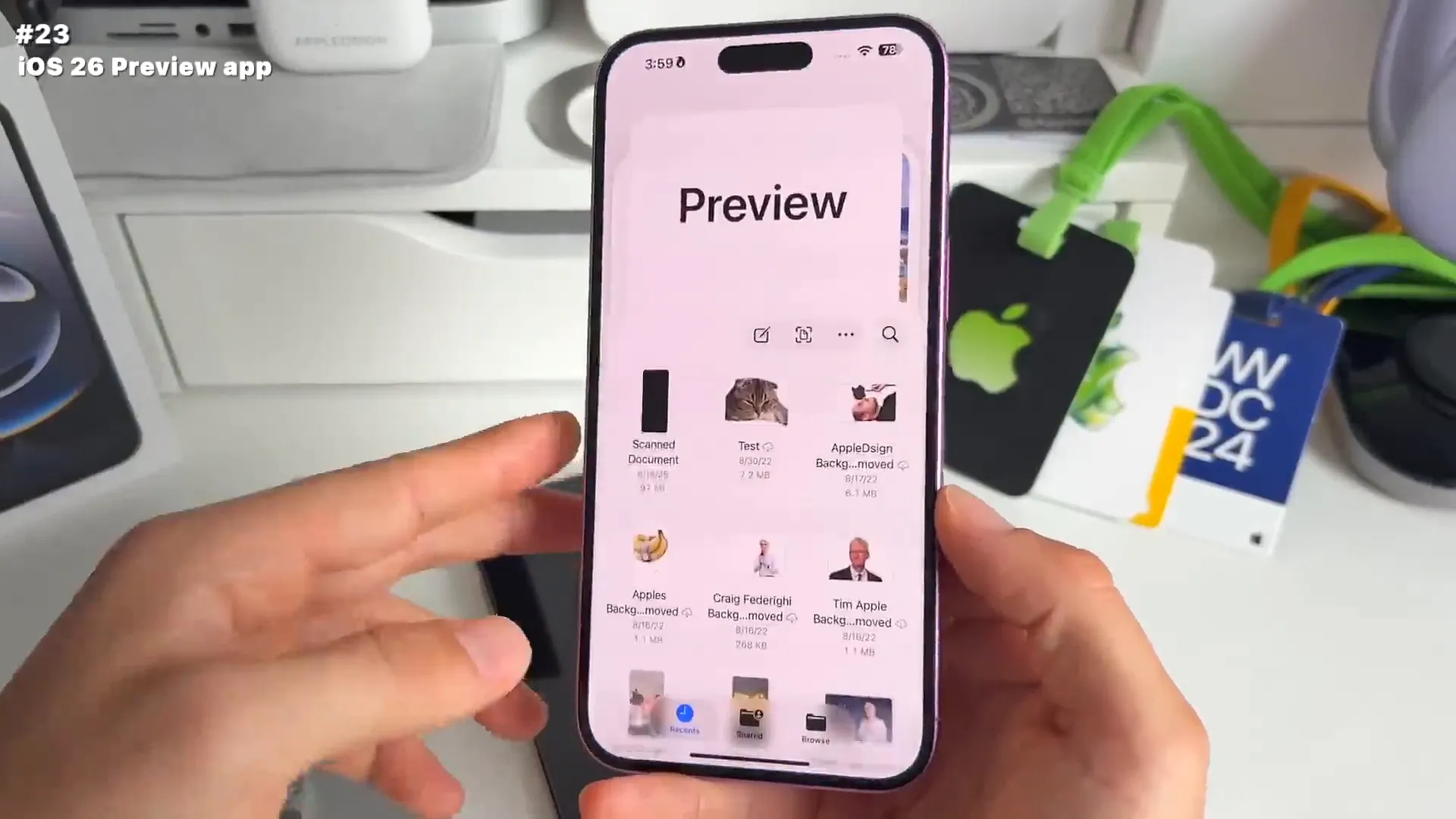
The Preview app arrives on iPhone
Mac users have relied on Preview for years. Now it's a standalone app on iOS. It's incredibly powerful for managing documents without needing third-party tools. You can scan, edit, and sign things in seconds.
The scanning feature is particularly fast. You just point your camera at a document, and it snaps it automatically. Once scanned, you can drop in a signature you've already saved. It makes handling contracts on the go much less painful.
A few more hidden gems
There are too many to list in full detail, but here are some quick wins you should check out:
- Lens Cleaning Hints: Your camera can now detect smudges and warn you to clean the lens before you take a blurry photo. Toggle it in Camera settings
- Head Tracking: Control your iPhone with facial gestures. Raise eyebrows to go home, stick out your tongue to open Control Center. It's in Accessibility
- Custom Snooze: You can finally change the snooze time on alarms. No more being stuck with the 9-minute default
- Live Captions: Get real-time subtitles for anything playing on your phone, even phone calls. Great for accessibility or noisy environments
- Partial Text Select: In iMessage, you can now select just a specific part of a text bubble to copy. You don't have to copy the whole message anymore
Start playing
That's just a scratching the surface of iOS 26, but these are the features that will actually make a difference in your day-to-day. I'd recommend starting with the Battery settings and the new Control Center toggles.
Go explore the menus. Apple hid a lot of good stuff in this update, and it's worth taking the time to set it up exactly how you like it.
Last updated: Oct 14, 2026