
What's new for AirPods in iOS 27
We've been busy exploring the incredible updates coming to AirPods in iOS 27. While a lot of the excitement revolves around the highly anticipated Custom EQ, there is a whole host of underlying changes to the settings interface that you might have missed. The menus have been completely reorganized to make managing your earbuds much more intuitive. Let's dive in.
A much cleaner Settings experience
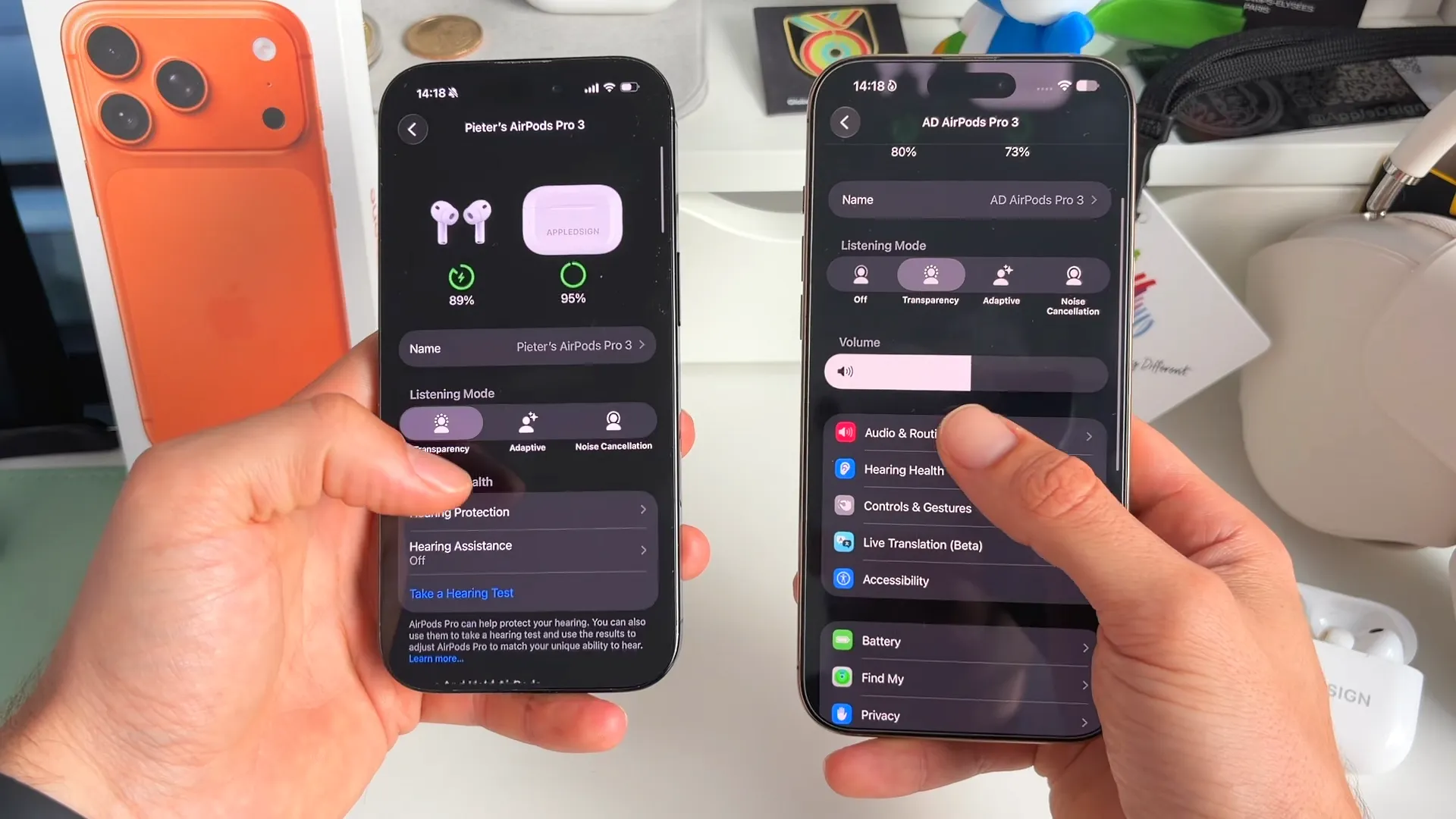
If you used iOS 26, you likely remember the AirPods settings page being a single, unstructured list. Finding a specific feature usually meant swiping four or five times to reach the bottom.
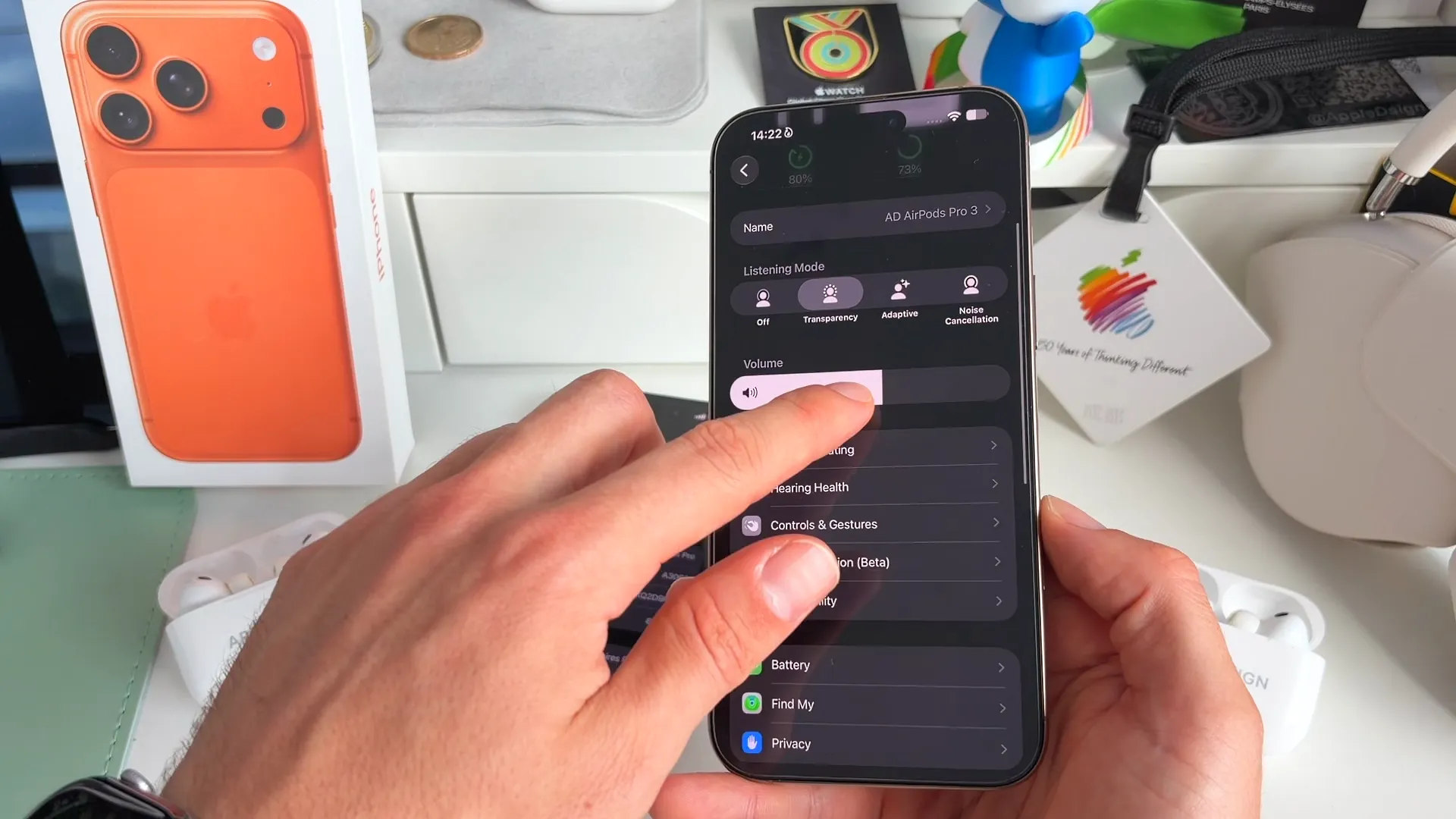
In iOS 27, that experience gets a massive overhaul. The page is now neatly structured, categorized by Apple with distinct icons, and takes only about two swipes to navigate. Right at the top, you are greeted by a massive new volume slider. Just below that, your settings are broken out into clean categories like Audio & Routing, Hearing Health, Controls & Gestures, Live Translation (Beta), and Accessibility.
Custom EQ is finally here
This has been one of the most requested features of all time. You finally have the ability to customize your equalizer levels to match your exact listening preferences. You can adjust the bass, tweak the mid-range, and tremble the higher frequencies entirely on your own.
This feature is available for AirPods Pro 2, AirPods Pro 3, AirPods 4 (both the standard and ANC versions), and AirPods Max 2.
Here's how to try it
- Open your Settings app and navigate to your new AirPods page.
- Tap into Audio & Routing.
- Select the Equalizer section to start adjusting your sound profile.
A few more things
The redesign also brings some much-needed organization to features that used to be buried.
- Battery and Find My get priority: In iOS 26, these sections looked unfinished and were hidden at the very bottom of your screen. Now, Battery and Find My have their own dedicated, prominent sections right in the main list. You can easily manage your optimized charge limit and charging notifications.
- Streamlined Controls & Gestures: Everything related to how you physically interact with your AirPods is now in one place. This includes the new Head Gestures, which are no longer scattered randomly across the page.
- Live Translation (Beta) improvements: The live translation feature is now a separate entity. It sits prominently at the top of its own menu, rather than acting as an invisible part of the main page.
- New Privacy controls: There is now a dedicated Privacy section. Right now, it houses a toggle to allow apps to use the Heart Rate sensor.
- Hearing Health integration: You can now take a hearing test directly from the Hearing Health menu and integrate your previous results into your audio profile.
Go explore
The iOS 27 update takes a messy, endless scrolling experience and turns it into a highly organized control center for your audio. Whether you want to dial in the perfect bass with Custom EQ or just check your battery health without scrolling forever, managing your AirPods has never been easier. Connect your earbuds and give the new layout a spin.
Last updated: Oct 14, 2026