
10 Settings You Need to Change in iOS 27
iOS 27 is finally here. Apple packed this release with highly requested features and a few surprise additions. Amazingly, the update is supported all the way back to the iPhone 11 Pro and covers the brand-new iPhone 18 Pro line.
There are plenty of major changes to explore. Here are 10 default settings and features you should check out immediately after updating.
Dial in your interface with Liquid Glass
You can now adjust the transparency of system menus and search bars. A new visual effect lets you tweak how much of your background bleeds through your interface.
Here is how to try it
- Open Settings.
- Scroll down and tap Appearance.
- Tap Liquid Glass.
- Use the slider to adjust the intensity of the frosted glass effect.
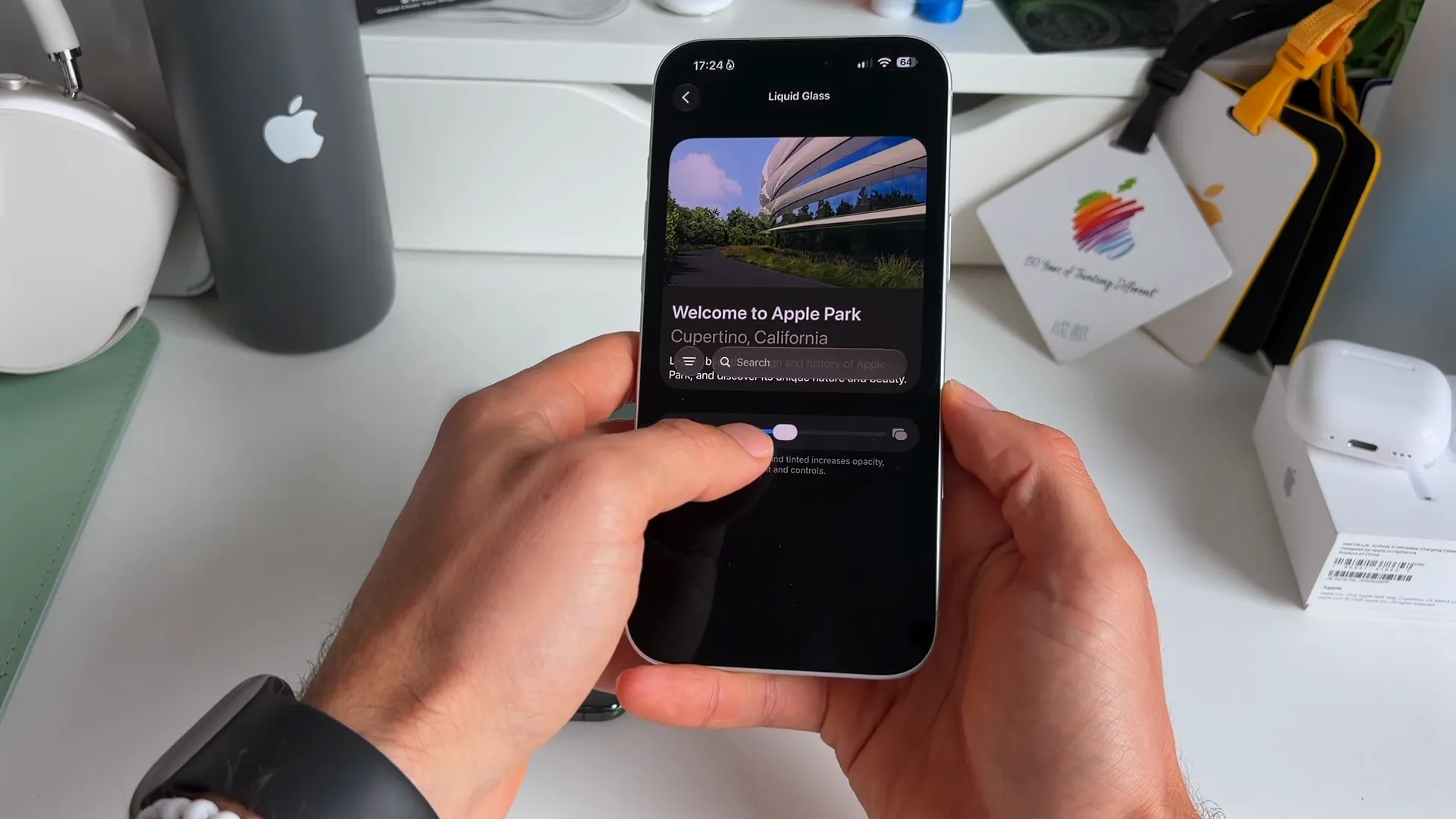
Dragging the slider to the left makes the glass more transparent. This lets you clearly see the elements and text behind your active menus.
Decouple your alarm and ringtone volumes
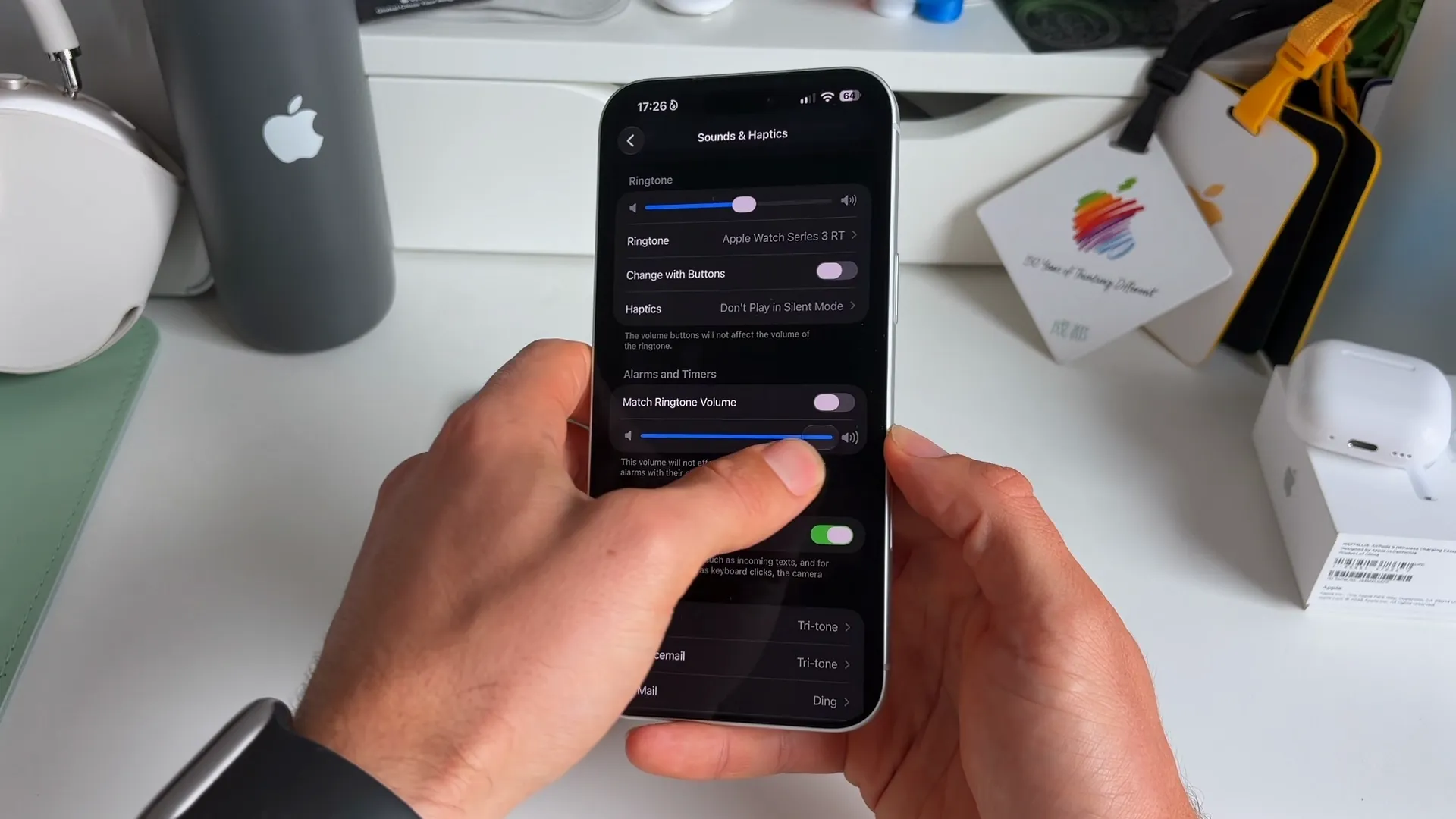
For years, your system ringtone and your morning alarm shared the same volume slider. iOS 27 fixes this. You can now lower your system notification volume without risking a missed alarm.
Here is how to use it
- Open Settings and select Sounds & Haptics.
- Look for the Alarms and Timers section.
- Toggle off Match Ringtone Volume.
- Adjust the dedicated volume slider right below the toggle.
Let Apple Intelligence organize your Safari tabs
If your browser is a mess of open pages, Safari can now clean it up for you. Apple Intelligence will analyze your open tabs and group them into neat, labeled topics automatically.
Give it a spin
- Open Safari and tap the tabs icon in the bottom right.
- Tap the filter menu in the top left corner.
- Tap Organize Tabs.
- Select Automatically Create Topics.
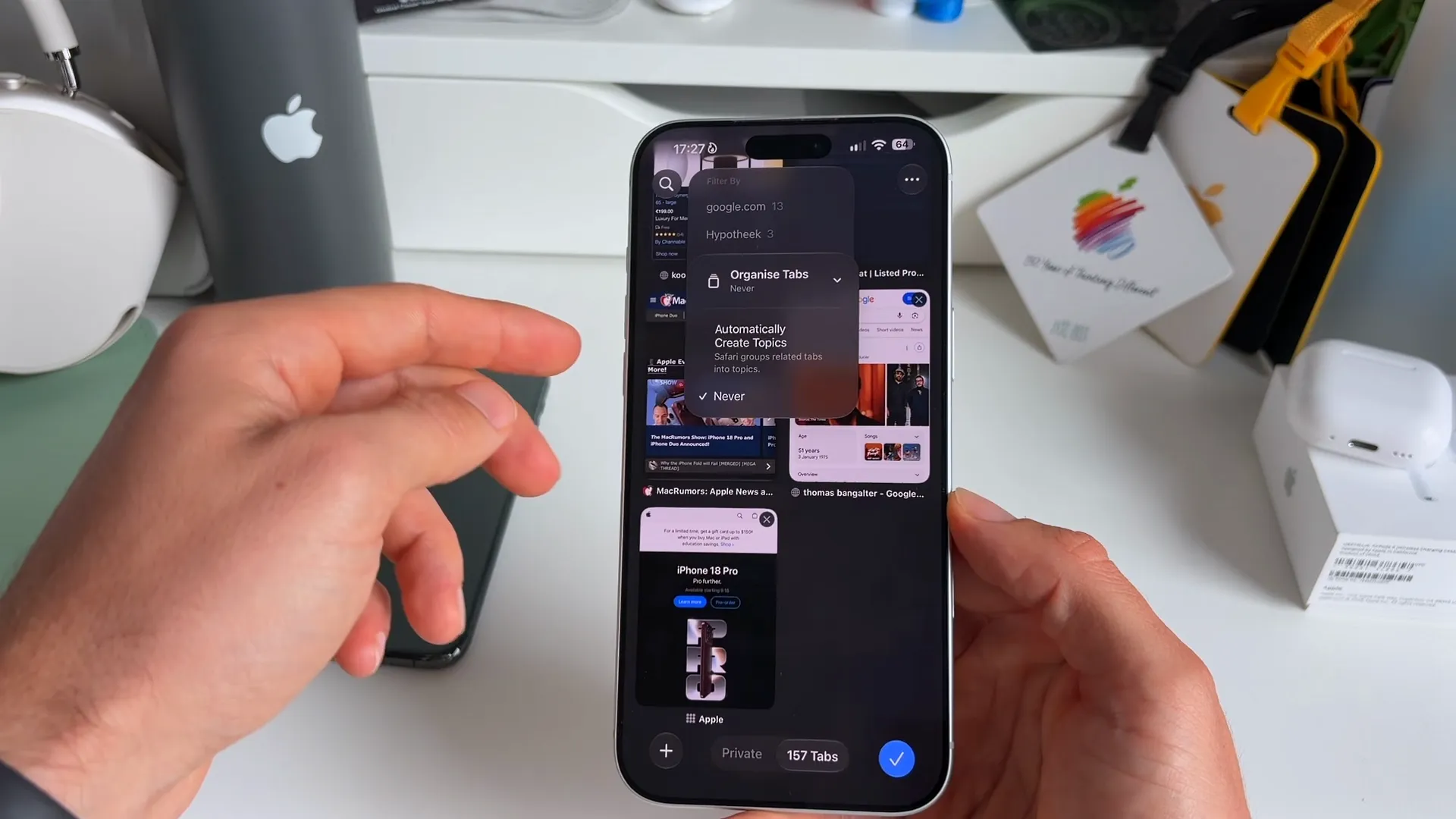
Safari immediately filters your pages into categories like Google, mortgages, or specific projects you are researching.
Build a custom EQ for your AirPods
You no longer have to rely on third-party apps or preset profiles to change how your music sounds. iOS 27 introduces a built-in custom equalizer for your AirPods.
How it works
- Connect your AirPods and put them in your ears.
- Open Settings and tap your AirPods name at the top.
- Tap Audio & Routing.
- Select Equalizer.
- Switch the setting from Recommended to Custom.
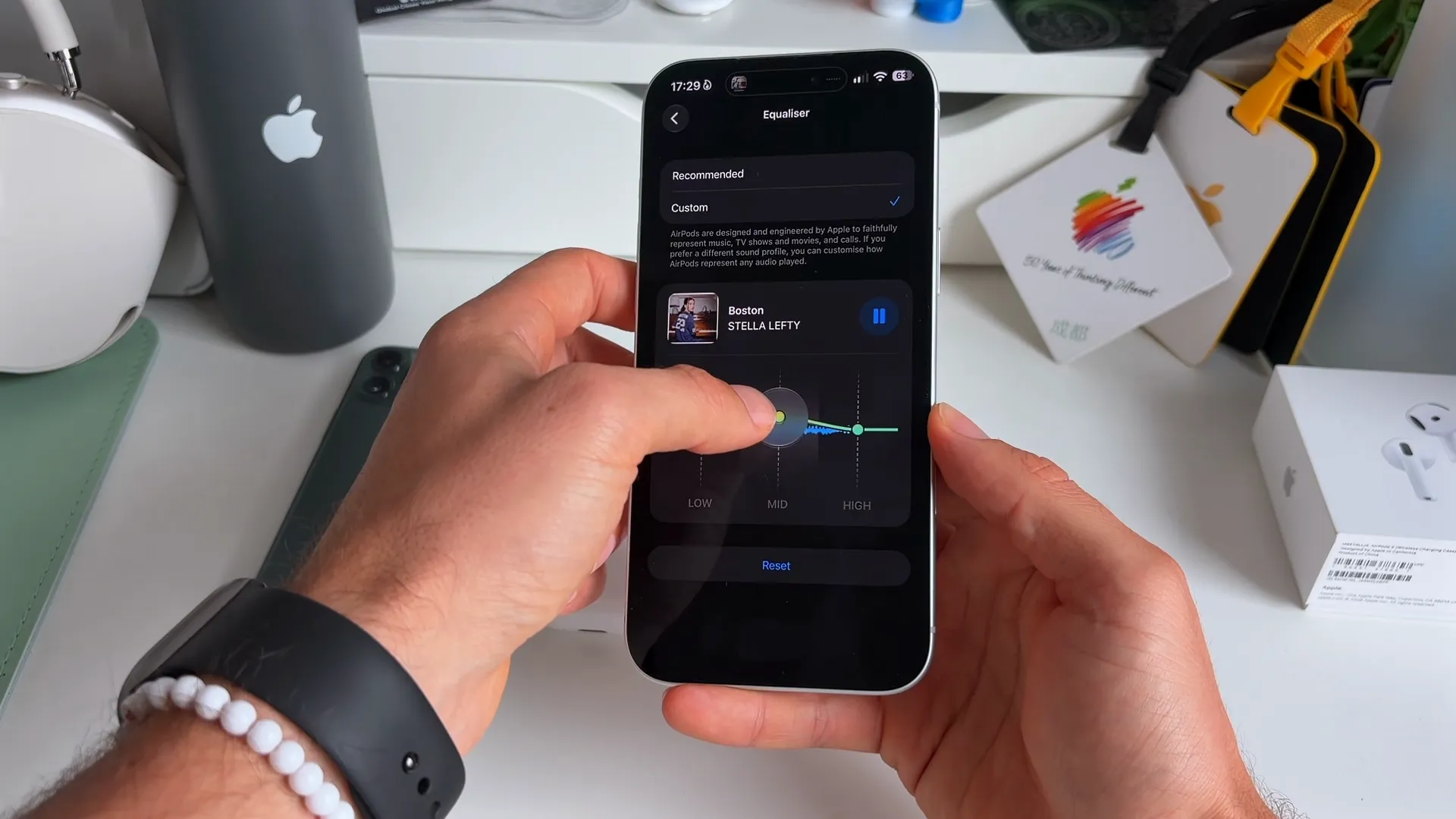
Play a song in the background while on this screen. You can drag the nodes for lows, mids, and highs to find the perfect audio balance for your ears.
Fix compromised passwords automatically
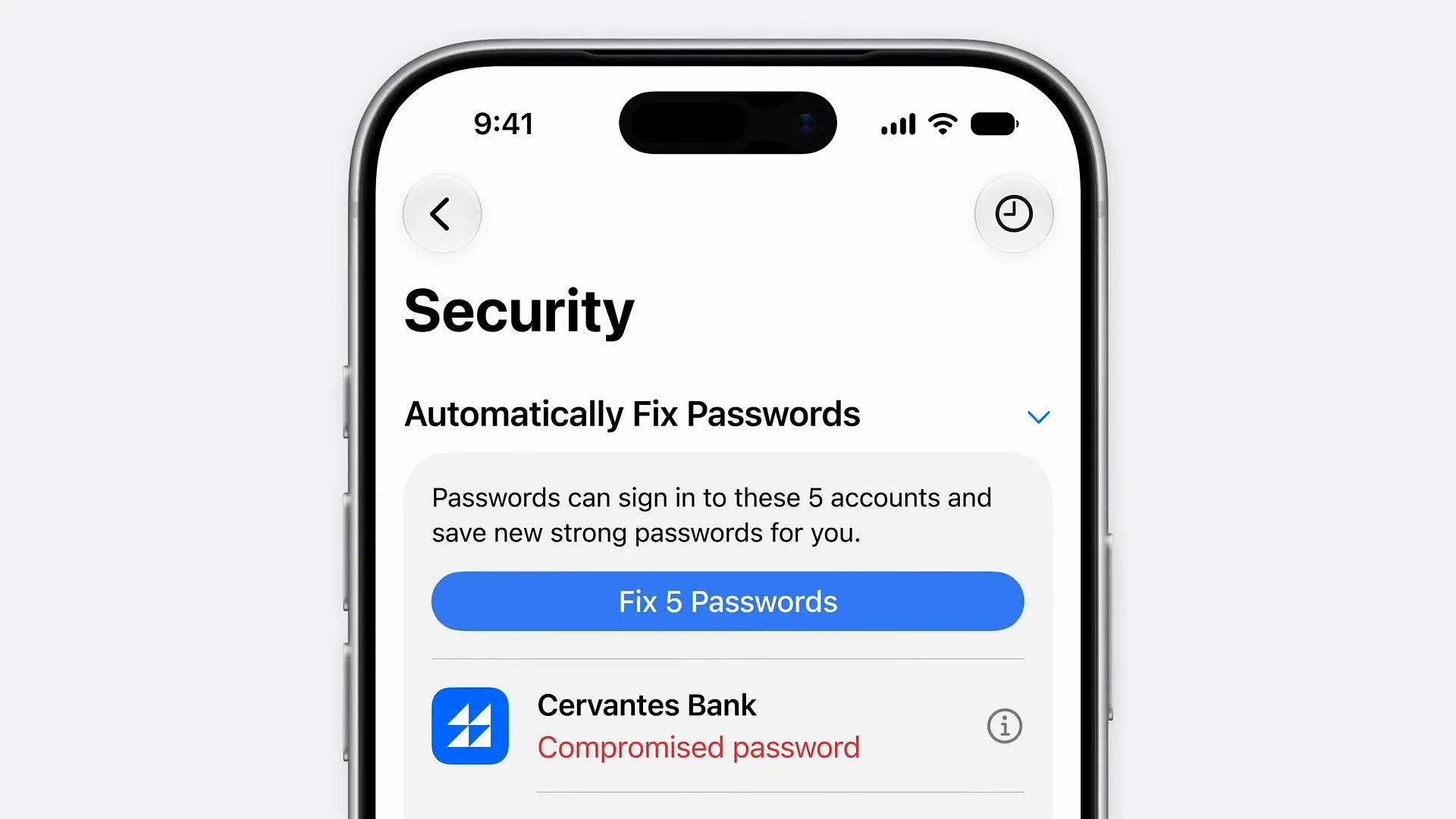
Data breaches happen. Changing exposed passwords manually across dozens of websites is tedious. The Passwords app now includes an automated tool to handle this for you.
When you open the app, you might see a list of compromised accounts. Tap Fix 5 Passwords at the top of the security list. Your iPhone will attempt to sign into those accounts in the background. It will automatically generate and save new strong passwords for each one.
Create iOS Shortcuts with plain English
The Shortcuts app is powerful but notoriously complex to program. That changes today. You can now tell the app what you want to do in natural language, and Apple Intelligence will build the automation for you.
Here is how to use it
- Open the Shortcuts app and create a new shortcut.
- Tap the text box labeled Describe a shortcut.
- Type your prompt. For example, type "I want to lower my brightness ever single evening automatically at 23:00".
- Tap the arrow to submit.
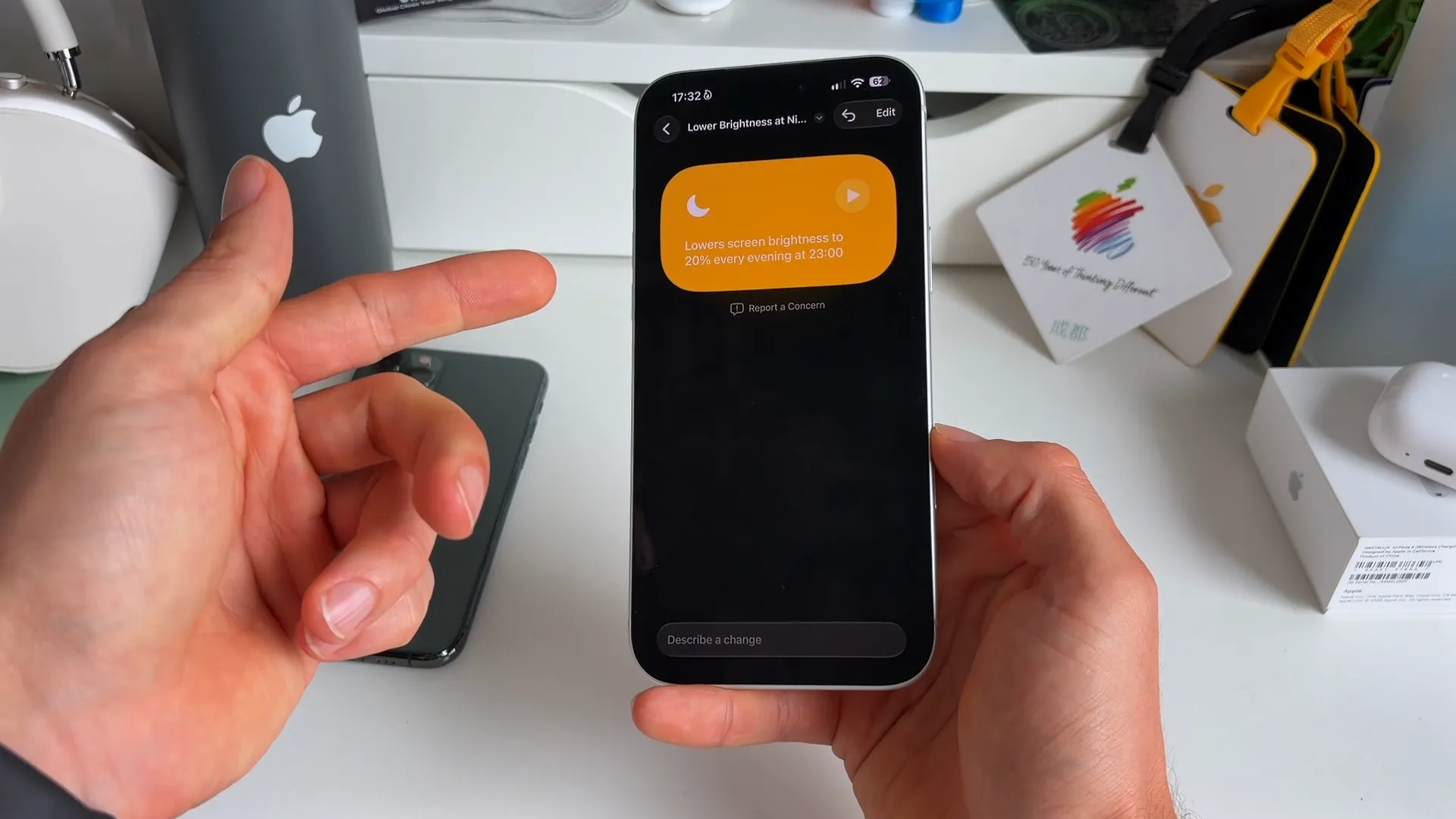
The app generates a ready-to-use automation. You can review the steps, adjust the parameters, or save it directly to your library.
Move and resize your lock screen clock
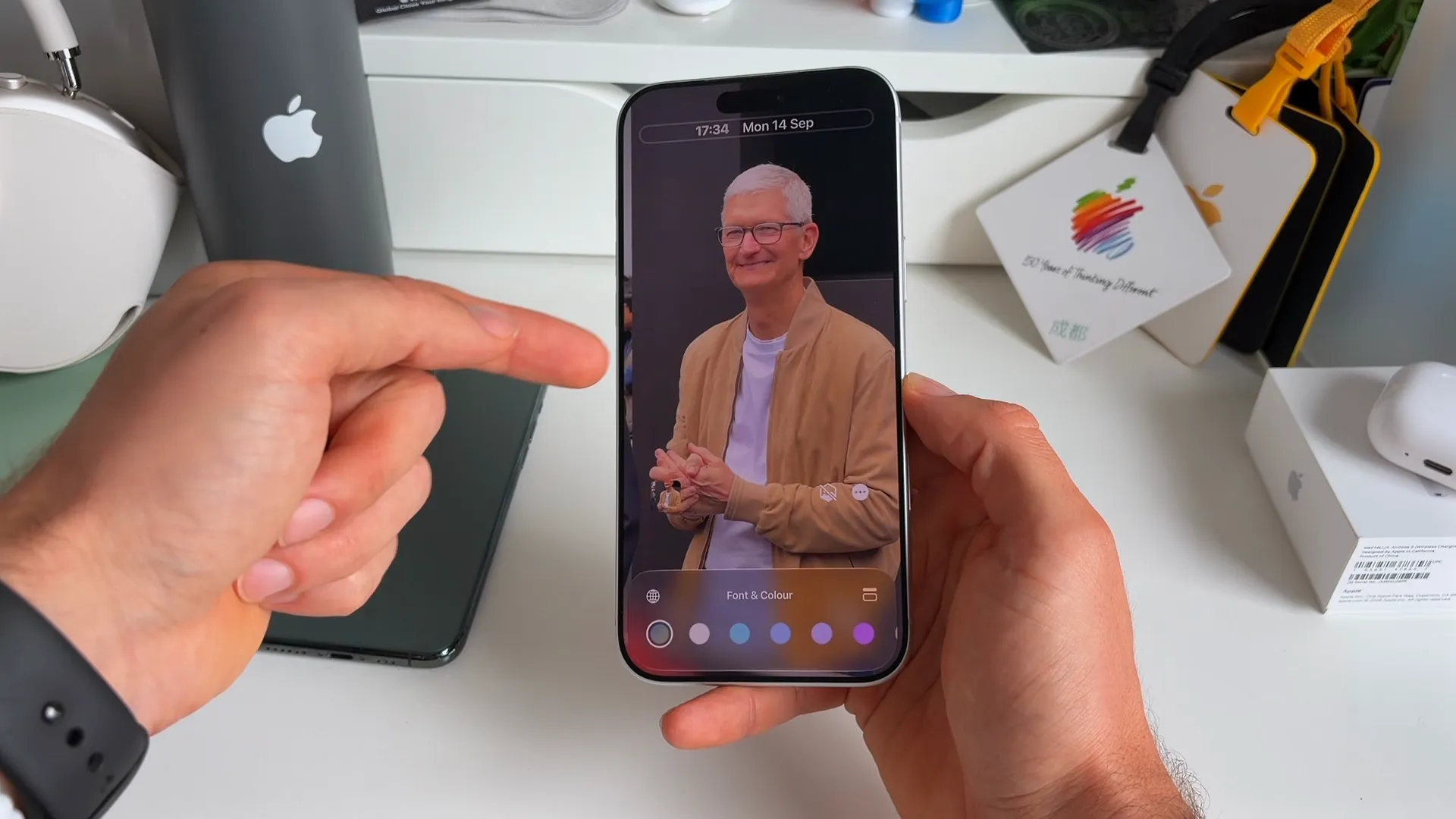
The massive default lock screen clock often blocks the best parts of your wallpaper. You now have total control over its size and placement.
Enter the lock screen customization mode. Tap the clock to shrink it, then drag it to a new location. You can tuck it neatly into the top right corner to keep faces or subjects completely unobstructed.
Extend wallpapers that are too small
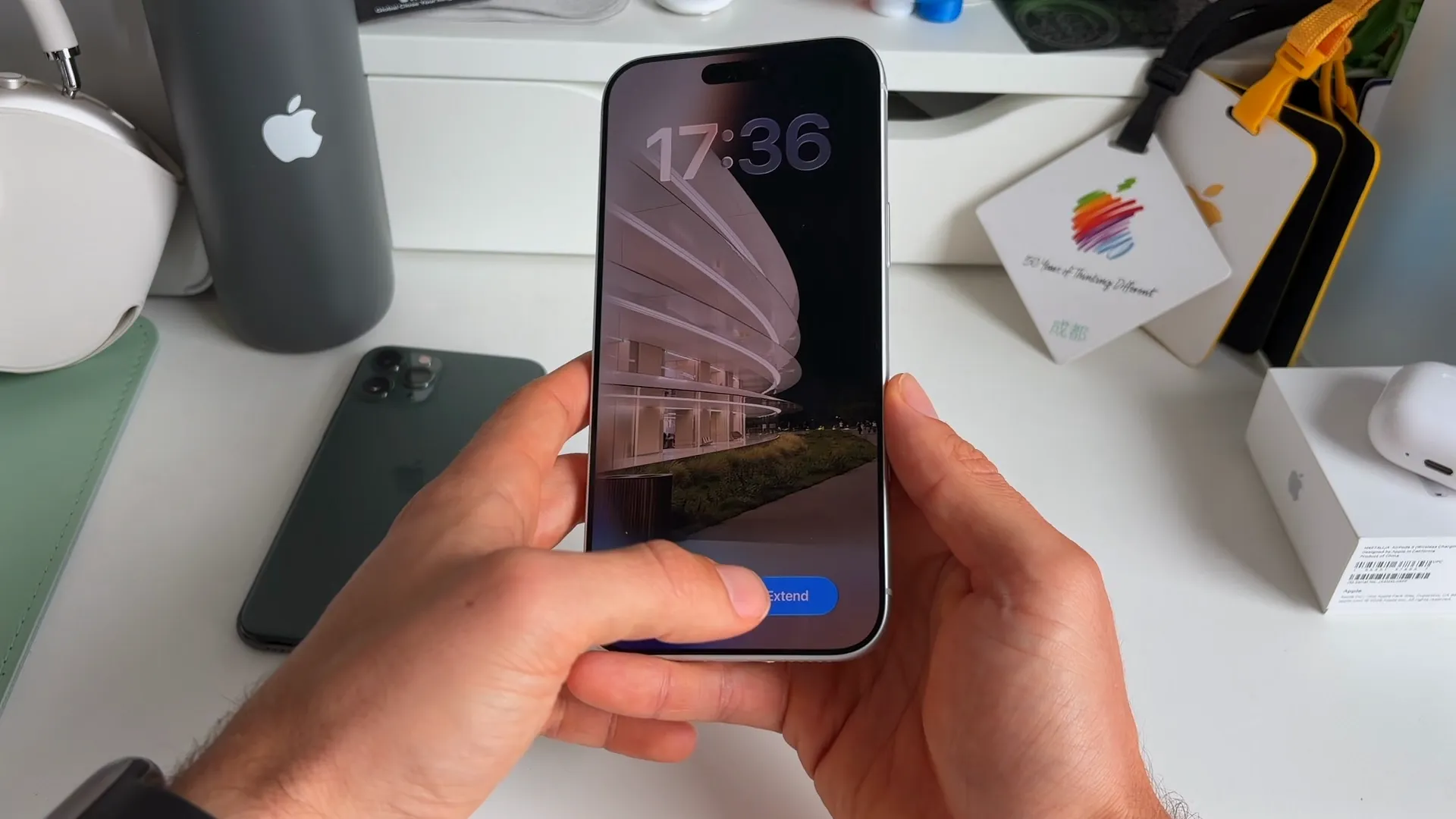
Sometimes your favorite photo does not fit the tall aspect ratio of your iPhone screen. If you pinch to zoom out on a lock screen photo, you will now feel a haptic bump. This indicates the borders are missing.
Tap the new Extend button at the bottom of the screen. Apple Intelligence will analyze the image and generate matching background pixels for the top and bottom borders. It looks entirely seamless.
Preserve photo authenticity data
Apple introduced a new system on the iPhone 18 Pro and 18 Pro Max to verify if photos are authentic or altered. If you want to keep this data attached to your images when sharing them, you need to enable a specific setting.
Here is how to set it up
- Open Settings.
- Scroll down and tap Photos.
- Toggle on Share Reference Image.
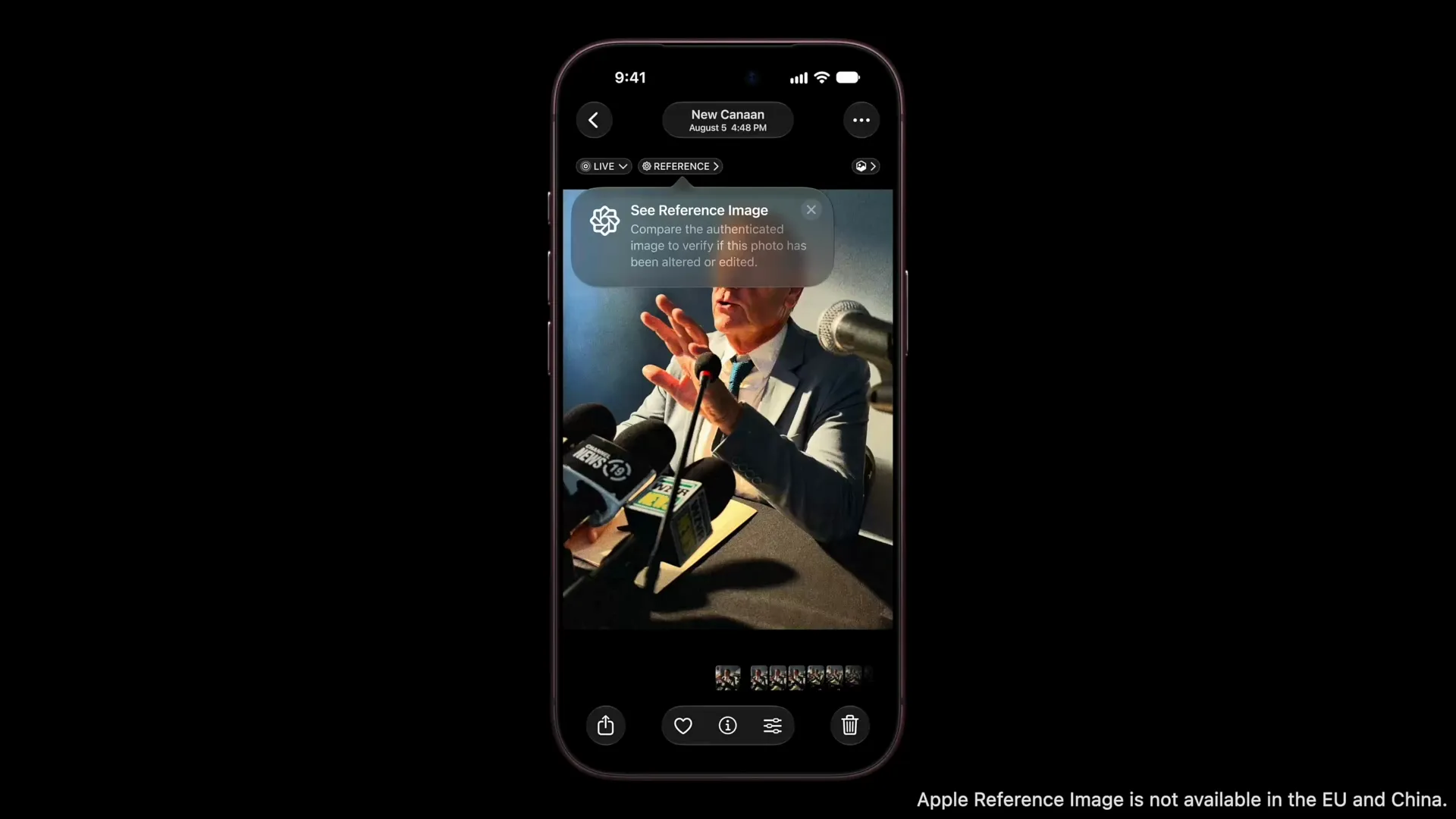
Even if you own an older device, turning this setting on ensures you do not strip the verification data from photos sent to you by someone with an iPhone 18 Pro.
A quick note on battery life
It is incredibly common to experience rapid battery drain right after installing a major update like iOS 27. Do not panic.
Your iPhone has to re-index all of your files, photos, and apps in the background. This process takes a lot of processing power.
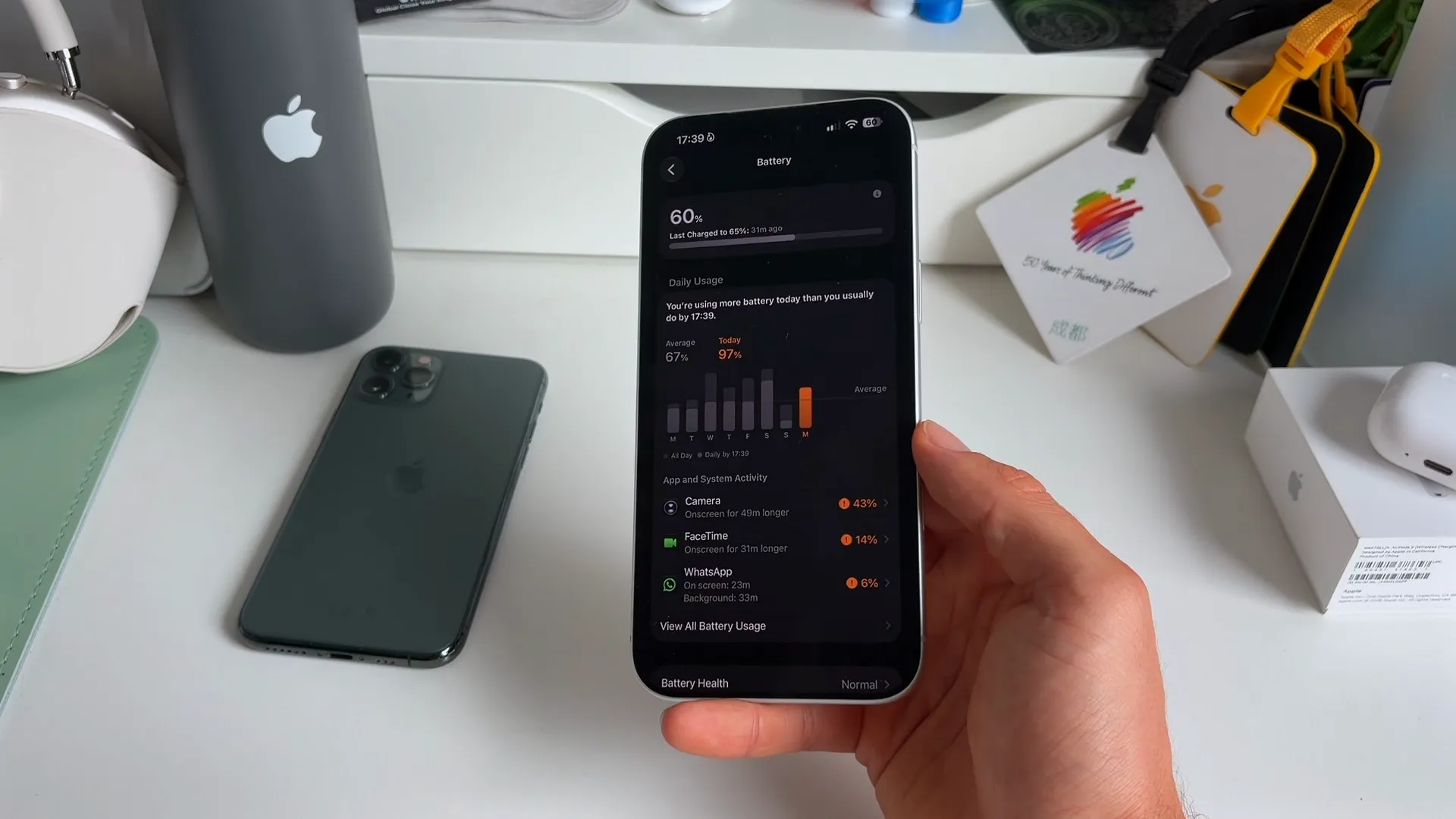
Give your phone a few days to finish these background tasks. Your battery life should stabilize and return to normal within 48 to 72 hours.
Last updated: Oct 14, 2026