
What's new in Craft: A look at the latest workflow updates
If you've been following the creative workflow space, you've probably noticed Craft growing tremendously. It started as a great native note-taking app, but with recent updates, it's become something much more powerful. We're seeing teams transition from simple tools like Apple Notes to Craft to handle everything from project planning to external publishing.
We wanted to highlight the features that are changing how creators and teams work. This isn't just about typing text anymore. It's about AI that runs locally on your device, a completely new way to manage tasks, and publishing tools that turn your notes into live websites
Whether you're organizing a content calendar, managing partnerships, or just trying to get your life in order, there's a lot to unpack here. Let's dive into the features making the biggest impact.
Templates and structure
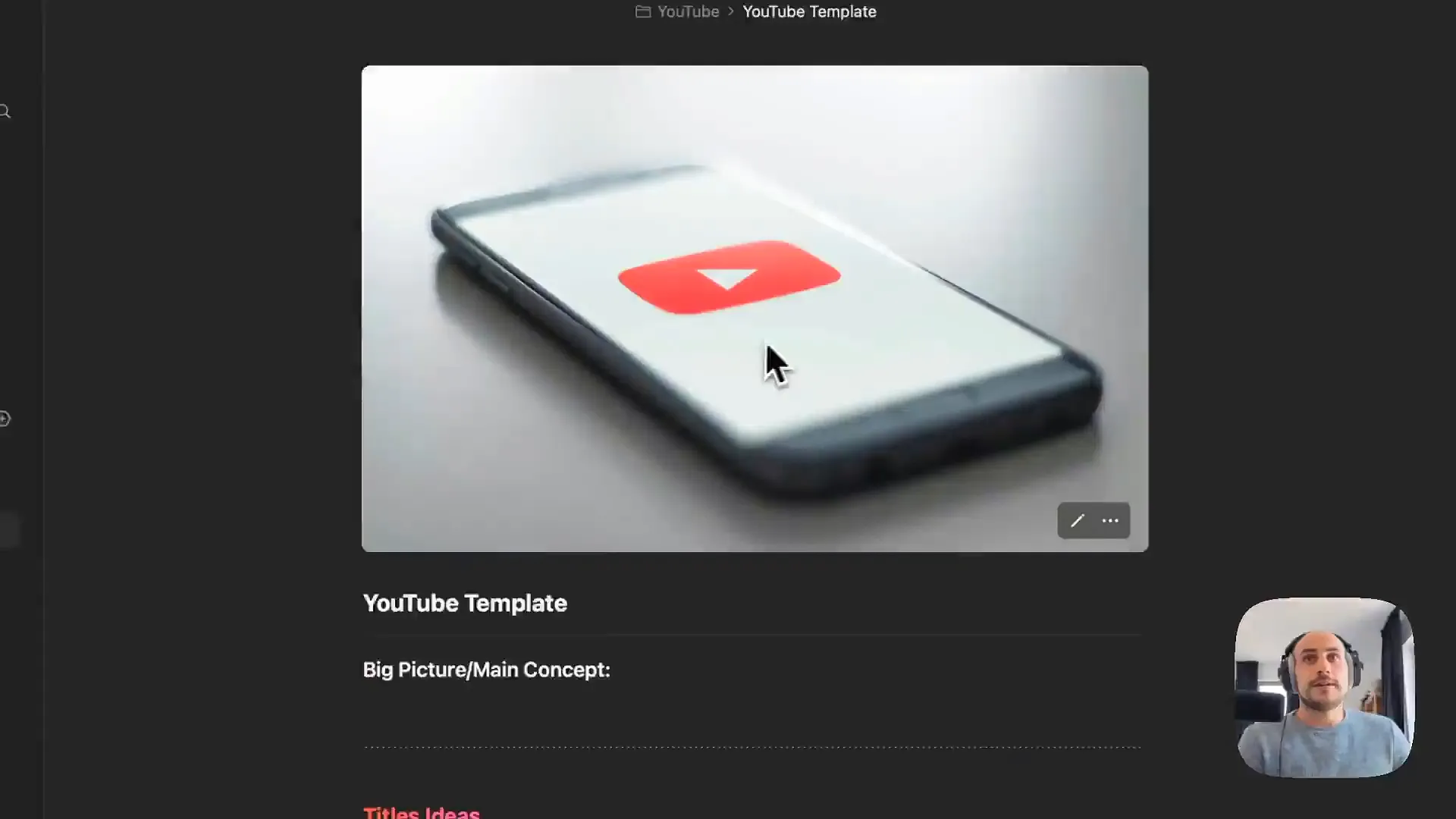
One of the hardest parts of any project is starting from a blank page. The latest updates lean heavily into structure. You can now build robust templates for repeated projects—like YouTube videos or client trackers—so you never miss a step.
Building a content tracker
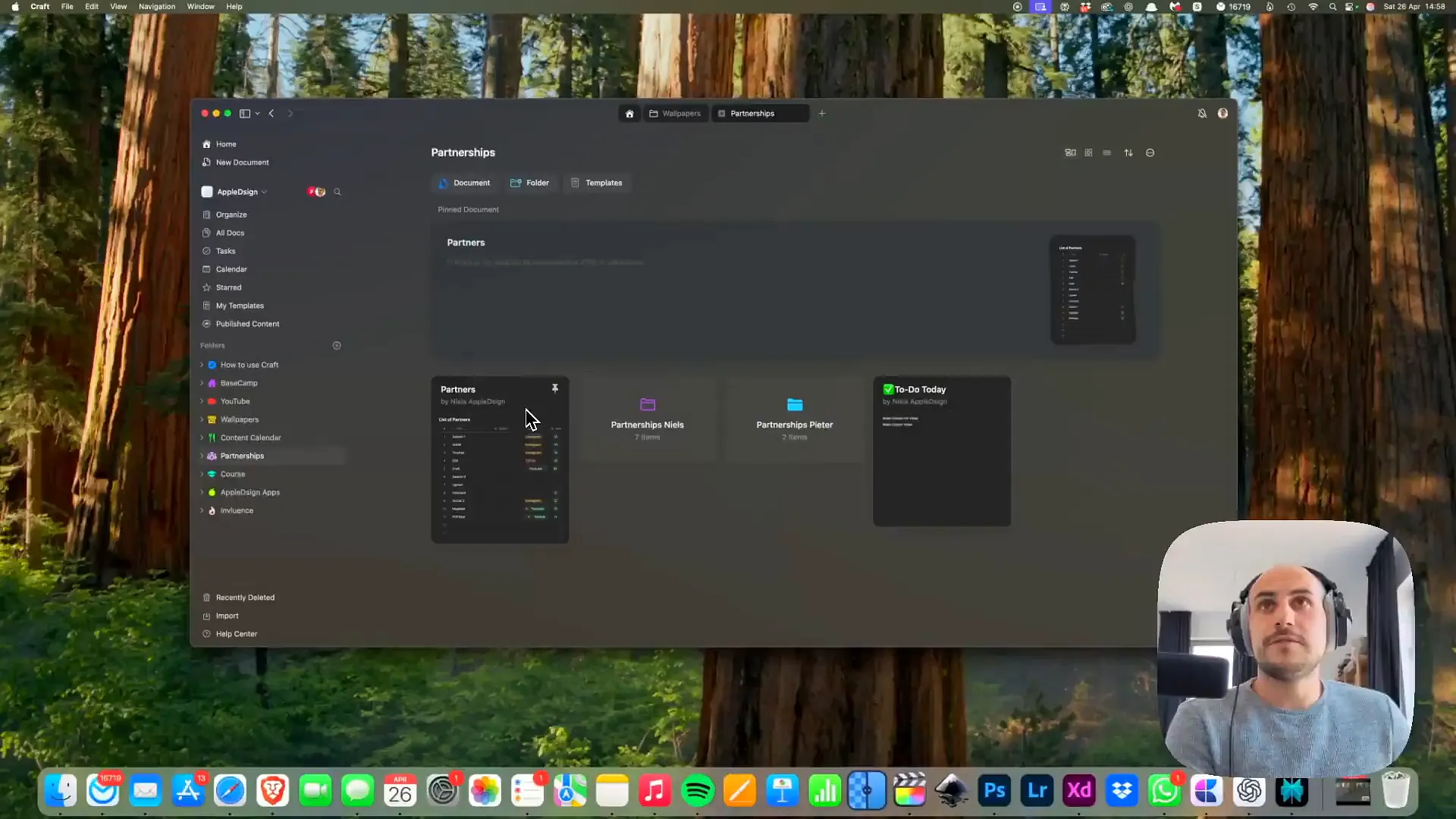
- Create a new folder for your project type, like YouTube or Partnerships.
- Inside a document, create a table. You can add columns for status, deadlines, and checkboxes.
- Use the new pre-filled elements. For example, you can set a 'Type' column to have dropdown options like Instagram, TikTok, or YouTube Long.
- Save this structure as a template so you can reuse it for every new partner or video.
Once set up, you can track milestones effortlessly. Mark a contract as signed, check off a video release, or track payment status all in one view.
AI that respects your privacy
AI assistants are everywhere, but Craft is doing something different. They've integrated AI that can run locally on your device. This means you can use it even when you're offline—perfect for when you're traveling or working without internet access.
It handles the heavy lifting of summarizing long notes or fixing grammar, all without your data leaving your machine if you choose the right model.
How to use the assistant
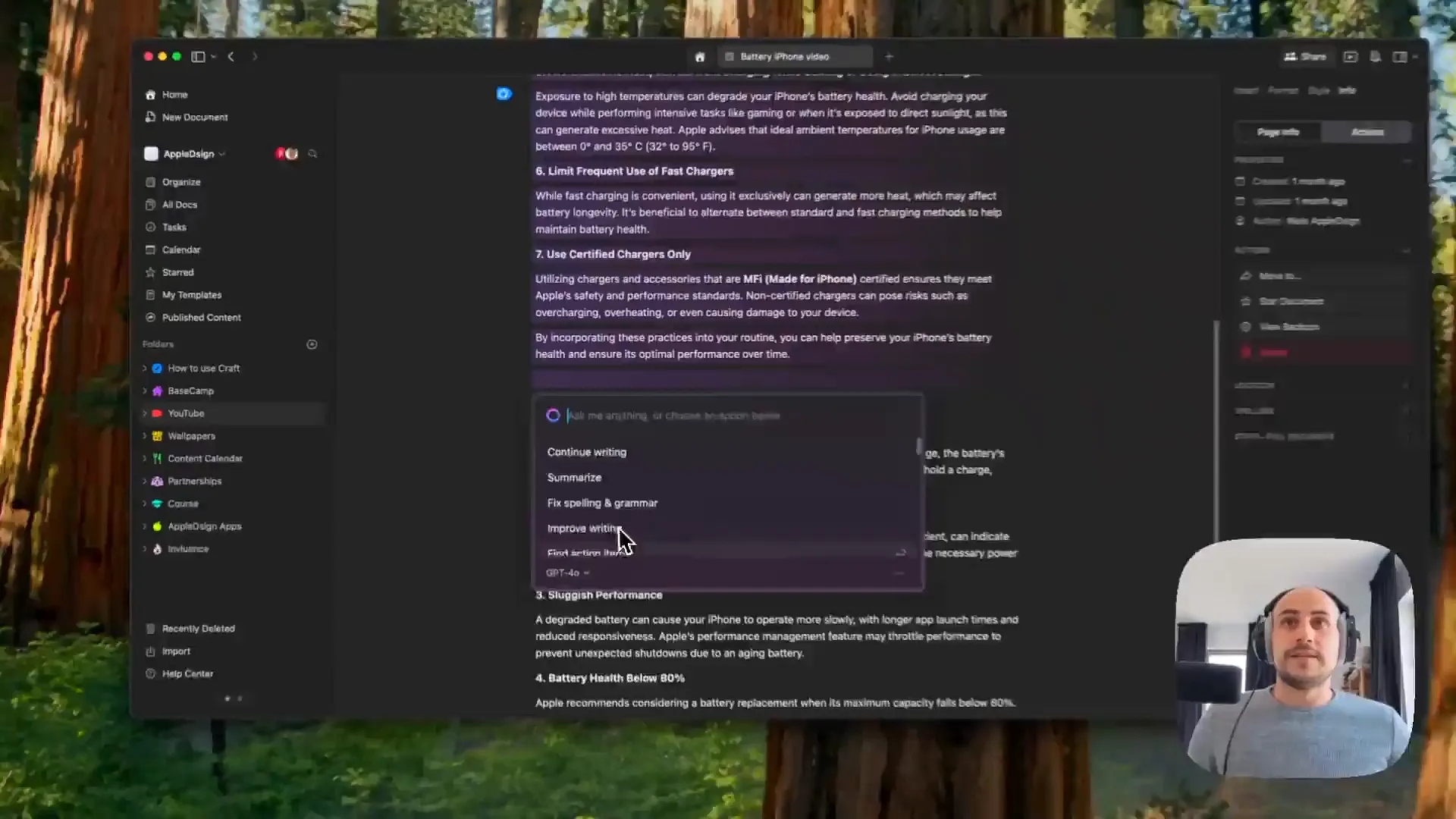
- Highlight a block of text you want to work with.
- Type / to open the command menu or click the Assistant icon.
- Select an action like Summarize, Fix spelling & grammar, or Improve writing.
- The Assistant will generate the result instantly. You can copy it or insert it directly into your doc.
Pro tip: Since this works locally for certain models, try using it to summarize sensitive meeting notes or brainstorming sessions where you want to ensure total privacy.
A unified view for your tasks
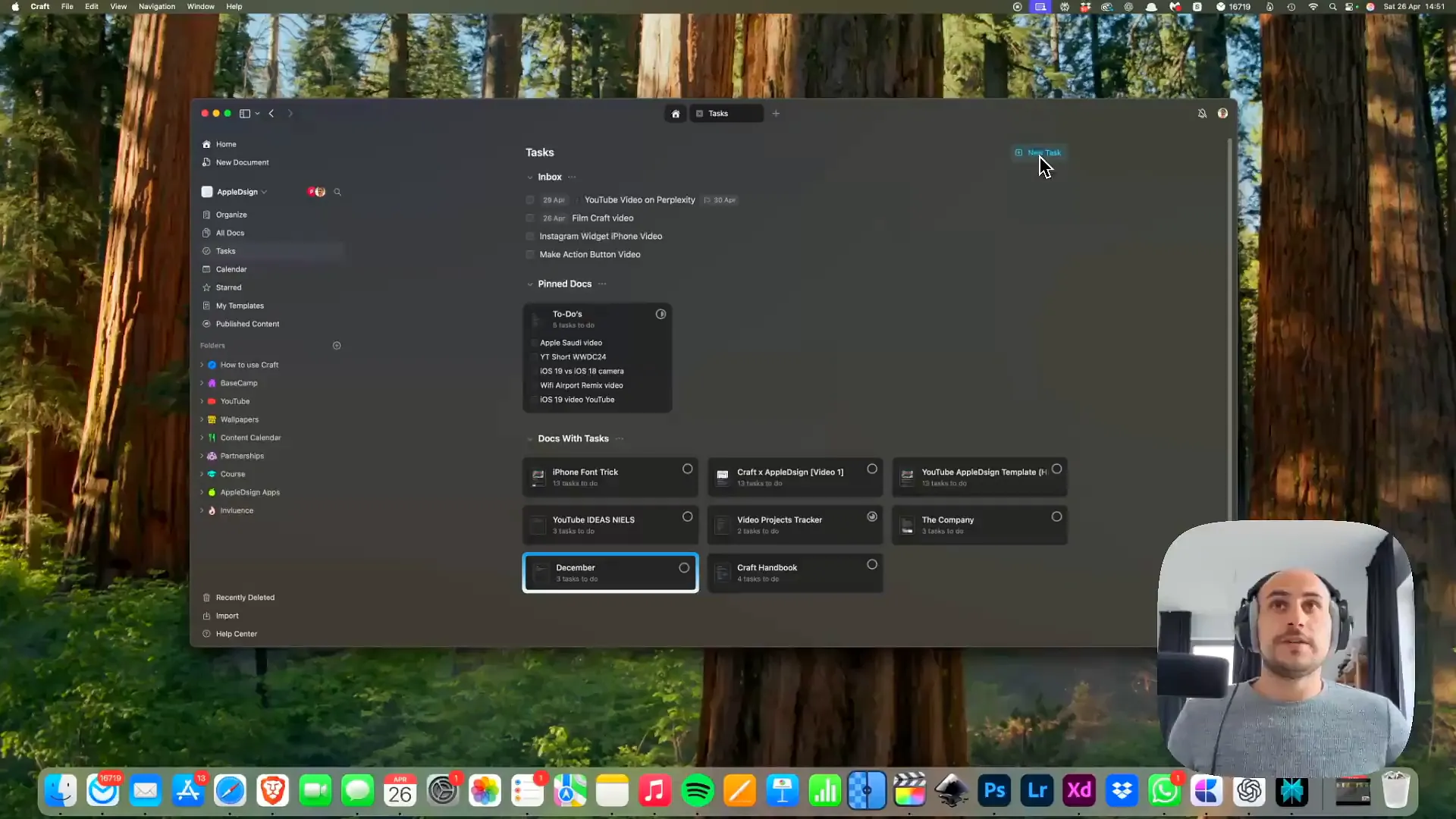
Previously, to-dos were scattered across different notes. Now, there's a dedicated Tasks system that aggregates everything. It's a massive quality-of-life improvement that turns Craft from a note-taking app into a project management tool.
Managing your day
- Click the Tasks tab in the sidebar to see an overview of everything on your plate.
- To add a new task, hit the New Task button or just type [] inside any document.
- You can assign due dates or organize them into specific lists like 'To-Do's' or 'The Company'.
- Check things off as you go. They update everywhere instantly.
Publish to the web
This is one of the coolest features for creators. You can take any document in Craft and turn it into a public webpage. It's perfect for sharing guides, portfolios, or exclusive content with your audience.
We actually used this to share a custom wallpaper. You can set custom URLs and even analytics to see who is viewing your content.
How to publish
- Open the document you want to share.
- Click the Share button in the top right corner and select Publish to the Web.
- Toggle Password if you want to restrict access to specific people (great for client work or exclusive follower content).
- Customize the URL to make it easy to remember.
- Hit publish. You can now track views and locations in the Analytics tab.
Pro tip: You can embed videos directly into these published pages. It makes for a great tutorial landing page that looks professionally designed without writing a line of code.
Worth mentioning
There are plenty of other nice touches in this update that help polish the experience:
- Nested pages allow you to link documents within documents for a Wiki-like structure.
- Massive library of styling templates to change the look of your docs instantly.
- Import tools for Notion and Readwise are much smoother now.
- You can view detailed version history to see who changed what and when.
Start building
That's a wrap on the major updates. Whether you're organizing a small personal project or running a whole team's content schedule, Craft has evolved into a tool that can handle it all.
The best way to get a feel for it is to jump in. Try setting up a Task list or publishing a quick page to the web. It's a fun tool to explore, and we think you'll find it boosts your productivity pretty quickly.
Last updated: Oct 14, 2026